
How to Fix "Indexing in Progress" on iOS 27: 8 Proven Solutions
Quick Summary:
Seeing "Indexing in Progress" on iOS 27 for hours or even days? This guide explains what it means and how to fix it.
- Why your iPhone gets stuck on "Indexing in Progress" after updating to iOS 27.
- Seven practical solutions to speed up indexing and resolve the issue.
- How to repair persistent iOS 27 indexing problems with iOS System Recovery.
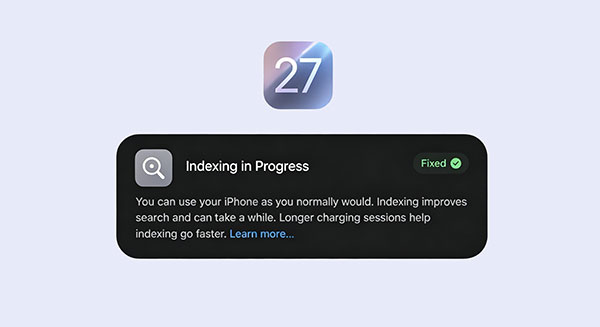
After updating to iOS 27, many users notice a message saying "Indexing in Progress" on their iPhone. In most cases, this is a normal process that allows Spotlight Search, Photos, Messages, Siri, and other system features to organize data for faster access. However, if the indexing process takes unusually long or causes battery drain, overheating, or sluggish performance, it may indicate an underlying issue. In this guide, we'll explain what "Indexing in Progress" means on iOS 27, why it happens, and how to fix it effectively.
Part 1: Why Is iOS 27 Stuck on "Indexing in Progress"?
After updating to iOS 27, your iPhone starts indexing photos, messages, apps, and other content to improve Spotlight Search and Siri. While this process is usually completed automatically, it may sometimes take much longer than expected. Here are the most common reasons:
- A Large Amount of Data Needs Processing: If your iPhone stores a large number of photos, videos, messages, or files, indexing may take longer to complete.
- iCloud Content Is Still Syncing: When data is being downloaded from iCloud, your iPhone may continue indexing until the sync process finishes.
- New Search and AI Features: Enhanced search and intelligence features may require additional background analysis, extending indexing time.
- Not Enough Free Storage: Low iPhone storage space can slow down indexing and prevent it from finishing properly.
- Software Issues After Updating: A temporary iOS 27 bug may interfere with Spotlight or other services, causing indexing delays.
- Incomplete Data Transfer: If you recently restored a backup or transferred data to a new iPhone, indexing may take longer than usual.
- Unstable Wi-Fi or Charging Conditions: Indexing works best when your iPhone is connected to Wi-Fi and power. Interruptions can slow the process down.
Part 2: 9 Ways to Fix "Indexing in Progress" on iOS 27
In most cases, the "Indexing in Progress" message disappears automatically after your iPhone finishes organizing data. However, if the process takes too long or affects normal usage, you can try the following solutions to speed it up and fix possible system issues.
Method 1: Wait for Indexing to Finish
Indexing may take several hours, especially after an iOS update (iPhone Update Stuck?) or when your iPhone contains lots of photos, videos, and messages. Keep your device connected to Wi-Fi and charging, then allow iOS to complete the process in the background.
Method 2: Restart Your iPhone
A simple restart can refresh system services and fix temporary glitches that may prevent indexing from completing.
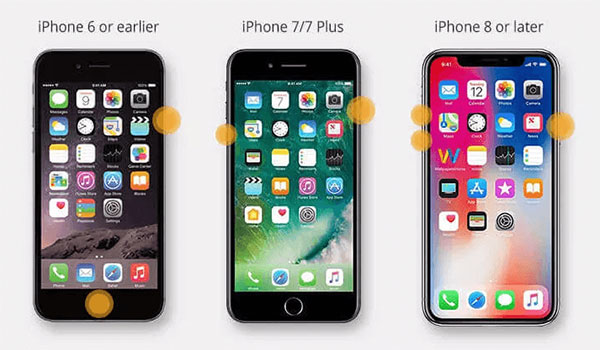
- Press and hold the Side button and either Volume button.
- Drag the power-off slider to turn off your iPhone.
- Wait a few seconds, then turn it back on.
Method 3: Check Available Storage
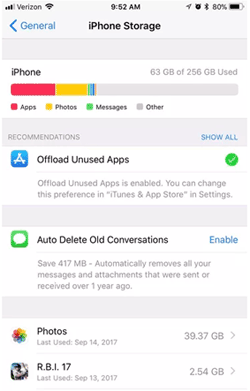
Your iPhone needs enough free space to create and update search indexes. To check storage:
- Open "Settings" and tap "General".
- Select "iPhone Storage".
- Remove unnecessary apps, photos, or files if your storage is almost full.
Method 4: Connect to Stable Wi-Fi and Power
Indexing works more efficiently when your iPhone has a reliable internet connection and enough battery. Connect your device to Wi-Fi and plug it into a charger, especially overnight.
Method 5: Disable and Re-enable Siri & Search
Refreshing Siri & Search settings may help rebuild the search index.
- Open "Settings" and tap "Siri & Search".
- Select apps that are affected.
- Turn off search options and enable them again after a few seconds.
Method 6: Turn Off and Turn On iCloud Sync
If iCloud data syncing is interrupting indexing (iCloud Sync Stuck?), restarting iCloud synchronization may help.
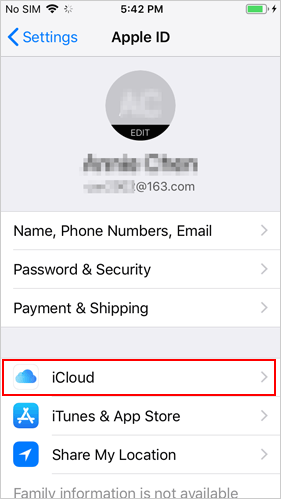
- Go to "Settings" and tap your Apple ID.
- Choose "iCloud".
- Turn off the related sync option, wait briefly, and turn it back on.
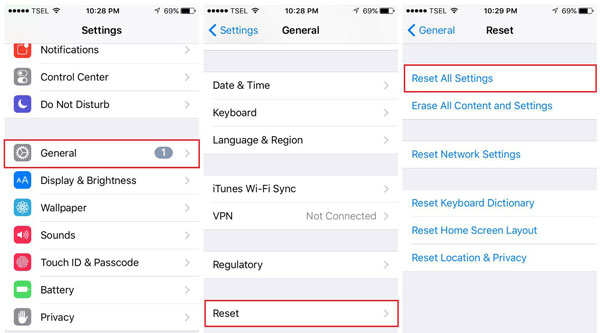
Method 7: Reset All Settings
Resetting all settings can fix system configuration problems without deleting your personal data.
- Open "Settings" > "General".
- Tap "Transfer or Reset iPhone".
- Select "Reset" and choose "Reset All Settings".
Part 3: Fix iOS 27 Indexing Issues with iOS System Recovery
If the basic solutions above fail to fix the "Indexing in Progress" issue on iOS 27, the problem may be related to deeper iOS system errors. In this case, iOS System Recovery provides a simple and effective way to repair common iPhone system problems without deleting your data. It can fix various iOS issues and support the latest iOS versions on both Windows and Mac computers. It is a reliable choice for resolving persistent indexing problems.
Main Features of iOS System Recovery:
- Fix various iOS system issues such as "Indexing in Progress," stuck Apple logo, recovery mode errors, boot loops, and system lag.
- The Standard Mode allows you to fix system problems while keeping your existing data safe.
- Easily update to the latest iOS version or downgrade iOS as needed.
- Work smoothly with the newest iOS updates and a wide range of iPhone models.
- Complete the repair process with only a few clicks, even without advanced technical knowledge.


How to Fix iOS 27 "Indexing in Progress" with iOS System Recovery:
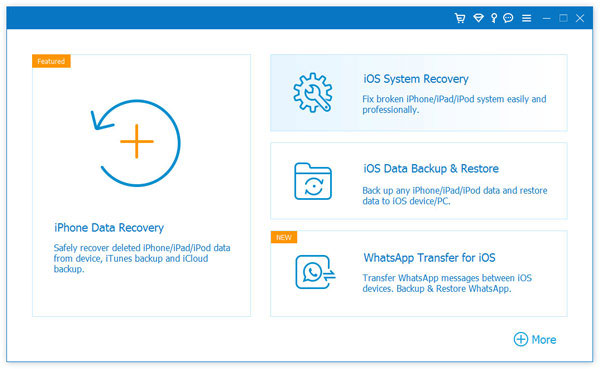
Step 1. Download and install iOS System Recovery on your computer. Open the program and select "More Tools" > "iOS System Recovery" from the interface.
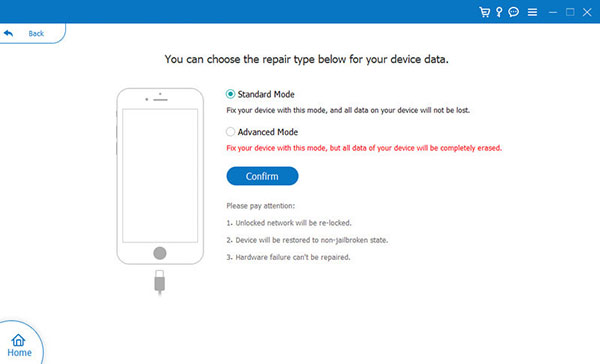
Step 2. Connect your iPhone to the computer using a USB cable. After the device is detected, choose "Standard Mode" and click "Start" to continue.
Step 3. The program will automatically identify your iPhone model and provide the appropriate firmware. Click "Download" to get the required firmware package.
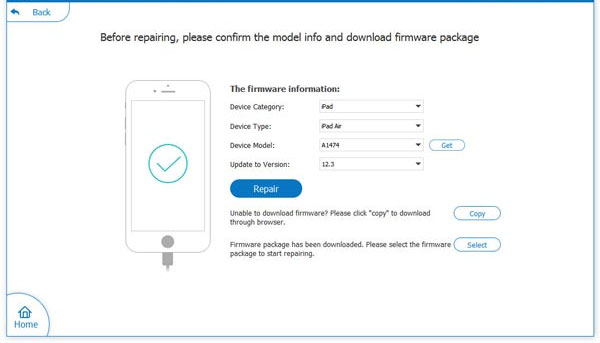
Step 4. After the firmware download is complete, click "Repair" to begin the repair process. Keep your iPhone connected until the process finishes.
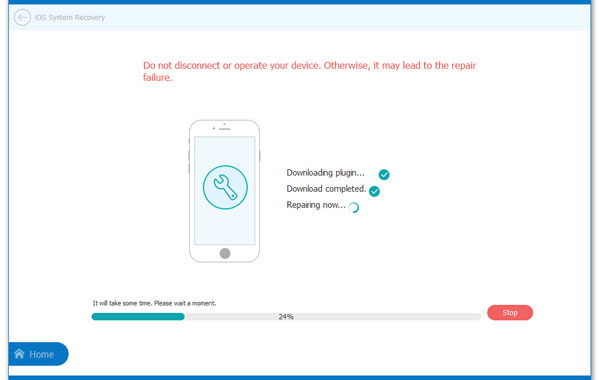
Once the repair is completed, your iPhone will restart automatically. Check whether the "Indexing in Progress" issue on iOS 27 has been resolved.
Words in the End
In most cases, the "Indexing in Progress" message on iOS 27 is temporary and will disappear once your iPhone finishes processing data. If it persists for an unusually long time, try the troubleshooting methods above to speed up the process. For stubborn cases caused by system issues, iOS System Recovery offers a reliable way to repair iOS and restore your iPhone to normal performance.
Related Articles:
5 Ways on How to Reset iPhone without Losing Data
8 Ways to Fix iCloud Notes Not Syncing on iPhone/iPad/Mac
iPhone Keeps Restarting after iOS 18/26/27 Update [Fixed 2026]
