
How to Manage iPhone on PC without iTunes: 3 Easy Ways
TL;DR:
You can manage iPhone data on a PC without iTunes using MobiKin Assistant for iOS, File Explorer, or iCloud, depending on your needs.
- MobiKin Assistant for iOS: Connect your iPhone via USB, choose a data category, preview items, then transfer, edit, delete, or back up and restore data; use "Super Toolkit" > "iTunes Backup & Restore" > "Backup" > "Restore" for PC backup and restore.
- File Explorer: Connect and trust the iPhone, then open "This PC" > iPhone > "Internal Storage" > "DCIM" to copy photos and videos.
- iCloud: Sign in to iCloud.com with your Apple Account, open "Photos", "Contacts", "Notes", or "iCloud Drive", and manage synced data online.
Managing iPhone data on a Windows PC doesn't have to mean using iTunes. Whether you want to transfer photos, organize contacts, access files, or work with iCloud data, there are several ways to do it. The right method depends on what you want to manage and whether the data is stored locally on your iPhone or synced to iCloud. In this guide, we'll walk through three practical options, including a dedicated iPhone manager, Windows File Explorer, and iCloud, so you can choose the one that fits your needs.
Part 1: Manage iPhone on PC without iTunes Using MobiKin Assistant for iOS
Supported data categories: Photos, Music, Videos, Contacts, Messages, Calendars, Notes, Books, Safari Bookmarks, Apps, etc.
MobiKin Assistant for iOS lets you manage iPhone data directly from a Windows PC without relying on iTunes. After connecting your iPhone via USB, you can browse different data categories, preview files, transfer selected items, and back up or restore your data from one place.
Main Features of MobiKin Assistant for iOS:
- Preview iPhone data on computer before managing it.
- Transfer selected files between iPhone and PC.
- Manage multiple types of iPhone data, including contacts, SMS, photos, videos, notes, etc.
- Add, edit, or delete supported iPhone data directly.
- Back up iPhone data to your PC and restore data from backup without iTunes.


How to manage iPhone data on PC without iTunes:
Step 1: Download and install MobiKin Assistant for iOS on your PC. Connect your iPhone to the computer with a USB cable and tap "Trust" on the iPhone if prompted.
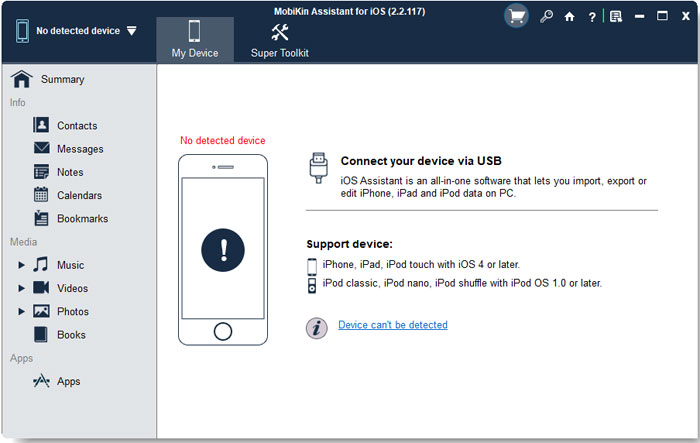
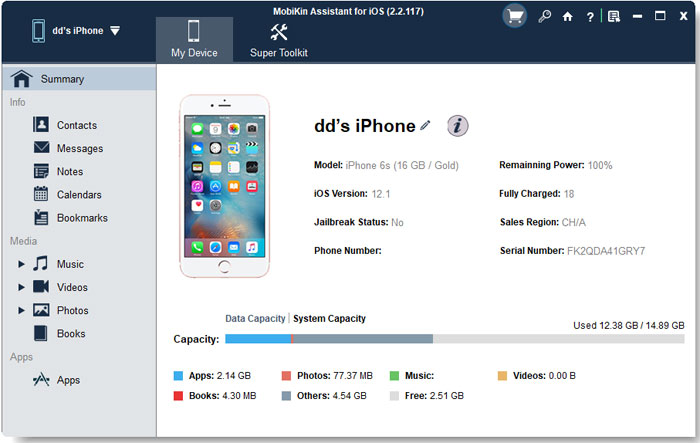
Step 2: Launch the program and wait for it to detect your iPhone. Once connected, you can see the device information and available data categories on the main interface.
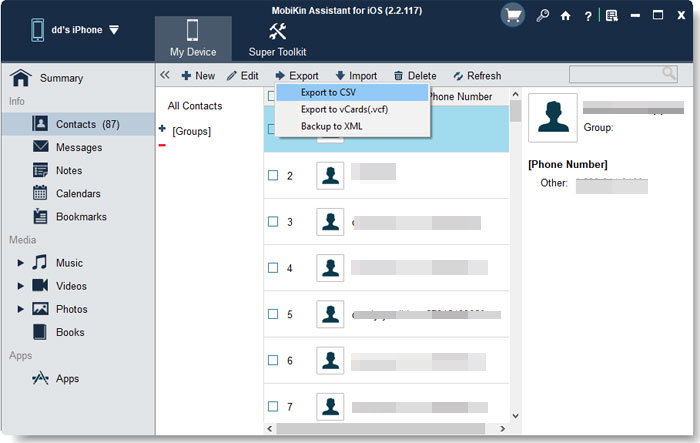
Step 3: Select a category, such as "Contacts", "Photos", "Music", or "Messages", from the left panel to browse the corresponding iPhone data. Select the files or items you want to manage. You can preview them and use the available options to add, edit, delete, export, or transfer data, depending on the category.
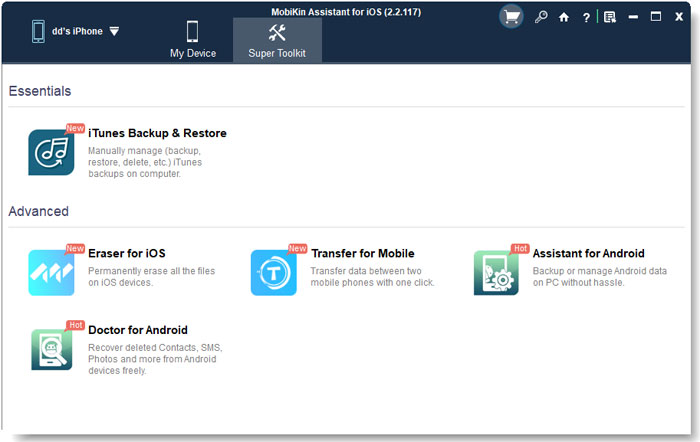
Step 4: To manage your iPhone backup, open "Super Toolkit" and choose "iTunes Backup & Restore". Select "Backup" to save your iPhone data to the PC without using iTunes, and click "Restore" to restore selected data from an existing backup.
Video Guide:
Part 2: Access iPhone Files on PC without iTunes Using File Explorer
Supported data categories: Photos and Videos.
File Explorer provides a simple way to access photos and videos stored on your iPhone from a Windows PC without installing iTunes. However, it mainly works with media files in the iPhone's DCIM folder, so you cannot use it to browse or manage data such as messages, contacts, notes, or music.
How to access iPhone files on PC using File Explorer:
- Connect your iPhone to the PC with a USB cable and unlock your iPhone. If prompted, tap "Trust" or "Allow" to give the computer access.
- Open File Explorer on your PC and click "This PC" in the left sidebar.
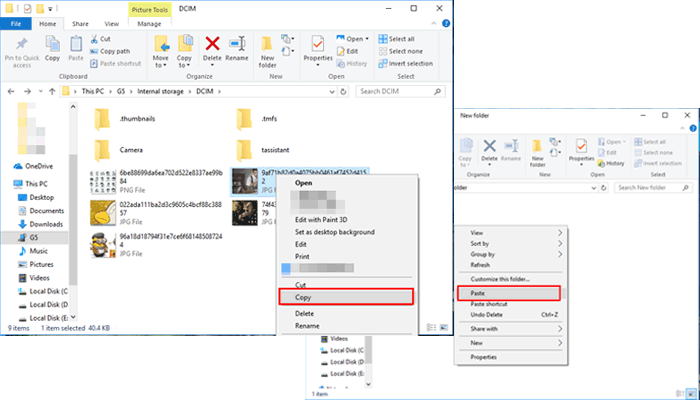
- Find and open your iPhone under "Devices and drives", then go to "Internal Storage" > "DCIM".
- Open the available folders to browse your iPhone photos and videos. (iPhone Photos Not Showing up on PC?)
- Select the files you need and copy or drag them to a folder on your PC.
Part 3: Manage iPhone Data on PC without iTunes via iCloud
Supported data categories: Photos, Contacts, Calendars, Notes, Reminders, iCloud Drive files, Mail, and Safari Bookmarks.
iCloud lets you access and manage data that has been synced from your iPhone to your iCloud account on a PC. It works through a web browser, so you don't need iTunes or a USB cable. However, you can only access data that is supported by and already synced with iCloud.
How to manage iPhone data on PC via iCloud:
- Open a web browser on your PC and visit iCloud.com. Sign in with the same Apple Account used on your iPhone.
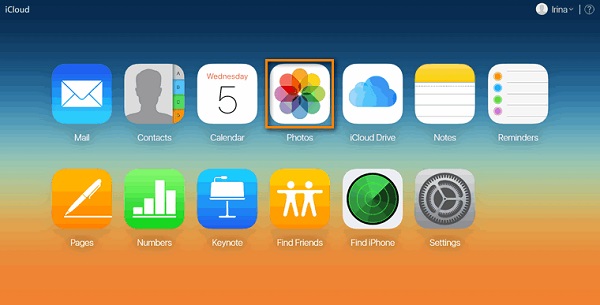
- After signing in, open the app or data category you want to manage, such as "Photos", "Contacts", "Notes", or "iCloud Drive".
- Browse the available data and select the items you want to manage.
- Use the available options to download, upload, edit, organize, or delete the selected data, depending on the category.
- When finished, make sure your changes have synced before closing the browser.
Words in the End
You don't need iTunes to manage iPhone data on a PC. MobiKin Assistant for iOS offers the broadest range of data management options, while File Explorer is handy for quickly copying photos and videos. If your data is already synced with iCloud, you can also manage it through iCloud.com. Choose the method based on the type of data you need to access or manage.
Related Articles:
Fixed: How to Transfer Files from iPhone to PC via Bluetooth
4 Flexible Ways to Connect iPhone to PC [With/Without USB]
