
Forgot iPad Passcode? 5 Ways to Unlock iPad without Password/Passcode
TL;DR:
You can unlock a locked iPad using an unlocking tool, Recovery Mode, iTunes, Find My, or the "Erase iPad" option, but most methods erase your data.
- iOS Unlock: Connect your iPad to a computer and follow the tool's instructions to remove the screen lock.
- Recovery Mode: Connect your iPad to a computer, enter Recovery Mode, and select "Restore" in Finder or Apple Devices.
- iTunes: Connect your iPad to a Windows PC or older Mac, then restore it through iTunes.
- Find My: Visit iCloud.com/find, select your iPad, and choose "Erase This Device".
- Erase iPad: Tap "Erase iPad" on the lock screen when available and follow the prompts.
Back up your data beforehand if possible. Activation Lock may still require your Apple Account.
Forgetting your iPad passcode can be frustrating, especially when repeated failed attempts leave your device disabled. Whether you want to unlock an iPad without a password or regain access without losing your data, the right solution depends on your device and its current settings. In this guide, we'll walk you through five ways to unlock a locked iPad, including a third-party unlocking tool and Apple's built-in recovery options. Keep in mind that most methods erase your iPad, so check for an available backup before you get started.
- Way 1: Unlock iPad without Password via iOS Unlock
- Way 2: Get into a Locked iPad without Password Using Recovery Mode
- Way 3: Unlock a Locked iPad without Passcode via iTunes
- Way 4: Unlock iPad without Password via Find My
- Way 5: Get into a Locked iPad without Passcode via Erase iPad Option
- FAQs about Unlocking an iPad without a Password
Way 1: How to Unlock iPad without Password via iOS Unlock
Forgot your iPad passcode and can't get past the lock screen? If you're looking for a simple solution to unlock your iPad passcode without restore, iOS Unlock is worth considering, even if you're not particularly tech-savvy. This tool is designed to help remove various iOS restrictions, including screen locks, iCloud account locks, iCloud Activation Lock, Screen Time passcodes, and MDM management.
Notice:
- This utility can unlock Apple ID on all iDevices. But it may delete your iPad data as well after the unlock.
- The one-click Apple ID removal feature applies to iDevices with iOS 14.2 or earlier.
Why choose iOS Unlock?
- Unlock iPad without password/passcode within simple clicks.
- Bypass 4-digit/6-digit password, Touch ID, and Face ID in no time.
- Remove Apple ID without phone number.
- Simple interface, easy to handle, and high success rate.
- Run smoothly on practically all iOS devices, including iPad 11/10/9/8, iPad Pro, iPad Air, iPad 4, the new iPad, iPad mini, etc., and all generations of iPhone.
- It won't reveal your privacy.


How do I unlock my iPad with iOS Unlock?
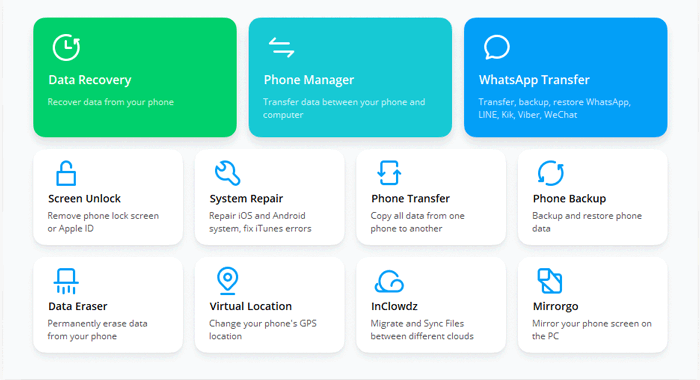
Step 1. Install and open iOS Unlock on your computer. Then choose "Screen Unlock" from its initial interface.
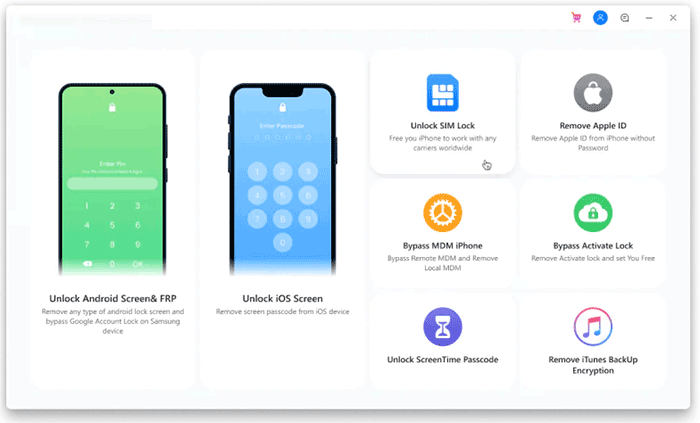
Step 2. Connect your iPad to the computer through a USB cable and go for the "Unlock iOS Screen" section from the incoming page.
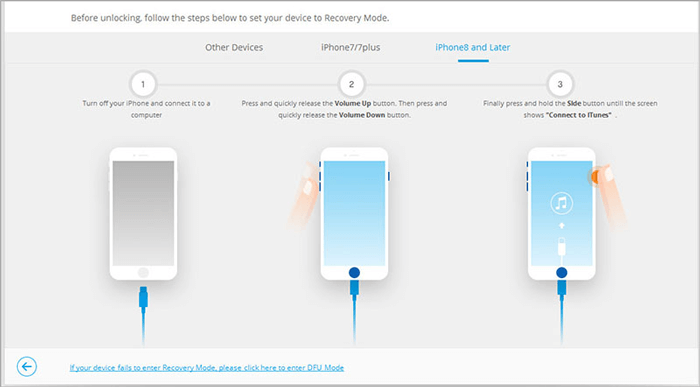
Step 3. Follow the clear directions on the screen to put your iPad into recovery mode using the key combinations.
Step 4. After getting into this mode, this tool will identify your device, and please confirm your iPad info here. After that, click "Download" to download the firmware package to remove the passcode.
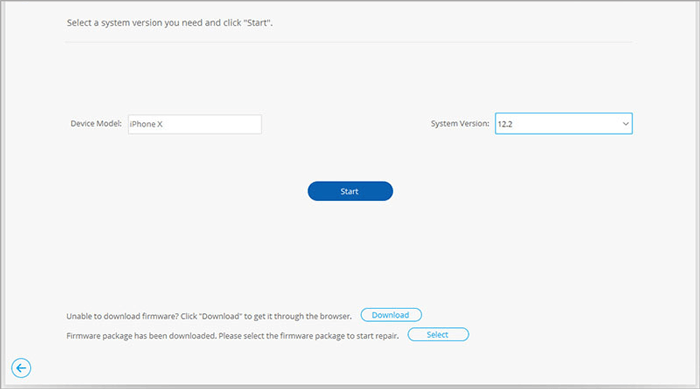
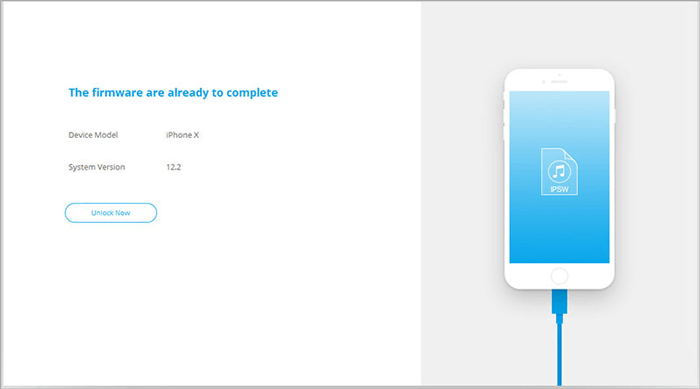
Step 5. When the firmware has been downloaded, you should click "Unlock Now" to bypass the screen lock on this iPad.
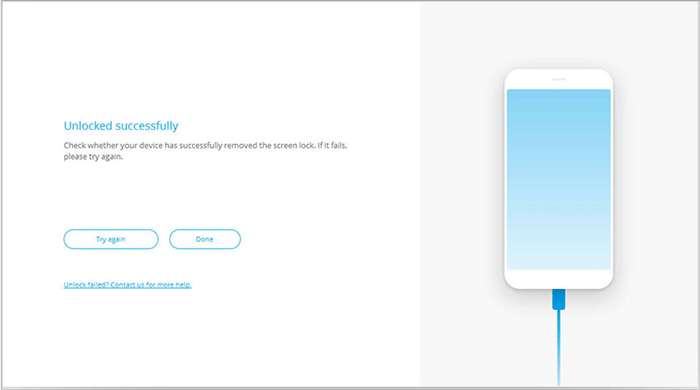
Step 6. After a few minutes, your iPad lock screen passcode will be removed successfully.
Click to Learn:
Way 2: How to Get into a Locked iPad without Password Using Recovery Mode
Apart from iOS Unlock, putting the iPad into recovery mode could be one of the most effective solutions to get into a locked iPad. To get into this mode, you need to follow the steps below to connect your iPad to your computer in due time.
How to reset iPad without password in Recovery Mode?
- For an iPad that has Face ID: press and hold the Top button and either volume key until the power off slider appears. Drag the slider to power off your iPad. Subsequently, connect your iPad to a computer while holding the Top button and keep holding the Top key until you get the recovery mode screen.
- For an iPad that has a Home button: press and hold the Top button until the power off slider turns up. Then drag the slider to turn off your iPad and connect your iPad to a computer while holding the Home button. After that, keep holding the Home button until you reach the recovery mode screen. (iPhone/iPad Recovery Mode Does Not Work?)
- Launch iTunes on your PC or Mac computer.
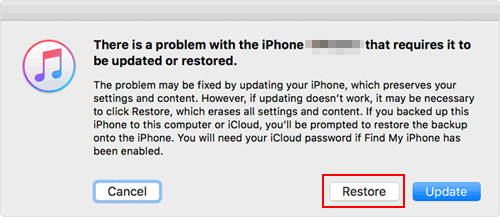
- You'll see a dialog box saying there was a problem with your iPad.
- Click "Restore".
Way 3: How to Unlock a Locked iPad without Passcode via iTunes
"I forgot my iPad password but ran a backup of the device via iTunes"; can I unlock the iPad by restoring it from the iTunes backup file? Well, it's easy to get into a locked iPad in this way. But after the restore, all your current items on the device will be overwritten by the backup file.
How to reset iPad when locked out via iTunes?
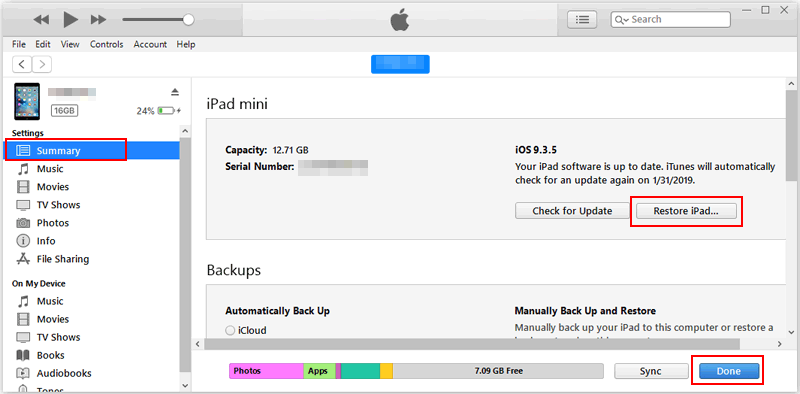
- Run the latest version of iTunes on your Windows or Mac and connect your iPad to it via a USB cable.
- As soon as iTunes detects your iPad, please select it from the device's section.
- Go to its "Summary".
- From the right panel, click the "Restore iPad" option.
- Confirm your operation and wait until your iPad is restored.
- Tap "Done".
Read Also:
Way 4: How to Unlock iPad without Password via Find My
If you don't have iTunes installed on your computer, you can use Find My to erase your locked iPad remotely. This method works if Find My was enabled before you lost access to the device. Keep in mind that erasing your iPad deletes its local data, and Activation Lock may still require your Apple Account credentials afterward.
How to unlock a locked iPad using Find My?
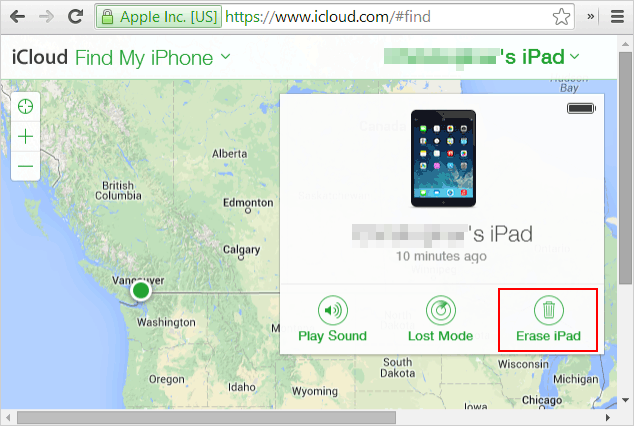
- Open a browser on another phone or computer and visit iCloud.com/find.
- Sign in with the Apple Account linked to your locked iPad.
- Open "All Devices" and select the iPad you want to unlock.
- Choose "Erase This Device" or the corresponding erase option shown on the screen.
- Follow the on-screen instructions to confirm the action.
- Once the erasure is complete, set up your iPad again and restore your data from a backup if one is available.
If your iPad is offline, the erase request may remain pending until the device reconnects to the internet. After the reset, you may also need to enter the Apple Account credentials previously associated with the iPad to complete activation.
Way 5: Get into a Locked iPad without Passcode via the Erase iPad Option
If your iPad runs iPadOS 15.2 or later, you may be able to reset it directly from the lock screen using the "Erase iPad" feature, without a computer. This option removes the forgotten passcode by wiping the device and restoring it to factory settings. Before getting started, make sure you meet these requirements:
- Your iPad is running iPadOS 15.2 or a later version.
- You have signed in to the device with your Apple Account.
- You know the password for your Apple Account.
- Your iPad has an active internet connection.
- Find My was enabled on the device before it was locked.
Once everything is ready, follow these steps to reset your iPad:
- Enter an incorrect passcode repeatedly until the "Erase iPad" option appears.
- Tap "Erase iPad" at the bottom of the lock screen to begin the reset process.
- Follow the on-screen instructions and enter your Apple Account password when prompted to confirm the erasure.
- Wait for the process to finish. Your iPad will restart, allowing you to set it up again and create a new passcode.

Note: The "Erase iPad" option is not supported in every situation. If it doesn't appear after several incorrect passcode attempts, your iPad model, software version, or device settings may not meet the requirements for this feature. (iPad won't unlock?)
FAQs about Unlocking an iPad without a Password
Q1: How do I unlock a disabled iPad without a computer?
If your iPad displays a "Forgot Passcode?" or "Erase iPad" option, you may be able to erase and reset it directly from the lock screen, provided your device supports this feature and meets the requirements. Alternatively, you can use Find My on another device to erase your iPad remotely if the necessary settings are enabled.
Q2: Will I lose my data if I unlock my iPad without a password?
In most cases, yes. Restoring your iPad through Recovery Mode, Find My, or the lock-screen reset option erases its local data and settings. You can recover your information afterward if you have an iCloud or computer backup. If you recently changed your passcode and your iPad supports the previous-passcode feature, you may be able to regain access without erasing your data.
Q3: Can I unlock my iPad using iTunes?
Yes. You can use iTunes on a Windows PC or an older Mac to restore an iPad that you cannot unlock. Put the iPad into Recovery Mode, connect it to your computer, and select the restore option when prompted. On newer Macs, use Finder instead. This process erases the device, and Activation Lock may still require your Apple Account credentials.
Q4: Can Siri unlock my iPad without a passcode?
No. Siri cannot reliably bypass the lock screen on current iPadOS versions. Some older tutorials describe security vulnerabilities that were addressed in later updates, so these methods are generally outdated and should not be relied on to unlock a locked iPad.
Q5: What should I do if I forgot my iPad passcode and don't know my Apple Account password?
First, try to recover your Apple Account password through Apple's official account recovery process. You can also erase your iPad using Recovery Mode, but if Activation Lock is enabled, you will still need the Apple Account associated with the device or assistance from Apple with valid proof of purchase. Erasing the iPad does not remove Activation Lock.
Verdict
Forgetting your iPad passcode doesn't mean you have to give up on your device. You can try an unlocking tool, Recovery Mode, iTunes, Find My, or the "Erase iPad" option, depending on your situation. Since most of these methods wipe your data, make sure you have a backup before proceeding whenever possible. After resetting your iPad, restore your files from a backup and download your previously purchased apps again using the same Apple Account.
Related Articles:
Ultimate Guide to Reset Restrictions Passcode on iPhone
Top 6 Methods to Unlock iPhone When Screen is Broken
How to Reset iPad without Password? (4 Ways Available)
iPad White Screen Troubleshooting: How to Fix iPad White Screen of Death?
