
Fix Not Receiving Verification Code Texts on Android in 12 Ways
Verification codes are essential for signing in, registering accounts, or performing secure actions, and failing to receive them can block access to important apps and services. (Can I see the blocked SMS?) Many Android users encounter the issue of not receiving verification code texts on Android, which can be caused by network problems, carrier restrictions, incorrect number input, or system glitches.
This post allows you to understand the reasons behind this problem and the easy fixes to this issue.
Part 1: Why Am I Not Getting SMS Verification Code on Android
Sometimes, Android users may find that verification codes sent via SMS never arrive, leaving them unable to access apps or services. This issue can happen for a variety of technical, carrier, or account-related reasons. Below is a list of the most common causes that can prevent SMS verification codes from being received.
- Incorrect phone number or country/region code.
- Unsupported number type (landline, VoIP, temporary/virtual, or some prepaid plans)
- Poor mobile signal, unstable network, or carrier restrictions.
- SMS filtering or blocking by system, carrier, or third-party apps.
- Temporary service restrictions due to repeated attempts.
- Bugs or issues in the messaging app, outdated software, or disabled background services.
- Service doesn't support SMS verification in your country.
- Carrier-level blocking of short-code messages.
- Account-specific restrictions for suspicious activity or policy violations.
Some May Also Need: How to Unsend/Recall Text Messages on Android Phone? Unlock the 7 Solutions
Part 2: Not Receiving Verification Code Texts Android? 5 Cases & Fixes
Case 1: "Verification code failed to send. Please try again."
Fixes:
- Check your network - Switch between Wi-Fi and mobile data for a stable connection.
- Verify your phone number - Make sure the number and country code are correct.
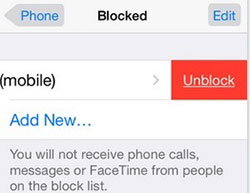
- Turn off SMS blocking - Disable spam filters or message blockers.
- Use voice verification - Choose the phone call option if available.
Case 2: "Invalid phone number"
Fixes:
- Use a valid mobile number - Landlines, VoIP, or unsupported numbers won't work.
- Select the correct country/region code before entering your number.
- Remove any text-replacement shortcuts that might alter the number input.
Case 3: "Unable to send verification SMS at this time."
Fixes:
- Check network - Ensure a stable mobile signal or Wi-Fi and retry.
- Restart phone - Reboot to clear temporary system/SMS service issues.
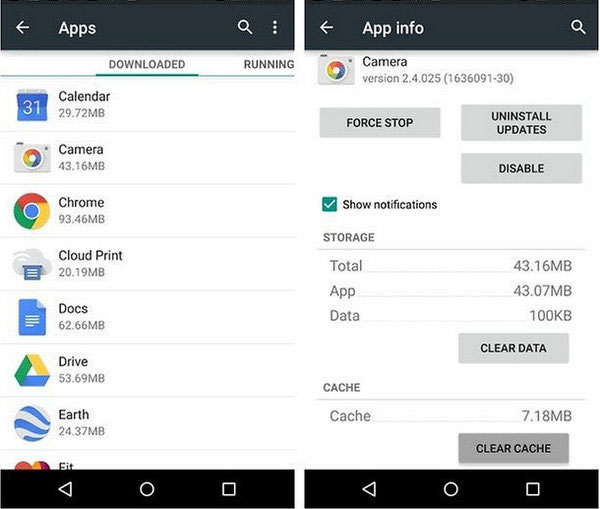
- Clear messaging app cache - Go to Settings > Apps > Messages > Storage > Clear cache.
- Disable data saver/battery optimizations - Turn off restrictions that block background messaging.
- Try voice call option - If available, choose the voice call to receive the code instead of SMS.
Case 4: "Please wait XX day(s) then try again" or "Please try again later"
Fixes:
- Wait for the cooldown - You must wait the number of days shown before retrying.
- Avoid repeated resend attempts - Don't tap "Resend code" repeatedly.
- Stop suspicious activity - Stop actions that violate terms and wait for the restriction to expire.
Case 5: "Sorry, text message verification isn't available in your country"
Fixes:
- Use a supported number - Only numbers from supported countries (e.g., Japan, Korea, Thailand) can receive SMS.
- Try voice call verification - Choose "Call me instead" if available.
- Use another method - Verify via email or linked account if the app allows.
Part 3: 6 Other Fixes to Verification Code Not Coming in Messages [No Error Messages]
Apart from the common solutions we've already covered, there are still several other ways to resolve issues with not receiving verification codes on Android. Here are at least 7 additional methods you can try to ensure the code arrives successfully:
- Check SMS service center number - Ensure your carrier's SMSC is correct in your messaging settings.
- Remove SIM card and reinsert - Reseat the SIM to fix connection issues.
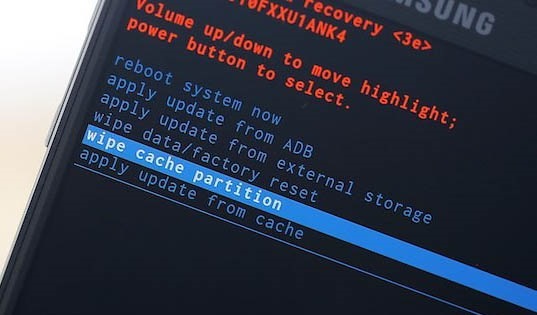
- Clear system cache (Android system) - Go to Recovery Mode > Wipe Cache Partition.
- Switch SIM slots (if dual SIM) - Some devices only allow SMS on the primary slot.
- Temporarily disable VPN or proxy - Some VPNs interfere with SMS delivery.
- Contact your carrier - Ask if SMS from short codes or verification services is blocked.
Part 4: Ultimate Way to Fix Not Receiving Verification Code Texts on Android
When your Android device experiences issues like black screens, boot loops, or apps crashing, Android Repair provides a fast and reliable solution to restore system stability. It can also resolve problems such as not receiving verification code texts, ensuring messaging works smoothly again. Compatible with most mainstream Android devices and major carriers, it repairs your phone efficiently while keeping your personal data safe.
|
Android Repair - Main Feature
|
Description
|
|
Fix Various Android Issues |
Resolves problems like black screen, Play Store errors, phone not turning on/off, app crashes, OTA update failures, boot loops, UI malfunctions, and bricked devices. |
|
High Success Rate |
Effectively repairs Android system issues with a high rate of successful fixes. |
|
Easy and Quick Repair |
Restores the Android system to normal without complicated steps. |
|
Carrier Support |
Compatible with major carriers including AT&T, Sprint, Verizon, T-Mobile, Vodafone, and Orange. |
|
Device Compatibility |
Works on a wide range of Android devices, especially most mainstream Samsung/POCO/Xiaomi/Redmi phones and tablets. |
|
Privacy Protection |
Repairs devices without accessing or intruding on users' personal data. |
|
No Data Loss Mode |
Allows system repair without deleting user data in standard repair mode. |
|
User-Friendly Interface |
Simple, intuitive interface makes it easy for users of all skill levels to fix Android issues. |
How to fix not receiving verification code texts on Android with Android Repair?
- Launch the Android Repair utility on your computer when you download and install the tool.
- Connect your Android device to this computer using a USB cable and select "Android Repair" from the left-hand menu.
- The tool will display the Android issues it is capable of resolving. You may review the list and click "Start".
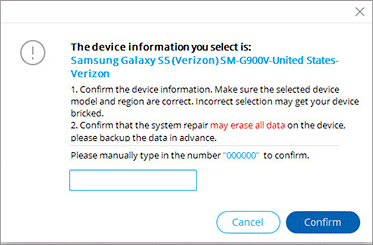
- Enter your device information in the subsequent interface and click "Next" to proceed.
- Type the number "000000" into the empty field and press "Confirm" to continue.
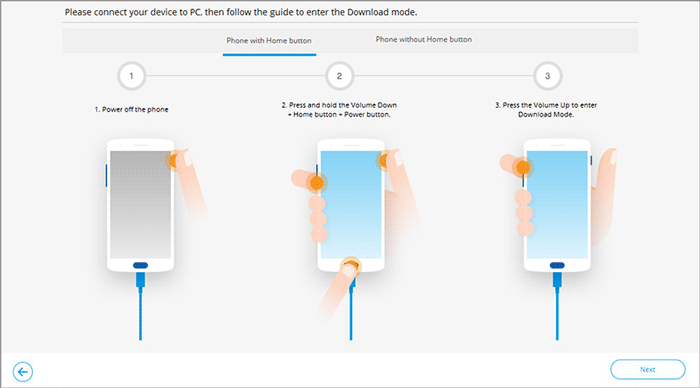
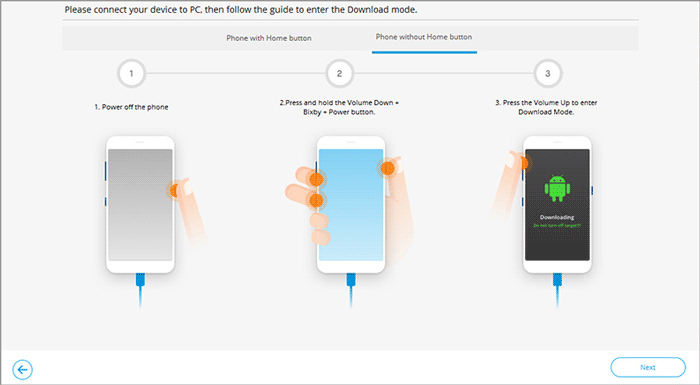
- To boot the Android phone into download mode, follow the instructions below:
- For a phone equipped with a "Home" button, power off your device, then simultaneously press the Home, Power, and Volume Down buttons for 10 seconds. Release all buttons and then press and hold the Volume Up button to enter download mode.
- For a phone that lacks a "Home" button, turn off your device, then press the Bixby, Power, and Volume Down buttons for approximately 10 seconds before releasing them. Next, hold the Volume Up button to access download mode.
- After your phone has rebooted into download mode, click "Next" to download the firmware for your device.
- Once the download is complete, the software will automatically begin repairing your Android system.

Concluding Thoughts
In a word, if you continue to face issues with verification codes not arriving, Android Repair can help restore your device's messaging functionality quickly and safely, supporting a wide range of Android phones without affecting personal data. Before requesting a verification code, ensure your phone has a stable network connection and disable any SMS filtering or third-party messaging apps that could block incoming texts.
Related Articles:
How to Back Up and Restore Text Messages on Android? 5 Options 2026
WhatsApp Message Not Delivered? Causes and 8 Easy Fixes You Should Try
How to Search Particular Text Messages in Android? 2 Means & FAQs
How to Transfer Text Messages from Android to Android? 8 Latest Tactics
