
iPhone Shows Unread Messages But There Are None? Reasons & 15 Solutions
TL;DR:
The 15 solutions outlined in this guide, ranging from simple notification toggles to deeper system resets, provide a complete toolkit for resolving the phantom unread message badge on your iPhone. For a wise consideration, try iOS System Recovery when the regular fixes fail to clear the incorrect badge. This tool corrects the underlying iOS glitch through a one-click system repair.
On my Home Screen, the messages icon says I have 3 unread messages, but I really don't. I have cleared everything but nothing gets rid of these 3 phantom messages. Any ideas? -- from Reddit
An iPhone showing unread messages when none exist can be distressed. At first glance, it looks like a messaging problem, but it usually comes from a system or notification glitch rather than real unread texts. To address this, we've compiled 15 tested solutions to iPhone shows unread messages but there are none, ranging from quick fixes like toggling notifications to deeper resets that clear hidden caches. Read on for more.
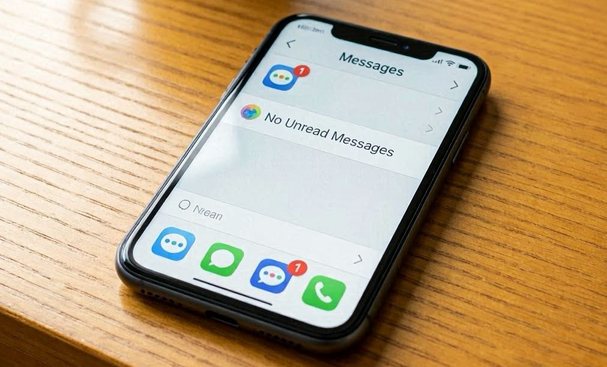
Part 1: Why Is My iPhone Saying I Have Unread Messages When I Don't
If your iPhone shows an unread message badge but you've already checked all conversations, a few less obvious issues could be causing the glitch. Here are three additional reasons this might happen:
- Software glitch - A temporary bug in the Messages app or iOS.
- Full device storage - Insufficient available storage prevents proper message syncing and status updates.
- iCloud sync error - Read/unread status didn't sync across your Apple devices.
- Unread message hidden - You have an unread in a group chat, voice message, or "Recently Deleted" folder.
- Unknown Senders filter - Unread messages from unknown numbers are in a separate filtered folder.
- Corrupted app cache - Stored data in Messages is causing an incorrect count.
- Outdated iOS - Running an older version with unpatched notification bugs.
- Network/server delay - Poor connection prevented the app from refreshing message status.
- Third-party app interference - A notification or permission conflict with another app is causing the badge to display incorrectly.
- Sign-in session issue - Your Apple ID session needs refreshing; signing out and back in can reset the sync state.
You Might Also Enjoy: How to Fix Ghost Touch on iPhone? 11 Easy Solutions to Try Out
Part 2: Fix iPhone Shows Unread Messages But There Are None in 14 Regular Ways
Way 1: Restart Your iPhone
To restart your iPhone 17/16/15/14/13/12/11/X and clear the phantom unread messages, press and hold the Side button along with either Volume button until the power slider appears. Drag the slider to turn off your iPhone, then wait a few seconds before pressing the Side button again to power it back on. This simple restart often refreshes the Messages app and removes the incorrect unread badge count.
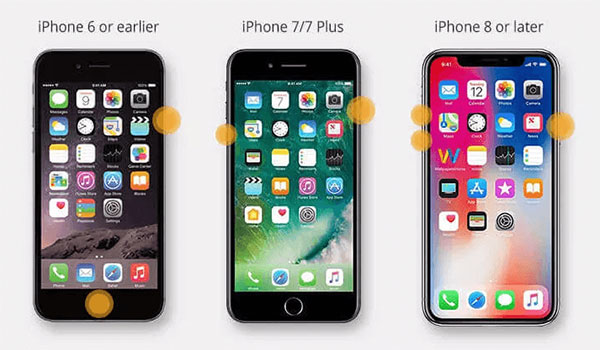
If a simple restart doesn't fix the phantom unread Messages badge, try a force restart to clear deeper system glitches. On iPhone models with Face ID, quickly press and release Volume Up, then Volume Down, and hold the Side button until the Apple logo appears. This hard reboot forces the system to refresh and can potentially resolve the issue of your iPhone showing unread messages when there are none.
Way 2: Force Quit the Messages App
This method closes the app completely and often refreshes its notification state. To do it:
- Open App Switcher - On iPhones with Face ID, swipe up from the bottom and pause in the middle of the screen. On iPhones with a Home button, double-press the Home button.
- Locate Messages - Swipe left or right until you find the Messages app preview.
- Swipe Up to Close - Flick the Messages app card upward off the screen to force quit it.
Explore More: How to Back Up Text Messages on iPhone without iCloud: Guide 2026
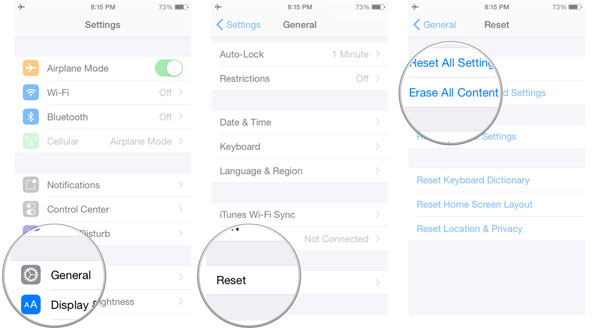
Way 3: Reset All Settings
Resetting all settings on your iPhone can clear hidden configuration glitches and restore defaults without erasing your data. This step often resolves stubborn badge errors when restarts or force quits don't work.
- Open Settings > Tap General.
- Navigate to Transfer or Reset > Scroll down and select Transfer or Reset iPhone.
- Choose Reset All Settings > Enter your passcode, confirm, and allow the device to reset.
Way 4: Modify the Messages Badge
Start by opening Settings > Notifications > Messages, then turn Badges off and wait a few seconds before turning it back on. This forces iOS to refresh the notification count and often removes the incorrect "1" or higher badge.
Way 5: Toggle Notifications Off and On
- Open Settings > Tap Notifications.
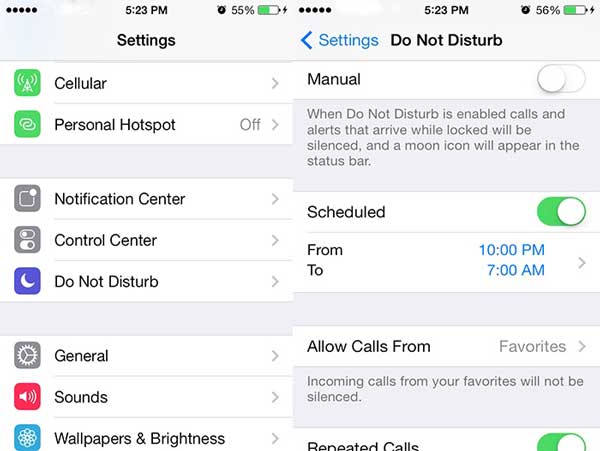
- Find Messages > Scroll down and select the Messages app.
- Turn Off Notifications > Toggle off Allow Notifications.
- Turn On Notifications > Wait a few seconds, then toggle it back on.
Way 6: Clear Some Messages and Exit
By deleting a few conversations and then exiting the app, you refresh its cache and force iOS to recalculate the unread count. Below is how:
- Open Messages > Launch the Messages app from your Home Screen.
- Delete a Conversation > Swipe left on a chat and tap Delete to remove it.
- Exit Messages > Press the Home button or swipe up to return to the Home Screen.
If clearing some messages doesn't fix the phantom unread badge, you can delete all messages from the problematic contact. Open the Messages app, find the conversation with that contact, and swipe left on it. Tap Delete to remove the entire thread, which forces iOS to reset the unread count and often clears ghost notifications.
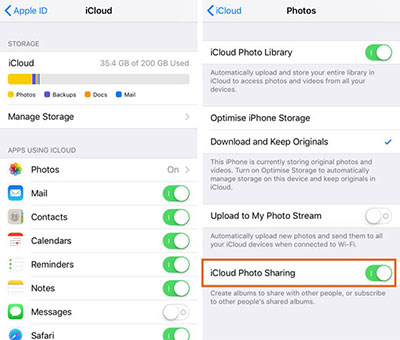
Way 7: Switch on Messages in iCloud
- Open Settings > Tap your Apple ID at the top.
- Go to iCloud > Select iCloud.
- Enable Messages > Toggle on Messages under "Apps Using iCloud."
Way 8: Let Siri Read Messages
When Siri reads out your messages, it forces iOS to resync the badge count, often eliminating ghost notifications. To do this:
- Activate Siri > Hold the Side button or say "Hey Siri."
- Ask Siri to Read Messages > Say "Read my unread messages."
- Confirm or Dismiss > Siri will read them aloud, and once acknowledged, the badge count usually resets.
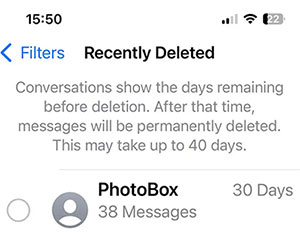
Way 9: Review Recently Removed Messages
Sometimes ghost notifications are tied to threads that were deleted but not fully cleared from iOS. Reviewing the Recently Deleted folder ensures those conversations are permanently erased. Here's how:
- Open Messages > Launch the Messages app.
- Go to Recently Deleted > Tap Edit , then select Recently Deleted.
- Delete Permanently > Choose the ghost threads and confirm deletion.
Way 10: Manually Designate All Messages as Read
- Open Messages > Launch the Messages app from your Home Screen.
- Tap Edit > In the top-left corner, select Edit.
- Select Read All > Tap Read All to mark every conversation as read.
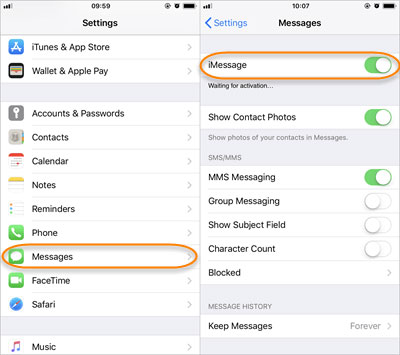
Way 11: Turn iMessage Back On
- Open Settings > Scroll down and tap Messages.
- Toggle iMessage Off > Switch off the iMessage option.
- Toggle iMessage On > Wait a few seconds, then switch it back on.
Way 12: Verify Message Filters
Ghost notifications may be tied to threads that are filtered into categories like Unknown Senders or Spam, which prevents them from appearing in your main inbox but still triggers badge counts. To inspect the filters:
- Open Settings > Tap Messages.
- Enable Filters > Scroll down and toggle on Filter Unknown Senders if it isn't already.
- Review Filters > Open the Messages app, tap Filters in the top-left, and check folders like Unknown Senders or Recently Deleted.
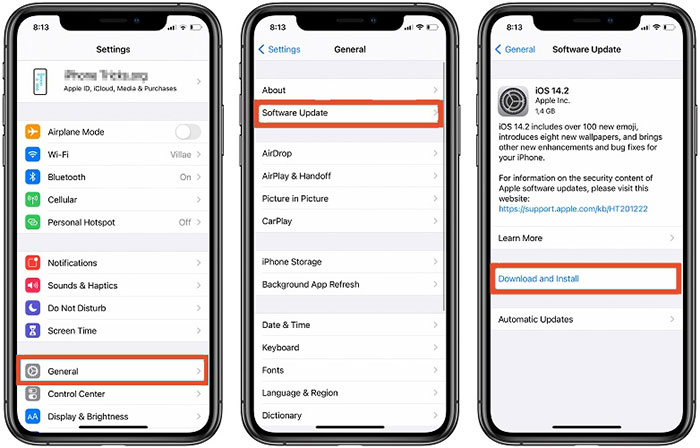
Way 13: Update iOS
Apple often includes fixes for notification glitches in new releases, so keeping your device up to date helps prevent ghost alerts.
- Open Settings > Tap General.
- Select Software Update > Your iPhone will check for available updates.
- Download and Install > If an update is available, tap to install it.
Way 14: Send a Self-directed Text Message
By creating a new conversation directed to your own number, you trigger iOS to refresh the badge count and often eliminate ghost notifications. To do it:
- Open Messages > Launch the Messages app.
- Compose New Message > Tap the New Message icon.
- Enter Your Own Number > Type your phone number in the recipient field.
- Send a Short Text > Write a simple message like "Test" and send it.
Part 3: Fix iPhone Shows Unread Messages But There Are None Adeptly
Issues like an iPhone showing unread messages that don't actually exist can be fixed through system-level repair, which is where iOS System Recovery comes in. It works by correcting iOS glitches that distort notification counts and leave stuck badge alerts on the Messages app. The process refreshes unstable system behavior so the message indicator returns to normal without manual troubleshooting.
|
iOS System Repair - Feature
|
Description
|
Relevance to "Unread Messages but None" Issue
|
|
iOS System Repair Modes
|
Offers Standard Mode and Advanced Mode to fix iOS system glitches without or with data loss |
Standard Mode can fix notification badge errors caused by system bugs |
|
Fix Over 150+ iOS Issues
|
Repairs issues like stuck notifications, frozen screen, boot loop, Apple logo stuck, etc. |
Directly targets notification badge inconsistencies and UI glitches |
|
Fix Stuck Notification Badges
|
Resolves incorrect message badge counts on Messages and other apps |
Specifically addresses "phantom unread messages" problem |
|
Data Recovery Integration
|
Can repair system while preserving or recovering data (depending on mode) |
Helps avoid message loss while fixing badge display errors |
|
Compatible with All iOS Devices
|
Supports iPhone, iPad, and iPod touch across multiple iOS versions |
Ensures fix works even after iOS updates that trigger notification bugs |
|
Downgrade/Upgrade iOS
|
Allows reinstalling or refreshing firmware |
Useful when notification bugs come from corrupted iOS updates |
|
One-Click Recovery Process
|
Simple guided repair workflow via computer connection |
Reduces manual troubleshooting for persistent message badge issues |
|
DFU/Recovery Mode Support
|
Works even when iPhone is stuck or partially responsive |
Helps when notification system is broken at system level |
Best iPhone repair software safe and free download:


How to troubleshoot iPhone shows unread messages but there are none with iOS System Recovery?
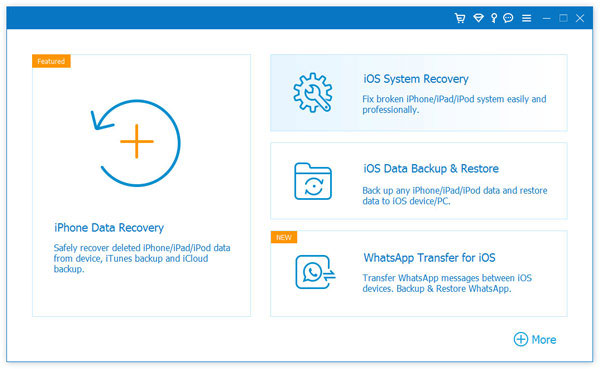
Step 1: Begin by downloading and installing iOS System Recovery onto your computer. Once the installation is complete, launch the program and navigate to More Tools > iOS System Recovery to access the repair module.
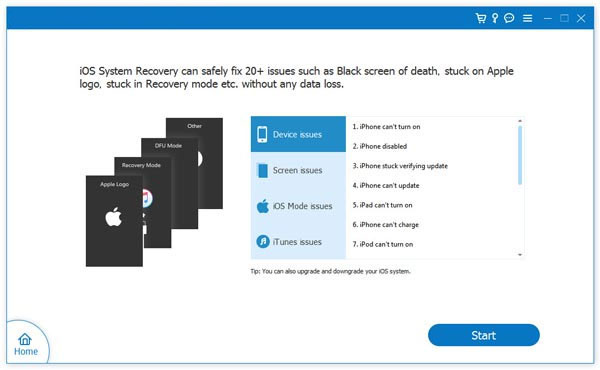
Step 2: Connect your iPhone to the computer using a reliable USB cable. After the device is successfully recognized, click the "Start" button to initiate the repair process.
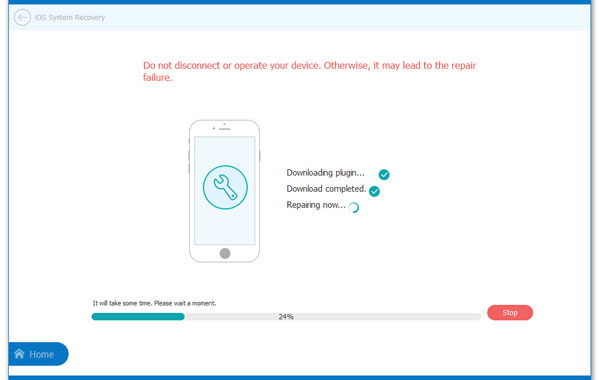
Step 3: The software will automatically detect and display your iPhone's device information. Take a moment to verify that the details shown are correct. If everything matches, proceed by clicking "Repair." In case the detected information is inaccurate, manually select the correct model and firmware version from the list, then tap "Repair" again to continue.
FAQs for Ghost Messages on iPhone
Q1. Can searching for specific characters help find a hidden unread message?
Yes. Searching for common characters like a comma (,), period (.), or number (e.g., 0) can sometimes force the Messages app to refresh and reveal a "ghost" message that was previously hidden. Once found, you can mark it as read.
Q2. What is the "Select All" trick to fix this issue?
Navigate to your main messages list, tap "Select" (or the ... menu), choose "Select All," and temporarily mark all messages as Unread. Then, immediately mark all messages as Read. This forces the system to reset the unread count .
Q3. Could a failed or unsent message be the cause?
Yes, a message that failed to send can sometimes cause a phantom unread badge. Check your conversation list for any messages with a red exclamation mark or a "Not Delivered" status.
Q4. How do I check if a specific conversation is muted?
An active conversation might have "Hide Alerts" turned on (shown by a small bell icon with a slash). While this doesn't usually create a phantom badge, checking it ensures you haven't missed a message in a quiet conversation.
Q5. Does the unread badge affect all messages or just the "Primary" inbox?
In iOS 18.2 and later, Apple introduced categories in the Mail app. The badge count on the home screen might only show unread messages from your "Primary" category. You can change this in Settings to show all unread messages.
Q6. What if I use dual SIM cards?
If you have two SIMs, the unread message might be associated with a specific line. Try switching to each number in the Messages app settings and using the "Mark All as Read" option for each inbox individually.
Q7. How do I force the Mail app to refresh and update the badge?
Open the Mail app and pull down from the top of the inbox to refresh. You can also go to Settings > Apps > Mail > Notifications and ensure Badges are enabled and set to show all unread messages.
Roundup
A phantom unread badge may seem minor, yet it disrupts the seamless experience iPhone users expect. By following the 15 tested solutions, you can eliminate the glitch and regain confidence that your Messages app reflects reality. When diving into advanced resets, try sending yourself a short text message. This simple trick often forces the system to recalculate unread counts and clear the phantom badge instantly.
Related Articles:
How to Recover Data from iPhone in DFU Mode? 3 Options [Informative]
How to Transfer Files from iPhone to PC via Bluetooth? 5 Alternative Ways
Messages Not Restored from iCloud Backup? Causes & 14 Easy Solutions
