
How to Transfer Music from iTunes to Samsung in 5 Efficient Ways?
TL;DR:
This page offers practical paths for those moving from Apple's ecosystem to Android while keeping their music libraries intact.
- A reliable option worth considering is iTunes to Android Transfer, which not only backs up Android data but also restores iTunes and iCloud backups directly to Samsung phones.
- With features like selective restore, cross-platform compatibility, and iTunes music import, it provides a secure and efficient way to ensure your playlists and purchased tracks remain accessible on your new device.
"Hello, for a while, I have amassed a collection of songs on iTunes. While I used to use an iPhone, with a phone I recently got, I decided to go with a Samsung due to a few factors." -- from Reddit
Music collections often hold personal value, and many listeners don't want to lose access to songs they've paid for when changing devices. This is why how to transfer music from iTunes to Samsung attracts attention, as it provides practical solutions for those moving from Apple's ecosystem to Android. By exploring reliable methods in this passage, users can enjoy their iTunes libraries seamlessly on Samsung phones without disruption.
- Way 1: Transfer Music from iTunes to Samsung via iTunes to Android Transfer [Lossless]
- Way 2: Transfer Apple Music from iTunes to Samsung via YouTube Music
- Way 3: Transfer Music Files from iTunes to Galaxy via Apple Music
- Way 4: Transfer iTunes Music to Samsung with iSyncr: iTunes to Android
- Way 5: Transfer Music from iTunes to Samsung via Smart Switch [Complicated]
- FAQs for Music Transfer from iTunes to Samsung
Way 1: Transfer Music from iTunes to Samsung via iTunes to Android Transfer
Restoring data from iTunes or iCloud backups to Samsung Galaxy S26/S25/S24/S23/S22 is made straightforward with iTunes to Android Transfer, which bridges the gap between different platforms. The tool allows users to back up their Android content, preview files, and selectively restore what they need.
Beyond standard Android backups, it also supports importing iTunes music and other iCloud/iTunes data directly to Android, ensuring a smooth transition for those switching devices. With wide compatibility and secure local storage, it provides a reliable way to safeguard and transfer essential files.
Key Functions of iTunes to Android Transfer:
> 1-Click Backup - Fast full or partial backup.
> Selective Restore - Restore only chosen items.
> Wireless Backup - Wi-Fi and incremental updates.
> Social App Backup - Save WhatsApp and other chats.
> Cross-Platform Restore - Android to/from iOS, iCloud/iTunes to Samsung/Android.
> iTunes Music Restore - Import iTunes music to Android.
> Local Storage - Keep backups safely on PC/Mac.
> Data Protection - Safeguard against device failure.
> Wide Compatibility - Supports 8,000+ Android devices.
> Data Export - Export backups in flexible formats.


Getting Started Guide
- After downloading the program, install and launch it on your computer.
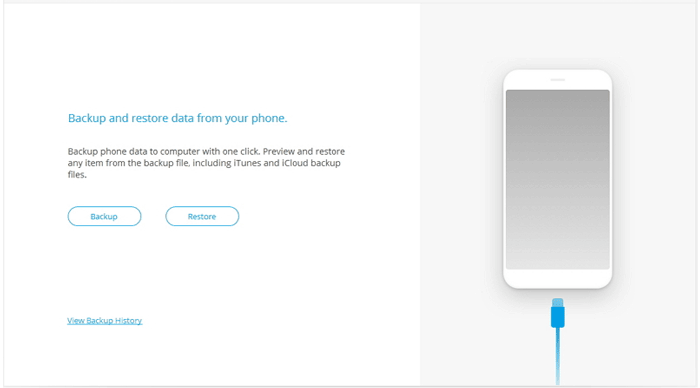
- From the available features, select Phone Backup.
- Connect your Android device to the computer using a USB cable, and once the connection is established, choose Restore from the main interface.
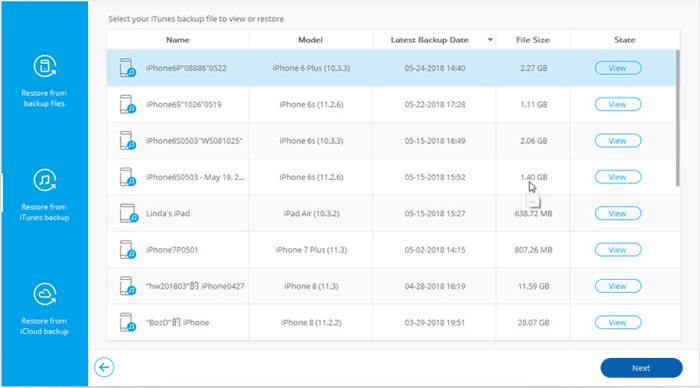
- Next, select Restore from iTunes backup from the left-hand menu. (How to restore iTunes backups to iPhone?)
- The software will automatically locate your iTunes backup files and display them on screen.
- Pick the backup file you want to use and click View.
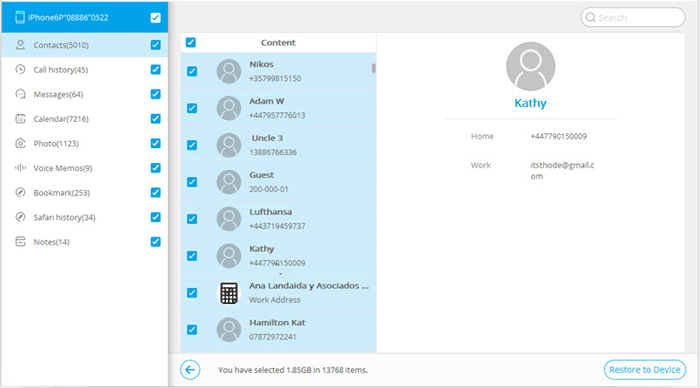
- The program will then scan and list all available data types.
- From the sidebar, choose Music, mark the songs you'd like to transfer, and tap Restore to Device.
- Finally, in the pop-up window, select your connected Android phone and click Continue to begin restoring the chosen iTunes music to your device.
Way 2: Transfer Apple Music from iTunes to Samsung via YouTube Music
Prerequisites and Considerations
- Only playlists you created are transferred (not full music files or iTunes library downloads).
- Songs not available on YouTube Music will be skipped.
- It's a one-time copy, not continuous syncing (updates in Apple Music won't reflect in YouTube Music).
Getting Started Guide
- Open the Apple Data & Privacy page: https://privacy.apple.com/.
- Sign in with your Apple ID (same one used for iTunes/Apple Music).
- Select "Transfer a copy of your data" > choose YouTube Music as the destination.
- Sign in to your YouTube Music account when prompted.
- Confirm transfer and wait for completion (minutes to hours depending on library size).
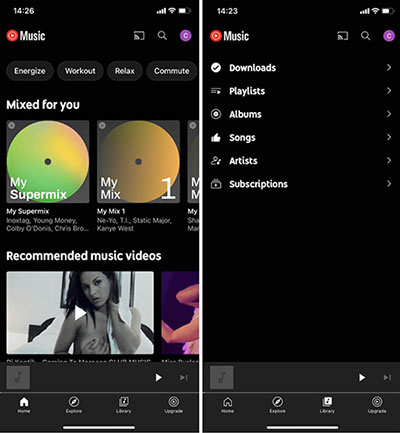
- Open the YouTube Music app on Samsung > your transferred playlists appear in Library.
Way 3: Transfer Music Files from iTunes to Galaxy via Apple Music
Prerequisites and Considerations
- This method does not physically copy music files to Samsung; it streams or downloads them via Apple Music.
- A subscription is usually required for full access to Sync Library features.
- DRM-protected Apple Music tracks cannot be freely exported as normal files.
Getting Started Guide
- Install the Apple Music app on your Samsung phone and sign in with the same Apple ID used in iTunes.
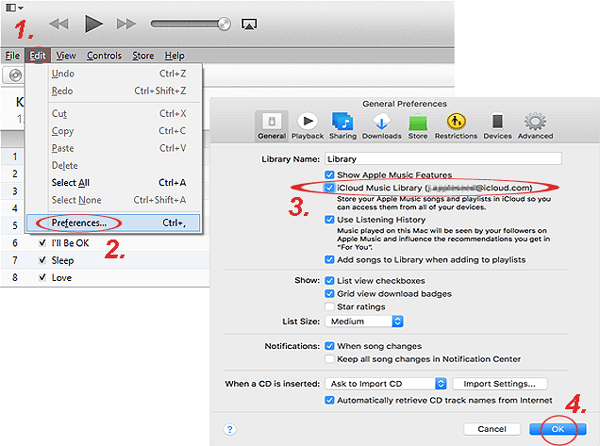
- On your PC, open iTunes > Edit > Preferences > General.
- Enable "Sync Library" (iCloud Music Library) and apply changes.
- Wait for your iTunes music library to upload/sync to Apple's cloud.
- Open Apple Music on Samsung > Library, and your iTunes songs will appear for streaming or download (if you have an Apple Music subscription).
Way 4: Transfer iTunes Music to Samsung with iSyncr: iTunes to Android
Prerequisites and Considerations
- Requires a desktop companion app to access the iTunes library.
- Sync can include playlists, album art, ratings, and play counts.
- DRM-protected iTunes tracks are not supported.
Getting Started Guide
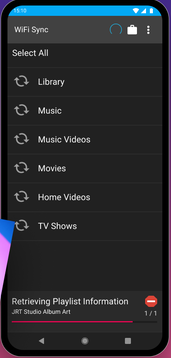
- Install iSyncr: iTunes to Android on your Samsung phone from Google Play Store.
- Install the required iSyncr Desktop on your Windows/Mac computer and open your iTunes library.
- Connect your Samsung via USB or WiFi and launch iSyncr on both devices.
- Select Music or Music Videos you want to transfer.
- Start syncing-music files, playlists, and metadata are copied to your Samsung storage.
- Open your Samsung music player app to access the transferred songs.
Way 5: Transfer Music from iTunes to Samsung via Smart Switch [Complicated]
Prerequisites and Considerations
- Smart Switch mainly transfers DRM-free music files (MP3/AAC) from your computer, not Apple Music streaming tracks.
- It may not fully support all iTunes playlists or protected purchases depending on the format.
Getting Started Guide
- Convert AAC to MP3 - In iTunes, go to Edit > Preferences > Import Settings, choose MP3 Encoder, then convert AAC songs to MP3 for compatibility.
- Install Smart Switch - Download and install Samsung Smart Switch on your Windows PC or Mac.
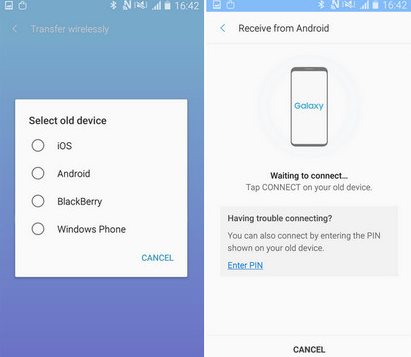
- Connect Samsung phone - Use a USB cable to connect your Samsung device, unlock it, and allow file transfer permissions.
- Launch Smart Switch - Open Smart Switch on your computer; it should detect your Samsung phone automatically.
- Import from iTunes - Select "Import from iTunes", browse your library, choose playlists or songs, then click Transfer/Restore. (Smart Switch takes too long?)
- Check DRM protection - Be aware that older iTunes purchases (pre-2009) may have DRM and won't transfer.
Verify playback - Open the Samsung Music app (or another player) on your phone to confirm songs appear and play correctly.
If you want your playlists intact, create them in iTunes before transferring. If Smart Switch doesn't detect your iTunes library, drag and drop MP3 files into your phone's Music folder using Windows Explorer or Android File Transfer on Mac.
FAQs for Music Transfer from iTunes to Samsung
Q1. Will my iTunes playlists transfer to Samsung?
Some apps like iSyncr can transfer playlists, but basic methods usually transfer only music files.
Q2. Do I need iTunes installed on my computer for transfer?
Yes, if your music is stored in iTunes, you need iTunes or access to its music folder.
Q3. Will album art and metadata transfer too?
Some tools preserve metadata, but simple file transfer may not keep all details.
Q4. Why are some iTunes songs not playable on Samsung?
This is usually due to DRM protection or unsupported file formats.
Q5. Can I transfer purchased iTunes music to Samsung?
Yes, if the songs are DRM-free; otherwise, they may not play on Samsung devices.
Q6. Does Google Drive work for transferring iTunes music?
Yes, you can upload iTunes music files to Google Drive and download them on your Samsung phone.
Q7. Where are iTunes music files stored on my computer?
They are usually stored in the iTunes Media folder on your PC or Mac.
Q8. Will Smart Switch transfer Apple Music subscription songs?
No, Smart Switch only transfers local DRM-free files, not streaming subscription content.
In Closing
A smooth transfer is more than just moving files - it's about preserving memories, investments, and the soundtrack of daily life. When handled carefully, the shift from iTunes to Samsung becomes a bridge between two worlds of listening, ensuring continuity without compromise. Before starting the transfer, convert AAC songs to MP3 to avoid playback issues on Samsung devices - this small step saves time and prevents frustration later.
Related Articles:
Ultimate Guide: Does Samsung Smart Switch Transfer Everything?
Samsung FRP Helper v0.2 Review: Complete & Insightful Explanation
Samsung Experience Service Keeps Stopping? 8 Basic Fixes & 1 Expert Approach
How to Fix Samsung Phone Won't Turn on? 6 Most Ingenious Ways Here
