
How to Transfer Apps from Samsung to Samsung? 6 Means [Comparison]
TL;DR:
This article outlines six methods for transferring apps between Samsung devices, including professional tools like MobiKin Transfer for Mobile, built-in options like Smart Switch, and free apps such as CLONEit and SHAREit.
Among these, the MobiKin solution is recommended for their speed and security, while Smart Switch offers a free pre-installed alternative, and NFC, CLONEit, and SHAREit provide wireless options with varying limitations.
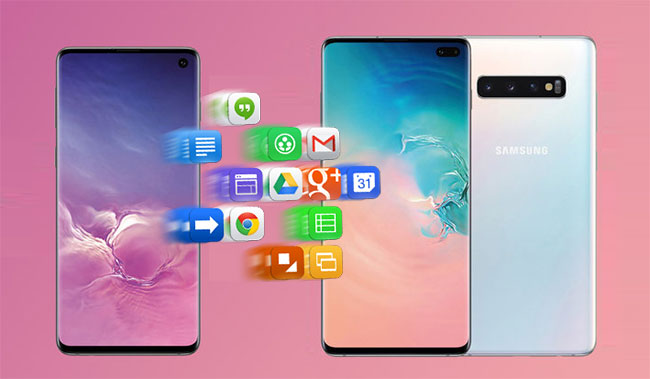
When upgrading to a new Samsung S26/S25 or sharing useful apps with friends, transferring apps between Samsung devices becomes necessary. While you can download apps from Google Play or import APK files from a PC or Mac, this can be time-consuming, especially with many apps. So, are there any tips for how to transfer apps from Samsung to Samsung at once? Let's explore your options!
- Option 1: How to Transfer Apps from Samsung to Samsung via Transfer for Mobile [Seamless]
- Option 2: How to Copy Apps from Samsung to Samsung via Assistant for Android
- Option 3: How to Transfer Apps to New Samsung Phone Using Smart Switch
- Option 4: How to Transfer Apps from One Samsung Tablet to Another with NFC
- Option 5: How Do I Transfer My Apps to My New Samsung Galaxy with CLONEit
- Option 6: How to Transfer Apps from Samsung to Samsung via SHAREit
- Which Method Is the Best for Me [A Comparison Table]
- Bonus: How to Transfer Data from Samsung to Samsung via USB Cable Only [Media]
Let this video guide you through the topic with clear visuals.
Option 1: How to Transfer Apps from Samsung to Samsung via Transfer for Mobile [Seamless]
Actually, thanks to MobiKin Transfer for Mobile (Windows and Mac), a standalone 3rd-party tool, you can conduct steady yet fast app transfers on Samsung without any more ado. It is specially designed for Windows or Mac users to copy data between two devices directly without data loss. Besides, it is also easy to install and perform file transfer on your personal computer.
First, let's see the main properties of MobiKin Transfer for Mobile:
- Best Samsung transfer app to copy data from Galaxy to Galaxy, including apps, contacts, call logs, text messages, pictures, videos, music, documents, etc.
- Migrate stuff from Android to iOS, iOS to Android, Android to Android, and iOS to iOS.
- Run smoothly on almost all Windows/macOS/Android/iOS devices.
- Deliver fast transfer, secure results, post-sales services, etc.
Want to get it? Click the icon below to download a free trial and install it on your PC or Mac.


Tutorial on how to transfer apps from Samsung to Samsung S26/S25/S24/S23/S22 with MobiKin Transfer for Mobile:
Step 1. Install and Launch - After finishing the installation of this almighty program, please launch it on your computer. Then, you'll see the initial interface prompting you to connect your devices to a computer.
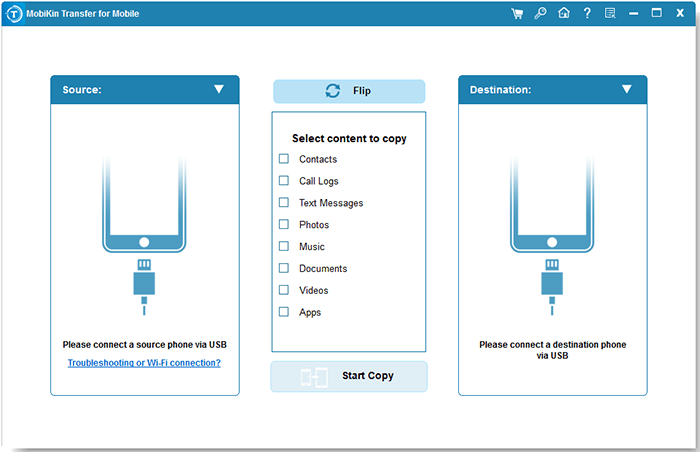
Step 2. Connect and Inspect - While you make the connections via USB cables, this tool will detect them and display them on the two sides of the interface. Now, check if the device on the right side is your destination Samsung device. Otherwise, tap on "Flip" to position it to the left.
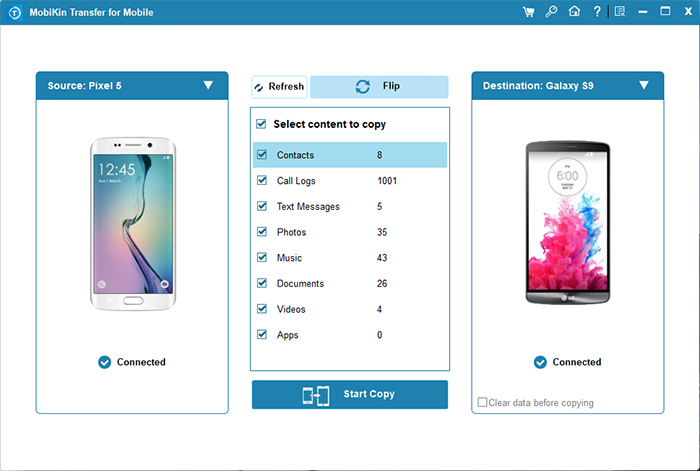
Step 3. Choose and Transfer - Mark the data types you want to transfer. Here, please mark "Apps" and tap "Start Copy" on the middle panel to start transferring applications to another Galaxy device. Once done, disconnect the device's connections.
Video Guide: Here's a vivid video to explain how this product works.
You Might Also Enjoy: Top 5 Best Samsung Data Recovery Tools You Should Never Miss
Option 2: How to Copy Apps from Samsung to Samsung via Assistant for Android
Over time, MobiKin Assistant for Android has been designed by the leading technology team of mobile services, which is dedicated to offering quality backup and restoration for Samsung and other Android users. You can use it to back up apps from an old Samsung to a computer and then restore apps to a new Samsung.
No matter how much important data is stored in your Android, you can connect the phone to a computer via USB or WiFi, and then transfer them between devices freely. This utility supports processing apps, contacts, SMS, call logs, photos, music, videos, and documents. Further, you can also perform personalized management on your Samsung items.
Is it really a surprisingly powerful tool? Just give it a shot now.
Adhere to the info below to transfer apps to a new Samsung phone via MobiKin Assistant for Android:
- Launch the installed program on a computer. Then, plug your old Samsung into the computer through a USB cable.
- Now, the detection will start automatically. Soon after, the connection will be established.
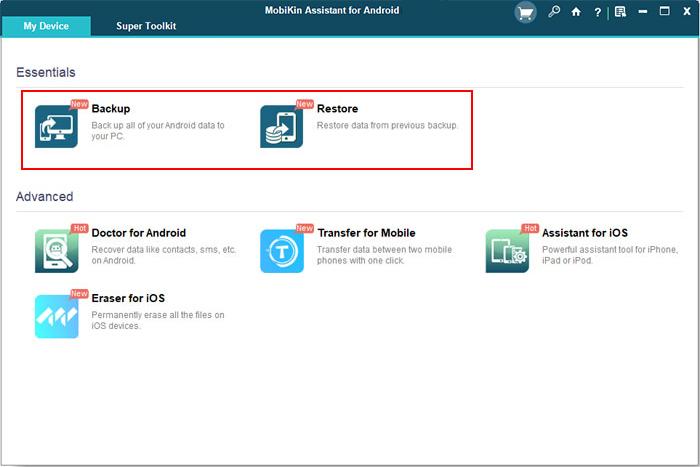
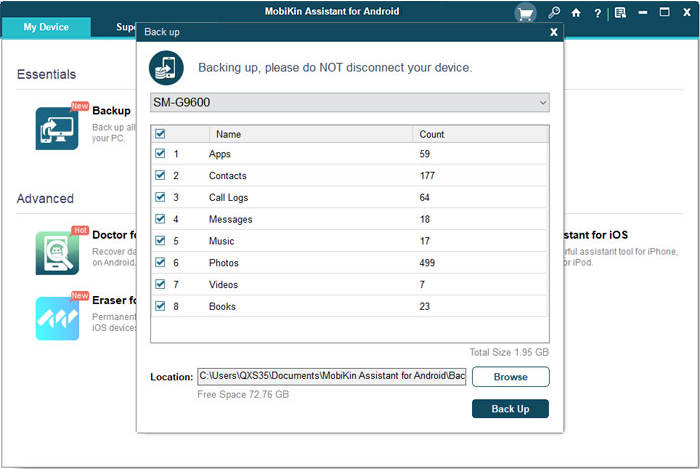
- You can thus access the main interface. Here, you should tap on "Super Toolkit" > "Backup".
- All the file types will now be on the window. Please choose "Apps" and tap "Browse" to locate a folder on the computer to save the exported apps.
- Next, press "Back Up" to save them to the location. After that, unplug this Samsung.
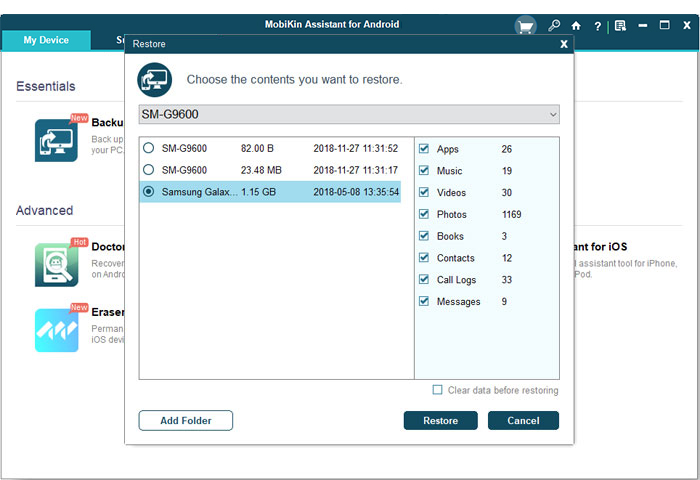
- Attach your new Samsung to this computer via a USB cord. And after the connection, tap "Restore" in "Super Toolkit", and you'll see all the backup files in the window.
- Tick on "Apps" and hit "Restore" again to get them from the backup file to your new Samsung.
See More: 5 Ways to Transfer WhatsApp from Old Samsung to New Samsung
Option 3: How to Transfer Apps to New Samsung Phone Using Smart Switch
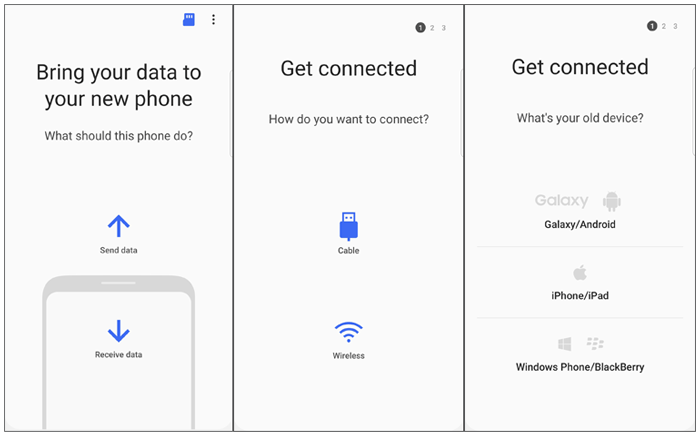
As a veteran Samsung user, you may know something about Smart Switch. Yet, does Smart Switch copy apps? Yep, this tool can transfer applications, contacts, SMS, images, music, etc. While using it, please enable the WiFi of two phones and set the old Samsung as a sender and the new Samsung as a receiver. Here's the guide:
- Install Smart Switch: Ensure Smart Switch is installed on both your old and new Samsung devices. You can download it from the Google Play Store.
- Connect Devices: Open Smart Switch on both devices. You can connect them via a USB cable, Wi-Fi, or even with a computer.
- Select Transfer Method: * Wireless: Choose "Wireless" on both devices, then "Send" on the old device and "Receive" on the new one. * Cable: Connect the devices using a USB cable and follow the on-screen instructions.
- Choose Data to Transfer: On your old device, select the app you want to transfer.
- Start Transfer: Tap "Transfer" on your old device. The process will begin, and you'll see a progress bar.
Tips: What should I do if Samsung Smart Switch cannot transfer my apps? Check that both phones have sufficient storage, update Smart Switch and the phone software, reconnect the devices, and try a wired connection. If an app remains unavailable, reinstall it from the appropriate app store.
Option 4: How to Transfer Apps from One Samsung Tablet to Another with NFC
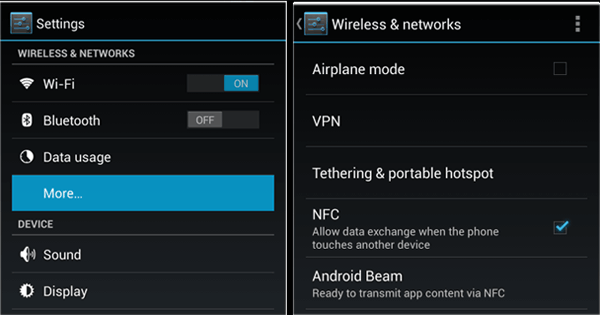
NFC (near-field communication), a replacement for Smart Switch, allows wireless content transfer between Samsung phones by placing them back to back using Android Beam. This method is great for sharing apps, photos, videos, maps, and web pages. To start with, ensure both phones have NFC hardware and support Android Beam. Here's the user guide:
- On both Samsung devices, go to "Settings > Connections > NFC and payment and turn on NFC".
- On the source device, select the apps you want to transfer.
- Place the backs of both devices together. You should hear a sound or feel a vibration indicating the devices are connected.
- On the source device, a "Touch to beam" option will appear.
- Tap it to start the transfer process.
Option 5: How Do I Transfer My Apps to My New Samsung Galaxy with CLONEit
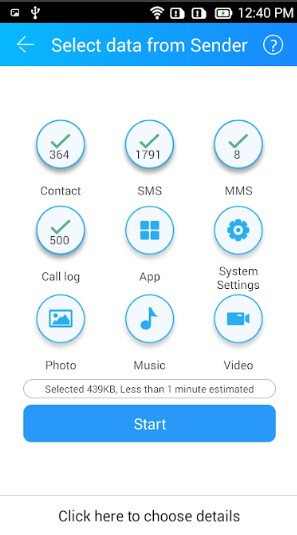
CLONEit has been on the market for a considerable time. It enables Android users to migrate apps, settings, images, music, contacts, messages, etc. between two devices. To use it, you need to turn on WiFi on the two Samsung devices. And after simple settings, it can work for you:
- Install the downloaded app on both devices.
- Then, open it to set your source Samsung tablet as a "Sender" and the target one as a "Receiver".
- On the source Samsung, you can handpick the "App" option and tap on the "Start" button to initiate the transfer.
- Of course, you can also hit "Click here to choose details" if necessary.
- Ensure that both the Samsung tablets are within the hotspot range.
- Later, the transfer process will be completed, and you will be notified.
Option 6: How to Transfer Apps from Samsung to Samsung via SHAREit
SHAREit is quick and efficient, especially when connected to a strong Wi-Fi network. However, its current functionality is limited to transferring photos, videos, music, documents, and apps.
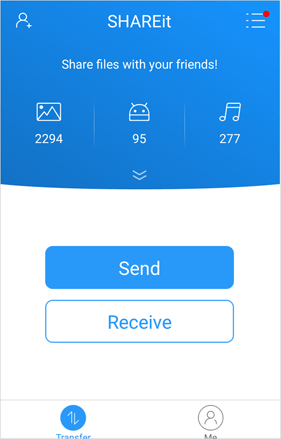
- Acquire and install the SHAREit application from the Google Play Store on both Samsung devices.
- Open the application on each phone.
- On the device designated as the source, select the "Send" option and choose the applications you wish to transfer.
- On the receiving device, tap "Receive" to enable its discoverability.
- Select the target device from the displayed list.
- After establishing a connection, the transfer process will commence.
Which Method Is Best for Me [A Comparison Table]
|
Tools/Methods
|
Reasons We Like It
|
Reasons We Don't Like It
|
|
MobiKin Transfer for Mobile
|
Fast and secure transfer; supports multiple data types |
Requires installation on a PC; paid software |
|
MobiKin Assistant for Android
|
Comprehensive data management; backup and restore capabilities |
Requires USB connection for best performance; paid software |
|
Smart Switch
|
Easy to use; free and pre-installed on Samsung devices |
Limited to Samsung for full functionality; may not transfer all app data |
|
NFC |
Quick setup; no pairing needed |
Very short range (10-20 cm); low data transfer rates |
|
CLONEit
|
Fast transfer speeds; no internet required |
Compatibility issues with some devices; may not transfer all app data |
|
SHAREit |
Free version available; no internet required |
Contains ads (security concerns); Requires both devices to have the app installed |
In a nutshell, of all the practical solutions introduced above, you may have a rosy picture of MobiKin Transfer for Mobile and MobiKin Assistant for Android. Definitively, these two programs are tested by hundreds of thousands of mobile users.
- The former, a professional mobile data transfer program, has incomparable advantages in security, result output, UX, etc.
- The latter consists of the process of backup and restoration, the procedure of data transfer as well as file management, which gets a double advantage.
No matter which method you pick, hopefully, what we've presented will bring vigor into your free time.
FAQs for Transferring Apps from Samsung to Samsung
Q1. Will my app data transfer from Samsung to Samsung?
Some app data can be transferred, but this depends on the app. Apps that use separate accounts or cloud-based storage may require you to sign in again.
Q2. Can I transfer paid apps between Samsung phones?
Generally, purchased apps can be reinstalled using the same Google or Samsung account, but app purchases and subscriptions are subject to the app store's policies.
Q3. Why are some apps missing after transferring from Samsung to Samsung?
The apps may be incompatible with the new device, unavailable in your region, discontinued, or not eligible for automatic transfer.
Q4. Do I need a Samsung account to transfer apps?
Not necessarily. Smart Switch can transfer data directly between devices, although some apps may require your Google or Samsung account to restore purchases or app information.
Q5. Can I transfer WhatsApp and its data along with other apps?
WhatsApp has its own transfer and backup options. Depending on your devices and setup, you may need to follow WhatsApp's transfer procedure separately.
Q7. Will transferring apps delete them from my old Samsung phone?
No. A standard transfer creates a copy on the new phone and does not normally remove the apps from the old device.
Q8. How long does it take to transfer apps between Samsung phones?
The time depends on the number and size of the apps, the amount of data, and whether you use a wireless or wired connection.
Q9. How to transfer data from Samsung to Samsung via a USB cable only?
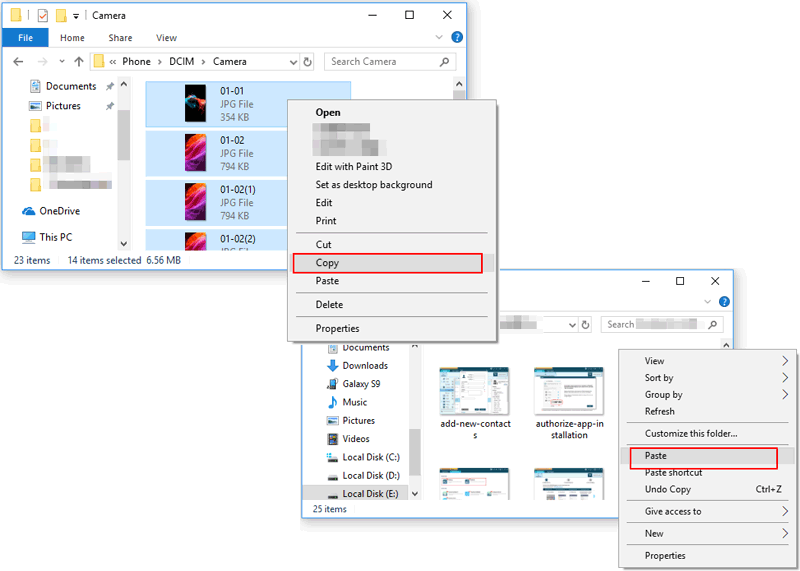
You can transfer multimedia files from one Samsung to the computer through simple settings and copy and paste them from the PC to the related folder of another Samsung device. Below is the easy guide:
- Connect your source Samsung to the computer via a USB cable.
- Then, this Samsung will display a notification as "Charging this device via USB". Just click on it.
- Press the note to choose "File Transfer" under "Use USB for".
- Soon, you can go to "This PC"/"My Computer" to click the icon of your old Samsung and open the multimedia folder you need to transfer.
- Drag and drop files to the preferred location on the PC.
- Once done, eject this Samsung, and connect your target Samsung to this computer via a USB cable.
- Enable the "File Transfer" option, too, and copy and paste the multimedia data from the PC to the corresponding folder of the destination Samsung.
Related Articles:
Samsung Phone Not Connecting to PC/Computer? 7 Helpful Tips
5 Approaches to Move Pictures/Photos to SD Card on Samsung Galaxy
How to Speed Up Samsung Phone Easily? 17 Tested Solutions
How to Fix Samsung Update Issues without Errors? 9 Most Admirable Ways
