Samsung FRP Bypass TalkBack Not Working? Reasons & 5 Solutions
TL;DR:
Samsung FRP Bypass TalkBack often fails on newer devices, so users need reliable solutions to regain access after Google verification issues.
When TalkBack does not work, Android Lock Wiper can help remove FRP locks on supported Samsung and Android devices. It also supports removing common screen locks like PINs, passwords, and patterns.
NOTE: FRP is a security feature intended to protect lost or stolen devices. Only use recovery methods on a Samsung phone you own or have authorization to service.
After a factory reset, some Samsung users may find themselves unable to pass Google verification and want to regain access to their Samsung phone.
Since the traditional TalkBack method does not always work on newer devices, this article explains what is the FRP bypass TalkBack method and shares 5 efficient ways to fix Samsung FRP bypass TalkBack not working. These solutions can help users better understand their options and choose a suitable approach based on their device situation.
- Part 1: Why Is Samsung FRP Bypass TalkBack Not Working
- Part 2: How to Use Samsung FRP Bypass TalkBack Properly
- Part 3: How to Fix Samsung FRP Bypass TalkBack Not Working
> Fix 1: Use Emergency Call & Test Mode
> Fix 2: Use SamFw FRP Tool
> Fix 3: Use The Secret Code Menu
> Fix 4: Use Google Find Hub
> Fix 5: Use a PC-based Bypass Tool [Professional]
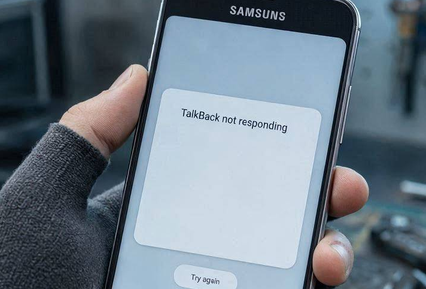
Part 1: Why Is Samsung FRP Bypass TalkBack Not Working
The FRP Bypass TalkBack method is a technique that uses Android's TalkBack accessibility feature to access specific functions during the setup process and attempt to bypass the Google verification screen. It was once effective on some Samsung devices, but many newer Android versions and security updates have limited its availability.
Although TalkBack was once a popular way to bypass Samsung FRP, it no longer works reliably on many newer devices. Below are the most common reasons why the TalkBack FRP bypass may fail:
- Security Patches - New Android updates have blocked most TalkBack FRP bypass methods.
- Samsung Knox - Knox adds extra security that prevents unauthorized access during setup.
- Help & Feedback Disabled - Newer firmware blocks links to YouTube or the browser.
- APK Installation Blocked - Android restricts installing bypass APKs before setup is complete.
- TalkBack Gestures Fail - Gestures may be changed, disabled, or unsupported on newer versions.
- Latest Firmware Installed - Recent security patches close many known FRP bypass loopholes.
- Method Doesn't Match Device - Bypass steps vary by Samsung model, Android version, and security patch.
You May Also Like: An Unbiased MobileTeamOfficial FRP Bypass APK Review [Latest Update]
Part 2: How to Use Samsung FRP Bypass TalkBack Properly
If you're using the TalkBack method on your own Samsung device, following the correct steps is important. Since the process varies by Android version, using the proper gestures and navigation can improve the chances of reaching the required accessibility menus, although many newer devices block this method due to security updates.
- Connect to Wi-Fi - Turn on the device and connect it to a stable Wi-Fi network.
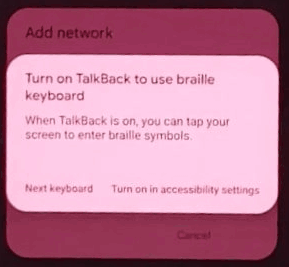
- Enable TalkBack - Press and hold both volume keys (or use your device's accessibility shortcut) to turn on TalkBack.
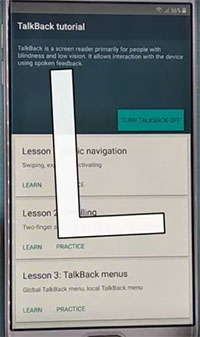
- Open the TalkBack Menu - Use the supported TalkBack gesture (such as the L-shaped gesture on compatible versions) to access the global menu.
- Go to Help or Tutorial - Open TalkBack Settings and navigate to the Help, Tutorial, or Help & Feedback section if available.
- Launch an External Link - If your firmware allows it, open an external link from the help page to access a web browser.
- Continue the Process - Follow the remaining on-screen instructions for your device and Android version. Keep in mind that many recent Samsung security patches disable browser access or APK installation during setup, so the TalkBack method may no longer work on newer devices.
Part 3: How to Fix Samsung FRP Bypass TalkBack Not Working
> Fix 1: Use Emergency Call & Test Mode
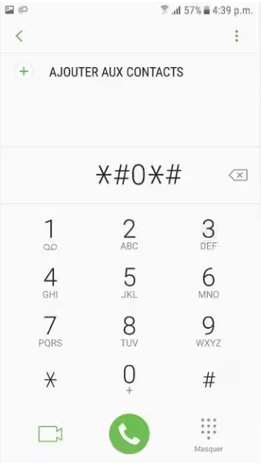
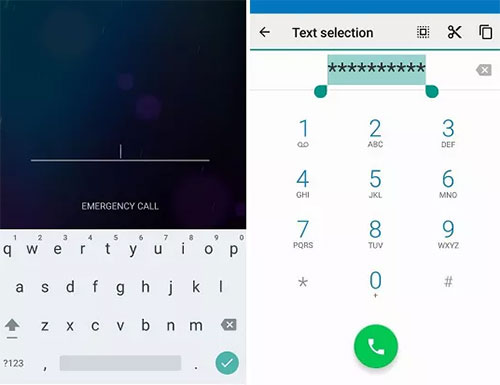
This method mainly works on some Samsung devices running Android 9-11 with older security patches. On Android 12 or later, or on carrier-restricted devices, Test Mode may not open or the *#0*# code may be disabled. Here's how:
- Open Emergency Call - On the Google verification screen, tap Emergency Call.
- Enter Test Mode - Dial *#0*# to open the hidden Test Mode menu. This code only works on some supported devices.
- Connect an OTG Device - Use an OTG adapter to connect a second Android phone or USB storage containing the required files.
- Transfer the Required Files - Copy the needed files to the locked phone using a file transfer app, if supported.
- Follow the On-Screen Setup - Complete the remaining setup steps available for your device and Android version.
> Fix 2: Use SamFw FRP Tool
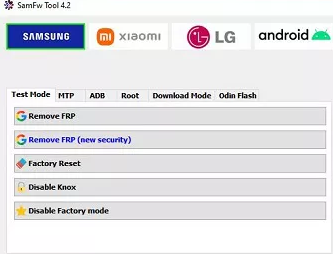
When the traditional TalkBack FRP bypass method fails, some users try SamFw FRP Tool as an alternative solution. This tool works through a PC connection and is mainly effective on supported Samsung devices with compatible security patches. Below is how:
- Install SamFw FRP Tool - Download and open the tool on a Windows computer, then install the required Samsung USB drivers.
- Connect Samsung Device - Use a USB cable to connect the locked Samsung phone to the PC and wait for detection.
- Enter Test Mode - Open Emergency Call on the FRP screen and enter the supported service code to access Test Mode.
- Remove FRP Lock - Select the Samsung device option in SamFw Tool and start the FRP removal process.
- Allow USB Debugging - If a USB debugging prompt appears on the phone, confirm the connection and let the tool complete the process.
- Restart the Device - After the process finishes, reboot the phone and complete the setup steps.
> Fix 3: Use The Secret Code Menu
When the TalkBack FRP bypass method fails, some users try accessing Samsung's hidden service menus through secret codes. However, these codes only work on certain models and software versions because Samsung and Google have restricted many access points in newer Android releases. Here's how:
- Open the Emergency Call Screen - Tap Emergency Call from the FRP verification page.
- Access the Secret Code Menu - Enter supported Samsung service codes to check whether hidden menus are available on the device. Some Samsung diagnostic codes may vary by model and One UI version.
- Enter Service or Test Mode - If the code is accepted, the phone may open a diagnostic or testing interface that provides additional device information.
- Check Device Compatibility - Secret code methods depend on the Samsung model, Android version, and security patch level. Many newer devices block these menus during FRP setup.
- Use Official Recovery Options - If the menu cannot be accessed, recover the original Google account or contact Samsung support with proof of ownership.
> Fix 4: Use Google Find Hub
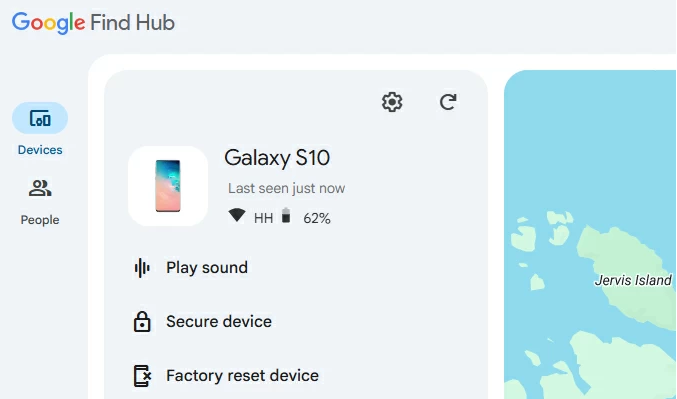
If the TalkBack FRP bypass method fails, Google Find Hub (Find My Device) can help you manage your own Samsung device, but it cannot directly remove FRP protection. FRP requires verification of the previously synced Google account after a factory reset.
- Open Google Find Hub - Sign in with the Google account linked to the Samsung phone.
- Select Your Device - Choose the locked Samsung device from the available device list.
- Check Device Status - Use Find Hub to confirm the device connection and view available recovery options.
- Recover Your Google Account - If you forgot the account details, use Google's account recovery process and sign in with the original account on the phone.
- Complete Device Verification - After successful Google account verification, finish the Samsung setup process.
> Fix 5: Use a PC-based Bypass Tool [Professional]
For users who cannot complete Samsung FRP verification through TalkBack, Android Lock Wiper offers a way to remove FRP locks on various Android devices, including Samsung phones.
It supports multiple Android brands and provides an alternative option when traditional TalkBack methods fail because of system updates or device restrictions. With a simple process, users can regain access to supported devices without relying on the unavailable TalkBack workaround.
Simple Overview of Android Lock Wiper:
|
Feature
|
Description
|
|
FRP Lock Bypass |
Removes FRP locks on supported Android devices, including Samsung. |
|
Screen Lock Removal |
Unlocks PIN, password, pattern, and fingerprint locks. |
|
Multi-Brand Support |
Works with Samsung and other Android brands. |
|
No Google Account Needed |
Helps access devices without account verification in supported cases. |
|
Easy Unlock Process |
Provides simple steps for device unlocking. |
|
Wide Compatibility |
Supports various Android models and versions. |
|
Remove Restrictions |
Restores access to locked Android phones. |
|
PC Unlocking |
Unlocks devices through a Windows computer. |
Free and Secure Download:

How to bypass Samsung Google FRP lock with Android Lock Wiper?
Step 1. Install and Launch the Tool - Download and install the software on your computer, then choose "Remove Google Lock (FRP)" and select "Advanced Mode." Connect your Samsung phone via USB and click "Start."
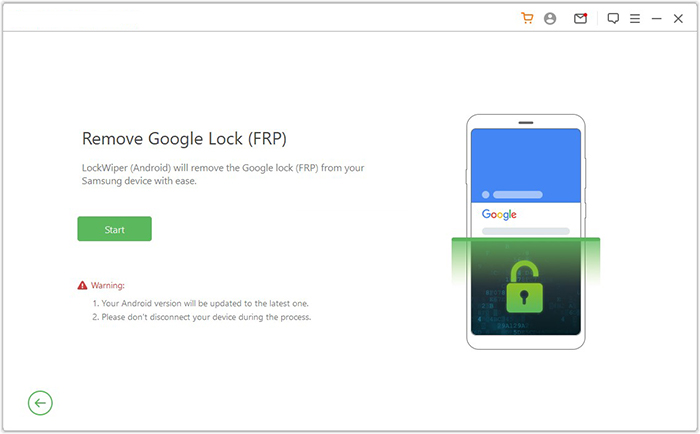
Step 2. Enter Device Details and Download Package - Follow the prompts to provide your Samsung device information, enter recovery mode, select the correct PDA, country, and carrier, then download the required package.
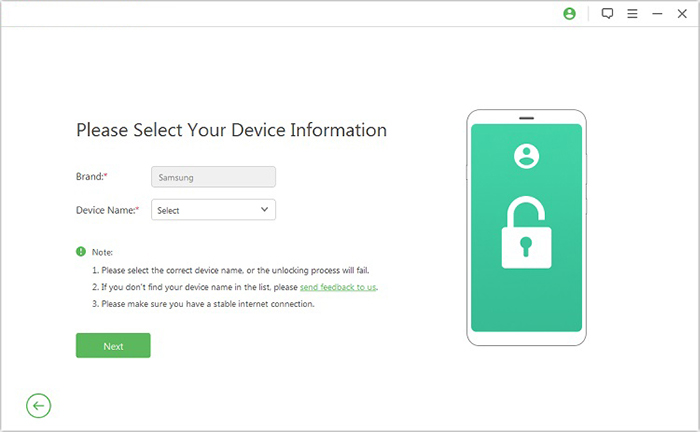
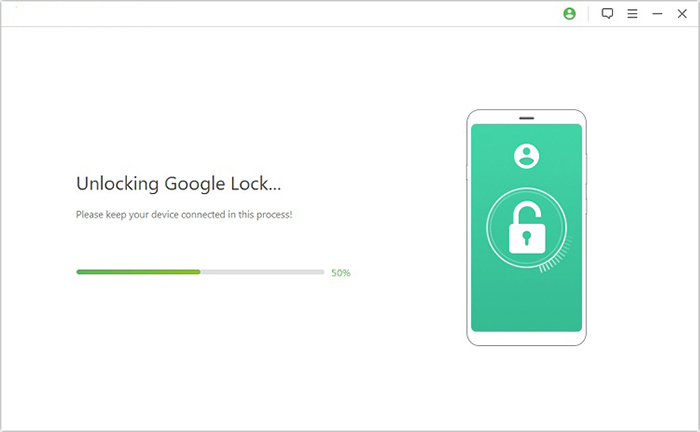
Step 3. Start FRP Removal Process - Extract the package, follow the instructions to enter Download Mode, enable USB debugging and OEM unlock, then let the software complete the FRP unlocking process.
Verdit
Samsung FRP Bypass TalkBack once provided a convenient way to deal with Google verification issues, but changes in Android security have made it less reliable on many devices. When the method fails, checking the device version, trying suitable alternative - Android Lock Wiper.
Before attempting any FRP-related solution, make sure the Samsung phone belongs to you or you have permission to unlock it. Keeping your Google account details secure and removing accounts before performing a factory reset can help prevent FRP lock issues in the future.
Related Articles:
12 Easy Methods to Free Up Space on Samsung Phone/Tablet
Top 7 Samsung Device Managers You Wish You Knew Sooner [Updated]
How to Recover Contacts from Samsung with Black Screen? 4 Options
How to Transfer Text Messages from Samsung to Samsung? 7 Tactics]