
Ultimate Guide: Does Samsung Smart Switch Transfer Everything?
"I have upgraded my Note 20 to the S26 Ultra? Does it transfer apps? Further, I would like to know what the Smart Switch transfers exactly." -- from Reddit
Do you need help with how the transfer process works when using Samsung Smart Switch? Are you concerned about retaining the original data on your source device? Do you wish to transfer every bit of your data to your new Samsung phone via the app after getting the brand-new Galaxy? Two common questions that arise in such scenarios are: "Does Samsung Smart Switch transfer everything?" & "Does Samsung Smart Switch copy or move data"?
This post sets the stage for a comprehensive exploration of Samsung Smart Switch and its data transfer functionalities.
- Part 1: Does Samsung Smart Switch Transfer Everything
- Part 2: Does Samsung Smart Switch Copy or Move Data
- Part 3: How Does Samsung Smart Switch Work
- Part 4: How to Transfer Data to New Samsung without Smart Switch
> 4.1 Using MobiKin Transfer for Mobile
> 4.2 Using Copy My Data - Q&A about Samsung Smart Switch Transfers
Part 1: Does Samsung Smart Switch Transfer Everything
Not exactly. Samsung Smart Switch can transfer many types of data - such as contacts, messages, photos, videos, apps, and call logs - from an old phone to a new Samsung Galaxy device. However, some items like DRM-protected files, certain app data, account logins, or specific browser histories may not transfer completely and may need to be set up again manually.
It's essential to review the supported data types and potential limitations before using this app for data transfer.
You Might Also Like:
Part 2: Does Samsung Smart Switch Copy or Move Data
So, does Smart Switch delete data from the old phone? NO! Smart Switch creates a duplicate copy of the data you want to transfer before sending it to the receiving phone. Instead of moving the data entirely, it leaves the original copy on the sending phone. This is advantageous because it reduces the risk of interruptions or changes of mind during the transfer process.
Unlike moving data, Smart Switch copies the data, minimizing the risk of data loss during the migration and allowing users to retain a backup of their information after the transfers.
Part 3: How Does Samsung Smart Switch Work
Preparations and Considerations:
- Check device compatibility: (Android 4.3 or newer; iOS 9.0 or newer).
- Deregister the iMessage account and prepare your iCloud ID (iOS to Samsung transfers).
- Both the old and new devices have a sufficient battery.
- Ensure your phones are with the updated software.
- Back up important data on your old device (Optional).
- Choose the connectivity option (USB, Wi-Fi, or Computer).
- Follow the on-screen instructions carefully.
- Be patient during the transfer process.
If you intend to transfer data to your new Samsung from an old iPhone or iPad device, follow the steps:
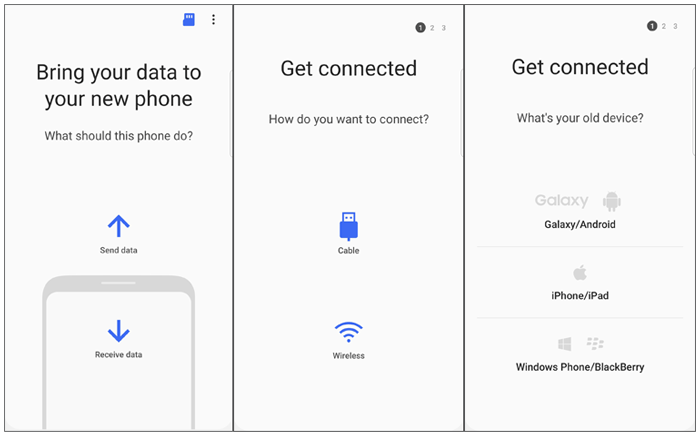
- Open Smart Switch on your new Samsung phone and agree to the terms.
- Select "Receive data" and choose the type of device you're transferring from (e.g., iPhone).
- Connect your iPhone to Samsung using a cable and an OTG adapter or via WiFi if needed.
- Trust the connected device on your iPhone and enter your iCloud ID passcode if prompted.
- Smart Switch will search your old iPhone for content to transfer.
- Choose the content you want to transfer and tap "Transfer."
- If transferring apps from another iOS, select the Android versions.
- After that, you can install paid apps later on your new Samsung.
You Might Also Enjoy:
It's also easy for you to transfer data from iPhone to Samsung in different ways, including this Smart Switch solution.
Part 4: How to Transfer Data to New Samsung without Smart Switch
4.1 Using MobiKin Transfer for Mobile
Smart Switch is a crucial option for Samsung users looking to switch devices, but it can encounter issues with compatibility and stability that may hinder content transmission. This is why many users opt for reliable third-party software like MobiKin Transfer for Mobile (Win and Mac), known for its high quality and robustness, to streamline the transfer.
With nearly a million downloads, this tool stands out as a top choice for mobile data conversion, backed by positive reviews that highlight its impressive and reliable performance.
A brief intro to MobiKin Transfer for Mobile:
- Transfer data to your new Samsung phone without limits.
- Copy content across any two mobile devices (Android/iPhone/iPad).
- Work for a broad range of files, including contacts, text messages, call history, apps, media content, and more.
- Get on well with overall Android/Samsung/iOS devices.
- No leakage of personal privacy and no data loss.


How to transfer data to your new Samsung from another Android/iOS device via Mobile Transfer for Mobile?
Step 1: First, open the Mobile Transfer product on your computer. Make sure you've downloaded and installed it beforehand. The software's initial interface will appear similar to the image displayed below.

Step 2: Use USB cables to establish connections between your computer and both phones. Then, activate USB debugging to allow the tool to detect them. If you accidentally swapped the source and destination devices, simply click on "Flip" located in the middle of the window.
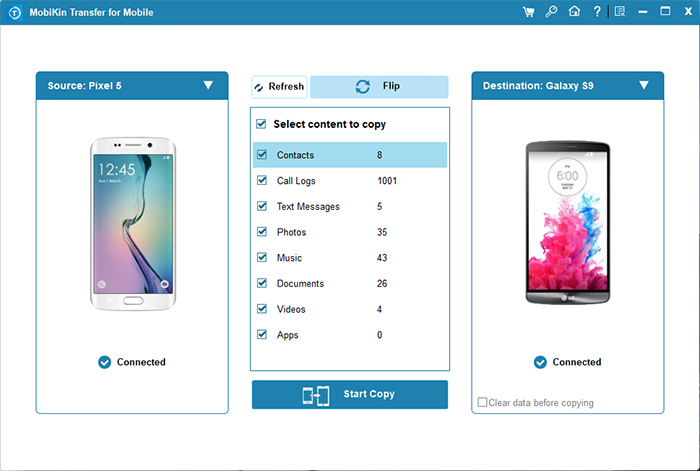
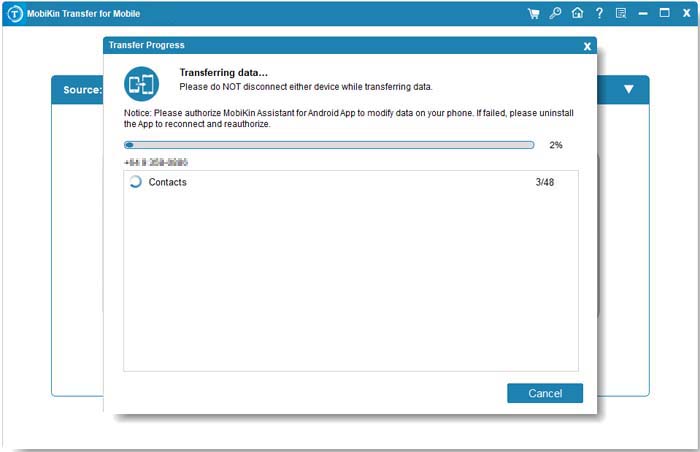
Step 3: Next, choose the specific types of files you want to transfer and click on the "Start Copy" button. This will promptly commence the migration of data to your new Samsung phone.
Video Tutorial:
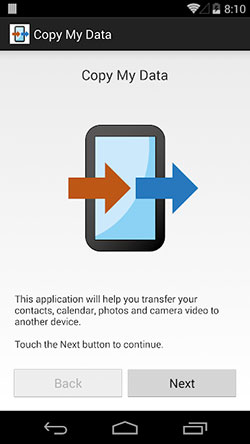
4.2 Using Copy My Data
Copy My Data swiftly transfers calendar events, images, contacts, and videos via Wi-Fi. It's excellent for copying data to Samsung Galaxy phones, with fast transfers and added security through a 4-digit code. Despite some users' difficulty locating copied calendar data, its user-friendly interface and cross-platform compatibility make it a convenient choice for copying data between iOS and Android devices.
- Download the app from Google Play or the App Store on both Samsung/Android/Apple devices.
- On the receiving phone, select "Copy data from another device."
- On the sending device, choose "To another device" and select the receiving phone's name to connect.
- Enter the 4-digit code on the receiving phone.
- Select the data types and follow the instructions on the screen to complete the transfer.
Q&A about Samsung Smart Switch Transfers
Q1: How to fix Samsung Smart Switch not working?
When the Samsung Smart Switch isn't functioning properly, there are several troubleshooting steps you can take to resolve the issue:
- Check device compatibility.
- Restart devices to resolve glitches.
- Ensure a stable internet connection.
- Reinstall the app to fix installation issues.
- Clear cache/data in app settings.
- Disable battery optimization for Smart Switch.
- Contact Samsung Support for further assistance if needed.
Q2: Does Smart Switch copy messages?
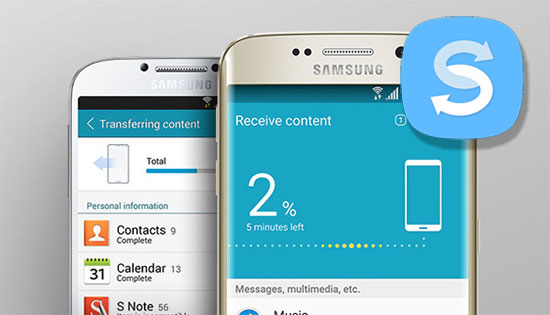
Yes, Samsung Smart Switch can transfer messages, including SMS, MMS, and WhatsApp messages (if both devices are Samsung and compatible).
Q3: How long does the Samsung Smart Switch transfer take?
The duration of a Samsung Smart Switch transfer varies based on factors like data size and connection speed, typically ranging from a few minutes to an hour.
Q4: Will Smart Switch remove data if I pick "Factory Reset" during transfers?
Selecting "Factory Reset" during Smart Switch erases all data on the old device, returning it to factory settings. Back up your data before choosing this option if you want to secure your content.
Ending Words
In addition to answering the pivotal question about data transfer, we've covered more details and offered tricks to enhance your Smart Switch usage. By the end of this page, you may have had a deeper understanding of Samsung Smart Switch and its capabilities.
However, while Samsung Smart Switch is a popular option for data transfer and backup, there are other better choices available. As a more excellent alternative, MobiKin Transfer for Mobile is surely recommendable. With its full-fledged features and excellent performance, this tool offers a seamless data copy experience across various devices.
Related Articles:
How to Recover Data from Samsung Phone That Won't Turn on? 5 Tactics
How to Transfer WhatsApp from Xiaomi to Samsung? 3 Error-free Methods
5 Optimal Ways to Transfer Calendar from Samsung to Samsung
5 Most Popular Methods to Factory Reset Samsung Phone When Locked
