
Samsung Experience Service Keeps Stopping? 8 Basic Fixes & 1 Expert Approach
"Recently decided to do a software update and a lot of things seemed to have stopped working. Looking for a fix if anyone can help." -- from Reddit
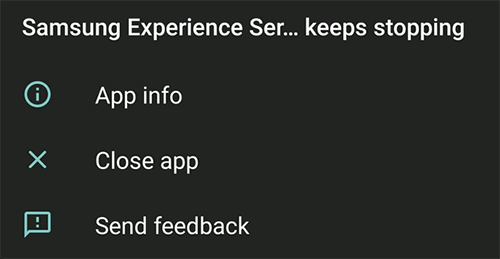
The "Samsung Experience Service keeps stopping" error can appear in different ways depending on Android version, often showing repeated pop-up messages, app crashes, or system lag. On Android 10.0 and later (One UI-based devices), it may interrupt Samsung account syncing, home screen functions, or background services, while on older Android versions it can cause more frequent freezes and unstable system behavior.
This article explores the underlying reasons behind these interruptions. And it also walks through 8 basic solutions along with 1 expert-level fix to help restore normal system performance.
- Part 1: Why Samsung Experience Service Keeps Stopping
- Part 2: What to Do When Samsung Experience Service Keeps Stopping? 8 Tricks
> Trick 1: Clear cache
> Trick 2: Avoid 3rd-party app conflicts
> Trick 3: Force restart Samsung
> Trick 4: Reset app preferences
> Trick 5: Update all apps
> Trick 6: Try safe mode
> Trick 7: Update Samsung software
> Trick 8: Factory reset Galaxy - Part 3: How to Fix Samsung Experience Service Keeps Stopping Expertly
Part 1: Why Samsung Experience Service Keeps Stopping
Seeing the "Samsung Experience Service keeps stopping" error can interrupt normal phone usage and affect several Samsung features unexpectedly. Before applying fixes, it is important to understand the possible reasons behind the issue, as the problem may stem from software conflicts, corrupted system data, outdated firmware, or device resource limitations:
- Corrupted cache/data - Damaged temporary files inside Samsung Experience Service can repeatedly trigger crashes.
- Buggy One UI or Android updates - Incomplete firmware optimization after updates may destabilize Samsung system services.
- Third-party app conflicts - Launchers, RAM cleaners, battery savers, and customization apps can interfere with Samsung processes.
- Outdated apps or firmware - Older Galaxy Store apps or Android versions may cause compatibility issues.
- Insufficient storage space - Low internal storage can affect background system operations and lead to service errors.
- Samsung account sync problems - Cloud synchronization failures or account-related glitches may repeatedly stop the service.
- System-level corruption - Deeper Android system errors can cause Samsung Experience Service to malfunction alongside other apps.
- Aging device performance - Older Samsung phones may struggle with newer One UI features and background services.
Want to disable Samsung Experience Service, go to Settings > Apps > Show System Apps > Samsung Experience Service and tap Disable if the option is available on your device. Some Samsung phones may not allow full disabling, so you can instead choose Force Stop and restrict its background activity to reduce repeated crashes. Keep in mind that disabling this service may affect Samsung account syncing, personalized features, and certain One UI functions.
Part 2: What to Do When Samsung Experience Service Keeps Stopping? 8 Tricks
Trick 1: Clear cache
- Go to Settings > Apps > Show system apps, then locate Samsung Experience Service and open it.
- Tap Storage, then select Clear Cache to remove temporary files that may be corrupted and causing crashes.
- After that, restart your phone so the system reloads the service properly and applies the changes. (If the issue continues, you can also tap Clear Data in the same menu to reset the service completely, which often resolves persistent errors.)
Clearing the app cache only removes temporary files created by Samsung Experience Service itself. Wiping the cache partition removes temporary system-wide cache files from Android Recovery Mode, which can fix deeper firmware or One UI issues affecting multiple Samsung services. In short, clearing app cache is a lighter troubleshooting step, while wiping the cache partition provides a more thorough system cleanup without deleting personal data.
Trick 2: Avoid 3rd-party app conflicts
- Start by booting your phone into Safe Mode, which disables all non-system apps and helps confirm whether the issue is app-related.
- If the problem stops in Safe Mode, uninstall recently added or suspicious apps, especially launchers, cleaners, or battery optimization tools that often interfere with Samsung services.
- Finally, only install trusted apps from the Google Play Store or Galaxy Store and avoid unknown APK sources to keep system services stable.
Trick 3: Force restart Samsung
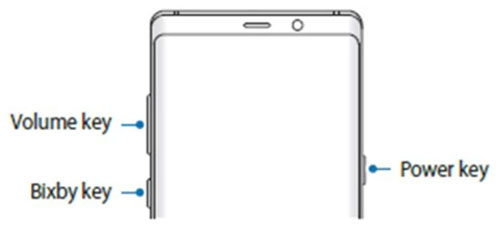
Press and hold the Power button + Volume Down button together for about 10-15 seconds until the Samsung logo appears. This process reloads the system processes and can resolve temporary glitches or app conflicts without deleting your personal data.
Trick 4: Reset app preferences
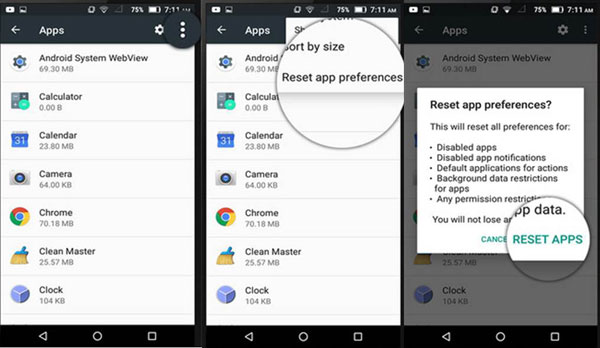
You can fix "Samsung Experience Service keeps stopping" by resetting app preferences through Settings > Apps, then tapping the three-dot menu and selecting Reset app preferences. This action restores default app settings, re-enables any disabled apps, and removes restrictive configurations that may be affecting system services. It is a safe method because it does not delete personal data or installed apps.
Trick 5: Update all apps
According to troubleshooting guidance like JustAnswer, outdated apps can cause repeated error pop-ups, so regular updates help maintain system stability. To do it:
- Update all apps by opening the Google Play Store or Galaxy Store, then going to Manage apps > Update all.
- Keeping apps updated ensures compatibility with the latest Android or One UI version and helps remove bugs that may trigger system service crashes.
Trick 6: Try safe mode
- Restart your Galaxy phone and temporarily disabling all third-party apps.
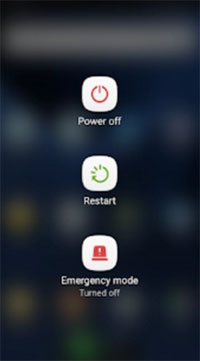
- Press and hold the Power button, then long-press Power Off, and tap Safe Mode when it appears to reboot the device.
- In Safe Mode, check if the error disappears - if it does, it confirms a third-party app is causing the issue, allowing you to uninstall recently added apps to restore normal performance. (What if your phone gets stuck in safe mode?)
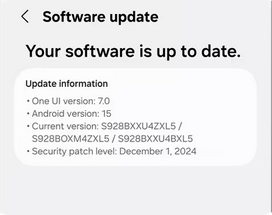
Trick 7: Update Samsung software
- Go to Samsung Settings > Software update > Download and install.
- Then allow your phone to check for and install the latest system update.
- This ensures your device has the newest One UI and system patches that fix bugs.
- After the update completes, restart your phone.
Trick 8: Factory reset Galaxy
To factory reset a Samsung Galaxy to fix "Samsung Experience Service keeps stopping," go to Settings > General Management > Reset > Factory data reset, then tap Reset and confirm to erase all data and restore default system settings. This removes corrupted files and app conflicts that may be causing the error.
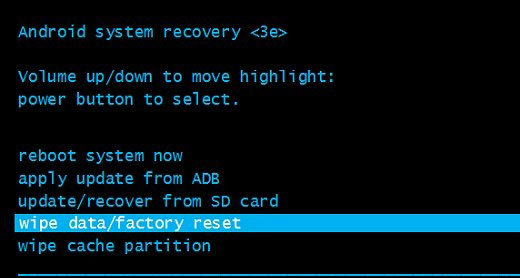
* If the phone is unresponsive, you can also use Recovery Mode > wipe data/factory reset as an alternative method.
Part 3: How to Fix Samsung Experience Service Keeps Stopping Expertly
Android Repair is a professional repair utility designed to fix a wide range of Android system issues, including persistent errors like "Samsung Experience Service keeps stopping." It can automatically diagnose firmware problems, repair corrupted system components, and restore device stability without requiring advanced technical steps from the user.
With its deep system repair capability, it is often used as an expert-level solution when basic troubleshooting methods fail to resolve Samsung service crashes.
Main Features of Android Repair:
+ Fixes system issues like crashes and "keeps stopping" errors.
+ Fixes stuck devices such as boot loops or frozen screens.
+ Enter Samsung Download Mode (Odin mode) at no cost.
+ One-click repair for easy troubleshooting.
+ Samsung support for Galaxy phones and tablets.
+ Repairs firmware problems without advanced skills.
+ No data loss option in standard repair mode, especially for Xiaomi/POCO/Redmi.
+ Works with overall Samsung versions and models, including the latest Samsung Galaxy S26.
+ Simple guided steps for easy repair process.
How can you fix Samsung Experience Service Keeps Stopping with Android Repair?
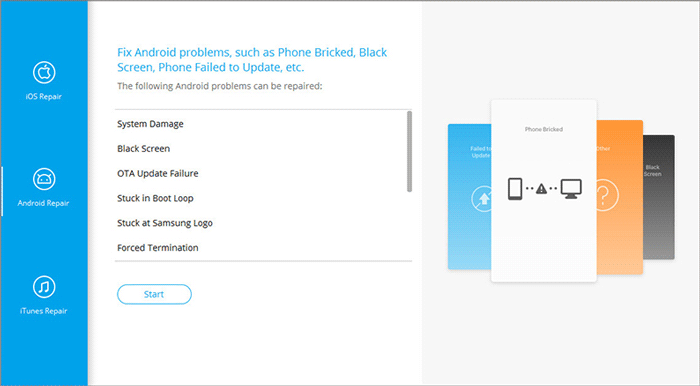
- Open the installed software on your computer and go to the "System Repair" section on the main interface.
- Connect your Galaxy device to the computer using a USB cable and select the "Android Repair" option.
- Review the information shown on the screen and click "Start."
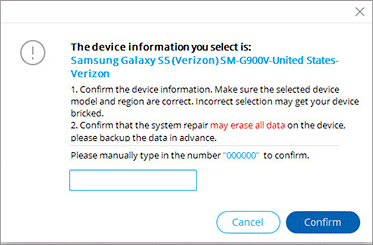
- Enter your device details and click "Next." Then type "000000" and select "Confirm."
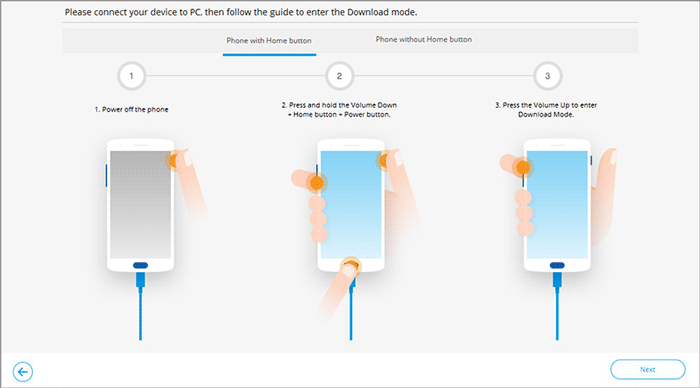
- (For Samsung with a Home button) Turn off your phone. Press and hold the "Home," "Power," and "Volume Down" buttons together for 10 seconds. Release all buttons, then press "Volume Up" to enter download mode.
- (For Samsung without a Home button) Turn off your phone. Press and hold the "Bixby," "Power," and "Volume Down" buttons for about 10 seconds, then release them. Finally, press "Volume Up" to enter download mode.
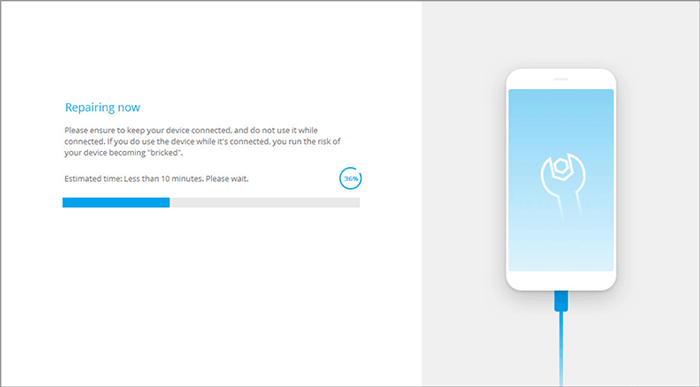
- Once you are in download mode, click "Next" to download the required firmware for a quick fix.

Additional Tips
How to Avoid "Samsung Experience Service Keeps Stopping" in the Future?
- Keep your Samsung software and One UI updated to ensure system stability and bug fixes.
- Regularly update all apps from the Google Play Store and Galaxy Store to maintain compatibility.
- Avoid installing untrusted or modified APK files that may interfere with system services.
- Uninstall or disable third-party launchers, cleaners, and battery booster apps that often cause conflicts.
- Make sure your device always has sufficient storage space for smooth system performance.
- Periodically restart your phone to refresh system processes and prevent background glitches.
- Use Safe Mode when troubleshooting to quickly identify problematic apps.
- Clear system and app cache occasionally to reduce the chance of corrupted temporary files.
Related Articles:
Top 5 Ways to Transfer WhatsApp from Old Samsung to New Samsung
5 Verified Ways: How to Recover Data after Factory Reset on Samsung
5 Easy Tactics to Delete Everything on Your Phone Samsung Galaxy
Screen Mirroring Samsung: 7 Ways to Mirror Samsung to 3 Platforms
