
Easy Samsung FRP Tool Installing Drivers Failed? Reasons & 9 Fixes
Easy Samsung FRP Tool can be useful for bypassing Google Factory Reset Protection, but users may encounter unexpected errors during the process. Failure to bypass FRP keeps the phone locked, preventing normal use. This article will walk through how to fix Easy Samsung FRP Tool failed in 8 basic solutions and 1 ultimate way, helping users resolve common obstacles step by step.
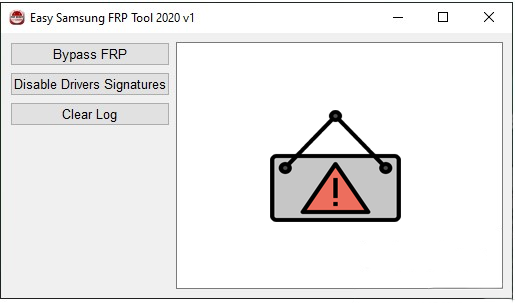
- Part 1: Why Did Easy Samsung FRP Tool Fail
- Part 2: 8 Quick Solutions to Easy Samsung FRP Tool Failed
> Solution 1: Verify USB Connection
> Solution 2: Check/Install Samsung USB Drivers
> Solution 3: Disable Driver Signature
> Solution 4: Install Tool in Safe Mode
> Solution 5: Update Drivers via Device Manager
> Solution 6: Try Compatibility Mode
> Solution 7: Update PC Windows
> Solution 8: Restart ADB Service Manually - Part 3: Fix Easy Samsung FRP Tool Failed in an Ultimate Way
Part 1: Why Did Easy Samsung FRP Tool Fail
Failures with Easy Samsung FRP Tool can occur due to a range of connection, software, and system-related issues. Understanding these common causes can help identify the problem quickly and apply the right fix.
- ADB Connection Issues: Loose USB or unauthorized device prevents detection.
- USB Driver Problems: Missing or incompatible Samsung drivers block the tool.
- Phone Security Features: New firmware or security patches can stop FRP bypass.
- Conflicting Software: Kies, Smart Switch, or antivirus interfere with ADB.
- Incorrect Tool Version: The tool may not support the device or Android version.
- Windows Permission Issues: Lack of admin rights or system conflicts can prevent operation.
- Outdated FRP Tool: Using an old version may not be compatible with recent Android updates.
- Disabled OEM Unlocking: FRP cannot be bypassed if OEM Unlock is turned off on the phone.
You May Also Like: GSM Flasher ADB Bypass FRP Tool Review: Is It Worth Testing Out
Part 2: 8 Quick Solutions to Easy Samsung FRP Tool Failed
Solution 1: Verify USB Connection
- Check that the USB cable and port are working properly > try a different cable or USB port if the connection is unstable.
- Ensure the phone is firmly connected to the PC and recognized (no frequent disconnect/reconnect).
- Look in Device Manager to confirm the device appears without errors (no warning icons).
- Avoid using damaged or low-quality cables, as a faulty connection can interrupt driver installation and tool operation.
Enable USB debugging after verifying the connection. To do it, go to Settings > Developer options on your Samsung phone, toggle USB debugging OFF and ON, then reconnect the device to your PC. When prompted, tap "Allow USB debugging" and check "Always allow from this computer" to re-authorize the connection. If no prompt appears, revoke USB debugging authorizations in Developer options and reconnect again.
Solution 2: Check/Install Samsung USB Drivers
- Connect your Samsung phone to the PC > open Device Manager > check if it appears under USB devices without errors; if missing, click Scan for hardware changes.
- If the driver is not installed or faulty, download the official Samsung USB driver and install it manually on your PC.
- Run the installer > click Next > Agree > Install and complete the setup, then restart your computer.
- After reboot, reconnect your phone and confirm it is properly recognized to ensure the FRP tool can communicate with the device.
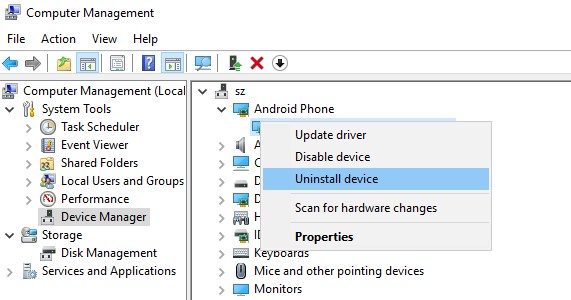
Note: Close all background programs that may interfere with the connection, such as Samsung Kies, Smart Switch, or any Android management tools running on your PC. Open Task Manager and end related processes to ensure no software is using the same ports or ADB services. After that, restart the Easy Samsung FRP Tool and reconnect your device to check if the issue is resolved.
Solution 3: Disable Driver Signature
If driver installation fails due to Windows restrictions, disabling driver signature enforcement can allow the required Samsung USB drivers to install properly and resolve the FRP tool issue:
- Go to Settings > Update & Security > Recovery > Advanced startup > Restart now to enter the recovery menu.
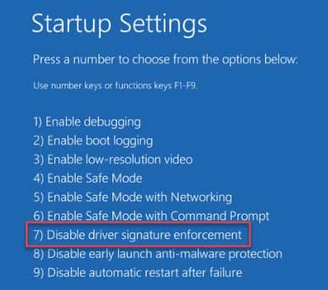
- Select Troubleshoot > Advanced options > Startup Settings > Restart, then press 7 or F7 to disable driver signature enforcement.
- After the PC restarts, install the Samsung USB drivers again and run the FRP tool to check if the issue is resolved.
Solution 4: Install Tool in Safe Mode
When system conflicts are preventing the FRP tool from working properly, installing it in Safe Mode can help ensure a clean setup with minimal interference. How can you do that?
- Restart your PC > press F8 or hold Shift + Restart to enter Advanced Startup, then choose Safe Mode. (What is Safe mode on Android?)
- Once in Safe Mode, install or re-run the Easy Samsung FRP Tool and Samsung USB drivers with minimal system interference.
- After installation, restart your computer normally and reconnect your device to check if the issue is resolved.
Solution 5: Update Drivers via Device Manager
Assuming outdated or incorrect drivers are causing detection issues, updating them via Device Manager can restore proper communication between your phone and the FRP tool. Here's how:
- Connect your Samsung phone > open Device Manager > locate your device (often under Other devices or Portable devices) > right-click it and select Update driver.
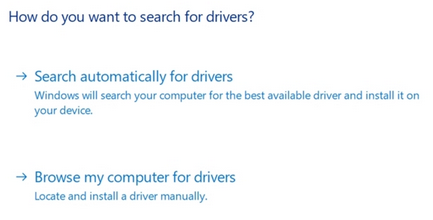
- Choose Search automatically for drivers or Browse my computer for drivers > follow the on-screen instructions to install or update the correct USB driver.
- After updating, restart your PC, reconnect the phone, and check if the FRP tool can detect the device properly.
Solution 6: Try Compatibility Mode
Provided that the FRP tool is incompatible with your current Windows version, running it in Compatibility Mode can help it function correctly. Here are the steps:
- Right-click the Easy Samsung FRP Tool executable file > select Properties > go to the Compatibility tab.
- Check Run this program in compatibility mode for: and choose an older Windows version (e.g., Windows 7 or Windows 8).
- Click Apply > OK, then run the tool again as Administrator to see if it works properly.
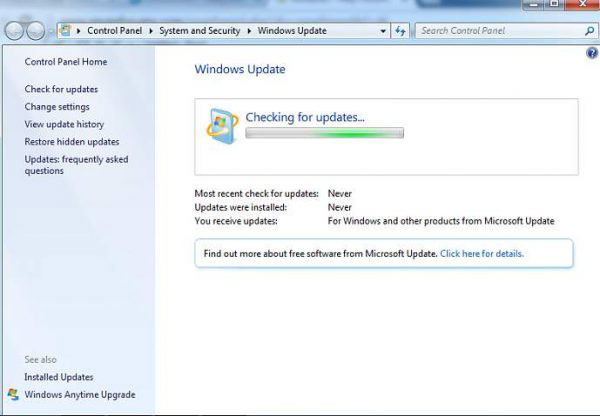
Solution 7: Update PC Windows
- Open Settings > go to Update & Security > click Windows Update.
- Select Check for updates and download any available updates.
- After installation, restart your PC and run the FRP tool again to see if the issue is resolved.
Solution 8: Restart ADB Service Manually
A malfunctioning or unresponsive ADB connection can prevent the FRP tool from detecting your device, making it necessary to restart the ADB service manually. Learn how to do it:
- Connect your Galaxy phone to the PC > open Command Prompt as Administrator > make sure ADB is installed or accessible from your system path.
- Type adb kill-server and press Enter > then type adb start-server and press Enter to restart the ADB service.
- After restarting, type adb devices to confirm your phone is detected > reconnect the device if needed, ensure USB debugging is enabled, and run the FRP tool again.
Part 3: Fix Easy Samsung FRP Tool Failed in an Ultimate Way
Easy Samsung FRP Tool may not suit every user, as it is mainly limited to Samsung devices and often encounters issues such as driver installation failures or failure to detect the device. In addition, newer Samsung firmware updates can block its functionality, reducing its effectiveness in many cases.
A more reliable option is Android Lock Wiper, which supports a wider range of Android brands (The latest Galaxy S26 included) and offers a smoother, more user-friendly FRP bypass process. It can remove FRP without the original Google account and unlock various screen locks like PIN, pattern, fingerprint, and face recognition.
The tool also works via a simple PC connection, installs required firmware automatically, and on some devices, completes unlocking without data loss.
How-to Guide:
- Initiate the process by downloading and installing the software on your computer.
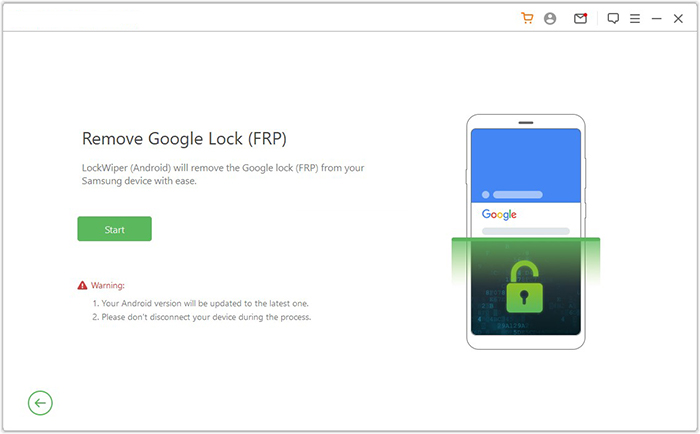
- Select 'Remove Google Lock (FRP)' and choose 'Advanced Mode.'
- Connect your Samsung phone to the PC using a USB cable, then click 'Start.'
- It is advisable to back up your Galaxy to prevent any potential data loss during the unlocking procedure.
- Follow the instructions to provide the necessary information regarding your device and click 'Next.'
- Ensure that you adhere to the on-screen prompts to enter recovery mode.
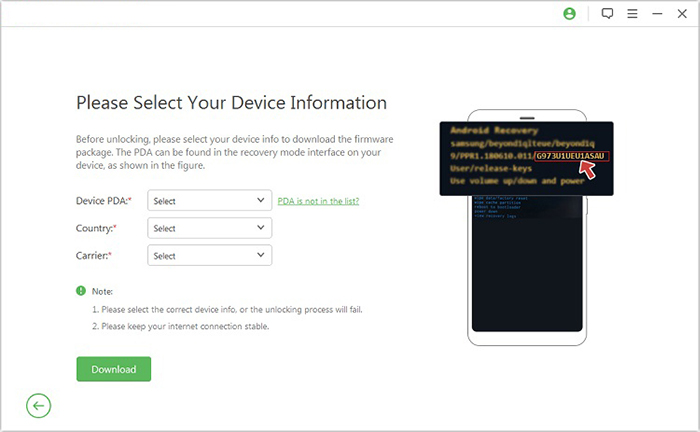
- On the subsequent screen, select the appropriate PDA, country, and carrier, then click 'Download' to obtain the required data package.
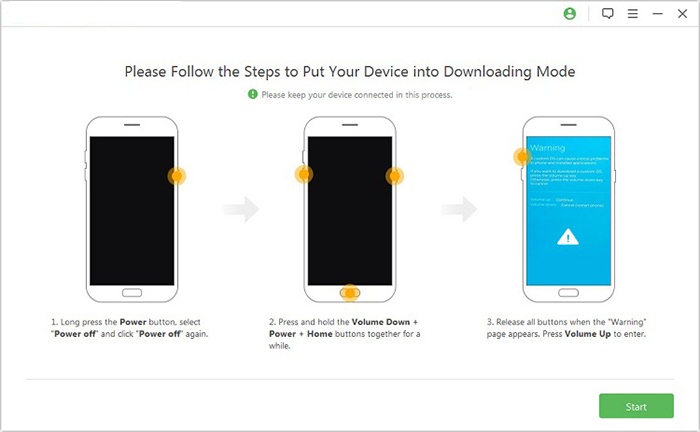
- Afterward, click 'Start to Extract' and follow the on-screen instructions to place your device into Download Mode, enable USB debugging, activate OEM unlock, and extract the firmware, among other critical tasks.
- Ultimately, the software will commence the FRP unlocking process.

Calling It a Wrap
Dealing with FRP tool errors can interrupt the unlocking process, but most problems can be resolved with careful troubleshooting and the right setup. By following the practical methods discussed, users can address connection issues, system conflicts, and compatibility barriers more effectively.
When basic fixes do not work, turning to a more stable and widely supported solution - Android Lock Wiper can save time and reduce repeated failures.
Finally, a hot tip here - Always verify USB debugging authorization and keep your device connected steadily before running any FRP tool, as unstable connections are one of the most common causes of failure.
Related Articles:
5 Verified Ways: How to Recover Data after Factory Reset on Samsung
What If Samsung Tablet Won't Turn on? Try the 14 Solutions Now
How to Boot into Samsung Download Mode? 4 Well-tested Strategies
