
Samsung Flow vs. SideSync: Overview, Features, FAQs, & 1 Alternative
"So I know I'm behind the times on this, but is Samsung Flow supposed to function the same way SideSync did? I have it on my desktop and phone now (S25) but I'm not seeing the true mirror as we did in SS." -- from Reddit
With SideSync being phased out, many Samsung users are left wondering if Samsung Flow can fully replace it for screen mirroring, file transfer, and device connectivity.
The comparison between Samsung Flow vs. SideSync has become a hot topic, as users want to know which solution offers better performance, reliability, and compatibility with modern devices. This post discusses the key differences, strengths, FAQs of both apps, and a better alternative to them.
Part 1: Samsung Flow vs. SideSync: Brief Overview
1.1 What Is Samsung Flow?
Samsung Flow is a software application that allows seamless connectivity between your Samsung devices, such as smartphones, tablets, and Windows PCs. It enables features like secure file transfer, screen sharing, and phone notifications on your computer for a more integrated experience. With Samsung Flow, users can also unlock their PC using their phone's fingerprint or PIN, enhancing both convenience and security.
1.2 What Is SideSync?
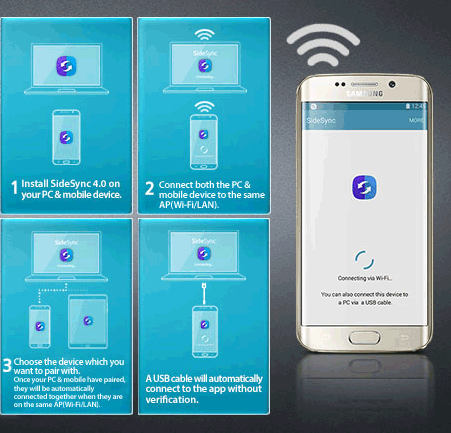
SideSync is a Samsung app that lets users connect their Samsung smartphone or tablet to a PC or another device for easy content sharing. It allows screen mirroring, keyboard and mouse control, and file transfers between devices, making multitasking more convenient. Although it was widely used for seamless device interaction, Samsung has gradually replaced it with Samsung Flow for more advanced features and security.
Part 2: Samsung Flow vs. SideSync: Key Features
Samsung Flow offers seamless connectivity between Samsung devices and PCs with secure file transfer, screen sharing, notifications, and the ability to unlock a PC using your phone. SideSync provides basic screen mirroring and file transfer between devices but lacks advanced security features. Here is the key feature comparison:
|
Core Feature
|
Samsung Flow
|
SideSync
|
|
Device Connectivity
|
Connects Samsung phones, tablets, and Windows PCs seamlessly |
Connects Samsung phones/tablets to PC or another device |
|
Screen Sharing/Mirroring
|
Secure and fast file transfer between devices |
Easy drag-and-drop file transfer |
|
File Transfer
|
Requires a Samsung account |
Uses a Google account |
|
Security Features
|
Unlock PC using phone's fingerprint or PIN |
No advanced security unlock features |
|
Notifications & Calls
|
View and respond to phone notifications and calls on PC |
Limited notification access |
|
Current Status
|
Actively supported and updated |
Gradually replaced by Samsung Flow, limited updates |
Part 3: How to Switch from SideSync to Samsung Flow
If you're ready to move from SideSync to Samsung Flow, there's a clear step-by-step process you can follow to ensure a smooth transition. The following instructions will guide you through checking compatibility, installing and pairing devices, configuring key features, testing functionality, and finally uninstalling SideSync. Below is how:
- Make sure your phone runs Android 8.0+ and your PC uses Windows 10/11 or macOS Sonoma (with limitations).
- Download from the Galaxy Store (mobile) and Microsoft Store (PC); avoid third-party sites.
- Ensure both devices are on the same network with Bluetooth enabled for pairing.
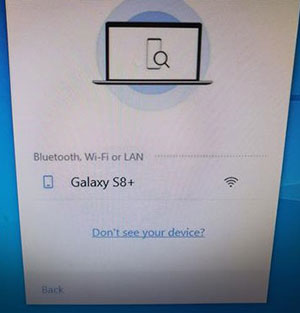
- Open Samsung Flow on both devices, select "Add Device," and confirm the pairing code.
- Turn on Smart Lock, notification sync, and clipboard sharing in settings.
- Send a message from your PC, copy text across devices, and check auto-lock.
- Once Samsung Flow is stable, remove SideSync to prevent conflicts.
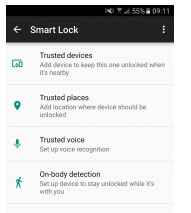
While Samsung Flow offers convenient cross-device connectivity, it has some drawbacks. It is only compatible with newer Samsung phones and limited PC or Mac versions, excluding many older devices. Additionally, some features like clipboard sharing and Smart Lock may not work reliably in certain network conditions, and setup can be more complex compared to simpler file-transfer apps.
Part 4: FAQs about Samsung Flow & SideSync
Q1: Is Samsung Flow more secure than SideSync?
Yes, Samsung Flow offers advanced security features such as unlocking your PC with a fingerprint or PIN, which SideSync does not provide.
Q2: Are notifications synced in both apps?
Samsung Flow allows full notification syncing and interaction from your PC, while SideSync provides more limited notification access.
Q3: Can I use Samsung Flow on a Mac?
Yes, Samsung Flow supports macOS (Sonoma and later, with some limitations), allowing file transfer and notifications between Mac and Samsung devices.
Q4: Can I copy text or clipboard content between devices using Samsung Flow?
Yes, Samsung Flow supports clipboard sharing, letting you copy and paste text between your phone and PC.
Q5: Do I need an internet connection to use these apps?
Both apps require a local network (Wi-Fi) and Bluetooth for pairing; internet access is not required for basic file transfer and screen sharing.
Q6: Can I use Samsung Flow to unlock my PC remotely?
Yes, Samsung Flow allows you to unlock your Windows PC using your phone's fingerprint or PIN, providing secure and convenient access.
Part 5: What If Samsung Flow Doesn't Work
- Check Device Compatibility: Ensure your phone runs Android 8.0+ and your PC uses Windows 10/11 or macOS Sonoma (with some limitations).
- Update Samsung Flow: Make sure both your phone and PC have the latest version of Samsung Flow installed.
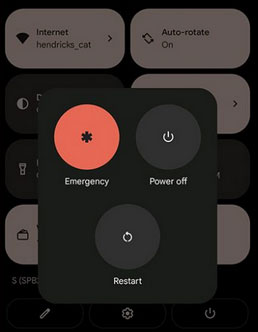
- Restart Devices: Reboot your phone and PC to refresh system processes that may be blocking the app.
- Check Network Connection: Ensure both devices are on the same Wi-Fi network and that Bluetooth is enabled for pairing.
- Re-pair Devices: Open Samsung Flow, remove the current device pairing, and pair your devices again using the correct code.
- Enable Required Permissions: Make sure Samsung Flow has access to notifications, storage, and other necessary permissions on your phone.
- Turn Off VPN or Firewall: Temporarily disable VPNs, firewalls, or security software that may block Samsung Flow connections.
- Check for Windows/macOS Updates: Install the latest OS updates to prevent compatibility issues.
- Clear Samsung Flow Cache (Mobile): Go to Settings > Apps > Samsung Flow > Storage > Clear Cache to remove temporary data that may cause errors.
- Test Bluetooth and Wi-Fi: Confirm that Bluetooth and Wi-Fi are functioning properly on both devices by connecting to other devices or networks.
- Reinstall Samsung Flow: Uninstall and reinstall the app on both phone and PC to fix potentially corrupted files.
- Check for Conflicting Apps: Uninstall SideSync or other device connection apps that might conflict with Samsung Flow.
- Contact Samsung Support: If all else fails, reach out to Samsung customer service for troubleshooting specific to your device.
Part 6: Best Alternative to Samsung Flow & SideSync
SideSync has been phased out, and Samsung Flow is only compatible with newer Samsung phones and limited PC or Mac versions, which can be restrictive for many users. For a more versatile and reliable solution, it's important to consider a better alternative.
Screen Mirror offers smooth screen mirroring across a wide range of phone and PC system versions. Using this software ensures a fluent and stable experience without the device restrictions of Samsung Flow. So, what are the key features of this software?
- Screen Mirroring: Mirror your phone to PC fluently in real time.
- Cross-Platform Support: Works with Android, iOS, Windows, and Mac (8,000+ devices).
- Keyboard & Mouse Control: Control your phone from your computer.
- File Transfer: Move photos, videos, and documents easily.
- Record & Screenshot: Capture videos or images of your screen.
- App Interaction: Use mobile apps directly on PC.
- Smooth Performance: Low-latency mirroring for gaming and work.


How to screen mirror a mobile phone to a PC using Screen Mirror? (Here, we assume that you are using an Android phone.)
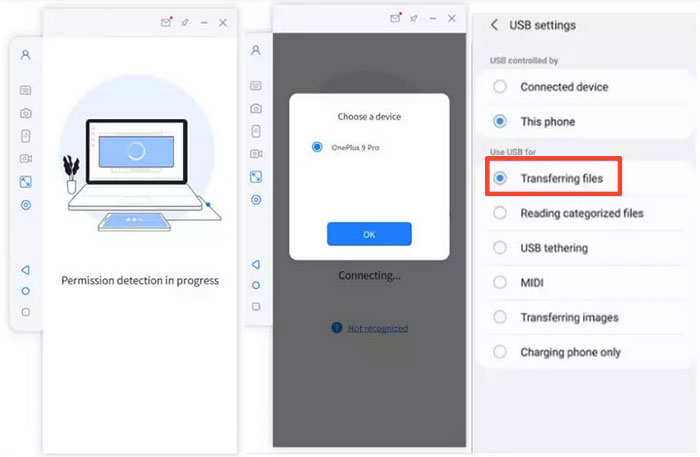
- Download and install the Screen Mirror application on your computer. After that, launch the utility.
- Connect your device to this PC using a USB cable.
- Subsequently, opt for "Transfer files" on your phone to establish the connection.
- Navigate to your phone's "Settings" > "About phone" > "Software information" > tap "Build number" seven times > "Developer options".
- Then return to "Settings" to enable USB debugging on your phone.
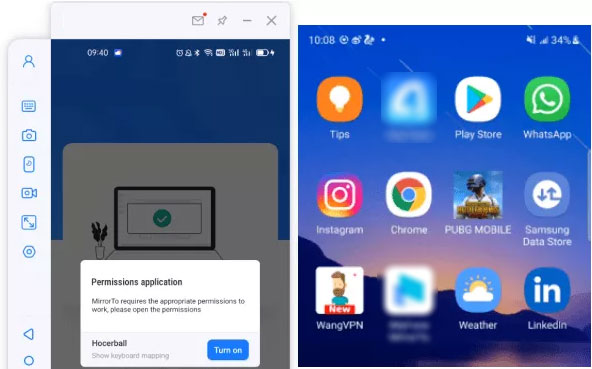
- Authorize the program and permit it to display overlays.
- Then click "Turn on" to download the Screen Mirror application on your phone.
- Ultimately, you will successfully mirror your phone to the PC. (How to use this program to mirror an iPhone to a PC?)
In Closing
While Samsung Flow offers improvements over the old SideSync, it remains limited to newer Samsung devices and a narrow range of PC or Mac versions. For anyone seeking a truly versatile and smooth cross-device experience, Screen Mirror steps in as the clear winner, delivering fluent screen mirroring and broader system compatibility - proving that sometimes leaving the "old flow” behind is the best way to truly connect.
Related Articles:
12 Methods to Fix Touch Screen Not Working/Responding on Samsung
How to Empty Trash/Recycle Bin on Samsung Phone? 7 Means [Latest]
How to Transfer Data from Old to New Samsung? 7 Widely-used Means
How to Recover Data from Samsung Phone That Won't Turn on? 5 Tactics
