
How to Transfer Data from Samsung to Huawei in 6 Ways? [Verified]
TL;DR:
By following the six methods below, you can move your important files from Samsung to Huawei without worry, whether you prefer a cable, Phone Clone, cloud sync, Bluetooth/Wi-Fi Direct, or email. For the fastest, most comprehensive, and safest transfer of contacts, messages, photos, videos, and apps, MobiKin Transfer for Mobile is the most reliable all-in-one choice.
As phones become more central to daily life, many people use multiple devices and accumulate photos, videos, and other important files on each one. When these files are spread across phones like Galaxy and Huawei, you may need to transfer them from one device to another. So, how do you transfer data from Samsung to Huawei without worry?
To transfer all data from Samsung Galaxy to Huawei without losing any data, this concise article with 6 optimal methods will go a long way in helping you.
- #1: How to Transfer Files from Samsung to Huawei via USB Cable Only
- #2: How to Transfer Data from Samsung to Huawei Adeptly
- #3: How to Transfer Data from Samsung to Huawei Phone via Phone Clone
- #4: How to Transfer Data from Samsung to Huawei/HONOR with Google Sync
- #5: How to Transfer Data from Samsung to Huawei via Bluetooth/WiFi Direct
- #6: How to Transfer Data from Samsung to Huawei over Email
- FAQs about Transferring Data from Samsung to Huawei
Watch the video below for a visual guide to this topic.
#1: How to Transfer Files from Samsung to Huawei via USB Cable Only
If you prefer not to install apps, you can transfer Samsung data to your Huawei device using the traditional USB method. This common approach allows you to copy content directly from one device to another. Here's how to transfer files via USB connectivity:
- To begin, connect your Samsung and Huawei smartphones to your Windows computer using functional USB cables.
- When a notification regarding USB connectivity appears on your screen, select the option to utilize your device for MTP.
- Allow some time for your computer to recognize both devices, after which their icons will be displayed in "My Computer"/"This PC".
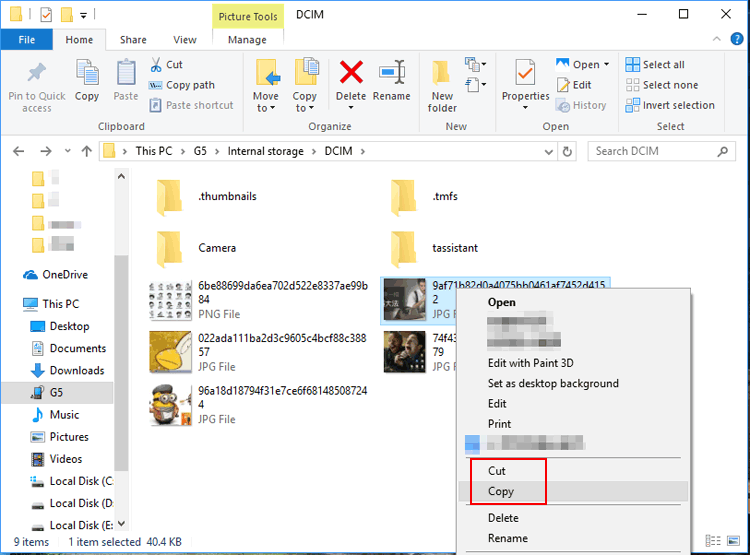
- Navigate to the storage of your Samsung phone and copy the desired data for transfer.
- Subsequently, access the storage of your Huawei phone and paste the copied files.
Advantages:
- Direct transfer without needing third-party apps.
- Works with most devices that support USB file transfer.
Disadvantages:
- Doesn't transfer some types of data, like messages or contacts, without additional steps.
You May Like: Try to retrieve data from your Huawei phone if you are unable to find the files on your device.
#2: How to Transfer Data from Samsung to Huawei Adeptly
If you do not have any idea of how to make the transmission a breeze, you may be uncomfortable about doing it for the first time. Fortunately, seasoned users and newbies alike can utilize the MobiKin Transfer for Mobile (Mac version available) to accomplish their objectives. This software is considered to be an outstanding tool that delivers several powerful functions, including those that have been listed as follows.
What Can MobiKin Transfer for Mobile Do for You?
- Transfer almost everything, such as contacts, SMS, photos, videos, music, books, and apps from Samsung to Huawei, and vice versa.
- It also supports data transfer between Android and iOS, iOS and iOS, and Android and Android.
- Be compatible with all Samsung and Huawei devices available, including Galaxy S26/S25/S24/S23/S22/S21/S20/S10/S10/S9/S8/S7, Huawei Pura 90/Pura 80/Pura 70/P60/P50/P40/P30, Nova, Mate, Ascend, and even HONOR, etc.
- Easy to use and accomplish phone-to-phone transfer smoothly with no risks (No user privacy is collected).
- Run on both Windows and Mac systems.
- Technical support and affordable price.
- Over 780,000 people have downloaded it.
Free and Safe Download:


How do I transfer everything from Samsung to Huawei with Transfer for Mobile?
Step 1. Install and launch Transfer for Mobile
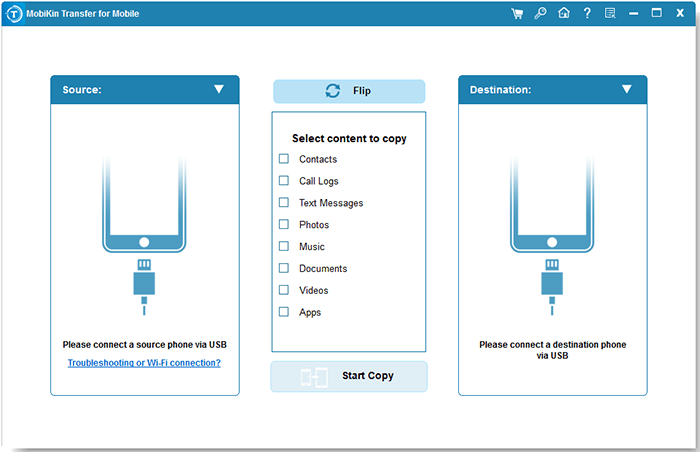
After you install and run the Transfer for Mobile program on your computer, use two USB cables to connect both your Samsung and Huawei phones to the same computer at the same time.
Step 2. Select the data to be transferred
The program will detect the connected devices and display them in the left and right columns, respectively. (Your PC doesn't recognize your phones?) Just check whether they are in the right place. If not, tap on "Flip" to make sure Samsung is the source device and Huawei is the target one.
Step 3. Transfer data to Huawei from Samsung
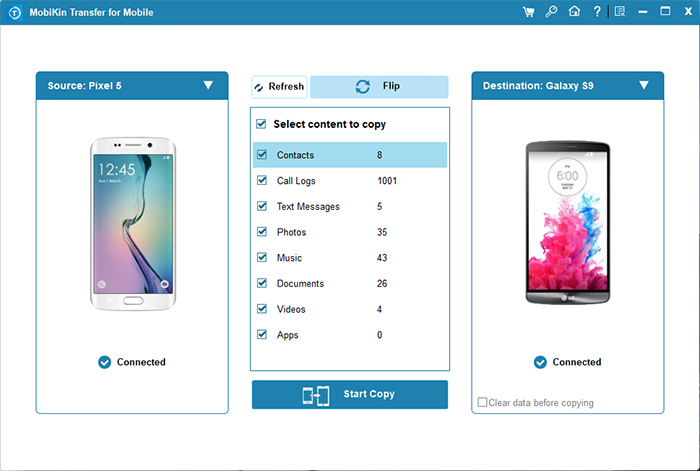
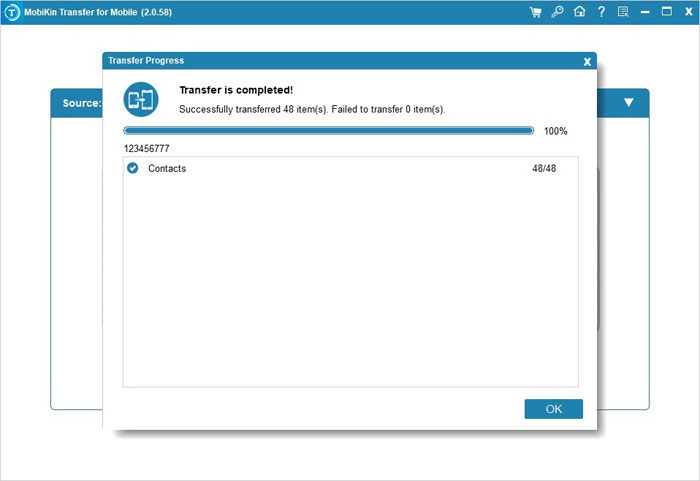
After you have ticked off all the data types you want, you can press the "Start Copy" button to begin the transfer process. The data you have selected will now be transferred from Samsung to Huawei within a few minutes.
Video Guide: For a vivid experience, please go over the video below:
Advantages:
- Simple and user-friendly interface.
- Quick transfer speed compared to other methods.
Disadvantages:
- You need a computer to facilitate the transfer.
Click to Explore: Top 7 Samsung Device Managers You Wish You Knew Sooner [Updated]
#3: How to Transfer Data from Samsung to Huawei Phone via Phone Clone
Phone Clone is an app provided by Huawei that can transfer data from one mobile phone to another with one click, without the need for a data cable, WiFi, or SIM card, or even registration. This app is compatible with iOS and Android dual platforms, allowing for Samsung/Android/iOS to Huawei phone transfer via Phone Clone:
- First, search for the Phone Clone app on Google Play.
- Download and install it on your Samsung and Huawei phones.
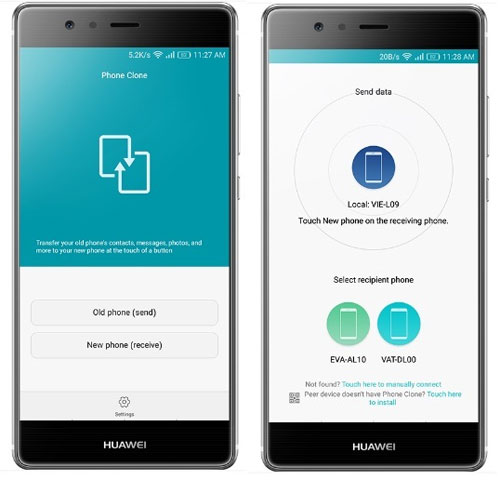
- Run the app on the Huawei phone and select "New Phone" on the interface to receive the data.
- The password for a newly created Wi-Fi network will be displayed.
- Go to the Huawei phone and run the Phone Clone app.
- On the main screen, select "Old Phone" and find the name of the Wi-Fi hotspot broadcast by Huawei.
- Select the icon for the Huawei device, enter the Wi-Fi hotspot network password, and click "Connect" to connect both devices.
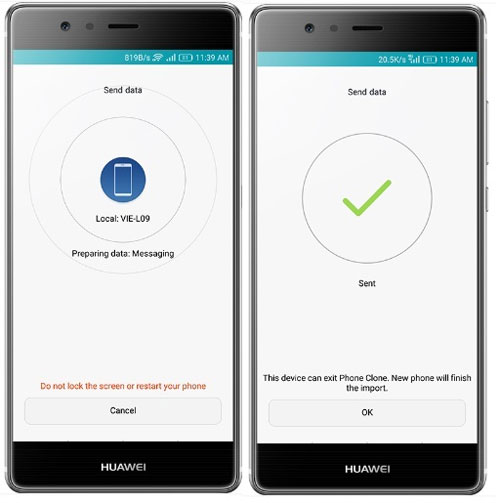
- Go to the Samsung phone, select the type of data you want to copy, and press "Send".
- After that, the Huawei phone will automatically receive the selected data you sent. (What if the Huawei Phone Clone does not work?)
Can I transfer data from Samsung to Huawei using Smart Switch? No! Smart Switch is a tool specifically designed to facilitate the transfer of data from various devices to Samsung phones. However, it doesn't support data transfers to non-Samsung devices like Huawei.
Advantages:
- Works directly between the two phones.
- The Phone Clone app is officially available at no cost.
Disadvantages:
- It cannot work for Android/iOS to non-Huawei transfers.
#4: How to Transfer Data from Samsung to Huawei/HONOR with Google Sync
Gmail provides users with 15GB of free space to store data. Therefore, you can use this service to complete the data transfer between Samsung and Huawei phones - that is, first, upload the data on Samsung to Gmail and log in to the Google account on Huawei; after that, you can restore the uploaded data accordingly.
The following are the specific steps for how to transfer data from Samsung to Huawei with Google Sync:
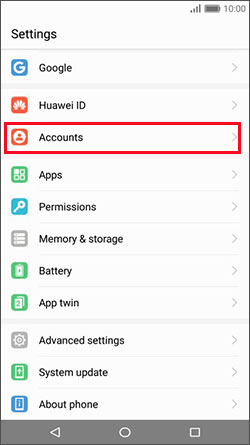
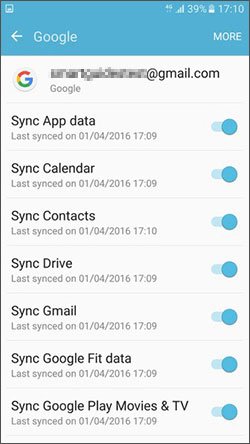
- Go to "Settings" on your Samsung phone, select "Accounts", and click "Google".
- Now log in to your Gmail account to sync your phone data.
- Select all the file types that you want to transfer from your Samsung phone.
- Click on "3 vertical dots" in the upper right corner of the top of the screen.
- Then, select "Sync Now" from the drop-down menu to sync all the selected files to your Gmail account.
- Turn to your Huawei phone and tap "Settings > Accounts > Google".
- Then enter the same Gmail account information and you will see all synchronized data are displayed.
- Make all your wanted data checked and click on "More/3 vertical dots" in the upper right corner.
- Lastly, select "Sync Now" to restore the data from Gmail to Huawei.
Advantages:
- Data is synced automatically once set up.
- Data is backed up and can be accessed from any device.
Disadvantages:
- Needs a stable Internet connection for syncing.
- You may need to set up your phone before transmission.
#5: How to Transfer Data from Samsung to Huawei via Bluetooth/WiFi Direct
If you don't have any USB cables on your hand, here are also two options for you to finish the data transfer from Samsung to Huawei - Bluetooth and Wi-Fi Direct. The two methods are fully workable on almost all smartphones nowadays. Here's the demonstration:
5.1 Bluetooth Transfer:
- Turn on Bluetooth on your Samsung and Huawei phones. (You can find this option by pulling down the notification bar).
- When Bluetooth is turned on, make one phone visible to the other one and pair them up by entering a passkey that pops up.
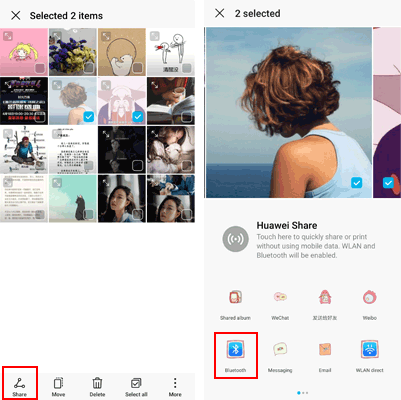
- Once the devices have successfully paired, select all the files to transfer to the source Samsung device.
- Click the Share icon and select Bluetooth to start the transfer.
- All Bluetooth-connected devices are displayed in the menu.
- Select Huawei as the target device, and these chosen files will be copied immediately.
5.2 Wi-Fi Direct Transfer:
- Go to your Samsung phone, open "Settings", and select "Wi-Fi > Wi-Fi Direct".
- Then, the phone will automatically start searching for devices with Wi-Fi Direct within range.
- Click Huawei that you want to connect to, and an invitation will be sent to it.
- Accept the invitation on your Huawei phone, and a Wi-Fi direct will be established.
- Now, you can select the files you want to transfer on Samsung and send them to Huawei by following the same way you have done via Bluetooth.
Advantages:
- Built-in feature on most devices.
- No need for cables or external devices.
Disadvantages:
- Much slower compared to other methods, especially for large files.
- Devices need to be close to each other.
- Not suitable for transferring apps or certain data types.
#6: How to Transfer Data from Samsung to Huawei over Email
This method works on any major Android device but can be time-consuming. You can use an email app like Gmail on both Samsung and Huawei to transfer files such as documents, photos, and videos. Simply Email the selected files from Samsung and access them on Huawei. Here's how to get the job done in this way:
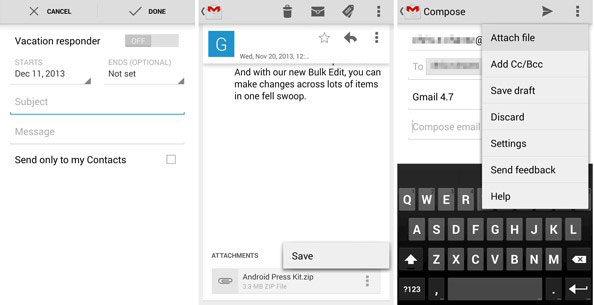
- Open the Gmail app on your Samsung phone.
- Tap the "Pencil" icon to compose a new email.
- Enter your email address, tap the attachment icon to select, and attach the files you want to transfer.
- Send the email to another mailbox you can directly access.
- On your Huawei phone, access the same email account, open the draft, and download the attached files.
Advantages:
- Can use built-in email apps.
- Works on any device with an email app.
Disadvantages:
- Slow and cumbersome for large files or many files.
- Limited by email attachment size restrictions.
FAQs about Transferring Data from Samsung to Huawei
Q1. Can I transfer WhatsApp from Samsung to Huawei?
Yes, but the available method depends on the Huawei model, Android/HarmonyOS version, and WhatsApp's current migration support. For unsupported scenarios, a compatible WhatsApp transfer tool may be required.
Q2. Does Samsung Smart Switch transfer data to Huawei?
Smart Switch is primarily intended for transferring data to Samsung Galaxy devices, so it is not the standard choice for moving data from Samsung to Huawei. For a Samsung-to-Huawei transfer, Phone Clone or another compatible method is more appropriate.
Q3. Will transferring data from Samsung to Huawei delete data from my Samsung phone?
Normally, a transfer copies supported data to the Huawei device rather than deleting it from the Samsung phone. However, check the method's instructions before starting and keep a backup of important files.
Q4. Why is my Samsung-to-Huawei data transfer taking so long?
A large amount of photos, videos, apps, and other files can make the process take longer. Connection quality, phone performance, available storage, and the amount of data selected can also affect transfer speed.
Q5. What is the most hassle-free way to transfer data from Samsung to Huawei?
In comparison to transferring data from Android to iPhone, the process of transferring data between Samsung and Huawei is considerably more straightforward, as both are Android-based. The five methods outlined in this article each come with their own set of features:
- The Bluetooth, Email, and Google sync methods do not require the installation of additional software; however, they tend to be quite slow, particularly when transferring large volumes of data or when network speeds are inadequate.
- When using USB connectivity, you are only allowed to copy some media content across.
- The most effective solution for various data types is to utilize MobiKin Transfer for Mobile, a tool that allows for seamless data transfer between two devices at once, capable of completing data transfers within minutes and ensuring 100% security.
Related Articles:
How to Recover Contacts from Samsung with Black Screen? 4 Options
5 Most Popular Methods to Factory Reset Samsung Phone When Locked
Top 9 Options to Unlock Huawei Phone without Resetting/Password
How to Fix Huawei Cloud Backup Failed? 9 Fixes & 1 Replacement
