
How to Transfer Contacts from iPhone to Xiaomi/Redmi: Stepwise Guide
TL;DR:
If you want to move contacts from an iPhone to a Xiaomi or Redmi phone, you can use a direct transfer tool, Mi Mover, a Google account, or iCloud, depending on whether you prefer speed, wireless transfer, or cloud syncing.
- MobiKin Transfer for Mobile: Connect both phones to a computer with USB cables, confirm the iPhone is the source and Xiaomi/Redmi is the destination, select "Contacts," and click "Start Transfer" for a direct, fast migration.
- Mi Mover: Install and open Mi Mover on the Xiaomi/Redmi, set it as the "Receiver," connect the iPhone as the source when prompted, select contacts, and start the transfer.
- Google Account: Export iPhone contacts as a vCard, import the file into Google Contacts, then sign in to the same Google account on Xiaomi/Redmi and enable "Contacts" sync under "Settings."
- iCloud: Export contacts from iCloud as a vCard, import them into Google Contacts, and sync the Google account to your Xiaomi/Redmi.
Switching from an iPhone to a Redmi or Xiaomi phone does not mean leaving your contacts behind. Whether you have a few hundred numbers or a large contact list built up over the years, moving everything to your new phone can be simple if you choose the right method. You can transfer contacts directly between devices, use Mi Mover, or rely on Google and iCloud for a cloud-based approach.
In this guide, we'll walk you through several practical ways to transfer contacts from iPhone to Redmi or Xiaomi without overwriting the data already stored on your new phone.
Method 1: Transfer Contacts from iPhone to Redmi/Xiaomi with One Click
The easiest way to transfer contacts from your iPhone to a Redmi or Xiaomi phone is by using a third-party tool. One of the best tools for this is MobiKin Transfer for Mobile (Win and Mac), which makes moving your contact list—and other data like photos, videos, SMS, and music—super easy and fast, even between devices running different operating systems. It's available for both Windows and Mac, so just choose the version that fits your needs and get started.
Why choose MobiKin Transfer for Mobile?
- Easily move contacts, photos, music, SMS, and more between devices with one click.
- It works for transferring data between iPhone and Android devices, as well as iPhone-to-iPhone or Android-to-Android.
- Choose exactly what you want to transfer, without worrying about losing data.
- It's compatible with the latest Android 17 and iOS 27/26.
- Works perfectly with a wide range of Android and iOS devices, including the popular iPhone 18/17/16/15, Xiaomi 18/17/16/15, Redmi Note 17/16/15, etc.


How to use Transfer for Mobile to transfer contacts from iPhone to Redmi/Xiaomi in one click:
Step 1: Download and install MobiKin Transfer for Mobile on your computer, launch it and then connect your iPhone and Redmi/Xiaomi to the computer.
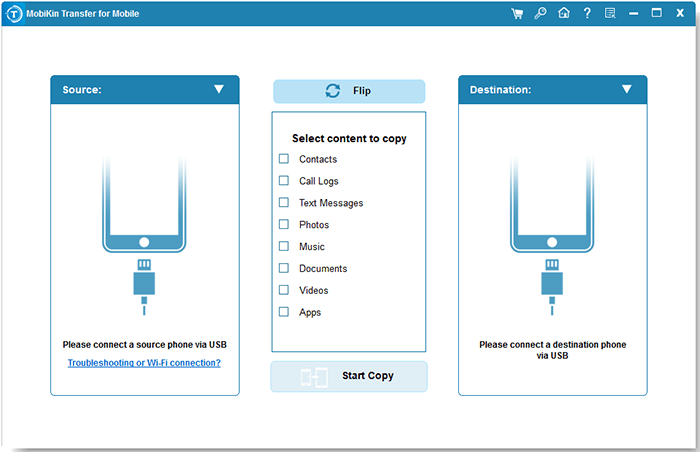
Step 2: The program will automatically identify the connected devices and then display them separately on the interface. Make sure the source device on the left is your iPhone and the target device on the right is your Redmi. If it is not correct, you can click the "Flip" button to adjust it.
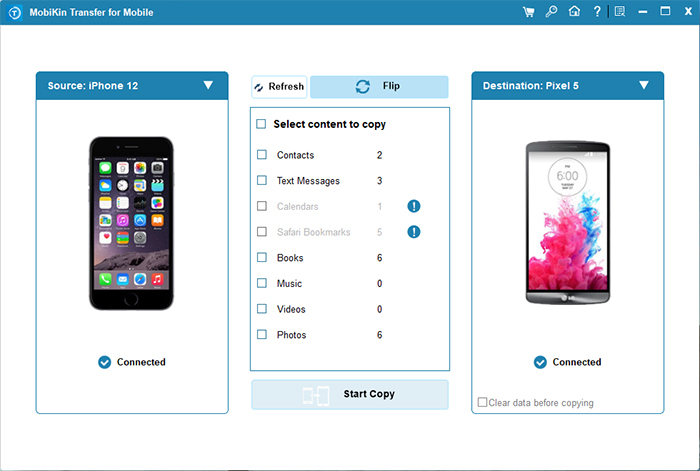
Step 3: In the middle of the interface, you can choose the data category to transfer. Here, just check the "Contacts" to transfer and click the "Start Copy" button to initiate the transfer process.
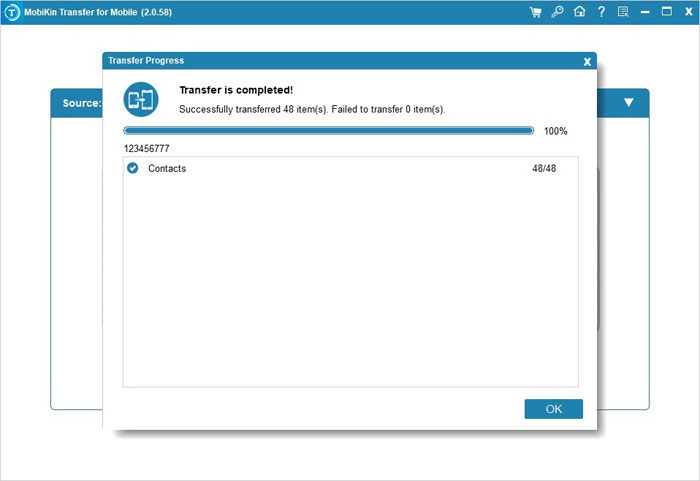
During the transfer process, do not disconnect either phone. After a while, the contacts will be completely switched from iPhone to your Redmi/Xiaomi phone.
Video Guide:
Further Reading:
Method 2: Copy Contacts from iPhone to Redmi/Xiaomi Using Mi Mover
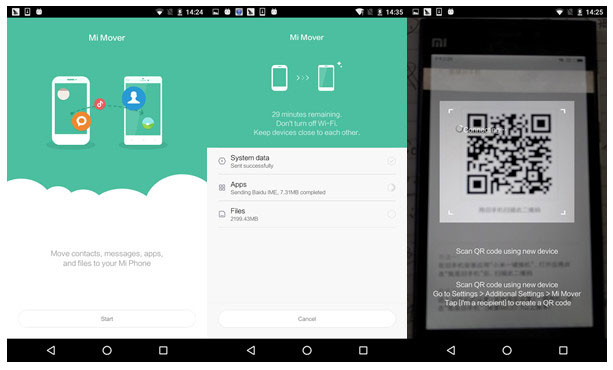
Mi Mover is a handy app by Xiaomi that makes transferring data from your old phone to a new Xiaomi/Redmi device super easy. Here's how you can move your contacts from iPhone to Redmi/Xiaomi by using Mi Mover:
- Start by downloading the Mi Mover app on both your old iPhone and new Xiaomi phone.
- Open the app on both devices.
- Make sure both phones are connected to the same Wi-Fi network. On your Xiaomi phone, tap "This is a new smartphone," then choose to import data from an iPhone. Enter your iCloud login details to proceed.
- Select the contacts you want to transfer, and the app will move them to your Xiaomi phone.
You May Interested in:
Method 3: Move Contacts from iPhone to Redmi/Xiaomi with Google Account
Here's an easy way to transfer contacts from an iPhone to a Redmi using your Google account. Just make sure you have a Google account set up.
- On your iPhone, open the "Settings" app.
- Tap on "Accounts & Passwords." If you're using an older version of iOS, it may say "Mail, Contacts, Calendars."
- Find and tap "Add Account," then choose "Google."
- Enter your Gmail address and password.
- After logging in, you'll see an option to sync. Make sure "Contacts" is selected, then tap "Next."
- Ensure your iPhone is connected to Wi-Fi. Wait a moment while your contacts are synced to your Google account.
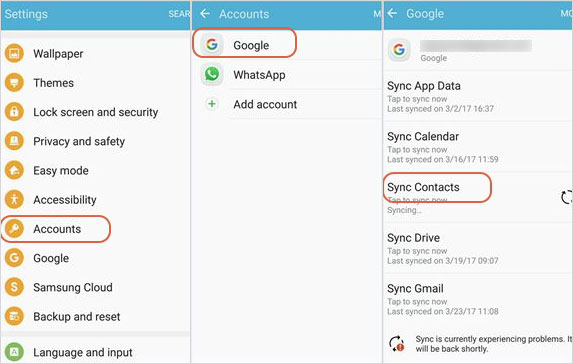
- On your Redmi or Xiaomi phone, add or sign into your Google account. If it's your first time setting it up, you'll be prompted to enter your Gmail ID and password.
- Once logged in, your contacts will automatically sync from Google to your Redmi/Xiaomi device.
Further Reading:
Method 4: Sync iPhone Contacts to Redmi/Xiaomi with iCloud
To move your contacts from an iPhone to a Redmi/Xiaomi phone using iCloud, you'll need to follow a few more steps compared to using a Google account, and it involves transferring your contacts to your PC first. Here's how you can do it:
- Connect your iPhone to Wi-Fi. Then, go to Settings, tap your Apple ID, and select iCloud. Next, click on iCloud Backup and tap "Back Up Now" to back up your contacts.
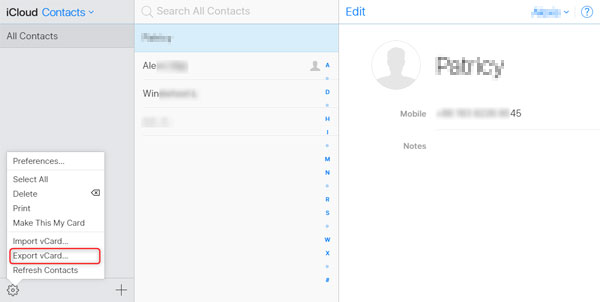
- On your PC, open the iCloud website and sign in with your Apple ID. Once logged in, go to Contacts and use the gear icon to export your contacts.
- Now, open the Google website on your PC and sign in with your Gmail account. Go to Contacts, click on "More," and then choose "Import vCard file" to upload your contacts from the PC to Google.
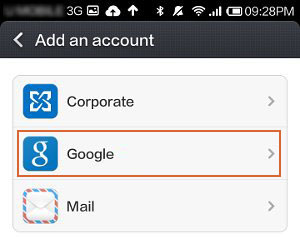
- On your Redmi/Xiaomi phone, go to Settings, tap on Google, and sign in with the same Gmail account. Turn on the "Contacts" option and tap "Sync Now" to sync your contacts to your Redmi/Xiaomi.
This method works, but keep in mind that it's not as simple as using apps like Mi Mover or MobiKin Transfer for Mobile, which give you more options for data transfer.
Ending Words
As you can see, there are several ways to transfer contacts from iPhone to Redmi or Xiaomi, whether you prefer a direct transfer or a cloud-based method. If you want the quickest and most straightforward option, MobiKin Transfer for Mobile is worth trying. It lets you move contacts directly between phones without complicated setup or risking your existing data. A free trial is also available, so you can test it before making the full transfer. Choose the method that works best for you and move your contacts to your new Xiaomi or Redmi phone with confidence.
Related Articles:
6 Ways to Transfer Data from Samsung to Xiaomi Mi/Redmi
How to Transfer Data from Huawei to Xiaomi [6 Ways]
Top 5 Quick & Safe Xiaomi Data Recovery Software
Xiaomi File Transfer Tutorial - 5 Easy Ways to Transfer Xiaomi Files
