
How to Transfer Notes from iPhone to Samsung Galaxy: Step-by-Step Guide
TL;DR:
Moving notes from iPhone to Samsung can be tricky due to the differences between iOS and Android, but several workarounds can help you keep your important information accessible.
- Transfer iPhone notes to Samsung with Gmail sync.
- Move data between iPhone and Samsung using Smart Switch.
- Share iPhone notes manually through email or other apps.
- Access and copy iPhone notes from iCloud on Samsung.
- Transfer other types of iPhone data to Samsung with one-click transfer tools.
Moving from an iPhone to a Samsung device does not mean you have to leave your valuable notes behind. Whether they contain work ideas, personal reminders, or important information, keeping them accessible on your new phone matters. However, Apple Notes and Samsung Notes use different systems, making direct transfer more complicated than moving photos or contacts. In this guide, we will explore several effective ways to transfer notes from iPhone to Samsung, along with a bonus solution for moving other data between phones.
Method 1: Transfer Notes from iPhone to Samsung with Gmail
If you have synced your iPhone Notes with a Gmail account, you can easily access them on your Samsung phone using the same Google account. This method does not require any third-party software and works well for users who only need to transfer a small number of notes. However, keep in mind that some Apple Notes features, such as certain formatting options or attachments, may not be fully supported after the transfer.
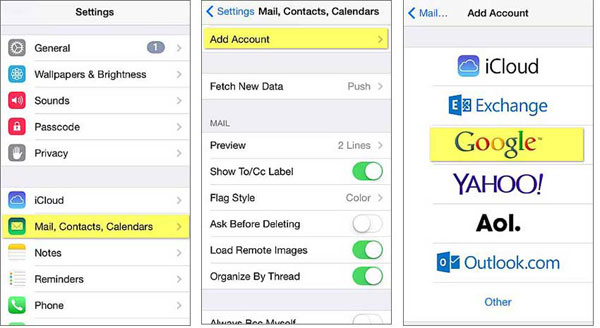
- Open the "Settings" app on your iPhone and tap "Mail" > "Accounts".
- Select your Gmail account. If you have not added one yet, tap "Add Account" and sign in with your Google account.
- Turn on the "Notes" option under your Gmail account to enable note syncing.
- Open the "Notes" app on your iPhone and tap "Folders" in the upper-left corner.
- Find the notes stored under the Gmail section and make sure the notes you want to transfer are synced.
- On your Samsung phone, open the Gmail app and sign in with the same Google account.
- Access your synced notes through the Gmail account or copy the content to Samsung Notes or another note-taking app.
Read Also:
Method 2: Transfer iPhone Notes to Samsung Using Smart Switch
Samsung Smart Switch is a convenient tool for moving data from an iPhone to a Samsung Galaxy device. It can transfer various types of content, including contacts, photos, videos, and more.
However, since Apple Notes and Samsung Notes use different systems, Smart Switch may not directly import all iPhone notes into Samsung Notes. You can still try this method to check whether your notes are supported based on your account settings and iOS data configuration.
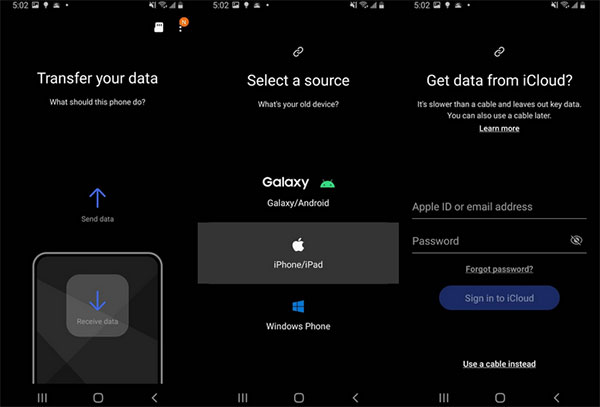
- Download and install the "Smart Switch" app on your Samsung phone from the Galaxy Store or Google Play Store.
- Open Smart Switch on your Samsung device and tap "Receive data".
- Choose "iPhone/iPad" as the source device.
- Connect your iPhone and Samsung phone using a compatible USB cable, or select the wireless transfer option if available.
- Follow the on-screen instructions to connect both devices and allow the required permissions.
- Select the data categories you want to transfer and start the transfer process.
- After the transfer is complete, check your Samsung phone to see whether your notes or other selected data have been moved successfully.
Check if You Need:
Method 3: Transfer Notes from iPhone to Samsung Manually
If you only have a few notes to move, transferring them manually is usually the quickest option. Instead of setting up accounts or using extra tools, you can simply share each note from your iPhone and open it on your Samsung phone. This method works well for important notes that you need immediately, but it may take more time if you have a large number of notes.
- Open the "Notes" app on your iPhone and select the note you want to transfer.
- Tap the "Share" button in the upper-right corner.
- Choose a sharing method, such as "Mail", "Gmail", "Messages", or another available app.
- Send the note to your email address or a service that you can access on your Samsung phone.
- Open the shared note on your Samsung device and copy the content into Samsung Notes or another note-taking app.
- Repeat the steps above for other notes you want to move.
This method is simple and does not require any additional setup. However, it is better suited for transferring a limited number of notes because moving hundreds of notes one by one can be time-consuming.
Method 4: Access iPhone Notes on Samsung via iCloud
If you have synced iPhone notes to iCloud, you can access them from your Samsung phone through a web browser. This method does not actually import Apple Notes into Samsung Notes, but it allows you to view and copy your important notes whenever you need them. It is a useful option when you have switched to Samsung but still want to check information saved in your iCloud account.
- Open a browser on your Samsung phone and visit the iCloud website.
- Sign in with the same Apple ID that you use on your iPhone.
- Complete the verification process if Apple asks you to confirm your identity.
- Tap "Notes" to view the notes stored in your iCloud account.
- Open the note you need and copy the content manually.
- Open the "Samsung Notes" app or another note-taking app on your Samsung phone and paste the content.
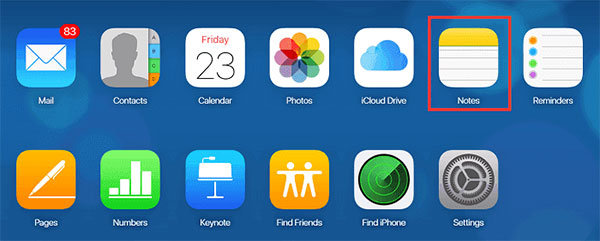
This method is convenient for accessing important notes without moving them all at once. However, because iCloud does not offer a dedicated Android app, you may need to transfer notes manually if you want to keep using them on your Samsung device.
Bonus: Transfer Other Data from iPhone to Samsung with One Click
Although notes cannot be transferred directly from iPhone to Samsung with MobiKin Transfer for Mobile, it can still be a helpful tool when you need to move other important files to your new device. Instead of transferring data one by one, you can connect both phones and move multiple types of content at once. It is especially useful when switching from an iPhone to a Samsung Galaxy phone and want to keep your personal data organized.
Noteworthy Features of the MobiKin Transfer for Mobile
- Transfer contacts, photos, videos, music, and other commonly used phone data between iPhone and Samsung.
- It can transfer files from iOS to iOS, iOS to Android, Android to iOS, and Android to Android.
- Move data directly between two phones without relying on cloud storage.
- Compatible to overall iOS device and Android device.
- Provide a simple interface that makes phone switching easier, even for beginners.


Follow the steps to transfer data from iPhone to Samsung with Transfer for Mobile:
Step 1. Install and launch MobiKin Transfer for Mobile on your computer, then connect your iPhone and Samsung phone with USB cables.
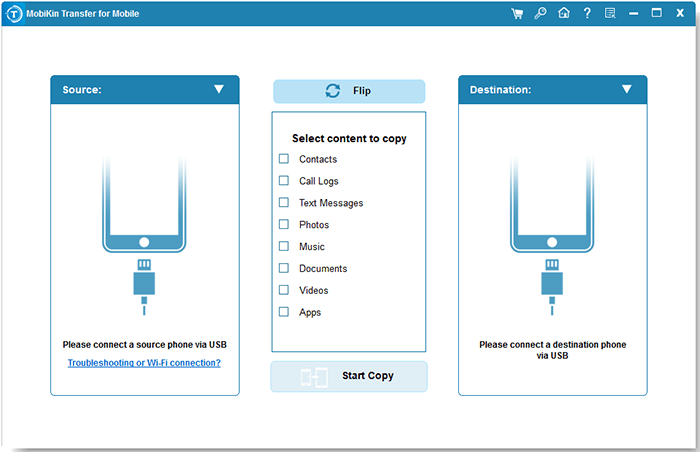
Step 2. Check that your iPhone is shown as the source device and Samsung is shown as the destination device. If needed, click "Flip" to switch their positions.
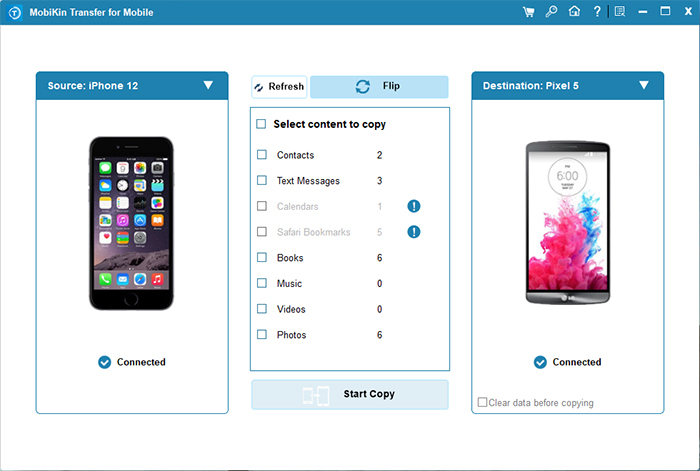
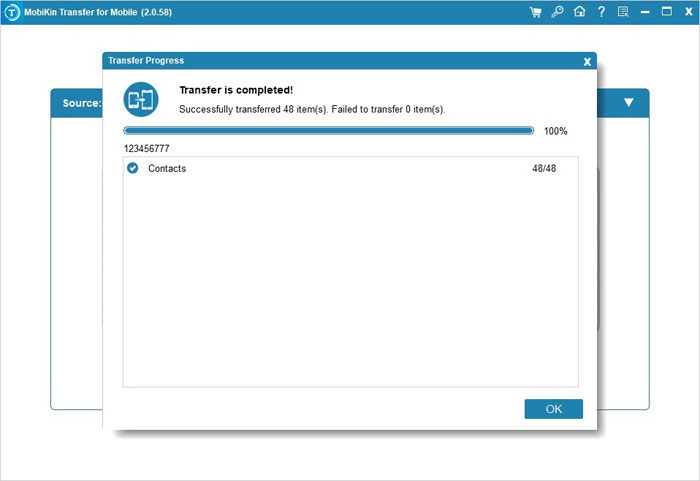
Step 3. Select the data types you want to transfer and click "Start Copy" to begin moving files from iPhone to Samsung.
Video Guide:
The Bottom Line
Transferring notes from iPhone to Samsung may not be as direct as moving files between devices from the same ecosystem, but there are still several practical solutions available. You can use Gmail, Smart Switch, manual sharing, or iCloud to access and move your important notes. If you also need to transfer other phone data, a professional transfer tool like MobiKin Transfer for Mobile can help simplify the process and save time.
Related Articles:
How to Sync Samsung Notes to Google Drive? 3 Ways
4 Clever Methods for Samsung Notes Backup [2026 Latest]
