
8 Smart Fixes to Smart Switch Keeps Disconnecting During Transfer
TL;DR:
Smart Switch keeps disconnecting due to connection issues, insufficient storage, or software problems, but several methods can help you finish the transfer.
- Try MobiKin Transfer for Mobile for Android and iOS transfers, including contacts, messages, photos, and videos.
- Explore other methods, such as Google Sync, Samsung Cloud, or manual USB file copying, depending on the data you need.
- Switch to a USB connection if wireless transfers keep failing, and verify your files before deleting anything from the old phone.
Why does my Samsung Smart Switch keep disconnecting?
Samsung Smart Switch may keep disconnecting because of unstable Wi-Fi, faulty USB cables, insufficient storage, missing permissions, outdated software, or incompatible devices. These interruptions can make transferring photos, contacts, messages, and other important files frustrating, especially when the process stops before completion.
This article covers 8 practical ways to fix Samsung Smart Switch keeps disconnecting, helping you restore a stable connection and complete your data transfer.
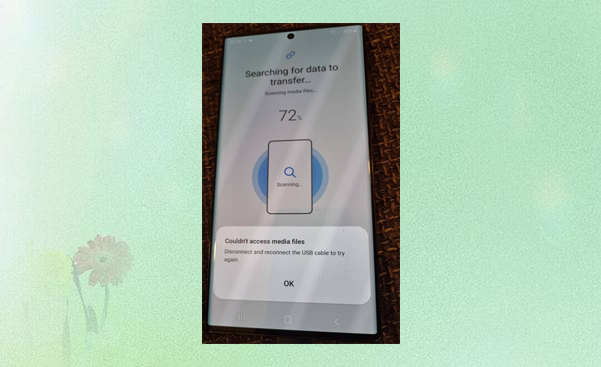
- Part 1: Fix Smart Switch Keeps Disconnecting with 8 Fundamental Methods
> Solution 1: Check for Device Compatibility
> Solution 2: Give Permissions to Transfer Data
> Solution 3: Verify Your Internet Connection
> Solution 4: Free Up Phone Storage Space
> Solution 5: Choose the Files to Transfer
> Solution 6: Reinstall Smart Switch
> Solution 7: Connect Devices with Cables
> Solution 8: Ensure USB Is Set to File Transfer - Part 2: Smart Switch Still Keeps Disconnecting? Try a Stable Alternative
- FAQs about Smart Switch Keeps Disconnecting
Part 1: Fix Smart Switch Keeps Disconnecting with 8 Fundamental Methods
Solution 1: Check for Device Compatibility
Samsung Smart Switch does not support every device or operating system combination. If the app keeps disconnecting during a transfer, check whether both phones meet the compatibility requirements.
- Visit the official Samsung Smart Switch troubleshooting page to review the supported devices and available transfer options.
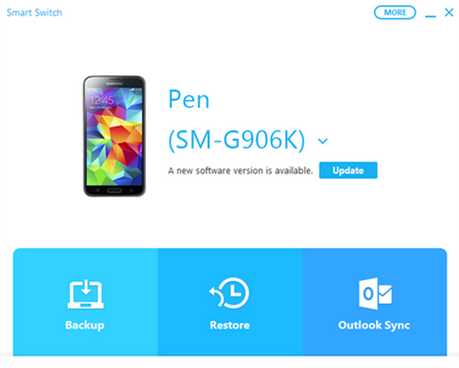
- Update Smart Switch on both phones to the latest available version by tapping "MORE".
- Restart both devices and try connecting them again.
- If one device is incompatible with your chosen transfer method, switch to another supported connection option.
Solution 2: Give Permissions to Transfer Data
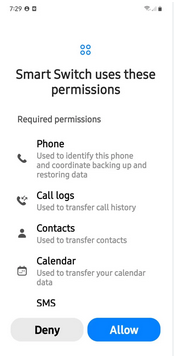
Smart Switch may disconnect or fail to proceed if it cannot access the data you want to transfer. Check the app's permissions on both phones before starting another attempt.
- Open Settings on your phone and go to Apps.
- Find and select Smart Switch.
- Tap Permissions and allow the necessary access, such as contacts, photos and videos, music, and files, depending on the options available on your device.
- Return to Smart Switch, reconnect the phones, and try the transfer again.
Solution 3: Verify Your Internet Connection
A weak or unstable Wi-Fi connection can interrupt a wireless transfer. If Smart Switch repeatedly disconnects, check the network environment before trying again.
- Keep both phones close to each other and avoid moving them during the transfer.
- Turn off any VPN that might interfere with the connection.
- Disable mobile hotspots or other network features that could disrupt the connection, if applicable.
- Restart both phones and try again in a stable network environment.
Smart Switch can establish a direct wireless connection between devices, so an internet connection is not always required for the transfer itself. If the app uses Wi-Fi Direct, focus on keeping the devices connected to each other rather than simply checking whether internet access is available.
Further Exploration: Top 9 Tactics to Unlock Samsung Phone Pattern [Way 1 Is the Best]
Solution 4: Free Up Phone Storage Space
Insufficient storage on the receiving phone can prevent Smart Switch from completing a transfer. This is especially likely when you're moving a large collection of photos, videos, or other files.
- Open Settings on the receiving phone.
- Go to Battery and device care > Storage. The exact menu names may vary by model.
- Check how much free space remains.
- Delete unnecessary downloads, duplicate files, or apps you no longer use. Back up important files before removing them.
- Restart Smart Switch and attempt the transfer again.
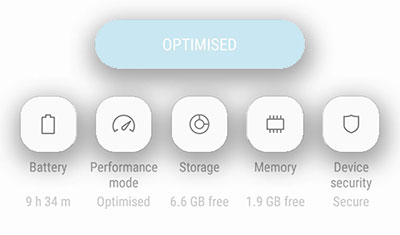
* Make sure the receiving phone has enough available space for the selected data. You can also consult Samsung's official troubleshooting guide for more information about transfer problems.
Solution 5: Choose the Files to Transfer
Transferring everything at once can make the process more demanding, particularly when the source phone contains many large videos or other files. A smaller transfer can help you identify whether a particular data category is causing the interruption.
- Open Smart Switch on both phones and establish a connection.
- On the sending phone, select the data you want to transfer.
- Start with essential items, such as contacts and messages.
- Transfer photos, videos, documents, and other large files separately.
- If the connection remains stable, gradually add other data categories.
* If Smart Switch disconnects only when you select a particular category, try transferring the remaining data first. You can then investigate whether the problematic files are damaged, unusually large, or otherwise difficult to transfer.
Solution 6: Reinstall Smart Switch
Corrupted app files or an unsuccessful update may cause Smart Switch to behave unpredictably. Reinstalling the app can help resolve software-related problems that persist after restarting the phones.
- Back up any important information before making changes to your devices.
- Open the Google Play Store or Galaxy Store and check whether an update is available for Smart Switch.
- Install the update if necessary. If the problem continues, follow Samsung's guidance for reinstalling the app on your device.
- Restart the phone and open Smart Switch again.
- Reconnect the devices and repeat the transfer.
On some Samsung devices, Smart Switch is preinstalled and may not offer a standard uninstall option. In that case, update the app or use the available app-management options instead of trying to remove system components.
Solution 7: Connect Devices with Cables
A wired connection is worth trying if Smart Switch keeps disconnecting over Wi-Fi. It can reduce interruptions caused by wireless interference and is often a practical option for transferring large amounts of data.
Steps to follow:
- Prepare a compatible USB cable or the appropriate USB adapter for your two devices.
- Open Smart Switch on the receiving Samsung phone.
- Connect the phones and follow the on-screen instructions to authorize the connection.
- Select the data you want to move and start the transfer.
- Keep both phones connected until Smart Switch confirms that the process is complete.
A faulty cable, loose connector, or damaged USB port can cause repeated disconnections. Use a reliable data-transfer cable rather than a charging-only cable, inspect both connectors, and try another USB port or compatible cable if the connection remains unstable. For more details, consult Samsung's troubleshooting guide and this Smart Switch connection guide.
Solution 8: Ensure USB Is Set to File Transfer
When connecting an Android phone to a computer or another supported device through USB, the connection may default to charging rather than data transfer. Choosing the appropriate USB mode can help resolve connection problems when that setting is available.
- Connect your phone to the other device using a compatible USB data cable.
- Unlock the phone and swipe down from the top of the screen to open the notification panel.
- Tap the USB connection notification, which may say Charging this device via USB.
- Select Media device or Transferring files, if available.
- Return to Smart Switch and follow the prompts to establish the connection.
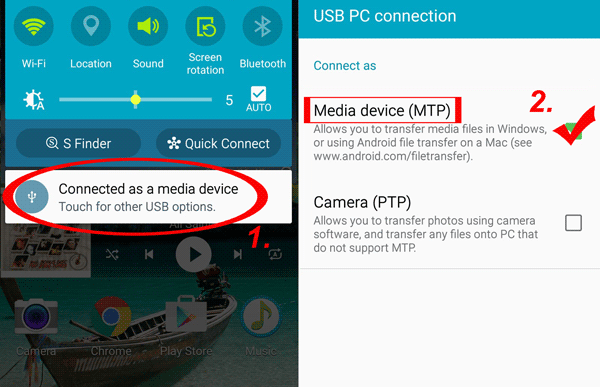
Note: The available USB options depend on the device and connection type. If you're connecting two phones directly, you may not see the same USB menu that appears when connecting a phone to a computer. If the connection still fails, try another cable and check whether the connected device supports the required transfer mode. You can also read this guide to resolving Smart Switch connection errors.
Part 2: Smart Switch Still Keeps Disconnecting? Try a Stable Alternative
Is there an alternative to Smart Switch for transferring data between phones? Yes. You can use Google account synchronization for supported data, your phone manufacturer's migration app, or a computer to copy compatible files manually. Another great option is MobiKin Transfer for Mobile (Windows/Mac), which supports data transfers between Android and iOS devices, including contacts, text messages, photos, videos, music, and other supported data types.
Here are the main characteristics:
|
Key Feature
|
MobiKin Transfer for Mobile
|
Advantages Over Smart Switch
|
|
Transfer Stability
|
Supports USB-based transfers through a computer. |
Avoids wireless interference during wired transfers. |
|
Cross-Platform Transfer
|
Supports Android and iOS transfers. |
Offers flexibility when switching between systems. |
|
Simple Operation
|
Connect phones, select data, and click Start Copy. |
Provides a straightforward transfer process. |
|
Multiple Data Types
|
Transfers contacts, messages, photos, videos, music, and more. |
Handles various data types in one tool. |
|
No Factory Reset
|
Transfers data without resetting the destination phone. |
Keeps existing phone settings and data intact. |
|
Wide Compatibility
|
Supports 8,000+ mobile devices. |
Works with many phone models and brands. |
|
No Wi-Fi Required
|
Transfers data via USB. |
Helps avoid wireless disconnections (No privacy is connected). |
Secure Download (Free from ads, unwanted bundles, and background uploads):


User Guide:
- Download and install MobiKin Transfer for Mobile on your computer.
- Connect both Samsung/Android/Apple phones using USB cables.
- Enable USB debugging on both devices or trust your computer so the program can recognize them.
- Set your old phone as "Source" and the Samsung phone as "Destination."
- Choose the data types you want to transfer (contacts, SMS, photos, videos, apps, etc.).
- Click Start Copy to begin the migration.
- When finished, check the destination Samsung phone for the newly received data.
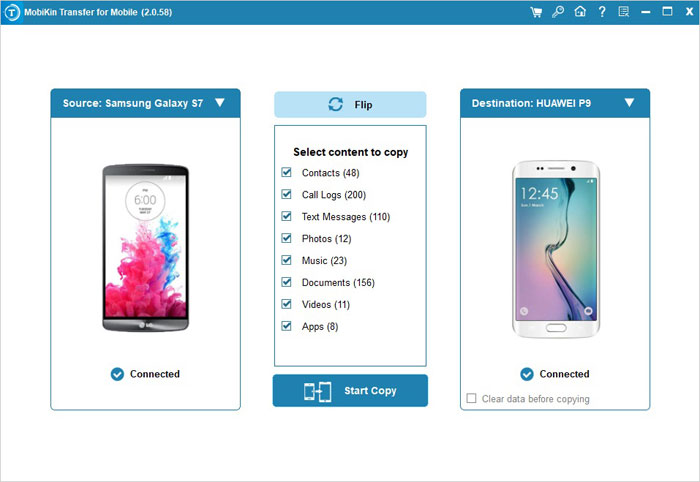
Video Directions:
FAQs about Smart Switch Keeps Disconnecting
Q1. Will clearing Smart Switch's cache delete my phone data?
Clearing the app's cache removes temporary files and generally does not delete personal photos, contacts, or messages. However, Clear data is different and may reset the app's stored settings or information, so try clearing the cache first.
Q2. What should I do if Smart Switch keeps disconnecting after trying every fix?
Try another supported transfer method, such as a compatible USB connection if wireless transfers keep failing. If neither method works, contact Samsung Support or submit an error report through Samsung Members so the issue can be investigated.
Q3. Why does Smart Switch disconnect at 99%?
Smart Switch may get stuck near completion because certain files take longer to process, the receiving phone has limited storage, or the connection becomes unstable. Keep both devices connected for a while, check the available storage, and avoid restarting the transfer immediately.
Q4. Should I reset my phone if Smart Switch keeps disconnecting?
A factory reset should not be your first choice because it erases personal data and settings. Try updating Smart Switch, restarting both phones, checking permissions, and switching connection methods before considering a reset. Back up important information before performing any factory reset.
Q5. Can battery-saving mode cause Smart Switch to disconnect?
Yes, battery-saving settings may restrict background activity or network functions on some devices, potentially interrupting the transfer. Charge both phones sufficiently, temporarily disable power-saving mode, and keep Smart Switch open throughout the process.
Q6. Why does Smart Switch disconnect when transferring photos and videos?
Large photos and videos can take longer to transfer and require considerable storage space. Try transferring smaller batches, check the available space on the receiving phone, and make sure the USB cable or wireless connection remains stable.
Related Articles:
5 Optimal Ways to Transfer Calendar from Samsung to Samsung
Does Smart Switch Transfer WhatsApp? Here Are the Answers & Transfer Methods
Comparison: Google Android Switch/Switch to Android vs. Smart Switch
3 Ways to Transfer Ringtones from Android to Android [Step-by-Step Guide]