
How to Transfer Text Messages from iPhone to Xiaomi/Redmi? 2 Easy Ways
TL;DR:
The easiest way to transfer text messages from iPhone to Xiaomi is to use a phone transfer tool that supports direct migration, while Mi Mover offers another option to try.
- Use MobiKin Transfer for Mobile: connect both phones via USB, select "Messages", and click "Start Copy" to move SMS directly from iPhone to Xiaomi.
- Try Xiaomi Mi Mover: open "Settings" > search for "Mi Mover" on Xiaomi, connect your iPhone, select supported data, and start the transfer.
- Check FAQs for common issues, including iMessage compatibility, iCloud limitations, Google Drive support, and transfer safety.
Your text messages may contain years of useful information, from important conversations to memorable moments with family and friends. When moving from an iPhone to a Xiaomi/Redmi phone, keeping these messages can be more challenging than transferring photos or contacts because the two devices run on different systems. The good news is that you still have practical ways to complete the transfer. This guide covers two simple methods to help you move messages from iPhone to Xiaomi smoothly.
Part 1: Transfer Messages from iPhone to Xiaomi with MobiKin Transfer for Mobile
If you are looking for a simple way to move text messages from iPhone to Xiaomi, MobiKin Transfer for Mobile (Win and Mac) can help you complete the transfer with a few clicks. This professional phone transfer tool allows you to move messages and other important data directly between two devices without complicated settings. It supports various iPhone and Xiaomi models and provides a straightforward solution for users who are switching from iOS to Android.
Why choose MobiKin Transfer for Mobile?
- Transfer text messages from iPhone to Xiaomi directly.
- It works for transferring data between iPhone and Android devices, as well as iPhone-to-iPhone or Android-to-Android.
- Move contacts, photos, videos, and other data types between two devices.
- Keep existing data on the target phone safe.
- Works perfectly with a wide range of Android and iOS devices, including the popular iPhone 18/17/16/15, Xiaomi 18/17/16/15, Redmi Note 17/16/15, etc.


How to Transfer Messages from iPhone to Xiaomi with MobiKin Transfer for Mobile?
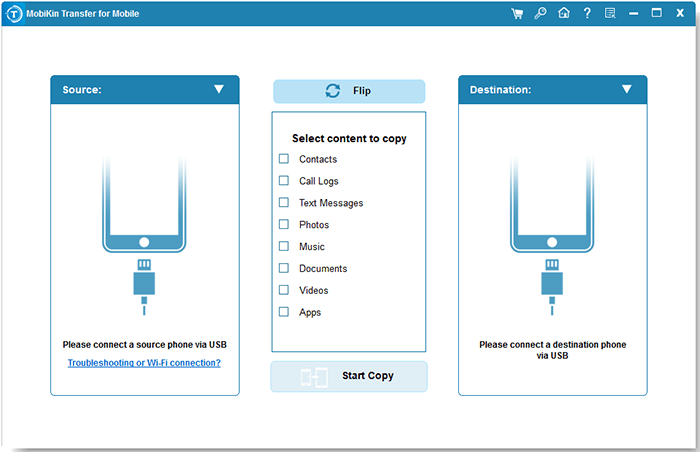
Step 1: Connect both iPhone and Xiaomi to your computer
Install and launch MobiKin Transfer for Mobile on your computer, then connect your iPhone and Xiaomi devices using USB cables. Follow the on-screen instructions to let the program recognize both phones.
Step 2: Select messages and other data to transfer
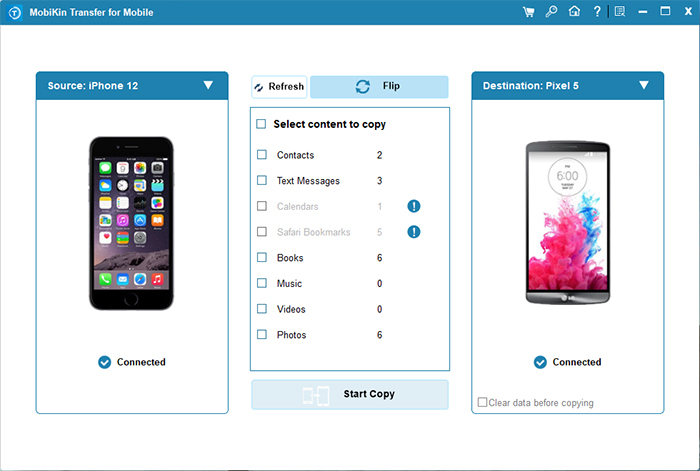
Make sure your iPhone is set as the source device and Xiaomi is shown as the destination device. If it is not correct, you can click the "Flip" button to adjust it. You will see the available data categories in the middle panel. Select "Text Messages" from the list. You can also choose other supported files if you want to move more data from iPhone to Xiaomi at the same time.
Step 3: Start transferring messages from iPhone to Xiaomi
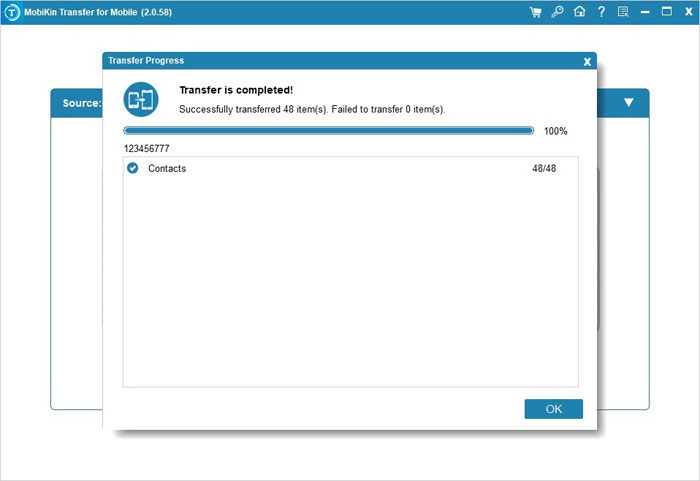
Click the "Start Copy" button to begin the transfer process. Keep both devices connected until the process is complete. After that, check your Xiaomi phone to confirm that the selected messages have been successfully moved.
Video Guide:
Further Reading:
Part 2: Transfer Text Messages from iPhone to Xiaomi with Xiaomi Mi Mover
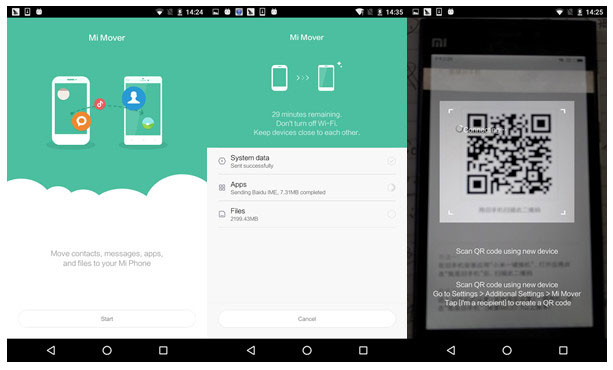
If you prefer using Xiaomi's built-in migration feature, Mi Mover is another option to try. It is mainly designed to help users move data when switching to a Xiaomi phone, and it does not require installing an app on the iPhone. However, because iOS and Android handle messages differently, the available data types may vary depending on your Xiaomi model and system version.
How to Transfer Data from iPhone to Xiaomi with Mi Mover?
Step 1. Open Mi Mover on your Xiaomi phone
Open "Settings" on your Xiaomi phone, search for "Mi Mover", and launch the tool. Select Xiaomi as the new device and follow the instructions to prepare for the transfer. (Mi Mover Not Working?)
Step 2. Connect your iPhone to Xiaomi
Use the connection method provided by Mi Mover to link your iPhone and Xiaomi phone. Keep both devices nearby and ensure they have enough battery throughout the process.
Step 3. Choose available data and start the transfer
Select the data that Mi Mover supports and begin the transfer. Once finished, check your Xiaomi phone to confirm whether the selected data has been moved successfully.
You May Interested in:
FAQs About Transferring Text Messages from iPhone to Xiaomi
Q1. Can I transfer SMS from iPhone to Xiaomi directly?
Yes. Although iPhone and Xiaomi use different operating systems, you can still transfer SMS directly with a compatible phone transfer tool. For example, MobiKin Transfer for Mobile allows you to connect both devices and move text messages from iPhone to Xiaomi without manually exporting or converting message files.
Q2. Why can't my Xiaomi receive messages after switching from iPhone?
The most common reason is that your phone number is still connected to Apple's iMessage service. When you move from iPhone to Xiaomi, make sure to turn off iMessage on your old iPhone. This helps ensure that new text messages are sent as regular SMS instead of iMessages.
Q3. Does iCloud transfer iPhone messages to Xiaomi?
No, iCloud does not directly restore iPhone messages to a Xiaomi phone. iCloud backups are mainly designed for Apple devices, so Xiaomi users need another method, such as a transfer tool or other compatible solutions, to move messages.
Q4. Can Google Drive move messages from iPhone to Android?
Google Drive can back up some iPhone data, but it cannot directly transfer iPhone text messages to an Android phone. If you want to move SMS conversations, you usually need a dedicated migration tool or a phone transfer service that supports message transfer.
Q5. Will transferring messages from iPhone to Xiaomi delete existing data on Xiaomi?
It depends on the transfer method. Professional transferring tools like MobiKin Transfer for Mobile is designed to copy data without removing existing files, but it is still recommended to back up important Xiaomi data before transferring to avoid unexpected issues.
Q6. How long does it take to transfer messages from iPhone to Xiaomi?
The time mainly depends on how many messages you have and the transfer method you use. A small number of conversations may finish quickly, while transferring years of message history can take longer.
Ending Words
Transferring text messages from iPhone to Xiaomi is easier when you choose the right method. MobiKin Transfer for Mobile provides a simple way to move messages directly between devices, while Mi Mover offers a free option to try. Before switching phones, remember to check your message settings and keep both devices ready. With the right approach, you can move your important conversations without unnecessary trouble.
Related Articles:
Top 6 Ways: How to Transfer iPhone Data to Xiaomi
How to Restore Photos from Mi Cloud to Mi/iPhone/Computer
