
Top 5 Options: How to Transfer Data from vivo to realme?
TL;DR:
The article explains how to move WhatsApp, contacts, photos, videos, messages, and other important files from a vivo phone to a realme device without starting over.
- It presents five methods: MobiKin Transfer for Mobile, Clone Phone, Android's built-in transfer, EasyShare, and a microSD card.
- It also gives step-by-step instructions, compatibility details, and tips about storage, backups, and USB versus wireless transfers.
Switching from a vivo phone to a realme device can raise questions about how to move WhatsApp, contacts, photos, videos, messages, and other important files. People who search for "transfer data from vivo to realme" usually want to move their important content without starting over or losing files along the way.
This guide covers several ways to transfer data from vivo to realme, including phone-to-phone tools, Android's built-in transfer feature, and other practical options.
- Option 1: Transfer Data from vivo to realme with a Specialized Tool [Trouble-free]
- Option 2: Transfer Data from vivo to realme Phone via Clone Phone
- Option 3: Transfer from vivo to realme via Android's Built-in Transfer
- Option 4: Copy Data from vivo to realme Using EasyShare
- Option 5: Move Data from vivo to realme Using microSD Card
Option 1: Transfer Data from vivo to realme with a Specialized Tool [Trouble-free]
For a direct vivo-to-realme transfer, MobiKin Transfer for Mobile lets you connect both phones to a computer and move contacts, SMS, call logs, photos, videos, music, apps, and other supported data between them. It works across Android brands, so the vivo and realme phones do not need to come from the same manufacturer. You can select the data types you need before starting the transfer, which helps avoid moving unnecessary files.
Core Characteristics of MobiKin Transfer for Mobile:
|
Feature
|
Description
|
|
vivo to realme transfer |
Transfers supported data directly from a vivo phone to a realme phone (covering vivo X500, X500 Pro, X500 Pro Max, X Fold6, X300 Ultra, X300 FE, X300s, V70, V70 FE, and Y600i, realme 16 Pro+, 16 Pro, 16, GT8 Pro, Neo8, 16 Pro Harry Potter Edition, P4s 5G, Narzo 100 Lite 5G, C83 5G, 15T, etc.). |
|
Cross-Platform Support |
Besides Android-to-Android transfers such as vivo to realme, it also supports Android-to-iOS, iOS-to-Android, and iOS-to-iOS transfers. |
|
Wide Android Compatibility |
Supports 8,000+ Android brands, including vivo and realme, with Android 6–17 compatibility listed on the official site. |
|
Multiple Data Types |
Transfers contacts, SMS, call logs, photos, videos, music, apps, calendars, and other supported data. |
|
Selective Transfer |
Lets you select specific data categories instead of requiring a complete phone-to-phone copy. |
|
Computer-Based Connection |
Connects the two phones to a Windows or Mac computer; Android devices can be connected through USB or Wi-Fi. |
|
No Factory Reset Required |
Transferring data does not require a factory reset on either phone. |
|
Destination Data Management |
When the destination is an Android phone, there is an option to clear existing data before copying. |
|
Totally Secure |
Won't collect users' privacy. |
Free & Safe Download (Clean):


How to Use MobiKin Transfer for Mobile for vivo to realme data transfer?
Step 1: Install and Connect Devices - Download and install MobiKin Transfer for Mobile on your computer. Open the program and connect both vivo and realme devices using either USB cables or Wi-Fi. For the most stable connection, USB cables are recommended.
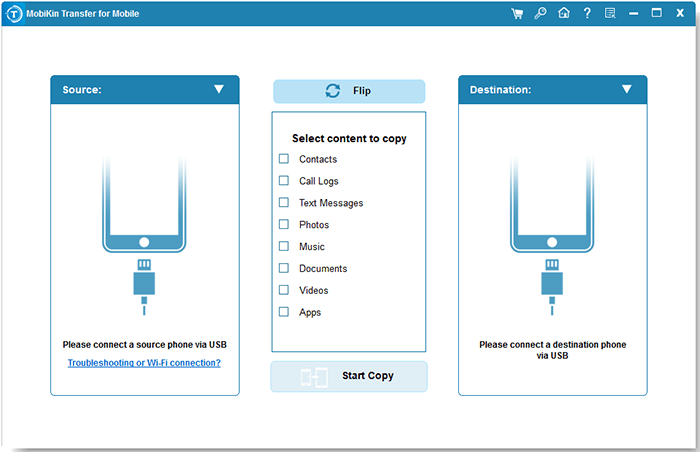
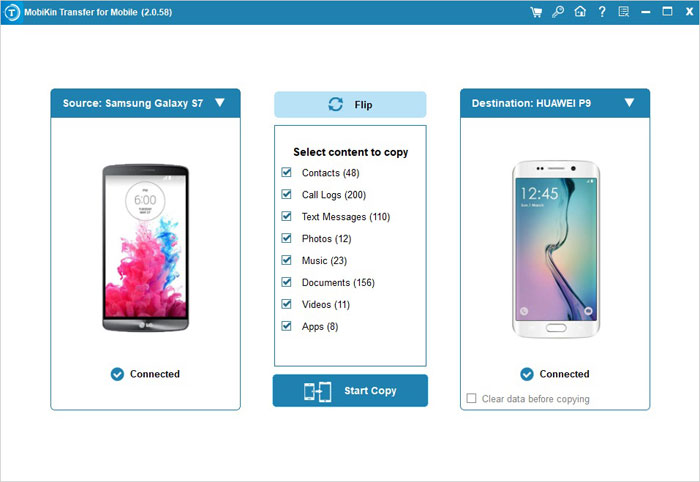
Step 2: Confirm Devices and Select Data - Once both devices are detected, verify that the source and destination devices are displayed correctly. If needed, use the Flip option to switch their positions. Then, select the types of data you want to transfer.
Step 3: Start the Transfer - Click Start Copy to begin the transfer process. The selected data will be transferred automatically to the target device with a single click. (Can I use MobiKin Transfer for Mobile crack?)
Video Tutorial:
Option 2: Transfer Data from vivo to realme Phone via Clone Phone
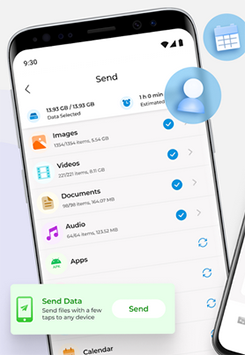
realme Clone Phone can transfer personal data, system data, apps and app data, photos, videos, audio, and documents from an old Android phone to a new realme phone. realme's current instructions specifically support migrating from an Android phone of another brand, so it can be used for vivo-to-realme transfers.
Simple User Guide:
- Open Clone Phone on the new realme phone, select This is the new device, and choose Other Android.
- Install and open Clone Phone on the vivo phone, then select This is the old device.
- Wait for a QR code to appear on the realme phone.
- Use the vivo phone to scan the QR code and connect the two devices.
- Select the data you want to transfer, such as contacts, messages, call logs, apps, photos, videos, music, and documents.
- Tap Migrate on the vivo phone and keep both devices nearby until the transfer is complete.
Option 3: Transfer from vivo to realme via Android's Built-in Transfer
During the initial setup of the new realme phone, Android's Built-in Transfer can copy data from your vivo device through a USB cable or a wireless connection. Depending on the devices and Android versions, supported items may include contacts, messages, photos, videos, apps, call history, and some settings. This method is convenient when you are setting up the realme phone for the first time, although some app data and files may not be transferred.
Simple User Guide:
- Turn on the realme phone and start the initial setup process.
- Connect the realme to Wi-Fi and proceed until you see the option to copy apps and data.
- Tap Copy when prompted to transfer data from your old Android phone.
- Connect the vivo and realme phones with a USB cable. If you don't have a suitable cable, select No cable to use the wireless method.
- For wireless transfer, open the Google app on the vivo, search for "set up my device," and tap Next.
- Check that the shapes and numbers shown on both phones match, then tap Copy.
- Select the data you want to transfer, such as apps, photos, videos, contacts, text messages, call history, music, and supported settings.
- Wait until the transfer is complete. The process can take from several minutes to more than an hour depending on the amount of data.
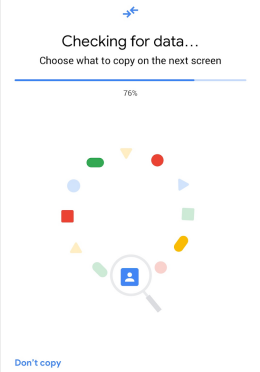
Note: Google recommends performing this transfer during the realme's initial setup because the copy option may not be available afterward. Some items, including downloaded PDFs, apps outside Google Play, and data from apps that don't use Android backup, may not transfer.
Option 4: Copy Data from vivo to realme Using EasyShare
When you prefer a phone-to-phone method, EasyShare can connect the vivo and realme devices through its Phone Clone feature and copy supported data between them. After pairing the phones, you can select items such as contacts, messages, photos, videos, apps, call records, and files for transfer.
Since it works between Android devices, it can also be used when the receiving phone is a realme rather than a vivo device.
Simple User Guide:
- Install and open EasyShare on both the vivo and realme phones. On the vivo, tap Phone Clone and select Old Phone; on the realme, select New Phone and choose Android as the old phone type.
- The vivo phone will generate a QR code. Use the realme phone to scan it and wait for the two devices to establish a connection.
- On the vivo phone, select the data you want to copy, such as contacts, messages, photos, videos, apps, call records, and files, then tap Start Phone Clone.
- Keep both phones connected and nearby until the transfer finishes. Then tap Start using your new phone on the realme. (EasyShare won't work?)
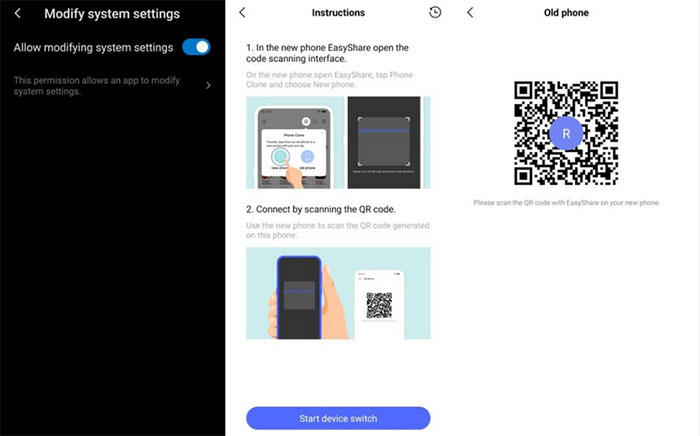
Note: Some transferred apps may not install automatically because of permission limitations. In that case, go to Files > Apps on the realme and install them manually.
Option 5: Move Data from vivo to realme Using microSD Card
This method is mainly suitable for photos, videos, music, documents, and other files. It generally cannot transfer installed apps, app data, system settings, or accounts directly.
Simple User Guide:
- Insert a microSD card into the vivo phone and make sure it has enough free space for the files you want to move.
- Open File Manager on the vivo and locate the photos, videos, music, documents, or other files you want to transfer.
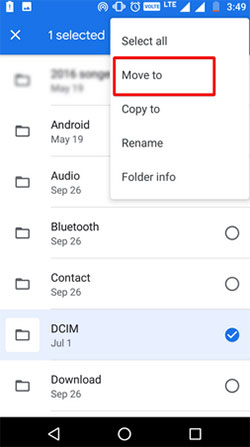
- Select the files, tap Copy or Move to, and choose the microSD card as the destination.
- Wait for the files to finish copying, then safely remove the microSD card from the vivo phone.
- Insert the microSD card into the realme phone if the model supports expandable storage.
- Open File Manager on the realme, access the microSD card, select the transferred files, and copy or move them to the desired folder on the phone.
- Check the relevant folders, such as DCIM, Pictures, Movies, Music, and Documents, to make sure the files are accessible.
Additional Tips
Before you begin, charge both phones and check the available storage on the realme device. Keep important photos, contacts, and documents backed up in case a transfer is interrupted. For a large amount of data, a USB connection can be more reliable than transferring files one by one over a wireless connection.
Related Articles:
How to Unlock realme Phone with/without Losing Data? 6 Methods Included
4 Easy Options: How to Screen Mirror realme to PC [Latest]
4 Clever Strategies on How to Recover Deleted Photos from File Safe in vivo
