
Compare Quick Share vs. AirDrop from 12 Aspects [A Report Based on Our Tests]
TL;DR:
This passage compares Quick Share and AirDrop, allowing you to see how compatibility, transfer methods, speed, privacy, and other details differ, and it examines 12 aspects of both while also covering a more versatile option for moves between different phone platforms.
- MobiKin Transfer for Mobile handles Android-to-Android, Android-to-iPhone, iPhone-to-Android, and iPhone-to-iPhone transfers through a Windows or Mac computer.
- Contacts, messages, photos, videos, music, apps, and more can move in bulk over USB, with no cloud upload required.
- For phone migration across different systems, it gives users a direct path that native sharing tools may not provide.
Someone has an iPhone and wants to send files to an Android or Windows device, or perhaps an Android user needs to share files with an iPhone. In this case, understanding Quick Share vs. AirDrop can help clarify their compatibility, transfer methods, speed, privacy, and other differences.
This article compares AirDrop vs. Quick Share in 12 aspects and also introduces a more versatile alternative for users who need to move data between phones running different platforms.

- Part 1: Quick Share vs. AirDrop - Compatibility & File Sharing
- Part 2: Quick Share vs. AirDrop - Tech & Capacity
- Part 3: Quick Share vs. AirDrop - Range & Speed
- Part 4: Quick Share vs. AirDrop - Personalization & Customization
- Part 5: Quick Share vs. AirDrop - User-Friendliness & Transfer Flow
- Part 6: Quick Share vs. AirDrop - Security & Privacy
- Part 7: What Could Be Better Than Quick Share & AirDrop [Versatile]
Part 1: Quick Share vs. AirDrop - Compatibility & File Sharing
AirDrop
- Works with compatible iPhone, iPad, and Mac devices.
- Best suited to sharing photos, videos, documents, links, and other files within the Apple ecosystem.
- Uses nearby wireless connections, so an internet connection is not normally required.
- Offers a simple Apple-to-Apple sharing experience through the built-in Share menu.
Quick Share
- Works with compatible Android phones/tablets, Windows PCs, and Chromebooks.
- Supports photos, videos, documents, links, and various other file types.
- Uses nearby wireless connections for direct file transfers without requiring cloud storage.
- Provides more flexibility for users who regularly move files between Android and non-Apple devices.
My Point of View: AirDrop is convenient for Apple-to-Apple sharing, while Quick Share provides greater flexibility across Android, Windows, and ChromeOS devices.
Part 2: Quick Share vs. AirDrop - Tech & Capacity
The technology behind Quick Share and AirDrop determines how efficiently they connect devices and handle file transfers. The table below compares their core technologies, file capacity, transfer performance, and cross-platform capabilities to highlight the practical differences.
|
Feature
|
AirDrop
|
Quick Share
|
|
Core technology
|
Uses Bluetooth LE to discover devices and peer-to-peer Wi-Fi to transfer files. |
Uses Bluetooth, Wi-Fi, and Wi-Fi Direct, depending on the devices and connection. |
|
File capacity
|
No stated limit on the number or size of files, although very large transfers can fail in practice. |
Likewise, there is no stated limit on the number or size of files, but large transfers may depend on connection and device conditions. |
|
Large-file performance
|
Generally handles large transfers consistently, according to AppleToolBox. |
Tech2 reports that Quick Share can be faster when transferring large files of 1 GB or more, although performance varies by device and connection. |
|
Cross-platform capability
|
Traditionally limited to Apple devices; newer supported Android/Apple interoperability changes this for certain devices. |
Supports a wider range of platforms and can now work with AirDrop on supported Android devices. |
|
Overall technology
|
Strong integration between Apple hardware and software makes the transfer process highly streamlined. |
Offers greater platform flexibility, particularly for Android users who also work with Windows or ChromeOS. |
My Point of View: Quick Share offers more platform flexibility, while AirDrop benefits from tighter hardware-software integration within the Apple ecosystem.
You Might Also Like: How to Fix Quick Share Not Working on Android/Samsung? 8 Solutions
Part 3: Quick Share vs. AirDrop - Range & Speed
AirDrop
- Typically works within about 30 feet (9 meters) under suitable conditions.
- Uses Bluetooth for discovery and peer-to-peer Wi-Fi for the actual transfer.
- Transfer speed can exceed 25 MB/s in favorable conditions.
- Speed and range may decrease because of walls, interference, distance, or device limitations.
Quick Share
- The practical range can vary by device and connection method, with the referenced comparisons reporting roughly 5–15 meters.
- Uses Bluetooth and Wi-Fi/Wi-Fi Direct to discover and transfer files.
- Can achieve fast transfer speeds, particularly when compatible Android devices establish a direct Wi-Fi connection.
- Actual speed depends on the phone or PC, file size, wireless environment, and distance between devices.
My Point of View: For everyday nearby transfers, both can be fast enough, but keeping the devices close together is more important than relying on a fixed range or speed figure.
Click to Explore: How to AirDrop iPhone to Mac: A Step-by-Step Guide in 2026
Part 4: Quick Share vs. AirDrop - Personalization & Customization
Personalization options can affect how easily users control device visibility and manage nearby file transfers. The table below compares Quick Share and AirDrop in terms of visibility settings, device names, and sharing preferences, and customization options.
|
Feature
|
AirDrop
|
Quick Share
|
|
Visibility settings
|
Choose Receiving Off, Contacts Only, or Everyone for 10 Minutes. |
Control who can discover your device, including No One, Contacts, or Everyone for a limited period. |
|
Device name
|
Uses the Apple device name for identification. |
Lets you change your Quick Share display name. |
|
Sharing preferences
|
Focuses on simple visibility controls with minimal setup. |
Provides more options, including visibility management and mobile-data usage when Wi-Fi is unavailable. |
|
Sharing interface
|
Integrated directly into Apple's Share menu with little configuration. |
Appears in Android's Share menu and also provides its own interface for managing transfers. |
|
Extra customization
|
Limited customization keeps the transfer process simple. |
Offers more control over discovery, receiving visibility, and sharing options. |
My Point of View: AirDrop is better suited to users who prefer simple settings, while Quick Share gives users more control over device visibility and sharing preferences.
Part 5: Quick Share vs. AirDrop - User-Friendliness & Transfer Flow
AirDrop
- Select a file, open the Share menu, and tap the nearby recipient.
- Requires no pairing codes or complicated setup.
- The recipient receives a prompt to accept or decline the transfer.
- The overall flow is simple and closely integrated into Apple devices.
Quick Share
- Select a photo, video, or document and tap Quick Share from the Android Share menu.
- Nearby compatible devices appear automatically for selection.
- Users can also start transfers directly from the Quick Share interface.
- Quick Share supports two-way sharing and, on compatible devices, QR-code sharing when nearby discovery is inconvenient.
My Point of View: AirDrop offers a slightly simpler transfer flow, while Quick Share provides more ways to start and manage a transfer.
Part 6: Quick Share vs. AirDrop - Security & Privacy
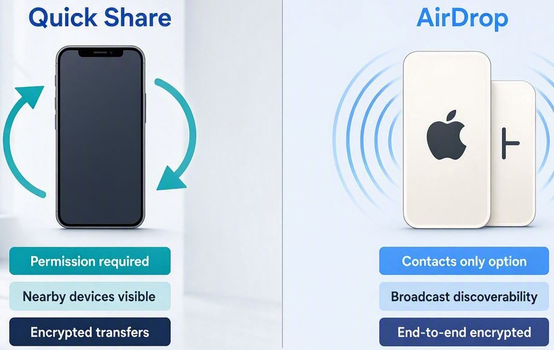
AirDrop and Quick Share both provide controls over who can discover a device and receive files. AirDrop lets users choose Receiving Off, Contacts Only, or Everyone, while Quick Share offers similar visibility controls, helping reduce unwanted transfers. Both also use encrypted connections for file transfers.
For newer Quick Share-AirDrop interoperability, Google says the connection is direct and peer-to-peer, with shared content not routed through a server or logged, and recipients must approve incoming files. Google also reports that the interoperability feature underwent internal security testing and an independent assessment by NetSPI.
My Point of View: Both provide solid privacy controls for nearby sharing, while Quick Share's newer cross-platform implementation adds specific security measures for Android-to-iPhone transfers.
Part 7: What Could Be Better Than Quick Share & AirDrop [Versatile]
For users who need direct phone-to-phone transfers across Android and iOS, MobiKin Transfer for Mobile (Windows/Mac) provides a practical alternative to Quick Share and AirDrop. It supports Android-to-Android, Android-to-iPhone, iPhone-to-Android, and iPhone-to-iPhone transfers through a computer, with contacts, messages, photos, videos, music, and other data included.
Unlike Quick Share and AirDrop, it can handle transfers between different mobile ecosystems without relying on each platform's native sharing features.
Main Characteristics:
|
Feature
|
MobiKin Transfer for Mobile
|
Advantage over Quick Share & AirDrop
|
|
Cross-platform
|
Android to/from Android/iPhone; iPhone to/from Android/iPhone |
Broader OS support |
|
Direct transfer
|
USB-connected phone-to-phone transfer |
Less dependent on nearby sharing |
|
Data types
|
Contacts, SMS, photos, videos, music, apps, and more |
Transfers more phone data |
|
No cloud
|
Local data transfer |
No cloud upload needed |
|
Large transfers
|
Handles bulk phone data |
Better for phone migration |
|
Device support
|
8,000+ devices |
Wider device compatibility |
|
Privacy
|
Does not track users' private data |
Keeps personal data private during transfers |
Free & Safe Download:


How to Use the Best Quick Share and AirDrop Alternative to Transfer Data Across Various Devices?
- Download MobiKin Transfer for Mobile onto your computer.
- After the installation finishes, launch the program.
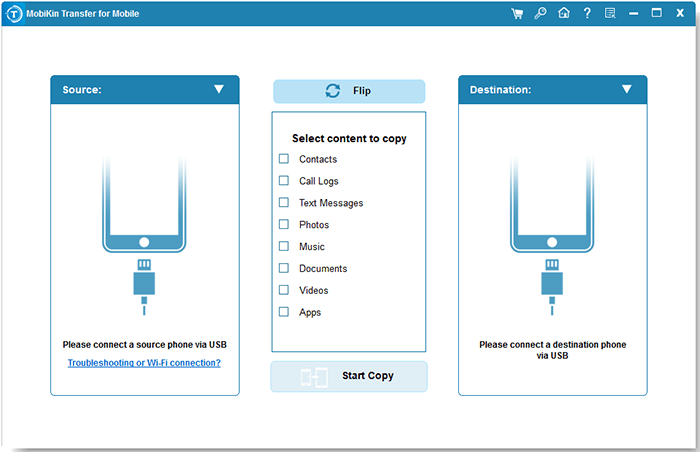
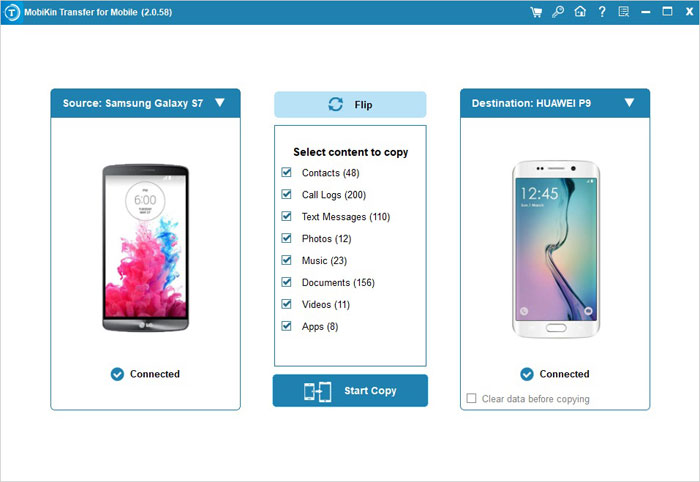
- Use USB cables to connect both Android/Apple devices to the computer as instructed.
- Then follow the on-screen prompts to ensure they are recognized. If the sender and receiver are reversed, click "Flip."
- Choose the file types you want to transfer to the destination phone.
- Then, with a single click, the transfer will be completed promptly.
Quick Video Tutorial:
Closing Remarks
Quick Share and AirDrop both make nearby file sharing convenient, but their strengths differ depending on the devices involved and the type of data you want to move. When your transfer goes beyond simple file sharing, MobiKin Transfer for Mobile can provide another practical option without being limited to one mobile ecosystem.
If you like this article and find it useful, please share it on your social media and let more people compare their transfer options with confidence.
Related Articles:
6 Easy Ways to Transfer Files from PC to Android Phone without USB
Quick Share vs Nearby Share: Which Is Superior? [Overall Comparison]
Can You AirDrop from PC to iPhone? Everything You Should Know
How to AirDrop from iPhone to Android? 4 Alternative Ways You'd Better Know
