
Comparison: Google Android Switch/Switch to Android vs. Smart Switch
TL;DR:
This article compares Google Android Switch and Samsung Smart Switch, two tools that help you move data to a new Android phone but differ in the devices they support, the data they transfer, and their key features.
For a cross-platform alternative that is not tied to one brand, MobiKin Transfer for Mobile provides a versatile option for moving data between Android and iOS devices. It can serve as a replacement for both Android Switch and Smart Switch, especially when you need to transfer a wide range of files with a single click.
NOTE: Google renamed its Switch to Android to Android Switch in November 2024. The Android Switch mentioned below by default refers to its predecessor, Switch to Android.
"Currently have an iPhone 16 Pro and am switching to S26 Ultra. Would you suggest using Smart Switch since I'm switching to Samsung or is Google's Switch to Android just as good?" -- from Reddit
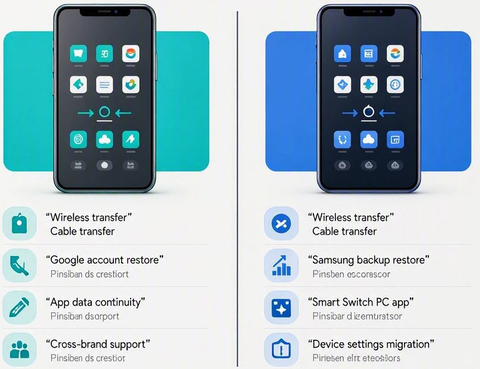
Google Android Switch, also known as Switch to Android or Android Switch, and Samsung Smart Switch both help transfer data to a new Android phone, but they differ in supported devices, transfer methods, features, and more. If you are unsure which tool suits your phone or what data each one can move, this article provides a full comparison of Google Android Switch/Switch to Android vs. Smart Switch. Read on for details.
- Part 1: Switch to Android vs. Smart Switch - Use Cases/Supported Devices
- Part 2: Samsung Smart Switch vs. Google Switch to Android - Supported Data Types
- Part 3: Android Switch vs. Smart Switch - Key Features
- Part 4: Google Android Switch vs. Samsung Smart Switch - User Guide
- Part 5: Switch to Android vs. Smart Switch - Pros & Cons
- Part 6: Best Replacement for Switch to Android & Smart Switch [Versatile]
- FAQs about Google Android Switch & Samsung Smart Switch
Part 1: Switch to Android vs. Smart Switch - Use Cases/Supported Devices
Android Switch and Samsung Smart Switch are both useful for moving data to a new phone, but they target different device ecosystems and use cases. The table below compares their main purposes and supported destination devices to help you understand when to use each tool.
|
Tool
|
Main Use Case
|
Supported Destination Devices
|
|
Switch to Android
|
Moving data from an old phone to a compatible Android device, particularly during Android setup |
Compatible Android phones; support varies by device and Android version |
|
Samsung Smart Switch
|
Moving data from an old phone to a Samsung Galaxy device |
Samsung Galaxy phones and tablets |
You Might Like: 5 Ways to Transfer WhatsApp from Old Samsung to New Samsung
Part 2: Samsung Smart Switch vs. Google Switch to Android - Supported Data Types
The data each tool can transfer differs considerably, and support also depends on the source device, destination device, and transfer method. The table below compares the commonly supported data types, based on the referenced MobileTrans comparison and current official Google and Samsung documentation.
|
Data Type
|
Android Switch
|
Samsung Smart Switch
|
|
Contacts
|
Yes |
Yes |
|
Calendar
|
Yes |
Yes |
|
Photos
|
Yes |
Yes |
|
Videos
|
Yes |
Yes |
|
iCloud Photos
|
Yes |
Yes |
|
SMS/MMS
|
Yes* |
Yes |
|
Music
|
Yes* |
Yes |
|
Notes
|
Yes* |
Yes |
|
Apps
|
Yes* |
Yes |
|
Call History
|
Yes* |
Yes** |
|
Voice Memos
|
Yes* |
Yes |
|
Bookmarks
|
- |
Yes |
|
Alarm Settings
|
Yes* |
Yes |
|
Wi-Fi Networks
|
Yes* |
Yes |
|
Passwords & Passkeys
|
Yes* |
- |
|
Files & Folders
|
Yes* |
Yes |
|
WhatsApp Data
|
Yes* |
Yes*** |
NOTE:
- * Android Switch: Supports more data than the older Android Switch app, though availability varies by device, Android version, and transfer method.
- ** Smart Switch: Supports call logs, but available data may vary by the source device and transfer method.
- *** WhatsApp: Support varies by transfer method and device combination and may require a separate transfer step.
Click to Learn: How to Transfer Calendar from Android to Android? 4 Trusted Methods
Part 3: Android Switch vs. Smart Switch - Key Features
Android Switch (Switch to Android) – Key Features
- Transfers data to compatible Android devices.
- Supports Android-to-Android and iPhone-to-Android migration.
- Transfers contacts, photos, videos, messages, apps, calendars, and other supported data.
- Supports cable and wireless transfer methods.
- Integrates with the Android device setup process.
- Transfers selected account data, Wi-Fi settings, passwords/passkeys, and other supported content.
- Supports WhatsApp transfer in applicable device combinations.
- Does not require a separate PC program.
Samsung Smart Switch – Key Features
- Transfers data to Samsung Galaxy devices.
- Supports Android-to-Samsung and iPhone-to-Samsung migration.
- Transfers contacts, messages, photos, videos, apps, music, documents, and other supported data.
- Supports wireless and USB cable transfers.
- Supports PC/Mac backup and restore.
- Allows users to select specific content for transfer.
- Can transfer data from an old device even after initial setup in supported cases.
- Supports additional Samsung device settings and content.
Part 4: Google Android Switch vs. Samsung Smart Switch - User Guide
Both Android Switch and Samsung Smart Switch provide straightforward ways to move data from an old phone to a new device. Below are the step-by-step instructions for using each tool, respectively.
How to Use Google Android Switch (Switch to Android)?
- Turn on the new Android phone and start the initial setup.
- When prompted to copy data from another device, select Android device or iPhone/iPad, depending on your old phone.
- Connect the phones using a compatible USB cable, or choose the wireless option when available.
- For wireless transfer, scan the QR code shown on the new Android phone with the old device. iPhone users may need to install the Android Switch app.
- Select the data you want to copy, such as contacts, photos, videos, messages, apps, and other supported content.
- Tap Copy and keep both devices connected until the transfer finishes.
- Check the transferred data after completing the setup.
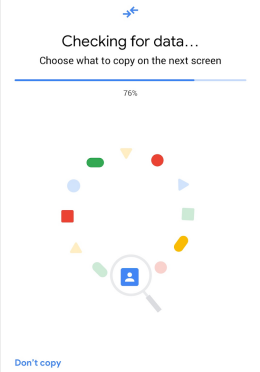
Tips: Google recommends transferring data during the initial setup because the direct-transfer option may not be available afterward.
How to Use Samsung Smart Switch?
- Open Smart Switch on the new Galaxy phone. It is usually preinstalled; you can also find it under Settings > Accounts and backup > Bring data from old device.
- On the new Galaxy, tap Receive data and select Galaxy/Android or iPhone/iPad.
- On the old phone, open Smart Switch and tap Send data.
- Choose Wireless or Cable to connect the two devices.
- Allow the connection and let Smart Switch scan the old device.
- Select the content you want to transfer, such as contacts, messages, photos, videos, apps, and other supported data.
- Tap Transfer and wait for the process to finish.
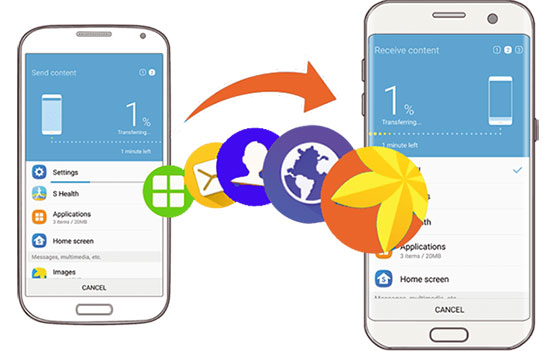
For iPhone users: Smart Switch can also import certain data from iCloud by signing in to iCloud on the new Galaxy device.
Part 5: Switch to Android vs. Smart Switch - Pros & Cons
Switch to Android - The Good and Bad:
|
Pros
|
Cons
|
|
Supports migration to compatible Android devices. |
Supported data varies by device and Android version. |
|
Useful for iPhone-to-Android switching. |
Some apps and app data may not transfer. |
|
Supports wireless and cable-based transfers in applicable cases. |
Some transfers may require the new phone to be in the setup process. |
|
Handles common data such as contacts, photos, videos, and messages. |
Advanced transfer options can vary by manufacturer. |
|
Integrated with Google's Android setup experience. |
No dedicated PC/Mac transfer program. |
Samsung Smart Switch - The Good and Bad:
|
Pros
|
Cons
|
|
Designed specifically for Samsung Galaxy devices. |
Destination device generally needs to be a supported Samsung Galaxy device. |
|
Supports Android-to-Samsung and iPhone-to-Samsung transfers. |
Some data may not be transferable depending on the source device. |
|
Offers wireless and USB cable transfer options. |
Transfer time can increase with large amounts of data. |
|
Supports PC/Mac backup and restore. |
Some features require a USB cable or computer. |
|
Provides broad support for contacts, messages, photos, videos, apps, and other data. |
Certain app data and third-party content may not transfer completely. |
Part 6: Best Replacement for Switch to Android & Smart Switch [Versatile]
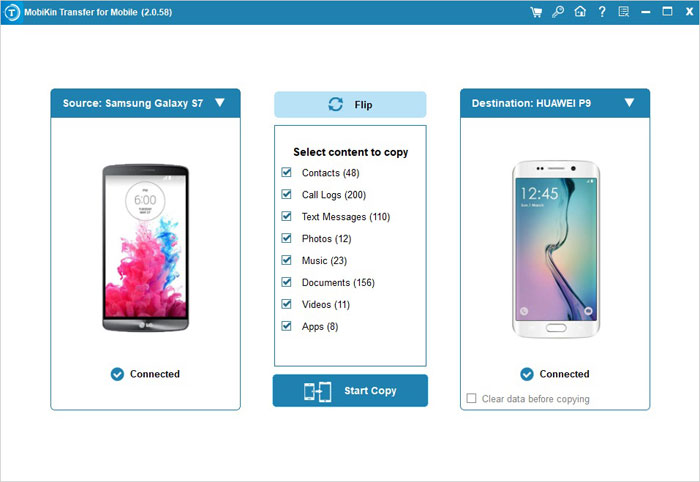
A smooth USB-based migration tool can be a lifesaver when Wi-Fi transfer apps fail, and that's where MobiKin Transfer for Mobile (Windows/Mac) stands out. Unlike Google's Switch to Android or Samsung's Smart Switch, it isn't locked to a single brand or ecosystem, making it more versatile for cross-platform (Android/iOS) moves (no privacy is collected).
By supporting thousands of devices and offering one-click transfers of a winder range of media and non-media data types, it effectively replaces both Android Switch and Smart Switch in scenarios where broader compatibility is needed.
Free and Secure Download:


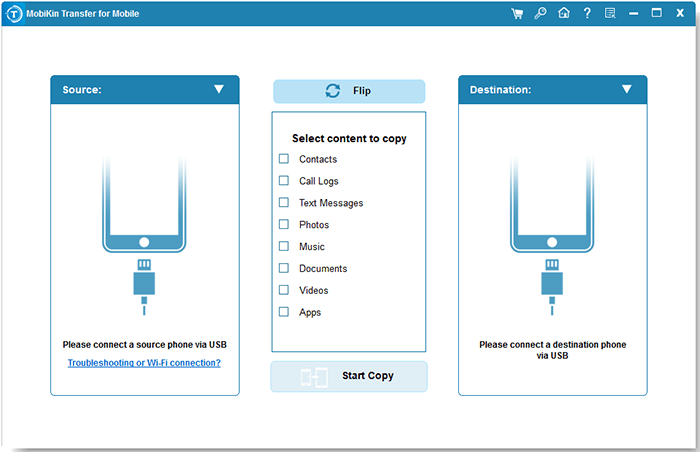
How to Use MobiKin Transfer for Mobile?
- Obtain and install MobiKin Transfer for Mobile on your computer, then open the application upon completion.
- Connect both devices to your computer as instructed, utilizing either USB cables or Wi-Fi connectivity.
- USB cable connection is recommended for optimal transfer stability.
- Once the devices are recognized, select should the device arrangement require correction.
- Designate the file categories you intend to transfer to your target mobile device.
- Initiate the single-click transfer process, which will execute promptly.
Video Tutorial:
FAQs about Google Android Switch & Samsung Smart Switch
Q1. Can I use Smart Switch after setting up my Samsung phone?
Yes, Smart Switch can generally be opened and used after initial setup, although some migration options may work differently depending on the Galaxy model and Android version.
Q2. Which is better for transferring data to Samsung?
If the destination is a Samsung Galaxy phone, Smart Switch provides Samsung-specific migration features. Android Switch is more relevant when moving to a compatible Android device outside Samsung's ecosystem.
Q3. What if Android Switch doesn't work?
Check that both phones have sufficient battery, update their software, restart them, and try reconnecting with a USB cable or using the wireless method. Also make sure the phones are compatible and the required permissions are enabled.
Q4. What if Samsung Smart Switch doesn't work?
Update Smart Switch and the phone software, restart both devices, and reconnect them. If wireless transfer fails, try a compatible USB cable or use the Smart Switch PC/Mac version.
Q5. Why can't Android Switch find my old phone?
Make sure both devices are nearby, Wi-Fi and Bluetooth are enabled when required, and the old phone has granted the necessary permissions. Restarting both devices and retrying the connection can also help.
Q6. Why can't Smart Switch detect my old phone?
Check the USB connection or wireless connection and ensure Smart Switch is installed and updated on the devices. You can also try another compatible cable or USB port.
Q7. How long does Android Switch take to transfer data?
The time depends mainly on the amount and type of data, connection method, and device performance. Large photo and video libraries can take considerably longer.
Q8. How long does Smart Switch take?
Transfer time varies according to the amount of data and whether you use a cable or wireless connection. A wired connection may be preferable for a large transfer.
Related Articles:
What to Do with Old Cell Phones? 22 Clever Uses [Latest Update]
Smart Switch Failed to Connect the Device? 8 Optimal Solutions Here
Smart Switch vs Google Backup: A Complete & Unbiased Comparison
Google Drive vs Google Photos: What Are the Differences? [Answered]
