
Switching from Google Pixel to OPPO? 3 Worry-free Ways & Valuable Tips
TL;DR:
The choice between these methods ultimately comes down to your preference for convenience, control, or simplicity:
- For those who prioritize a complete and targeted transfer without the need for a phone-to-phone setup, MobiKin Transfer for Mobile is the recommended option.
- It handles a wide range of data types through a direct computer connection, which makes it especially useful for transferring a large volume of content reliably.
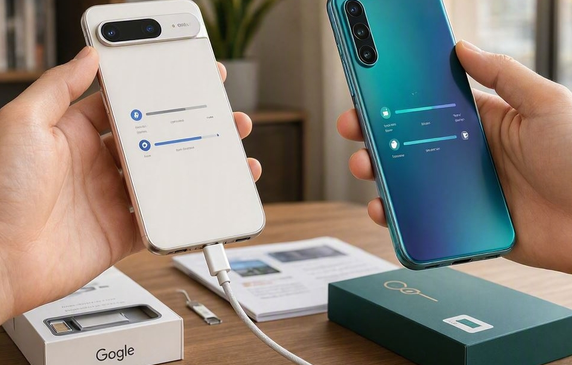
Google Pixel phones offer a clean Android experience, but some users may consider OPPO when they want different hardware, charging options, or storage choices. If you are planning on switching from Google Pixel to OPPO seamlessly, this guide covers three practical and hassle-free ways and explains what each one can transfer.
- Section 1: Tips before Switching from Google Pixel to OPPO
- Section 2: Switch from Google Pixel to OPPO Seamlessly [1-click Way]
- Section 3: Transfer Files from Google Pixel to OPPO via Clone Phone
- Section 4: Switch from Pixel to OPPO Using Android Switch
- FAQs about Switching from Google Pixel to OPPO
Section 1: Tips before Switching from Google Pixel to OPPO
Before switching from Google Pixel to OPPO, taking a few precautions can help prevent data loss and transfer interruptions. The following tips cover the key preparations, from backing up your Pixel and checking storage to ensuring both phones are ready for the transfer.
- Back up your Pixel: Back up important data to your Google Account or another secure location before starting the transfer.
- Charge both phones: Ensure the Google Pixel and OPPO have enough battery to complete the process without interruption.
- Check OPPO storage: Make sure the OPPO phone has sufficient free space for all the data you plan to transfer.
- Update both devices: Install the latest available system and app updates to reduce compatibility issues.
- Use a stable connection: Keep both phones connected to a reliable Wi-Fi network when using a wireless transfer method.
- Prepare a USB cable: Have a compatible USB-C cable available if you plan to transfer data through a wired connection.
- Check your Google Account: Remember your Google Account credentials, as you may need them to restore apps and synced data.
- Review supported data: Not every type of app data, account information, or device setting can be transferred between Pixel and OPPO.
- Transfer important files first: Prioritize contacts, messages, photos, videos, documents, and other irreplaceable files.
- Don't erase the Pixel immediately: Keep your old Pixel intact until you have confirmed that all essential data is safely available on your OPPO.
People Also Ask: Can I retrieve my deleted photos on my Pixel phone? Yes. Here are the 4 clever strategies.
Section 2: Switch from Google Pixel to OPPO Seamlessly [1-click Way]
For users who want a more direct way to move data between phones, MobiKin Transfer for Mobile (Windows/Mac) can transfer data from a Google Pixel to an OPPO device in just a few steps. It supports contacts, text messages, calendars, music, photos, videos, and other common phone data.
Both phones can be connected to a computer, allowing you to select the data you need before starting the transfer. This makes it a practical choice when moving a large amount of content from Pixel to OPPO.
MobiKin Transfer for Mobile - Core Features:
- Pixel-to-OPPO Transfer: Switch supported data from Google Pixel to OPPO directly.
- Wide Data Support: Transfer both media and non-media data transfers.
- Selective Transfer: Choose specific data types to transfer.
- USB Connection: Transfer data by connecting both phones to a computer.
- No Factory Reset: Transfer data without resetting either device.
- Broad Compatibility: Supports Google Pixel 10/9/8/7/6/5/5a/4/4a/4XL/3, OPPO Find X8/X7, Find N foldables), Reno series (Reno 16/15), A series (A5 - A96), F series and K series, etc.
- Cross-Platform Transfer: Supports selected Android-to-iOS and iOS-to-Android transfers.
- Easy Operation: Connect, select data, and start the transfer.
Free and Secure Download:


Know how to transfer contacts, SMS, photos, apps, etc., from Pixel to OPPO with MobiKin Transfer for Mobile:
Step 1. After downloading the program for free, install and launch it on your computer. The main interface will appear as shown below. Next, use two USB cables to connect your Pixel and OPPO phones to the computer.
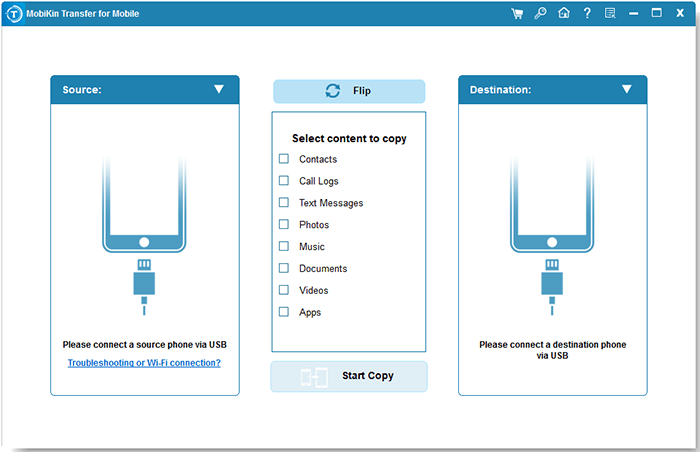
Step 2. To allow the utility to detect both devices, enable USB debugging on each phone by following the on-screen prompts. (If the destination device shown is not your OPPO, simply tap the "Flip" button on the main screen.)
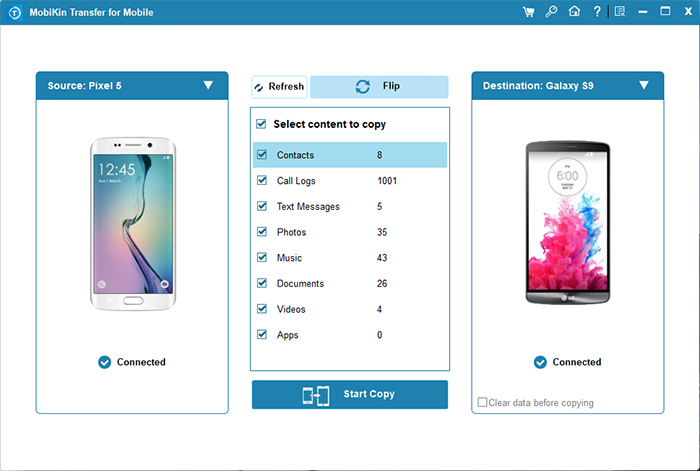
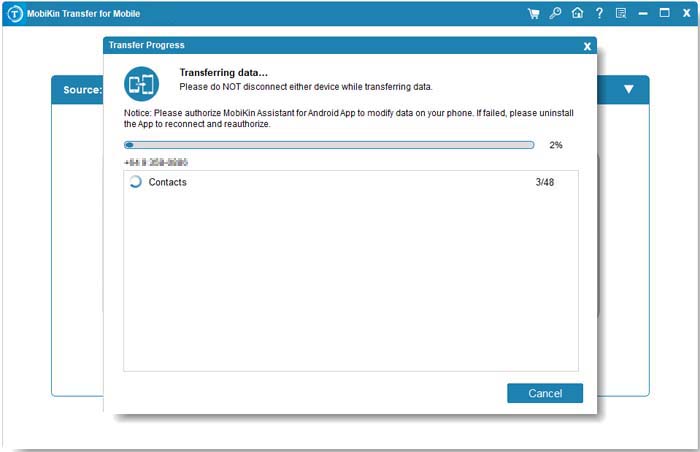
Step 3. Once the devices are recognized, the main interface will display. Select the checkbox next to the data types you wish to transfer. For this example, tick "Contacts" and then click "Start Copy" to begin the transfer.
Video Tutorial:
You Might Also Like: Any easy methods for OPPO data backup and restore? Yes. Here are the top 6 ways.
Section 3: Transfer Files from Google Pixel to OPPO via Clone Phone
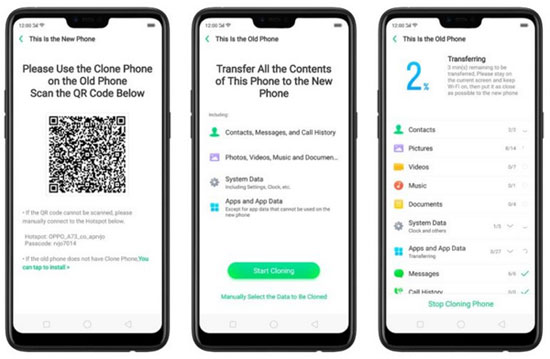
If you prefer a phone-to-phone approach, Clone Phone lets you move data from your Google Pixel to an OPPO phone without relying on a computer. After installing the app on the Pixel and pairing both devices, you can select supported content such as contacts, messages, photos, videos, music, and apps.
The transfer takes place over a direct wireless connection, so there is no need to use mobile data. It is particularly handy when setting up a new OPPO phone.
User Guide:
- Install Clone Phone: Download and install OPPO Clone Phone on your Google Pixel, while opening the preinstalled Clone Phone app on your OPPO phone
- Select the devices: Open Clone Phone on both phones, choose This is the new phone on OPPO and This is the old phone on Google Pixel
- Connect the phones: Select Other Android on OPPO and scan the displayed QR code with your Google Pixel to establish a connection.
- Select files: Choose the data you want to transfer, including contacts, messages, call logs, photos, videos, music, documents, apps, and other supported files.
- Start the transfer: Tap Start Cloning on the OPPO phone and keep both devices close and unlocked during the process.
- Check the files: When the transfer finishes, open the relevant apps on your OPPO phone to verify that the files and other data have arrived successfully.
For a large transfer, charge both phones beforehand and make sure the OPPO has enough free storage. Also, some app data or account information may not transfer completely because individual apps can impose their own restrictions. Google likewise notes that Android data-transfer results can vary depending on the devices and Android versions.
Section 4: Switch from Pixel to OPPO Using Android Switch
Built into the Android setup process, Android Switch provides another way to copy data from a Google Pixel to an OPPO Reno 16/15/14/Find. You can connect the two phones with a compatible cable or use the wireless option when available, then choose the content you want to move.
Common items include contacts, photos, videos, messages, apps, and other supported data. It works well for users who want to transfer their essentials while setting up the OPPO for the first time.
User Guide:
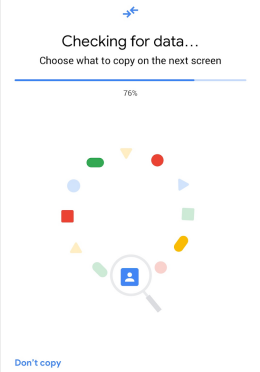
- Prepare both phones: Turn on your new OPPO phone and keep your Google Pixel nearby. Make sure both devices have sufficient battery and connect them to Wi-Fi.
- Start the setup on OPPO: Turn on the OPPO phone and follow the on-screen setup instructions. When prompted to copy apps and data, select the option to transfer data from an Android phone.
- Connect the phones: Use a USB cable to connect the Google Pixel to the OPPO phone, or follow the on-screen instructions for a wireless transfer if available.
- Set up the connection: Unlock your Pixel and follow the prompts to allow the OPPO phone to access the data. Sign in to your Google Account if requested.
- Choose the data: Select the files and other content you want to move, such as contacts, photos, videos, messages, apps, and other supported data.
- Start the transfer: Confirm your selection and let Android Switch copy the data from your Pixel to your OPPO. Keep both phones connected and avoid using them until the process finishes.
- Check the transferred data: After setup is complete, open the corresponding apps on your OPPO phone and verify that your important files and data have transferred correctly.
FAQs about Switching from Google Pixel to OPPO
Q1: Any tips after switching from Google Pixel to OPPO?
After switching, check your contacts, messages, photos, videos, and other important files to make sure everything transferred correctly. You should also sign in to your Google Account, update your apps, and check that essential services such as WhatsApp and banking apps work properly. Keep your Pixel untouched until you are sure you no longer need anything stored on it.
Q2: Why can't I transfer data from Google Pixel to OPPO?
Several issues can prevent the transfer, including an unstable connection, insufficient storage on the OPPO, incompatible software versions, or unsupported data types. Make sure both phones are charged, updated, unlocked, and connected correctly, then restart the transfer. If the built-in transfer method still fails, a third-party tool such as MobiKin Transfer for Mobile can provide another way to move supported data.
Q3: Can I transfer everything from Google Pixel to OPPO?
Most common data, including contacts, photos, videos, messages, and apps, can be transferred. However, some app data, account information, and device-specific settings may not be supported.
Q4: How long does it take to switch from Pixel to OPPO?
The time depends mainly on how much data you have and the transfer method. A small transfer may take only a few minutes, while thousands of photos, videos, and other files can take considerably longer.
Q6: Can I transfer WhatsApp chats from Pixel to OPPO?
WhatsApp provides its own chat-transfer and backup options for moving conversations between Android phones. Before switching, make sure your WhatsApp data is backed up or use a supported transfer method.
Q7: What should I do if the OPPO runs out of storage during transfer?
Check how much free space is available before transferring your data. If storage is insufficient, remove unnecessary files or transfer only the most important content first.
Q8: Can I use my old Pixel after transferring data to OPPO?
Yes. Data transfer does not normally erase the Pixel. Keep the old phone until you have checked the OPPO and confirmed that all important data has been moved successfully.
Related Articles:
7 Latest Methods to Unlock OPPO Phone without Password [2026]
Screen Mirroring OPPO to PC/TV: Full Guide with 5 Ingenious Ways
How to Restore Deleted WhatsApp Messages on Google Pixel? 4 Means
8 Quick Fixes to Google Pixel File Transfer Not Working [2026]
