
How to Transfer Photos from iPhone to Xiaomi or Redmi? 5 Easy Ways
TL;DR:
You can transfer photos from iPhone to Xiaomi using a phone transfer tool, a cloud service, a wireless sharing app, or a computer.
- MobiKin Transfer for Mobile: Connect both phones to a computer, select "Photos", and click "Start Copy" to transfer pictures in batches.
- Google Photos: On iPhone, enable "Backup" in Google Photos settings. Sign in to the same account on Xiaomi and download photos as needed.
- SHAREit: Install the app on both phones, tap "Send" on iPhone and "Receive" on Xiaomi, then follow the connection instructions.
- Computer: Copy photos from the iPhone's "DCIM" folder to your computer, then move them to Xiaomi's "DCIM" or "Pictures" folder.
- OneDrive: Upload iPhone photos, sign in to the same account on Xiaomi, and download the files.
Got a new Xiaomi phone but don't want to leave your favorite photos behind on your iPhone? Moving your photo collection isn't always as simple as plugging in a cable, especially when the two phones run different operating systems. Some methods work better for a handful of pictures, while others are more suitable for moving an entire gallery. The good news is that you have several options, from direct phone-to-phone transfer to cloud storage. Here are five ways to transfer photos from iPhone to Xiaomi or Redmi without making the process a headache.
- Way 1: Transfer Photos from iPhone to Xiaomi with MobiKin Transfer for Mobile
- Way 2: Transfer Photos from iPhone to Xiaomi via Google Photos
- Way 3: Send Photos from iPhone to Xiaomi via SHAREit
- Way 4: Transfer iPhone Photos to Xiaomi via a Computer
- Way 5: Move Photos from iPhone to Xiaomi Using OneDrive
- FAQs about Transferring Photos from iPhone to Xiaomi
Way 1: Transfer Photos from iPhone to Huawei with Transfer for Mobile
If you have a lot of photos on your iPhone, moving them to your new Xiaomi phone one by one can be a real hassle. MobiKin Transfer for Mobile (Mac version) offers a simpler way to handle the job. It lets you connect both phones to a computer and transfer photos directly from iPhone to Xiaomi in batches. You can also use it to move other types of data, making it handy if you're switching from an iPhone to an Android phone.
Key Features of MobiKin Transfer for Mobile:
- Transfer photos directly between iPhone and Xiaomi.
- Support batch transfer to save time.
- Preserve the original quality of transferred photos.
- Transfer other data types, including contacts, videos, and music.
- Support various iPhone and Android models. including the latest iPhone 18/17/16/15, Xiaomi 18/17/16/15, Redmi Note 17/16/15, etc.


How to Transfer Photos from iPhone to Xiaomi with Transfer for Mobile:
Step 1: Connect Both Phones to Your Computer
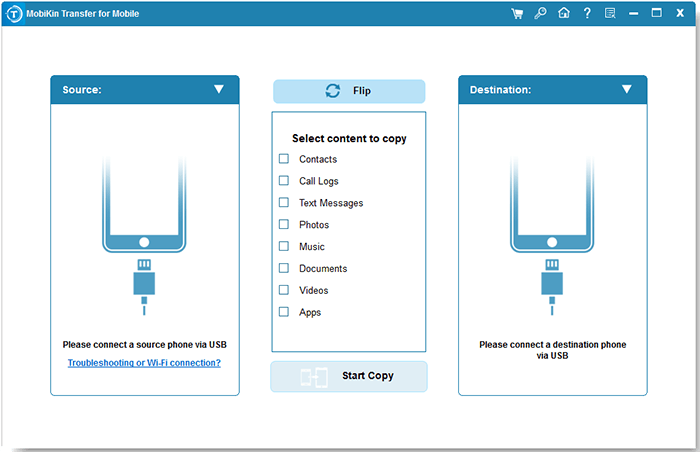
Download and install MobiKin Transfer for Mobile on your computer. Launch the program and connect your iPhone and Xiaomi phone to the computer using USB cables. Follow the on-screen instructions to let the software recognize both devices. Make sure your iPhone is unlocked and tap "Trust" if prompted. Enable the required connection permissions on your Xiaomi phone.
Step 2: Select Photos to Transfer
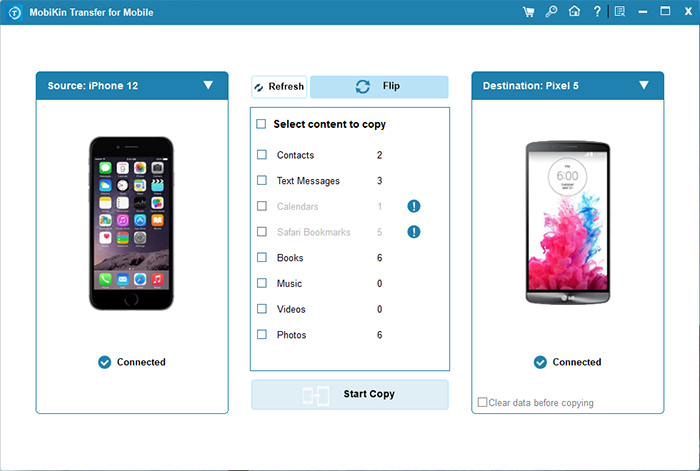
Once both phones are detected, check the device positions on the interface. Make sure your iPhone is set as the source device and your Xiaomi phone as the destination. If they appear in the wrong positions, click "Flip" to switch them. Next, select "Photos" from the list of available data types. You can review the selected category before proceeding.
Step 3: Transfer Photos from iPhone to Xiaomi
Click "Start Copy" to begin transferring your selected photos to your Xiaomi phone. Keep both devices connected throughout the process. When the transfer finishes, open the Gallery app on your Xiaomi phone to check the imported photos. You can then disconnect both devices safely.
Video Guide:
Way 2: Transfer Photos from iPhone to Xiaomi via Google Photos
If you don't want to connect your phones to a computer, Google Photos is another option. You can back up your iPhone photos to your Google account and access them on your Xiaomi phone. It's convenient for wireless transfers, but uploading a large photo library may take some time, and you'll need enough Google storage space.
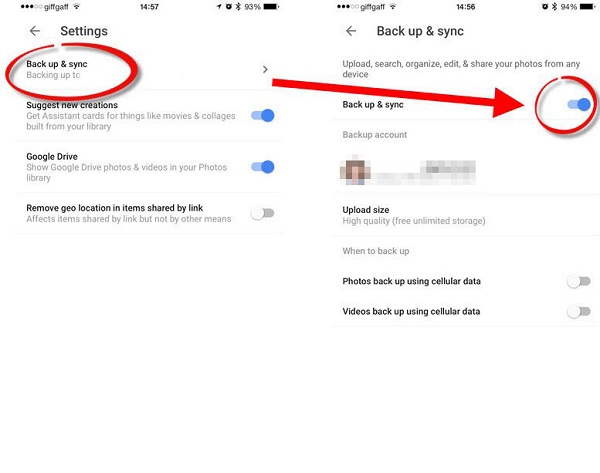
- Install and open Google Photos on your iPhone. Sign in to your Google account, tap your profile picture, go to "Google Photos settings" > "Backup", and turn on "Backup". Wait for your photos to finish uploading.
- Install Google Photos on your Xiaomi phone if necessary, then sign in with the same Google account. Your backed-up photos should appear in the app.
- To save a photo to your Xiaomi phone, open it in Google Photos, tap the three-dot menu, and select "Download" if available. Repeat for other photos you want to store locally.
Way 3: Send Photos from iPhone to Xiaomi via SHAREit
If you only need to send a few photos, SHAREit is another option worth trying. It lets you transfer files between an iPhone and a Xiaomi phone over a wireless connection, so you don't need a USB cable or computer. Just keep in mind that both phones need the app, and you may need to grant permission to access your photos and connect to nearby devices.
- Install SHAREit on both your iPhone and Xiaomi phone. Open the app on each device and grant the necessary permissions when prompted.
- On your iPhone, select the photos you want to send and tap "Send". On your Xiaomi phone, tap "Receive" and wait for the iPhone to appear. Follow the on-screen instructions to connect the two phones.
- Once connected, wait for the transfer to finish. Open the Gallery app on your Xiaomi phone to check whether the photos have arrived.
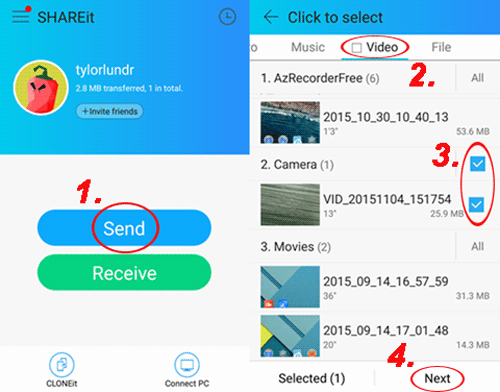
Note: SHAREit availability and connection steps may vary by region and app version. If you can't find the app in your app store or the devices won't connect, try another transfer method.
Check if You Need:
Way 4: Transfer iPhone Photos to Xiaomi via a Computer
If you have thousands of photos to move, using a computer can be a practical choice. You can copy photos from your iPhone to your computer first, then transfer them to your Xiaomi phone. It takes a few extra steps, but you don't need to upload everything to the cloud or rely on a third-party transfer app.
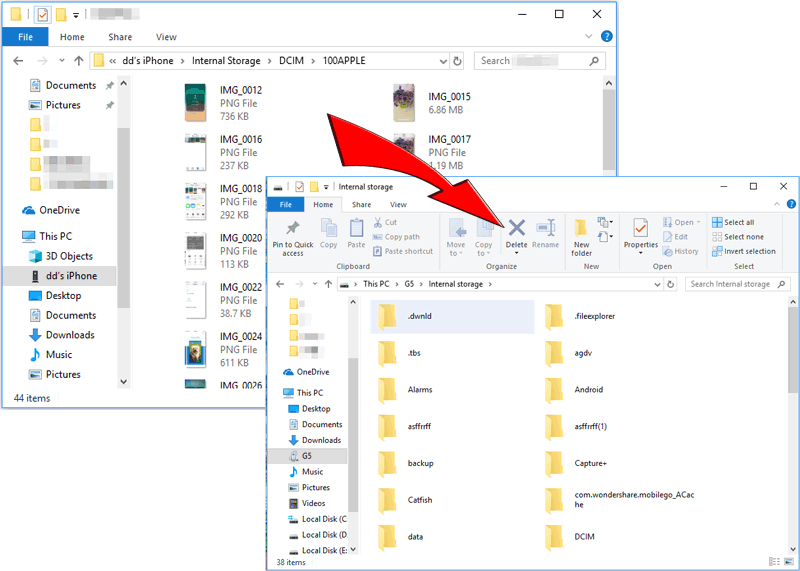
- Connect your iPhone to your computer with a USB cable. Unlock your iPhone and tap "Trust" if prompted. On Windows, open File Explorer, select your iPhone under "This PC", and browse to the "DCIM" folder to find your photos. Copy the photos you need to a folder on your computer.
- Disconnect your iPhone and connect your Xiaomi phone to the computer using a USB cable. Unlock the Xiaomi phone, tap the USB notification, and choose "File transfer" if prompted.
- Open your Xiaomi phone in File Explorer, navigate to the "DCIM" or "Pictures" folder, and copy the photos from your computer into it. Once the transfer finishes, disconnect your phone safely and open Gallery to check the photos.
If some iPhone photos are stored only in iCloud, download the original files to your iPhone first. Otherwise, they may not be available to copy from the DCIM folder.
Way 5: Move Photos from iPhone to Xiaomi Using OneDrive
If you already use OneDrive, you can use it to move photos from your iPhone to Xiaomi without connecting the two phones. Simply upload your photos to OneDrive on your iPhone, then download them to your Xiaomi phone. This method is convenient for wireless transfers, though uploading and downloading a large photo collection may take a while.
- Install OneDrive on your iPhone and sign in to your Microsoft account. Tap the "+" button to upload files, select the photos you want to transfer, and wait for the upload to finish. (How to Back up iPhone to OneDrive?)
- Install OneDrive on your Xiaomi phone and sign in with the same Microsoft account. Open the folder containing your uploaded photos and select the ones you want to transfer.
- Tap the three-dot menu and look for the download or save option to store the photos on your Xiaomi phone. Once finished, open Gallery to check the saved photos.

Note: Make sure you have enough OneDrive storage and a stable internet connection before transferring a large number of photos.
FAQs about Transferring Photos from iPhone to Xiaomi
Q1: How do I transfer all photos from iPhone to Xiaomi at once?
You can use a phone transfer tool like MobiKin Transfer for Mobile to copy photos in batches. Alternatively, transfer them through a computer or cloud service, depending on your needs and available storage.
Q2: Can I transfer photos from iPhone to Xiaomi without a computer?
Yes. You can use Google Photos, SHAREit, or a cloud service like OneDrive to move photos wirelessly. Both phones need an internet connection or a compatible local transfer connection, depending on the method.
Q3: Will transferring photos from iPhone to Xiaomi reduce their quality?
Not necessarily. Direct file transfers through a computer or a compatible phone transfer tool can preserve the original photo files. Cloud services may also retain original quality if you upload and download the original files rather than compressed versions.
Q4: Can I transfer Live Photos from iPhone to Xiaomi?
You can transfer the still images, but Xiaomi may not preserve the Live Photo effect. Depending on the transfer method and file format, the motion component may be saved separately or may not be available on the Xiaomi phone.
Q5: Why are my iPhone photos not showing up on my Xiaomi phone?
The photos may not have finished transferring, may be saved in a different folder, or may still be stored in iCloud rather than on your iPhone. Check the transfer status, look in the Gallery or File Manager app, and download any iCloud-only photos before trying again.
The Bottom Line
Your iPhone photos hold plenty of memories, so moving iPhone photos onto your Xiaomi or Redmi is only half the job. Make sure the pictures have transferred properly and that the files you need are saved locally before clearing space on your old phone. For a large photo collection, MobiKin Transfer for Mobile can save you the trouble of moving pictures individually. If you'd rather avoid a computer, Google Photos or OneDrive may be a better fit. Choose what suits your situation and keep those memories close.
Related Articles:
Top 6 Methods for Mi to Mi Data Transfer: Easy Guide
5 Options: How to Transfer Data from Xiaomi/Mi to iPhone