
How to Switch from iPhone to Samsung? 4 Options with Pros & Cons
TL;DR:
This guide covers four practical ways to move your data from iPhone to Samsung Galaxy, each with clear steps and honest limitations so you can choose what fits your needs.
- If you want to keep original file quality while having control over exactly which data types to copy, use MobiKin Transfer for Mobile to make the migration in one go without uploading anything to the cloud.
"Thinking of switching from Apple to Galaxy. What are the ups and downsides?" -- from Reddit
A new Samsung Galaxy S26/S25/S24/S23/S22/S21 offers plenty of features, but many users worry about losing important data during the switch, especially photos, contacts, WhatsApp chats, and text messages. For anyone searching for how to switch from iPhone to Samsung Galaxy, this guide covers 4 advisable ways to move your data with minimal effort while keeping your important content intact.
- Part 1: Tips to Know before Switching from iPhone to Samsung
- Part 2: Switch from iPhone to Samsung Galaxy in One Click
- Part 3: Swap from iPhone to Samsung Using Smart Switch
- Part 4: Switch from iPhone to Samsung Galaxy via Google Account Sync
- Part 5: Switch from iPhone to Samsung Phone via USB-OTG Adapter
- FAQs about Switching from iPhone to Samsung
Part 1: Tips to Know before Switching from iPhone to Samsung
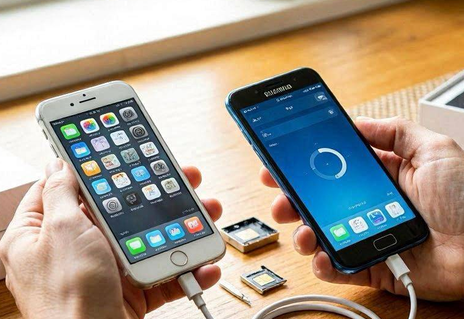
Switching from an iPhone to a Samsung Galaxy phone involves more than simply moving files. Before starting the transfer, preparing both devices can help prevent missing data, connection problems, or unnecessary delays. Here are some important tips to check before making the switch.
1. Back Up Your iPhone Data First
Before transferring anything, create a backup of your iPhone using Apple iCloud or a computer. A backup provides an extra copy of contacts, photos, messages, and other important files in case something goes wrong during the migration process.
2. Check What Data Can Be Transferred
Most personal data, including contacts, photos, videos, calendars, and some apps, can be moved from iPhone to Samsung. However, some Apple-exclusive content, such as Apple Pay information, iCloud passwords, and certain app data, cannot be transferred directly.
3. Turn Off iMessage and FaceTime
Before using your Samsung phone, disable iMessage and FaceTime on your iPhone. Otherwise, some text messages sent from iPhone users may continue going to your old Apple account instead of appearing on your Samsung device.
4. Charge Both Phones
Make sure both devices have enough battery before starting the transfer. A wired transfer with Smart Switch or a large wireless migration may take a long time, especially when moving many photos and videos.
5. Prepare Your Samsung Phone
Sign in with your Samsung or Google account after setting up the new Galaxy phone. These accounts help restore apps, sync contacts, and access important services on Android.
People Also Like: Can I transfer WhatsApp chats from iPhone to Samsung? Yes, here are the 6 easy options.
Part 2: Switch from iPhone to Samsung Galaxy in One Click
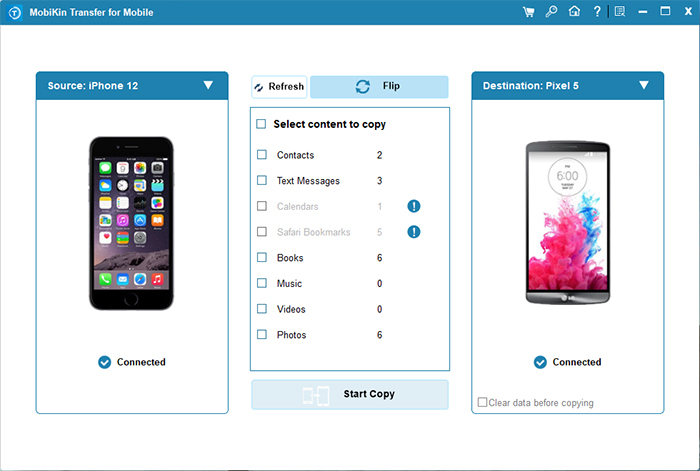
For users who want a simpler migration method, a professional phone transfer tool can move data from an iPhone to a Samsung phone with fewer manual steps. Tools such as MobiKin Transfer for Mobile (Windows/Mac) allow users to connect both phones to a computer and transfer various files directly.
The program supports moving common data types, including contacts, photos, videos, music, calendars, and more. Unlike cloud-based methods, it does not require uploading data to online storage first, which can save time when transferring large amounts of files.
It enables quick and lossless data transfer between iPhone and the Samsung Galaxy devices, helping users move files without reducing their original quality. With wide compatibility across various phone models (8,000+) and support for multiple data types, including contacts, photos, videos, music, messages, and more, it provides a convenient way to complete device switching.
How to Switch from iPhone to Samsung in one click via MobiKin Transfer for Mobile?
- Install and launch the transfer software on a computer.
- Connect both the iPhone and Samsung phone with USB cables.
- Allow necessary permissions on both devices.
- Confirm that the iPhone is displayed as the source device and Samsung as the destination device.
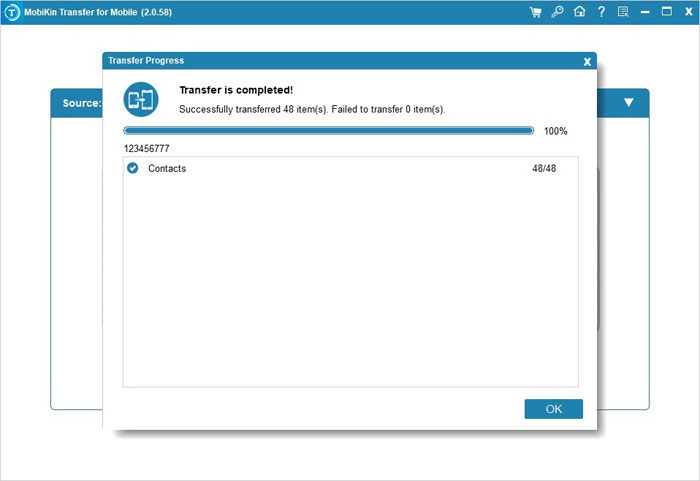
- Select the required data types and click the Start Copy button.
- Wait until the migration process finishes.


Video Guide:
Advantages:
- One-click transfer of iPhone data to Samsung Galaxy.
- Transfers data directly without cloud storage.
- Allows selective file type transfer.
- Maintains original file quality.
- Provides fast and stable wired transfer.
Limitations:
- Requires a computer and USB cables.
- Full features require a paid version.
Further Exploration: 2 Clever Tactics to Transfer eSIM from iPhone to Android
Part 3: Swap from iPhone to Samsung Using Smart Switch
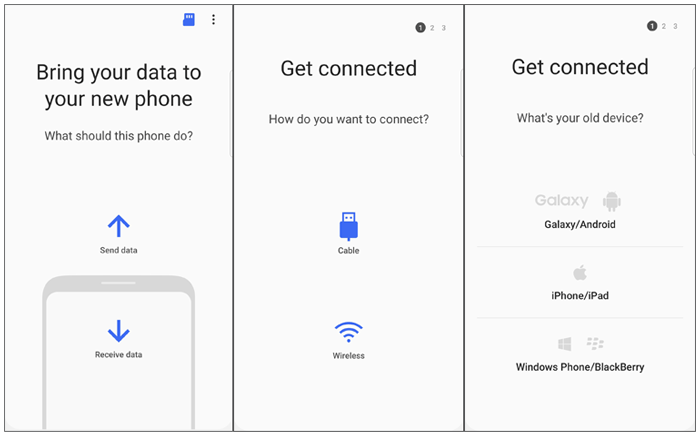
Samsung Smart Switch is Samsung's official tool for transferring personal data from an iPhone to a Galaxy phone. It allows users to move contacts, photos, videos, calendars, messages, notes, and other supported files through a wireless connection or a wired connection. This method is convenient for users who want to migrate their data directly without relying on multiple apps.
Quick Steps:
- Install Smart Switch on your Samsung (usually preloaded).
- Update your iPhone to the latest iOS and disable iMessage/FaceTime.
- Choose transfer method: USB cable (fastest, most complete) or Wireless via iCloud (convenient, slower).
- Connect devices using a cable, iCloud login, or a computer.
- Select data to move: contacts, messages, photos, videos, music, apps (where possible).
- Start transfer and keep devices connected until finished.
- Sign into your Google account, download apps from Google Play, and check that all data transferred correctly.
Advantages:
- Official Samsung solution for Galaxy users.
- Supports multiple data types in one transfer.
- Offers both wireless and wired migration options.
- Does not require manually copying files one by one.
Limitations:
- Some apps and app-specific data cannot be transferred.
- iCloud-based transfers require a stable internet connection.
- Large amounts of photos and videos may take a long time to complete.
Part 4: Switch from iPhone to Samsung Galaxy via Google Account Sync
Google Account Sync provides a simple way to move essential information from an iPhone to a Samsung Galaxy phone. Instead of transferring files directly between devices, this method uploads supported data, such as contacts, calendars, and emails, to a Google account and then syncs it with the Samsung device.
This option works well for users who mainly need to move personal information rather than large files. Once the same Google account is added to the Samsung phone, synchronized data can appear automatically.
Quick Steps:
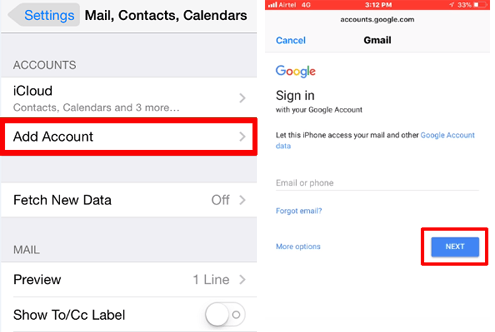
- Open Settings on your iPhone.
- Go to Mail > Accounts > Add Account and select Google.
- Sign in with your Google account.
- Enable synchronization for contacts, calendars, and mail.
- Wait for the iPhone data to sync with Google.
- Open the Samsung phone and sign in with the same Google account.
- Turn on account synchronization to download the available data.
Advantages:
- No cable or adapter is needed.
- Works with both iPhone and Android devices.
- Keeps contacts and calendars updated across devices.
- Suitable for users who already use Google services.
Limitations:
- Mainly transfers Google-supported information.
- Cannot directly move most photos, videos, apps, or text messages.
- Requires enough Google storage for certain synced content.
Part 5: Switch from iPhone to Samsung Phone via USB-OTG Adapter
Using a USB-OTG adapter is a direct way to connect an iPhone and Samsung phone for data migration. Combined with Samsung Smart Switch, this method allows users to transfer files through a wired connection, which is usually faster and more stable than wireless methods.
A USB-OTG transfer is especially useful when moving a large number of photos, videos, or other files because the devices communicate directly without depending on cloud services or internet speed.
Quick Steps:
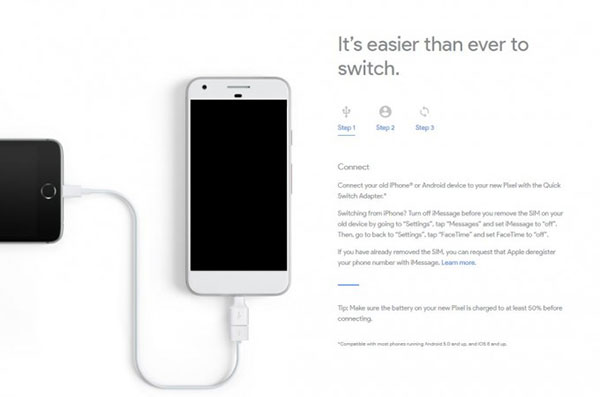
- Gather accessories - USB-OTG adapter (USB-C or micro-USB depending on Samsung) and Lightning cable.
- Connect devices - plug the Lightning cable into iPhone, and connect to Samsung via OTG adapter.
- Allow access - on iPhone, tap "Trust this device"; on Samsung, select "File Transfer/MTP" mode.
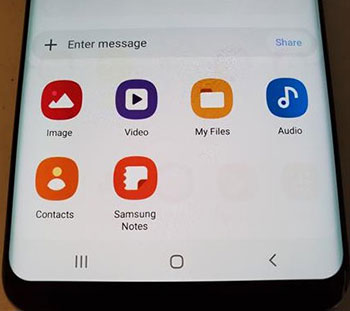
- Copy photos/videos - open Samsung "My Files" or Gallery, browse iPhone storage, copy media.
- Transfer contacts - export contacts from iCloud as .vcf, move to Samsung via OTG or email, then import.
- Move music - copy non-DRM songs directly; re-download iTunes purchases via Apple Music or convert on a PC.
- Transfer documents - copy PDFs, Word files, etc. manually, or upload to cloud (Google Drive, OneDrive) and access on Samsung.
- Reinstall apps - download equivalents from Google Play; note Apple-exclusive apps won't transfer.
- Finalize setup - sign into Google account, check that copied files are intact, adjust settings.
Advantages:
- Provides a direct connection between two phones.
- Usually faster than wireless transfer.
- Does not require uploading data to cloud storage.
- Suitable for transferring large files.
Limitations:
- Requires compatible cables or adapters.
- Not all iPhone data types can be transferred.
- Both phones need sufficient battery power during the process.
FAQs about Switching from iPhone to Samsung
Q1. Can I transfer everything from iPhone to Samsung?
No. Most personal data such as contacts, photos, videos, messages, and calendars can be transferred, but some Apple-specific content like Apple Pay details and certain app data cannot be moved.
Q2. What is the easiest way to switch from iPhone to Samsung?
Samsung Smart Switch is usually the easiest option because it is built for Galaxy devices and supports both wireless and wired transfers.
Q3. Can I transfer photos from iPhone to Samsung without losing quality?
Yes. Using MobiKin Transfer for Mobile, a USB cable, or a direct transfer tool can move original photos without reducing their quality.
Q4. Do I need an iCloud account to switch from iPhone to Samsung?
No. iCloud is only needed for certain wireless transfer methods. Other options, such as cable transfer or computer-based tools, do not require iCloud.
Q5. How long does it take to switch from iPhone to Samsung?
The time depends on the amount of data and the transfer method. Small transfers may take several minutes, while large photo and video libraries can require hours.
Q6. What should I do with my old iPhone after switching to Samsung?
After confirming that all important data has been moved, you can erase the iPhone, remove your Apple ID, and prepare it for resale or storage.
Q7. Why are my messages not transferring from iPhone to Samsung?
Messages may fail to transfer if iMessage is still active, the cable connection is unstable, or the transfer method does not support all message types. Turning off iMessage before switching can help avoid problems.
Q8. What tips to note after switching from iPhone to Samsung?
- Check whether all important data (contacts, photos, videos, messages, and files) has transferred successfully.
- Turn off iMessage and FaceTime on your old iPhone to avoid missing text messages.
- Sign in to your Google and Samsung accounts to access backups and device features.
- Reinstall your frequently used apps from the Google Play Store.
- Confirm that WhatsApp chats and media have been transferred properly.
- Enable Google Backup or Samsung backup services to protect new data.
- Customize Samsung settings, including the home screen, notifications, widgets, and display options.
- Explore Samsung-exclusive features such as Quick Share, Secure Folder, and Modes and Routines.
- Review photo backup settings and storage usage after moving large files.
- Install the latest Samsung software updates and security patches.
Related Articles:
How to Transfer Music from iTunes to Samsung in 5 Efficient Ways?
Samsung Phone Stuck in Airplane Mode? Causes & 12 Solutions
How to Speed Up Samsung Phone Easily? 17 Tested Solutions
How to Erase iPhone Data for Selling? 3 Tactics & Helpful Tricks
