
3 Clever Strategies to Sync Samsung Notes to Google Drive
"Is there an option or alternative app to back up Samsung Notes to Google Drive?" -- from xdaforums.com
Backing up Samsung Notes to cloud storage like Google Drive keeps them accessible from any device and enables easy collaboration and organization. In this article, we'll come up with three methods to sync Samsung notes to Google Drive, providing you with options to choose the one that best suits your requirements.
Play the video below to see this topic in action.
Part 1: How to Sync Samsung Notes with Google Drive Directly
Google Drive is a versatile cloud storage service that allows users to store and access files from any internet-connected device. One notable feature is the ability to get Samsung notes back up to Google Drive. This allows users to back up their notes.
How to export Samsung notes to Google Drive in a direct manner?
- Open the Samsung Notes app and its menu.
- Tap "Settings" > "Sync with Google Drive."
- Sign in to your Google account.
- Select the notes to back up and tap the cloud icon.
- Access your notes via the Google Drive app or website.
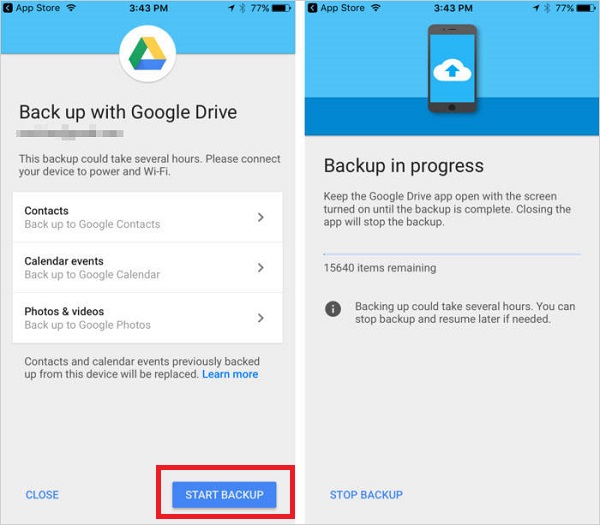
Would you like to sync Samsung notes to new Android/Samsung phone without Google Drive? Here's the easy guide: Go to "Settings > Accounts and Backup > Samsung Cloud > Back up data". Ensure "Samsung Notes" is checked, then tap "Back up now". Go to "Settings > Accounts and Backup > Samsung Cloud > Restore data". Select and restore the backup.
You Might Also Enjoy: Want to know other backup methods for Samsung notes? Here is the detailed guide.
Part 2: How to Back Up Samsung Notes to Google Drive via Share Option
Many Samsung users rely on the Samsung Notes app for important tasks like meeting notes, travel plans, and schedules. However, without cross-platform compatibility, these notes can be lost if the device shuts down unexpectedly. Fortunately, users can turn to the built-in share feature to secure notes with cloud storage like Google Drive selectively.
Learn how to save Samsung notes to Google Drive using the Share feature:
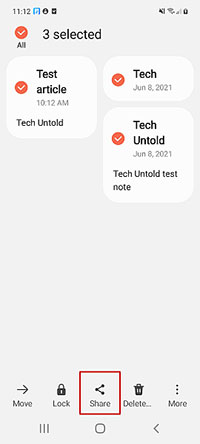
- Open Samsung Notes on your smartphone and select the notes you want to move to Google Drive.
- Tap the "Share" button at the bottom of the screen.
- A menu titled "Share as" will appear. Select "Samsung Notes files (.SDOC)" from the options near the bottom.
- A new pop-up screen will open. Choose "Save to Drive".
- Select the Google account and folder where you want to store your Samsung Notes.
Part 3: How to Export Samsung Notes to Google Drive with Google Keep
Google Keep is a free, cross-platform app that makes transferring notes easy. To get Samsung notes save to Google Drive using Google Keep: Install Google Keep > Copy Text > Paste into Google Keep. Learn how to transfer/upload Samsung notes to Google Drive using Google Keep in detail; follow these steps:
- Download and install the Google Keep app on your Samsung device.
- Open Samsung Notes and the desired note.
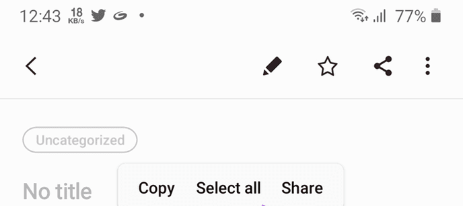
- Long-press any text, select "Select all," and tap "Copy."
- Open Google Keep and create a new note by tapping the plus (+) sign.
- Long press the note area, select "Paste," and save.
- Repeat for all notes you wish to move.
Note: If you want to send a Google Keep note to another app? Check the quick guide: On your Samsung phone or tablet, open the Google Keep app. Tap the note you want to send. In the bottom right, tap the "Action" menu. Tap the Send option. Tap "Send via other apps." Choose an app to copy your notes' contents into.
Extended Reading:
Q&A about Samsung Notes Sync
Q1: How to restore Samsung notes from Google Drive?
- Open Samsung Notes and access settings (look for three dots or lines).
- Tap "Sync" in settings and select your Google account.
- Let the app sync with Google Drive, and your notes should appear.
- If not, check for a "Restore from Google Drive" option.
Steps may vary based on the app version and device OS. Make sure you're using the correct Google account.
Q2: How to fix can't sync Samsung notes across mobile devices?
- Check if both devices are logged into the same Samsung account.
- Ensure stable Internet connections on both devices.
- Update Samsung Notes to the latest version.
- Confirm device compatibility and storage availability.
- Review and adjust sync settings within the app.
- Monitor for any server-related issues or contact Samsung support.
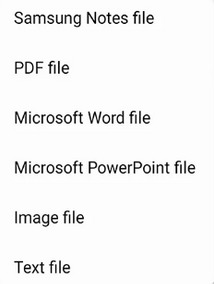
Q3: How to export Samsung notes to PDF, TXT, Image, & Microsoft?
- Open Samsung Notes and select the notes to back up.
- Choose "Save as a file."
- Pick an export format (TXT, Image, Microsoft, or PDF).
- Select the storage location for the file.
Q4: Which other cloud services are supported for syncing Samsung Notes?
Samsung Cloud is primary, but you can also sync to Microsoft OneDrive depending on your device and settings.
Q5: Can I access Samsung Notes on multiple devices?
Yes, once synced, your notes can be accessed on other Samsung devices or via Samsung Notes on the web.
Q6: Why are my Samsung Notes not syncing?
Common reasons include being logged out of Samsung account, sync turned off, insufficient storage, or network issues.
Q7: How do I stop Samsung Notes from syncing with Samsung Cloud?
Go to Samsung Notes > Settings > Sync > Toggle off Samsung Cloud or connected accounts.
Q8: Will deleting a note remove it from all synced devices?
Yes, deleting a note while sync is enabled will remove it across all devices linked to your account.
Bonus: How to Sync Samsung Data to Computer without Google Drive
After finishing the Samsung notes backup, you might require additional backups for contacts, text messages, photos, videos, and other crucial content. Given the restricted storage capacity of Google Drive and potential errors that may occur, transferring other phone data to your computer is a wise decision.
In this regard, utilizing MobiKin Backup Manager for Android (Windows and Mac), known as MobiKin Android Backup & Restore, can streamline the process and guarantee smooth outcomes.
Why pick MobiKin Android Backup & Restore?
> Back up Samsung content to a computer without additional apps/services.
> Retrieve stuff to any devices from the backups you created on your computer.
> Apply to various data types and works for virtually all Android phones/tablets.
> Valuing your privacy, easy to handle, smooth processing, and no ads.


How to back up data on Samsung via MobiKin Android Backup & Restore?
- Install the Android Backup and Restore software on your computer and connect your Samsung phone.
- Enable USB debugging when prompted, and the tool will detect the phone.
- Go to the "Backup" option, select the file types to back up, and choose a location on your computer.
- Click "Back Up" to save the content on Samsung.
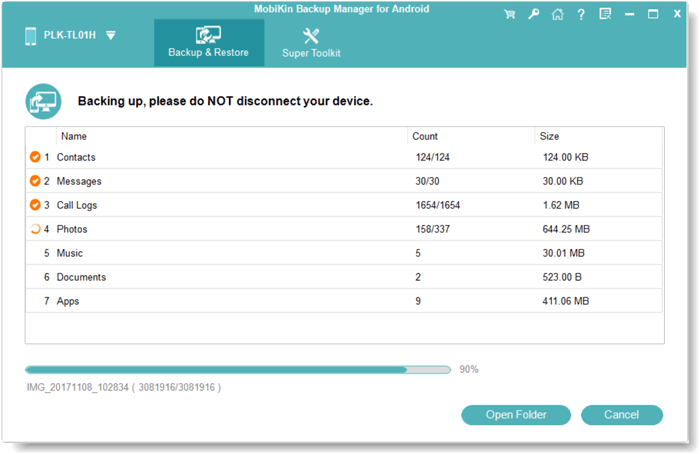
Video Instructions for Samsung data backup using MobiKin Android Backup & Restore:
Completion
Admittedly, Google Drive offers a variety of ways to save Samsung notes, which we've just discussed in depth. Plus, you'll receive a confirmation within the Samsung Notes app once the sync is complete. Then, you can check your Google Drive account to see if the notes are there.
Lastly, a side note here - Google Drive provides a limited amount of free storage. And occasionally, sync errors may occur, leading to data loss or duplication. So, weigh these potential drawbacks against your specific needs.
Related Articles:
[100% Success] How to Recover Deleted Samsung Notes Easily & Fast?
5 Most Rewarding Ways to Transfer Samsung Notes to iPhone 17/16/15/14/13/12/11/X
How to Export Samsung Calendar? 4 Methods for Samsung Calendar Export & Import
3 Popular Ways to Back Up Samsung Gallery to Google Drive 2026
Top 7 Samsung Device Managers You Wish You Knew Sooner [Updated]
