
How to Transfer Videos from iPhone to Samsung: 5 Easy Ways
TL;DR:
Moving videos from an iPhone to a Samsung phone doesn't have to mean sending them one by one. Here are five practical ways to get the job done:
- MobiKin Transfer for Mobile - Transfer selected videos directly from iPhone to Samsung without using cloud storage.
- Samsung Smart Switch - Move videos directly between your iPhone and Samsung with a cable.
- Google Photos - Back up iPhone videos and access them on your Samsung wirelessly.
- Cloud Storage - Upload videos to Google Drive and download them to Samsung.
- Computer - Copy videos from iPhone to a computer first, then move them to Samsung.
Your iPhone may be full of videos you want to keep, but moving them to a Samsung phone isn't as straightforward as sending them between two iPhones. Large 4K clips can make cloud uploads painfully slow, while some transfer methods require extra steps or storage space. The good news is that you have several ways around these hassles. In this guide, we'll walk through five practical methods, from a direct transfer with MobiKin Transfer for Mobile to Smart Switch, cloud services, and a computer.
- Part 1: Transfer Videos from iPhone to Samsung with MobiKin Transfer for Mobile [Recommended]
- Part 2: Transfer Videos from iPhone to Samsung via Samsung Smart Switch
- Part 3: Send Videos from iPhone to Samsung via Google Photos
- Part 4: Transfer Videos from iPhone to Samsung Using Cloud Storage
- Part 5: Move Videos from iPhone to Samsung via a Computer
- Comparision: Which Method Should You Choose?
Part 1: Transfer Videos from iPhone to Samsung with MobiKin Transfer for Mobile
If you have a large number of videos on your iPhone, transferring them to a Samsung phone one by one can be time-consuming. MobiKin Transfer for Mobile (Win and Mac) provides a direct way to move videos from iPhone to Samsung through a computer. It supports selective data transfer, so you can transfer only the videos you need without moving other unnecessary files. Besides videos, it can also transfer photos, music, contacts, messages, and other supported data between iOS and Android devices.
Key Features of MobiKin Transfer for Mobile:
- Move videos from an iPhone to a Samsung phone without relying on cloud storage.
- Select only Videos or other specific data types instead of transferring everything.
- Transfer data between iOS and Android, including iPhone and Samsung devices.
- Transfer data to the target Android phone without requiring a factory reset.
- Simple 3-Step Process: Connect the phones, select the required data, and start the transfer.
- Supports popular iPhone and Samsung models and the latest supported iOS and Android versions.


Steps to Transfer Videos from iPhone to Samsung with Transfer for Mobile:
Step 1. Connect Both Phones to the Computer
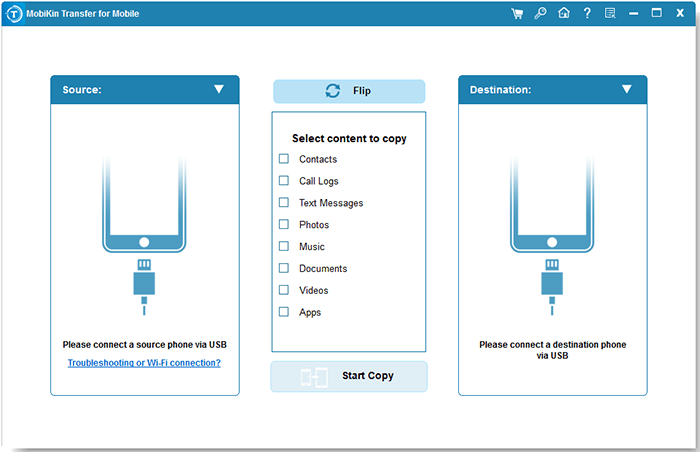
Install and launch MobiKin Transfer for Mobile on your computer. Connect your iPhone and Samsung phone using USB cables, then follow the on-screen prompts to let the program recognize both devices. Unlock the iPhone and tap "Trust" if prompted.
Step 2. Select Videos
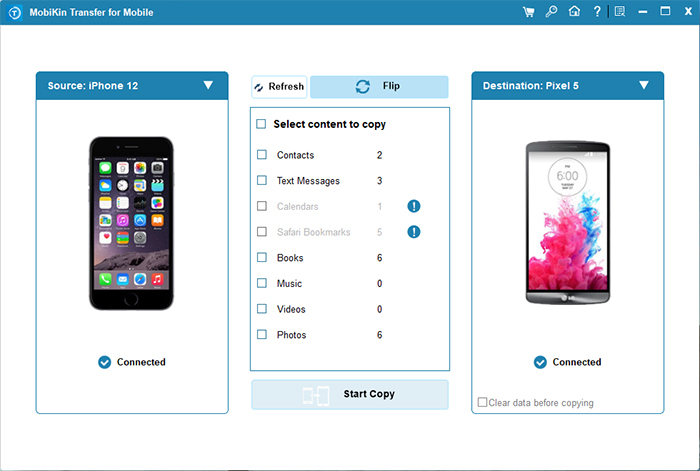
Make sure your iPhone is displayed as the source device and your Samsung phone is shown as the destination device. If they are in the wrong positions, click "Flip" to switch them. Then select Videos from the data list.
Step 3. Start Transferring Videos
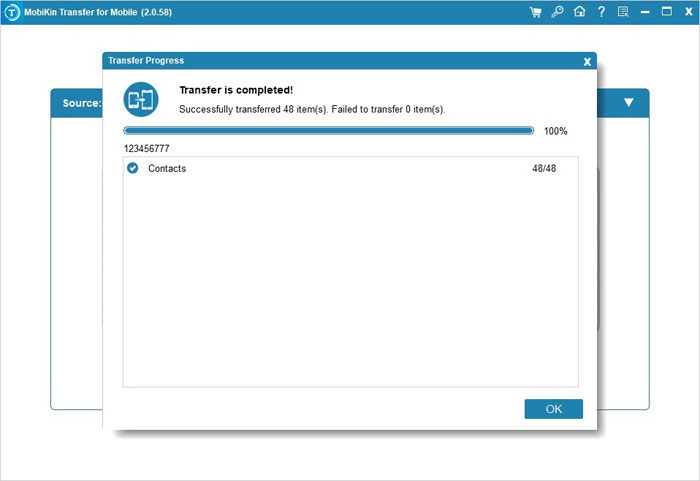
Click "Start Copy" to transfer the selected videos from your iPhone to Samsung. Keep both phones connected until the process finishes. When you see "Transfer is completed," click "OK" to finish.
Video Guide:
Read Also:
Part 2: Transfer Videos from iPhone to Samsung via Samsung Smart Switch
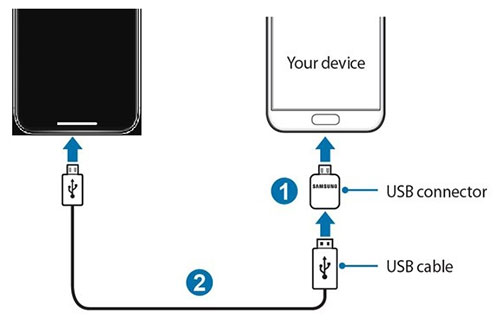
If you have a Samsung phone, Smart Switch is another convenient way to move videos from your old iPhone. You can connect the two phones with a cable and transfer your videos directly, without first copying them to a computer. Just make sure both phones have enough battery and that you have a compatible cable or adapter ready.
- Open Smart Switch on your Samsung phone. If it is not installed, download it from the Galaxy Store or Google Play. Tap "Receive data", choose "iPhone/iPad", and then select "Cable". (Samsung Smart Switch not working?)
- Connect your iPhone to the Samsung phone using a compatible USB cable or adapter. When prompted on your iPhone, tap "Trust" and enter your iPhone passcode to allow the connection.
- Wait while Samsung scans your iPhone for transferable content. Once the scan is complete, select Videos from the available data types. You can also deselect anything you don't want to move.
- Tap "Transfer" to start moving the selected videos to your Samsung phone. Keep both devices connected during the process and avoid using them until the transfer is finished.
- Once the process is complete, open the Gallery app on your Samsung phone and check whether the transferred videos are there.
Part 3: Send Videos from iPhone to Samsung via Google Photos
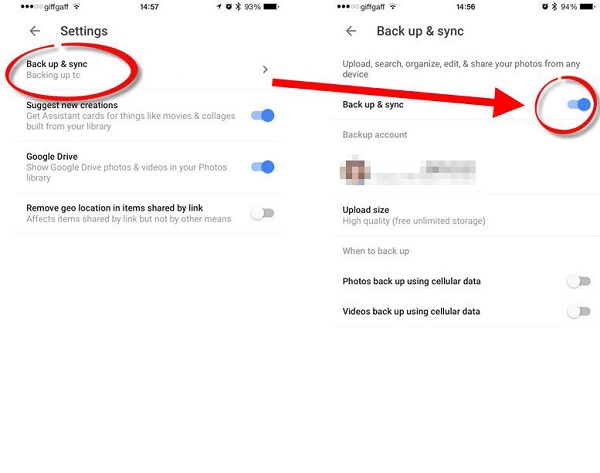
Google Photos is a handy option if you don't want to connect the two phones with a cable. You just need to back up the videos from your iPhone and then access them on your Samsung with the same Google account. Keep in mind that uploading a lot of videos can take some time, especially if the files are large.
- Install and open Google Photos on your iPhone. Sign in with your Google account, tap your profile picture, and choose "Google Photos settings" > "Backup". Turn on "Backup" and wait for your videos to finish uploading.
- Once the videos are backed up, install and open Google Photos on your Samsung phone. Sign in with the same Google account you used on your iPhone.
- Find the videos you want to move in Google Photos. Tap a video to open it, then tap the three-dot icon and choose "Download". The video will be saved to your Samsung phone.
- Repeat the process for any other videos you want to save locally. If you have many videos, you can select multiple items first and check whether the "Download" option is available on your Samsung device.
- Open the Gallery or My Files app on your Samsung phone to confirm that the videos have been saved successfully.
Read Also:
Part 4: Transfer Videos from iPhone to Samsung Using Google Drive
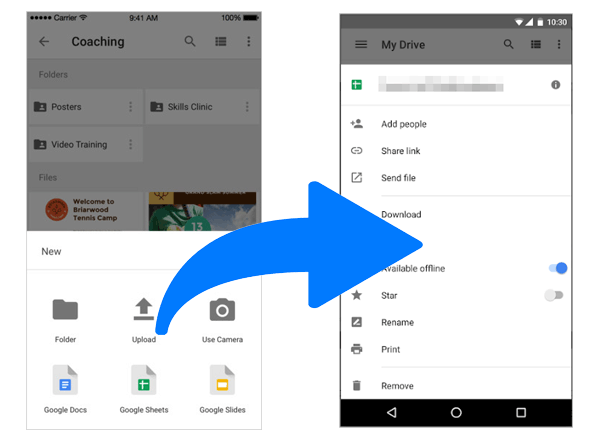
If you only have a few videos to move, cloud storage can save you the trouble of connecting your phones with a cable. Here, we'll use Google Drive as an example. Upload the videos from your iPhone first, then open the same Google account on your Samsung and download them. Google Drive supports video uploads from iPhone and downloads on Android.
- Install and open the Google Drive app on your iPhone and sign in to your Google account. Tap "+" and choose "File upload", then select the videos you want to transfer. Tap "Upload" and wait for the files to finish uploading. Using Wi-Fi is a good idea if you're transferring large videos. (How to Transfer iPhone Photos to Google Drive?)
- On your Samsung phone, open Google Drive and sign in with the same Google account. Find the videos you just uploaded, or tap the search bar and filter the results by Videos to locate them more quickly.
- Tap the three-dot icon next to a video and select "Download". Google Drive will save the file to your Samsung phone.
- Repeat the process for the rest of your videos. Once everything is downloaded, open My Files on your Samsung to check the transferred files.
Part 5: Move Videos from iPhone to Samsung via a Computer
Using a computer as a middleman is a good choice when you have a lot of videos to move. You can first copy the videos from your iPhone to the computer, then transfer them to your Samsung phone. It takes a few more steps than using a direct transfer tool, but it doesn't require cloud storage or a strong internet connection.
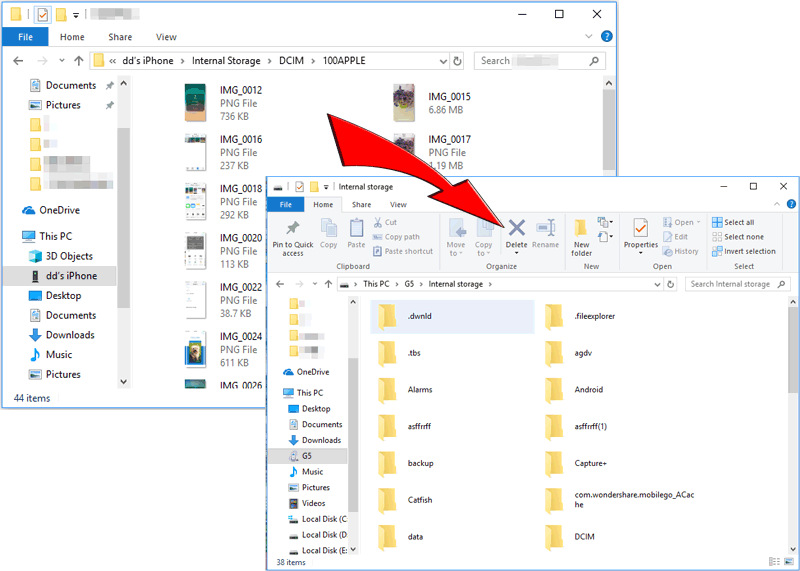
- Connect your iPhone to the computer with a USB cable. Unlock your iPhone and tap "Trust" when the "Trust This Computer?" message appears. On a Windows PC, open File Explorer, select your iPhone under This PC, and go to Internal Storage > DCIM. On a Mac, open Photos and import the videos from your iPhone.
- Select the videos you want to transfer and copy them to a folder on your computer. If you're moving a large number of videos, it's better to create a dedicated folder first so you can find them easily later.
- Disconnect your iPhone and connect your Samsung phone to the computer using its USB cable. Unlock the Samsung and select "File Transfer" or "Transferring files" when the USB notification appears.
- Open your Samsung phone in File Explorer on Windows, or use a compatible Android file-transfer method on Mac. Find the DCIM, Movies, or another suitable folder on the Samsung phone, then drag and drop the videos you copied earlier.
- Wait for the transfer to finish before disconnecting your Samsung. Finally, open the Gallery app and check the transferred videos. If they don't appear immediately, give the phone a moment to scan the new files.
Comparision: Which Method Should You Choose?
|
Method
|
Ease of Use
|
Cable Required |
Computer Required |
Internet Required |
Selective Transfer |
Best For |
|
MobiKin Transfer for Mobile
|
Easy
|
Yes
|
Yes
|
No
|
Yes
|
Large batches and quick direct transfers
|
|
Samsung Smart Switch
|
Moderate
|
Yes
|
No
|
No
|
Yes
|
Samsung users moving data directly
|
|
Google Photos
|
Moderate
|
No
|
No
|
Yes
|
Yes
|
Wireless transfer and cloud backup
|
|
Google Drive
|
Complicated
|
No
|
No
|
Yes
|
Yes
|
Moving a few videos
|
|
Computer
|
Complicated
|
Yes
|
Yes
|
No
|
Yes
|
Manual transfer and large video files
|
In a Nutshell
There isn't one winner for every situation. If you're moving a large video library and want fewer detours, MobiKin Transfer for Mobile is the most straightforward choice. Smart Switch works well for a broader Samsung-to-iPhone migration, while Google Photos and cloud storage suit smaller transfers. And if your videos already live on a computer, the traditional copy-and-paste route still gets the job done.
Related Articles:
How to Switch from iPhone to Samsung? 4 Ways & Hot Tips
Fixed: Can Smart Switch Transfer from Samsung to iPhone
