
HONOR Backup & Restore: 5 Clever Ways to Back Up & Restore HONOR
TL;DR:
A reliable backup plan helps HONOR users keep personal data safe and avoid the hassle of setting up everything again after switching or resetting a device.
- MobiKin Backup Manager for Android offers a simple way to save HONOR data to a computer and restore it whenever needed. It also handles contacts, messages, photos, and other files in one place without complicated steps.
For users of HONOR devices, keeping personal files safe and accessible is a practical concern rather than an afterthought. This is where HONOR backup restore with 5 tested methods becomes an important topic. With the right approach in this article, you won't need to manually move files or reconfigure apps from scratch, making transitions and recovery much smoother.
- Part 1: Perform HONOR Backup Restore via MobiKin Android Backup & Restore
- Part 2: Back Up & Restore HONOR Using HONOR Suite
- Part 3: Back Up & Restore HONOR Phone via HONOR Cloud
- Part 4: Back Up HONOR and Restore It via Google One
- Part 5: Back Up & Restore HONOR Device via SD Card
- FAQs for HONOR Backup & Restore
Prefer to watch instead? Check out the video below.
Part 1: Perform HONOR Backup Restore via MobiKin Android Backup & Restore
With a straightforward desktop workflow, backing up and restoring HONOR phones becomes easier using MobiKin Backup Manager for Android (Windows/Mac). It allows selective or full data backup from a connected device to a computer without complicated steps.
When needed, the saved files can be restored back to the same HONOR phone or moved to another Android device. A stable USB connection helps keep the transfer process consistent during both backup and recovery.
MobiKin Backup Manager for Android - Main Features:
- One-click backup of the entire HONOR device to PC.
- One-click restore from PC backup file to HONOR. (How to restore HONOR files without root?)
- Selective backup and restore (choose specific file types like contacts, photos, or messages)
- Supports: Contacts, SMS, Call Logs, Photos, Videos, Music, Audio, Documents, Apps, etc.
- Dual connection modes: USB cable or Wi-Fi (QR code scan).
- Export backed-up data to PC as convenient formats.
- Create multiple backup versions for the same device without overwriting.
- Compatible with over 8,000 Android devices, including HONOR Magic, Number, X, Play, V, Note, View series.
- Free trial available (backup works, restore requires full version).


Back Up HONOR Using MobiKin Android Backup & Restore:
- Launch the HONOR sync tool after downloading and installing it on your computer.
- Next, connect your Android phone to the computer using a USB cable.
- You may need to activate USB debugging mode on your Android device to ensure it is recognized.
- Once this is done, the screen will show options for "Backup" and "Restore". Simply select the "Backup" option.
- Choose the types of data you wish to back up.
- Then, designate a location on your computer for storing this data.
- Finally, click on "Back Up" to transfer the Android data to your computer.
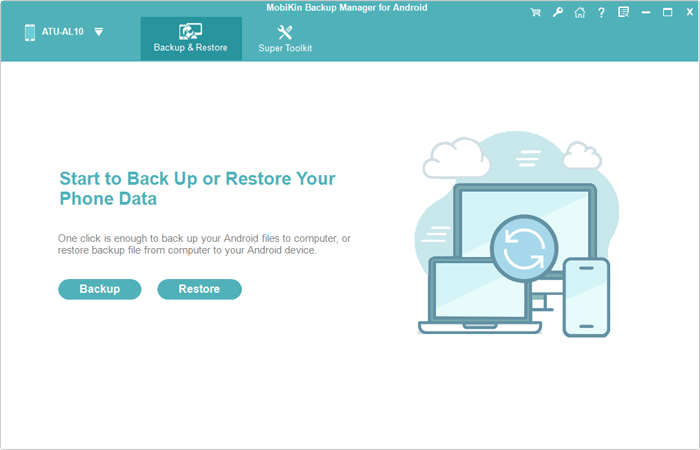
Restore HONOR Using MobiKin Android Backup & Restore:
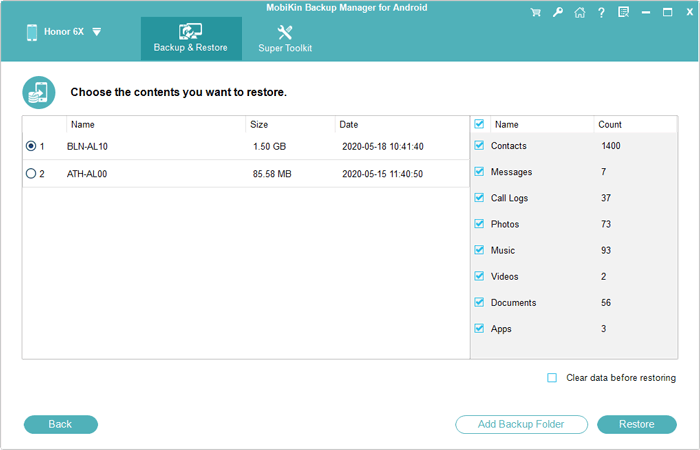
- Once the software detects your Android phone, select "Restore" from the main interface and review the backup content you previously created.
- Choose the file type(s) you wish to restore and click on "Restore" again to transfer the selected items to the connected device.
Video Tutorial:
Part 2: Back Up & Restore HONOR Using HONOR Suite
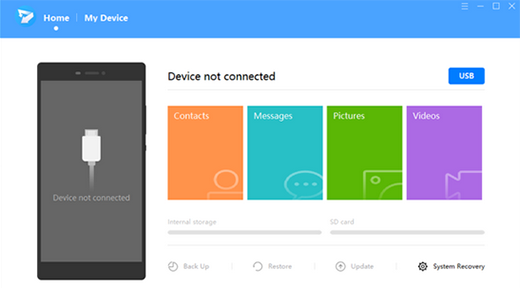
A built-in PC utility known as HONOR Suite gives users a direct bridge between HONOR phones and Windows systems. Through it, phone data such as contacts, messages, and media can be saved locally with a few clicks. Restoring content is just as simple, allowing users to recover previous device states when switching phones or after resets. Its interface focuses on keeping phone management organized without requiring extra third-party apps.
Back Up HONOR Using HONOR Suite:
- Install and open HONOR Suite on your computer.
- Connect your HONOR phone to the PC via USB cable.
- Enable File Transfer mode and allow HDB permission on your phone.
- Launch HONOR Suite and select Backup & Restore.
- Choose the data types you want to back up (contacts, photos, messages, etc.).
- Click Backup and wait for the process to finish.
- Save the backup file on your computer.
Restore HONOR Data Using HONOR Suite:
- Connect your HONOR phone to the computer using a USB cable.
- Open HONOR Suite and go to Backup & Restore.
- Select the backup file stored on your PC.
- Choose the data you want to restore.
- Click Restore and wait for completion.
- Keep the connection stable until all data is successfully restored.
Part 3: Back Up & Restore HONOR Phone via HONOR Cloud
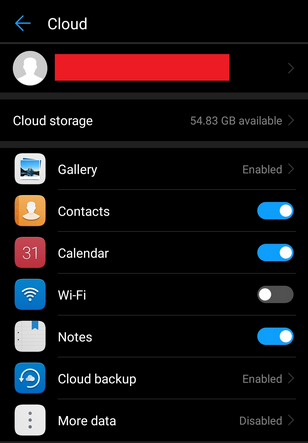
Cloud syncing becomes more flexible when HONOR Cloud is used to safeguard important phone data online. It quietly uploads items like photos, contacts, and notes from an HONOR device once enabled. Restoring data is possible by signing back into the same account on a new or reset phone. Because everything is stored remotely, access to backups is not limited by physical devices.
Back Up HONOR Phone via HONOR Cloud:
- Open Settings on your HONOR phone.
- Sign in to your HONOR ID/Huawei ID.
- Tap Cloud or Cloud services.
- Select Cloud Backup and turn it on.
- Choose the data types to back up (contacts, photos, messages, etc.).
- Tap Back Up Now to start syncing your data to the cloud.
- Wait until the backup process is completed successfully.
Restore Data from HONOR Cloud:
- Go to Settings on your HONOR phone.
- Sign in with the same HONOR ID/Huawei ID used for backup.
- Open Cloud > Cloud Backup.
- Select the most recent backup file.
- Tap Restore.
- Choose the data you want to recover (or select all).
- Wait for the restoration process to finish and restart the device if needed.
Part 4: Back Up HONOR and Restore It via Google One
A broader ecosystem option, Google One, extends cloud storage and backup support to HONOR phones as well. It automatically saves app data, call history, contacts, and device settings when activated on Android. Users can retrieve their backup during the setup of a new phone by logging into their Google account. This approach is useful when switching devices while keeping personal data intact across brands.
Back Up HONOR Phone via Google One:
- Open Settings on your HONOR phone.
- Go to System & updates or Google services (varies by model).
- Tap Backup.
- Sign in with your Google account if required.
- Turn on Back up by Google One.
- Select the data you want to back up (contacts, apps, messages, device settings, etc.).
- Tap Back up now to start the process.
- Wait until the backup is completed and uploaded to your Google account.
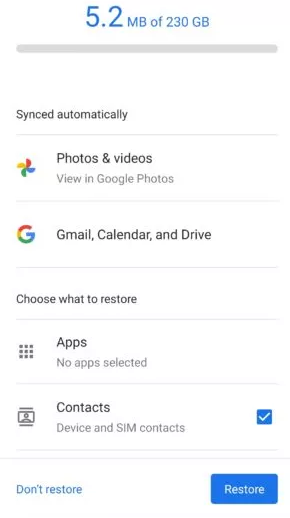
Restore HONOR Phone via Google One:
- Turn on your HONOR phone (or reset it if needed).
- Sign in with the same Google account used for backup.
- When prompted, choose Restore from Google backup.
- Select the latest available backup file.
- Choose the data you want to restore (apps, contacts, messages, settings, etc.).
- Tap Restore and wait for the process to complete.
- Continue device setup and allow syncing to finish in the background.
Part 5: Back Up & Restore HONOR Device via SD Card
For a more offline method, an SD card provides a simple way to move and store HONOR phone files manually. Data such as photos, videos, and documents can be copied directly from internal storage to the card. When inserted into another device, those files can be accessed or transferred back without internet access. This makes it a practical option for users who prefer physical control over their backups.
Back Up HONOR Device via SD Card:
- First, insert a working SD card into your HONOR phone and make sure it is detected in storage settings.
- Go to Settings > System & updates > Backup & restore, then choose Data backup.
- Select External storage (SD card) as the backup location.
- After that, pick the data types you want to save, such as contacts, messages, photos, and apps.
- Confirm the process and wait until the system completes the backup and stores everything on the SD card.
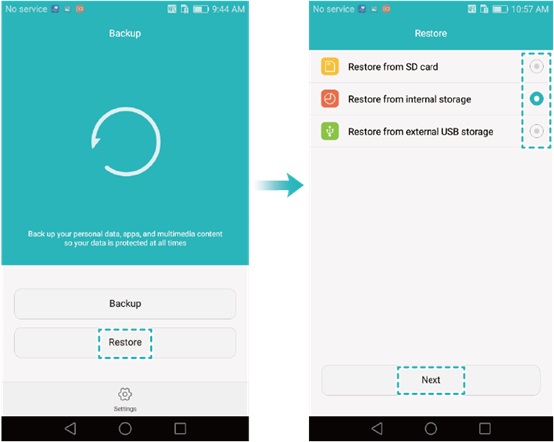
Restore HONOR Device from SD Card:
- Begin by inserting the same SD card that contains your backup into the HONOR phone.
- Open Settings > System & updates > Backup & restore, then tap Restore.
- Choose an SD card as the source of recovery and locate the backup file.
- Select the items you want to bring back, such as photos, contacts, or system data.
- Confirm the restore process and wait for the phone to rebuild your previous data from the backup.
FAQs for HONOR Backup & Restore
Q1. What data can be backed up on HONOR phones?
You can back up contacts, messages, photos, videos, apps, system settings, and other personal files depending on the backup method used.
Q2. Does HONOR Backup require an internet connection?
Only cloud backup methods (like HONOR Cloud or Google One) need the internet. Local or USB backup works offline.
Q3. Can I restore the backup without factory resetting?
Yes, some backups (like local or external storage backups) can be restored without resetting, but cloud restores often happen during setup or after reset.
Q4. Is HONOR Backup & Restore safe?
Yes. Backups are usually encrypted and require a password or account verification before restoring data.
Q5. What should I do if the backup fails?
Check storage space, stable network connection, or restart the phone. You can also try another backup method like USB or cloud.
Q6. Can I transfer backup data to a non-HONOR phone?
Some data can be restored via Google account or file transfer, but full system backups may only work on HONOR devices.
Q7. Which is the most reliable tool for HONOR backup restore?
The most reliable tool for HONOR backup and restore is MobiKin Backup Manager for Android, especially if you want a stable and straightforward solution. It allows one-click backup and restore of contacts, messages, media, and more without requiring root, and users often report smooth performance and easy data recovery across devices.
Reviews also highlight its consistent connection and simple restoration process, making it a dependable choice for safeguarding HONOR data.
Related Articles:
5 Tested Ways to Factory/Hard Reset Honor Phone Securely
Top 5 Best HONOR Device Clone Alternatives You'd Better Know
5 Simple Tactics to Access Deleted Contacts from HONOR Phones
How to Transfer WhatsApp from Huawei Android to iPhone? 4 Options
