
HONOR Data Recovery without Root: 4 Ways & Helpful FAQs
"After some digging, found out that I would need root to access the deleted data yet on disk. But my phone, a nice HONOR, doesn't have the bootloader opened by the company and it cannot be rooted." -- from Reddit
Rooting an HONOR phone can void the warranty and may expose your device to security risks, making it an unattractive option for many users. However, files may be lost due to accidental deletion, formatting, or system errors, creating an urgent need to recover important data safely.
This article explores HONOR data recovery without root and presents four reliable methods to help you restore lost photos, videos, documents, and other files efficiently.
- Part 1: Perform HONOR Data Recovery without Root via Expert Software
- Part 2: Recover Deleted Files from HONOR without Root with OneDrive
- Part 3: Retrieve Deleted Files from HONOR without Root with Restore Image
- Part 4: Recover Data from HONOR Phone without Root via All Recovery
- Q&A about HONOR Data Recovery without Root
Part 1: Perform HONOR Data Recovery without Root via Expert Software
MobiKin Doctor for Android (Windows and Mac) is a specialized recovery product designed to securely recover deleted photos, videos, documents, and various other files from HONOR devices without the necessity of root access. It employs sophisticated scanning technology to identify lost or concealed files and offers a preview function, allowing users to selectively restore the items they require.
With its intuitive interface and compatibility with both Windows and Mac, it serves as a dependable solution for recovering HONOR data following accidental deletions or system malfunctions. Furthermore, this program can scan basic file types (photos, videos, documents, etc) from your HONOR external memory card without root.
What Is MobiKin Doctor for Android Recommendable?
Supports HONOR SD card data recovery without root for photos, videos, documents, and more.
Recovers multiple file types, including media files, documents, contacts, and SMS.
Uses advanced scanning technology to detect deleted or hidden files.
Offers preview before recovery so users can select specific files.
Compatible with a wide range of HONOR devices running Magic UI/Android, covering Honor Magic, Number, X, Play, V, Note, and View series.
Provides Quick Recovery for recent files and Deep Recovery for thorough scanning.
Features a user-friendly interface suitable for beginners and professionals.
Works on Windows and Mac, allowing files to be safely backed up to a computer.
High reliability and professional performance for accidental deletion, system errors, etc.
Prevents data loss by avoiding overwriting existing files during recovery.


One-List Guide
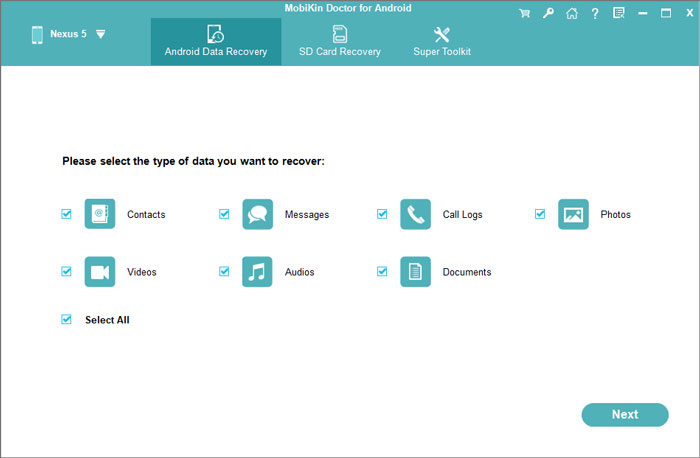
- Start by opening the software on your computer once it has been installed.
- Connect your HONOR device, and the program will automatically detect it.
- Ensure that USB debugging is enabled on your phone to allow seamless recognition.
- Next, select the data types that include the lost files you want to recover and click "Next" to begin scanning your device.
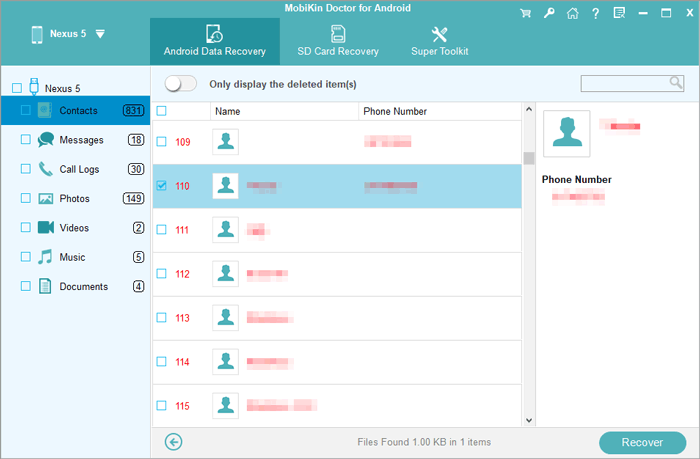
- Once the scan is complete, you can preview and choose the files you wish to restore. (If your desired files aren't found, you may follow the instructions to root your phone for a deeper, more thorough scan.)
- Finally, after selecting the files to recover, click "Recover" to save them from your HONOR device to a folder on your computer for safekeeping.
You May Also Like: 5 Tactics to Recover Formatted Data from Android Phone with/without Backup
Part 2: Recover Deleted Files from HONOR without Root with OneDrive
Requirements
- A previously created OneDrive backup of your files.
- The OneDrive app installed on your HONOR phone, or access to OneDrive via a computer.
- Your Microsoft account login credentials.
- Stable Wi-Fi or mobile data to download restored files.
- Enough phone storage space to save downloaded items.
- Optional: A computer + USB cable if restoring by copying files from OneDrive on PC to the HONOR phone.
One-List Guide
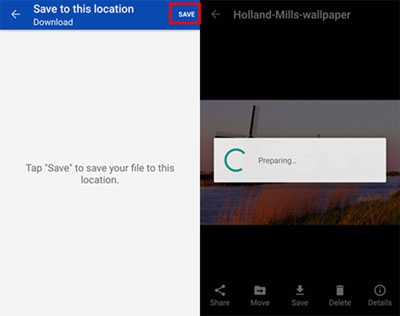
- Open the OneDrive app on your HONOR phone.
- Browse your cloud folders and select the files you want to restore (photos, videos, documents, etc.).
- Tap "SAVE" at the bottom to download the selected items back to your HONOR device.
- If you also have a computer available, log in to your OneDrive account on the computer.
- Connect your HONOR phone to the computer using a USB cable.
- On your HONOR phone, enable File Transfer (MTP) so the computer can access its storage.
- On the computer, locate and select the backup files stored in your OneDrive.
- Copy and paste the chosen files directly into your HONOR phone's internal storage or SD card.
- Safely disconnect your device and check your Gallery or File Manager to confirm the recovered data.
Click to Learn: Want to Save Files from OneDrive to Android? 3 Easy Options
Part 3: Retrieve Deleted Files from HONOR without Root with Restore Image
Requirements
- The Restore Image installed from Google Play on your HONOR phone.
- Permission granted for the app to access Photos/Media/Files.
- The deleted files must still have cached thumbnails or recoverable traces in storage.
- Sufficient free storage to save the restored photos.
- Works only for photos/images - the app cannot recover messages, documents, or system data.
- No root required, but the phone must allow access to its internal or SD card folders.
One-List Guide
- Download Restore Image from Google Play on your HONOR phone.
- Open the app and tap Allow to grant file/media permissions.
- Select the storage location (Internal Storage or SD Card).
- Choose the folder where your deleted images were originally stored (e.g., DCIM, Camera, Screenshots)
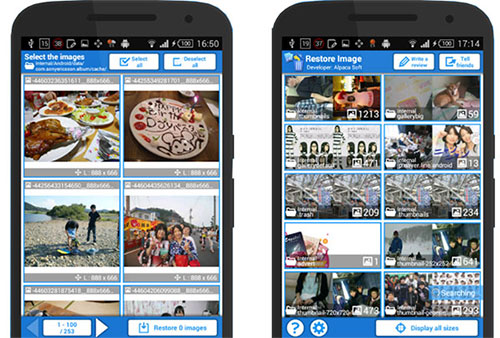
- Start the scan, and let the app search for deleted or hidden photo files.
- Browse the scan results and tap to select the images you want to restore.
- Tap Restore at the bottom of the screen.
- Choose the destination folder (e.g., Restore Image folder or your Gallery path).
- Open Gallery > Restore Image/Recovered folder to view your restored photos.
Part 4: Recover Data from HONOR Phone without Root via All Recovery
Requirements
- The All Recovery app installed from Google Play on your HONOR Magic, Number, X, Play, V, Note, and View series.
- Permission granted for the app to access Photos/Media/Files.
- The deleted content must be recent so cached or residual data still exists.
- Enough free storage space on your HONOR phone to save recovered files.
- Works mainly for photos, videos, and simple media files-no root means limited file-type support.
- Your HONOR phone must allow access to internal storage or SD card where the deleted files were stored.
- Stable internet connection (optional) if the app requires updates or downloads.
One-List Guide
- Download and install All Recovery (or File Recovery - All Recovery) from Google Play on your HONOR phone.
- Open the app and tap Allow to grant access to photos, media, and files.
- Choose the recovery type (Photos, Videos, Audio, or Files) depending on what you need to restore.
- Select your storage location-Internal Storage or SD Card.
- Let All Recovery scan your device for deleted or hidden items.
- Browse through the recovered results and tap to select the files you want to restore.
- Tap Recover to save the selected files back to your HONOR phone.
- Check the Recovery or Restored Files folder in your Gallery or File Manager to view the recovered content.
Q&A about HONOR Data Recovery without Root
Q1: What types of files can be recovered on HONOR without root?
Mostly photos, videos, documents, audio files, and any files previously backed up to cloud or PC.
Without root, you cannot recover app data (WhatsApp chats, messages, call logs) directly from internal databases.
Q2: Why is recovery without root limited?
Because Android restricts third-party apps from accessing deep system folders where deleted data fragments are stored-root access is required for full scanning.
Q3: Why do some apps recover only thumbnails or low-quality images?
Because without root, recovery apps can access only cached or preview versions stored in accessible folders.
Q4: Can I recover WhatsApp messages on HONOR without root?
Yes. Only if you:
- Have a Google Drive WhatsApp backup, or have a WhatsApp local backup saved before deletion.
- Otherwise, root is required for database extraction.
Q5: Why do some recovery apps show too many "junk" files?
Because they scan thumbnails, cached images, temporary files, and app folders, which often contain duplicates or low-quality versions.
Q6: What increases the chances of successful data recovery?
- Recover immediately after deletion.
- Stop using the phone.
- Disable auto updates and downloads.
- Avoid recording videos or taking new photos.
- Use a PC tool if mobile apps fail.
Q7: How can I avoid losing data on HONOR in the future?
- Enable OneDrive or Google Photos auto-backup.
- Turn on auto sync for files and documents.
- Keep important data on SD card + cloud.
- Use a recycle-bin app like Dumpster.
Wrap It Up
As mentioned above, MobiKin Doctor for Android is the most admirable for its professional scanning technology, wide file-type support, and compatibility with HONOR phones without requiring root access. It provides a user-friendly interface, preview functionality, and PC integration for safe file recovery, ensuring higher success rates and more control over the restoration process. So, try this software now after the free download.
Related Articles:
Top 5 Best HONOR Device Clone Alternatives You'd Better Know
5 Easy & Quick Ways to Transfer Photos from HONOR to Mac [2026]
5 Tested Ways to Factory/Hard Reset Honor Phone Securely
Top 4 Methods to Delete Text Messages on HONOR Phones [Latest]
