
How to Transfer Files from PC to Pixel Phone in 4 Tested Methods
TL;DR:
The four methods introduced below provide practical solutions for transferring files from PC to Pixel, with MobiKin Assistant for Android offering advantages like stable USB/WiFi connections, support for various file types, easy data management, and selective transfer options. By choosing the method that fits your needs and keeping important files backed up, you can move various data types between your computer and Pixel more efficiently.
"Just got a new Pixel 10 Pro after being on the Apple ecosystem for a while, what's the best way to transfer files from PC to Pixel?" -- from Reddit
Many Google Pixel users need a reliable way to move data between a computer and their phone, whether they want to copy pictures, recorded videos, and other info from a computer to a Google Pixel for easier viewing, sharing, or offline access.
This guide explains how to transfer files from PC to Pixel in 4 verified ways, covering different methods based on connection type, transfer speed, and user needs.
- Way 1: Transfer Files from PC to Pixel with MobiKin Software [Well-rounded]
- Way 2: Move Files from PC to Google Pixel via USB & File Manager
- Way 3: Copy Files from PC to Google Pixel with Google Drive
- Way 4: Transfer Data from PC to Pixel via Quick Share for Windows
- Q&A about Transfer Files from PC to Pixel
Way 1: Transfer Files from PC to Pixel with MobiKin Software [Well-rounded]
MobiKin Assistant for Android (Windows/Mac) provides a practical way to move files from PC to Google Pixel by connecting the phone through a USB cable. This software supports transferring photos, videos, music, documents, and other files directly between a computer and Pixel devices.
It also allows users to manage Android files on a larger screen and organize transferred data more efficiently. The connection process is straightforward, making it suitable for users who need a stable PC-to-Pixel file transfer method.
Overview of MobiKin Assistant for Android:
|
Core Features
|
Key Details
|
|
Transfer PC Files to Pixel |
Moves photos, videos, music, documents, and more from PC to Google Pixel via USB. |
|
Android Data Management |
Manages Pixel files, contacts, messages, apps, and media on a PC. |
|
Multiple File Support |
Transfers different file types, including media and documents. |
|
Data Preview & Selection |
Allows users to preview and select files before transfer. |
|
PC Backup |
Backs up Pixel data to a computer for safe storage. |
|
Data Restore |
Restores saved backups to Pixel and other Android phones. |
|
USB/WiFi Connection |
Provides a stable PC-to-Pixel connection through a USB cable or WiFi. |
|
App Management |
Installs, removes, and exports Android apps from a PC. |
|
Android Compatibility |
Supports Google Pixel Pro, Standard, a, Fold, and Legacy Pixel models (Pixel 10/10 Pro/9 Pro/9/8a/Fold/4 XL, etc.) and many other Android devices. |
|
Easy File Handling |
Simplifies Android file management with a desktop interface. |
Free and Safe Download:


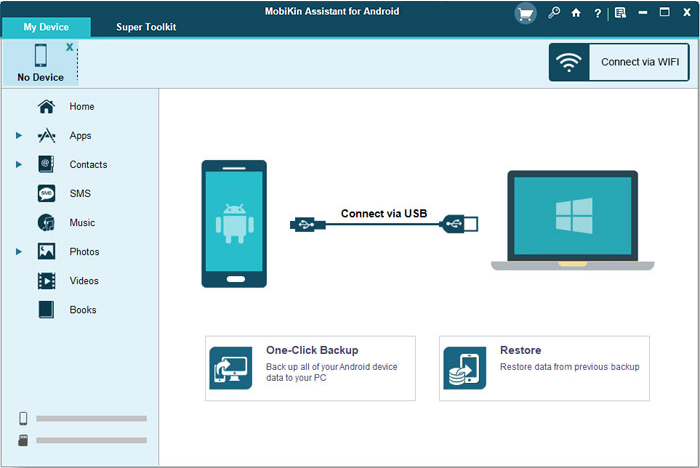
How to transfer data from PC to Google Pixel with MobiKin Assistant for Android?
- Download and install MobiKin Assistant for Android on your PC.
- Connect your Pixel to the PC using a USB cable (Wi-Fi connection is also an option, but requires installing a companion app on your phone).
- On your Pixel, ensure USB Debugging is enabled (you'll need to enable Developer Options first) to allow the software to recognize your device.
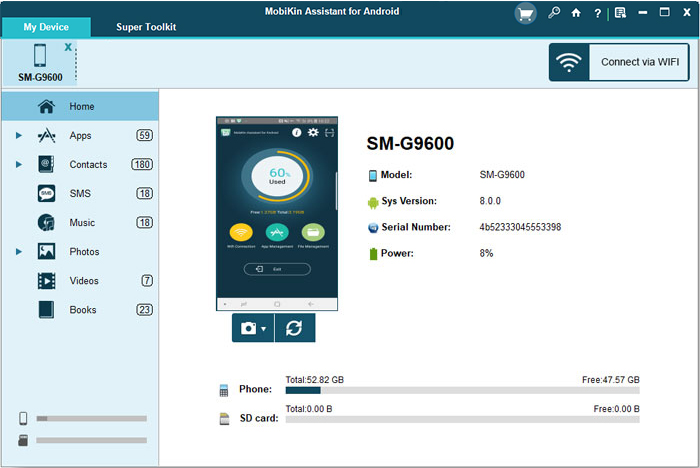
- Once your Pixel is recognized, the main interface will display all manageable file types (e.g., Contacts, Photos, Videos, Music) on the left panel.
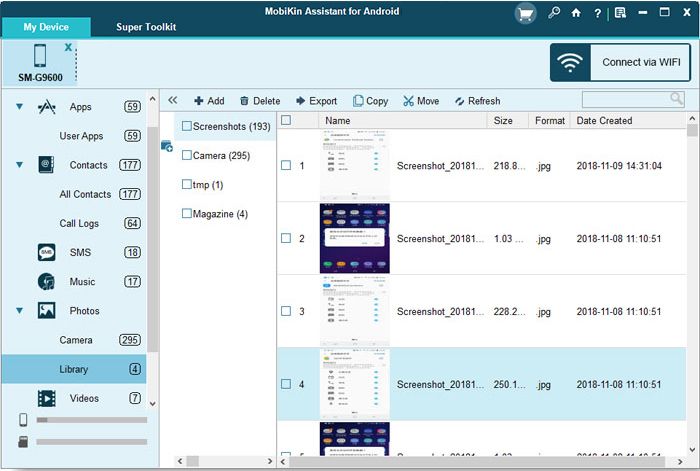
- Click on the category for the files you want to transfer (e.g., "Photos").
- Select the specific files you wish to copy to your PC.
- To send files from your PC to the Pixel, use the "Import" or "Add" button located at the top of the software window.
- Browse your computer, select the files you want, and the software will transfer them to your phone. (Google Pixel file transfer won't work?)
Way 2: Move Files from PC to Google Pixel via USB & File Manager
With USB & File Manager, Android users can copy files from a computer to a Google Pixel through a USB connection without relying on cloud services. The tool helps browse, move, and manage folders stored on the device after the Pixel is connected to the PC. It works well for transferring various file types, including media files and documents. However, users may need to manually handle file locations during the transfer process.
How to Use?
- Unlock & Connect: Unlock your phone and connect it to your PC with a data-transfer capable USB-C cable.
- Enable File Transfer (Crucial): Swipe down, tap the "Charging via USB" notification, and select "File Transfer/Android Auto".
- Windows: Open File Explorer, find your Pixel under "This PC," and drag/drop files into folders like DCIM or Download.
- Mac: You must install the free "Android File Transfer" app first, then use it to drag/drop files.
- Safely Eject: Right-click your device in File Explorer (Windows) and select "Eject" before unplugging.
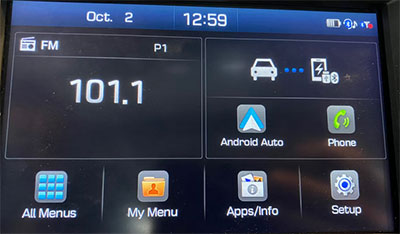
Note: For frequent transfers, enable Developer Options (tap "Build Number" in Settings > About Phone 7 times), then go to Settings > System > Developer Options and set "Default USB configuration" to "File Transfer". (Remember to change it back for security on public computers).
You Might Like: Unable to find your lost photos from your Pixel phone? Check out the 4 best practices.
Way 3: Copy Files from PC to Google Pixel with Google Drive
Google Drive offers a wireless option for transferring files from a PC to a Google Pixel by uploading files to cloud storage first. Once the files are uploaded, they can be accessed and downloaded through the Google Drive app on the Pixel phone.
This method is convenient for users who want to transfer files without cables or additional desktop software. The transfer speed depends on the internet connection and available Drive storage space.
How to Use?
- On Your PC: Go to the Google Drive website (drive.google.com) in your browser and log into your Google account.
- Upload Files: Drag and drop the files you want from your PC into Google Drive. Wait for the upload to finish (this can take a while for large files).
- On Your Pixel: Open the Google Drive app on your phone. The files you uploaded will be there.
- Download to Phone: Tap the file and select the option to download it to your device's local storage.
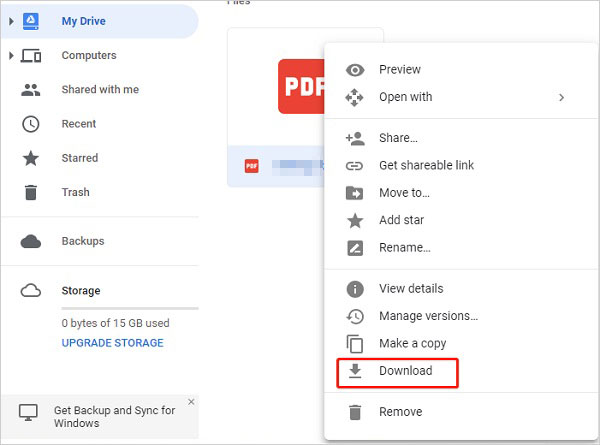
This method uploads files to the cloud and then downloads them to your phone, which requires internet and uses your Google Drive storage quota. For transferring large files (like 30 GB of media), this will be much slower than using a USB cable and will count against your cloud storage limit. The USB method is strongly recommended for bulk transfers.
Way 4: Transfer Data from PC to Pixel via Quick Share for Windows
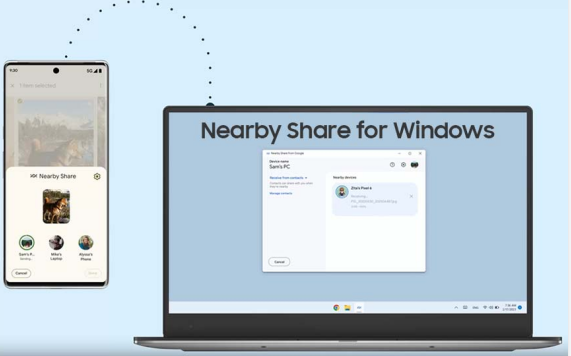
Quick Share for Windows makes it possible to send files from a PC to a Google Pixel over a nearby wireless connection. After installing the desktop version, users can select files on their computer and send them directly to a compatible Pixel device.
The tool supports fast sharing of photos, videos, and documents without requiring a USB cable. Both devices need to have the necessary settings enabled for the transfer to work smoothly. (What to do when Quick Share doesn't work?)
How to Use?
- Install the right app: On your PC, download the official "Quick Share for Windows" app from Google's Android website (not the Microsoft Store version, unless you have a Samsung PC).
- Sign in: Open the app on your PC and sign in with the same Google Account as on your Pixel.
- Set visibility (PC): In the app, set your PC to be visible to "Your devices" or "Everyone".
- Set visibility (Pixel): On your Pixel, go to Settings > Google > Quick Share and choose who can see your phone.
- Send files: On your PC, open the Quick Share app (or right-click a file and select "Send with Quick Share"), then choose your Pixel from the list.
- Accept on Pixel: Tap Accept on your phone's notification. If a PIN appears, verify it matches on both screens.
- Find files: Transferred files are saved in the "Quick Share" folder inside your Pixel's "Downloads" folder.
Troubleshooting & Tips
- PC can't find your Pixel? Check that your PC's visibility setting in the app is not set to "No one". Also, bring the devices within 30 centimeters (about 1 foot) of each other.
- Slow transfer speed? For large files, a USB cable is still much faster. Quick Share is best for documents, photos, and smaller videos.
- Availability: Quick Share for Windows is unavailable in a few countries, including Cuba, Iran, North Korea, and Syria.
Q&A about Transfer Files from PC to Pixel
Q1. Why isn't my Pixel showing up on my Windows PC?
Make sure you're using a data-capable USB cable instead of a charging-only cable. You should also unlock the phone, select File Transfer, and try a different USB port if the issue persists.
Q2. Can I transfer files from a Mac to a Google Pixel?
Yes. Since macOS doesn't natively support Android file transfer over USB, you'll need a compatible file transfer utility. After installing it, connect your Pixel and copy files as needed.
Q3. What file types can I copy from a PC to a Google Pixel?
You can transfer photos, videos, music, documents, PDFs, ZIP archives, and many other file types. As long as your Pixel has an app that supports the format, you can access the files after the transfer.
Q4. How long does it take to transfer large files from a PC to a Pixel?
The transfer time depends on the file size, USB speed, or Wi-Fi performance. Using a USB 3.0 connection is generally much faster than transferring files wirelessly.
Q5. Why is my file transfer between my PC and Pixel so slow?
Slow transfers can result from an outdated USB cable, a slow USB port, limited storage performance, or wireless network congestion. Switching to a high-quality USB cable often improves transfer speeds.
Q6. Will transferring files from my PC overwrite existing files on my Pixel?
Not unless you copy a file with the same name into the same folder. If a duplicate is detected, you'll usually be asked whether to replace, skip, or rename the file.
Q7. Why can't I copy files to my Pixel's internal storage?
Your phone may not have enough available storage, or the USB connection may not be set to File Transfer. Check your storage space and reconnect the device if necessary.
Q8. Can I transfer files from my PC directly to a microSD card in my Pixel?
Only if your Pixel model supports expandable storage with a microSD card. Most Google Pixel phones do not include a microSD card slot, so files are typically transferred to the internal storage.
Q9. Is there a file size limit when transferring files from a PC to a Pixel?
There is generally no fixed size limit when using a USB connection. However, cloud services and certain wireless transfer methods may impose file size restrictions.
Q10. How can I safely disconnect my Pixel after transferring files?
Wait until all file transfers are complete, then eject the device from your computer if prompted. After that, unplug the USB cable to help prevent file corruption.
In a Nutshell
The four methods above provide practical options for sending files from a PC to a Google Pixel while keeping your data organized and accessible. The best choice is the one that fits your file size, available tools, and transfer habits.
Before transferring files, check that your Pixel has enough storage space and use a reliable USB cable or stable network connection to avoid interrupted transfers. Keeping important files backed up on a computer or cloud service can also help prevent unexpected data loss.
Related Articles:
Top 4 Best Google Pixel Contacts Erasers [With Trial Experience]
Top 4 Picks: Mirror Pixel Phone to PC/TV without Difficulty
Can I Transfer Contacts from Samsung to Pixel Easily? 5 Options
How to Transfer WhatsApp from iPhone to Pixel? 3 Options & 7 FAQs
