
How to Transfer Contacts from Computer/PC to HONOR? 4 Tested Ways
TL;DR:
The four methods above offer different ways to move contacts from a computer to an HONOR phone, but choosing the right tool depends on the contact source, transfer volume, and preferred connection method.
MobiKin Assistant for Android provides a practical choice for transferring many contacts from a PC to HONOR, with support for direct import, backup, and contact management. It also helps users handle large contact lists more efficiently while reducing the need for manual input or repeated editing after transfer.
Contacts contain important personal and work information, so many users need a reliable way to move their phonebook data when changing to a new HONOR device. This article will introduce 4 clever strategies on how to transfer contacts from computer to HONOR, covering desktop software - MobiKin Assistant for Android, HONOR Connect, Google Contacts, and Contact Transfer.
Way 1: Transfer Contacts from Computer to HONOR Expertly
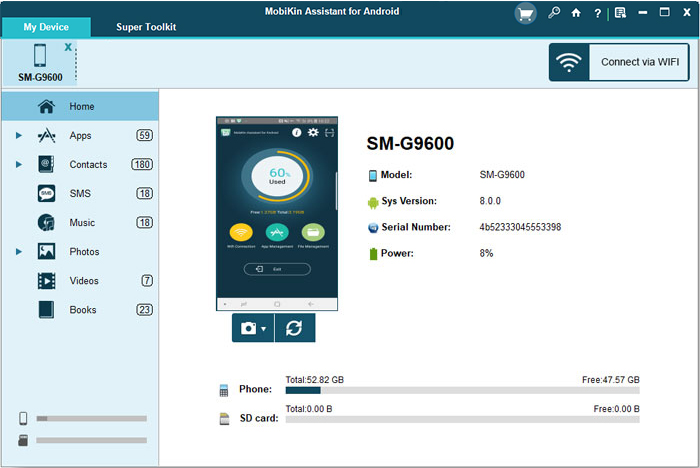
When a large number of contacts are stored on a computer, manually adding them to an HONOR phone can be time-consuming and may lead to missing information. A professional contact management tool - MobiKin Assistant for Android (Windows/Mac) provides a more efficient way to import names, phone numbers, email addresses, and other details directly from the PC.
This method is suitable for users who want to manage contacts, create backups, and transfer data in a more organized way. It can also help reduce the risk of duplicate or incomplete contact entries during the migration process.
MobiKin Assistant for Android - Main Features:
- Transfer contacts to HONOR - Import contacts from a computer to an HONOR phone in multiple formats.
- Back up contacts - Export HONOR contacts to a PC for safe storage.
- Manage contacts on PC - Add, edit, delete, and organize contacts easily.
- Merge duplicate contacts - Find and remove repeated contact entries.
- Back up Android data - Save contacts, messages, photos, apps, and more to a computer.
- Transfer Android files - Move photos, videos, music, and other files between devices.
- Import Outlook contacts - Transfer Outlook contacts to an Android phone.
- USB/Wi-Fi connection - Connect Android devices to a computer flexibly.
- Manage multiple devices - Control several Android phones from one PC.
- Support various Android brands - Work with HONOR Magic, Number, X, Play, V, Note, and View models and other 8,000+ Android devices.
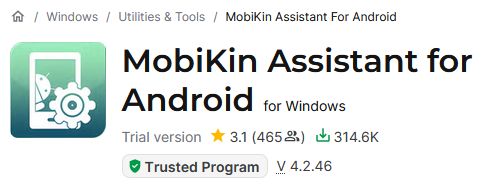
Trusted by Softonic:
Simple User Guide:
- Download and install MobiKin Assistant for Android on your computer.
- Connect your HONOR phone to the computer with a USB cable.
- Enable USB debugging on your HONOR device when prompted.
- Launch the program and wait for it to detect your phone.
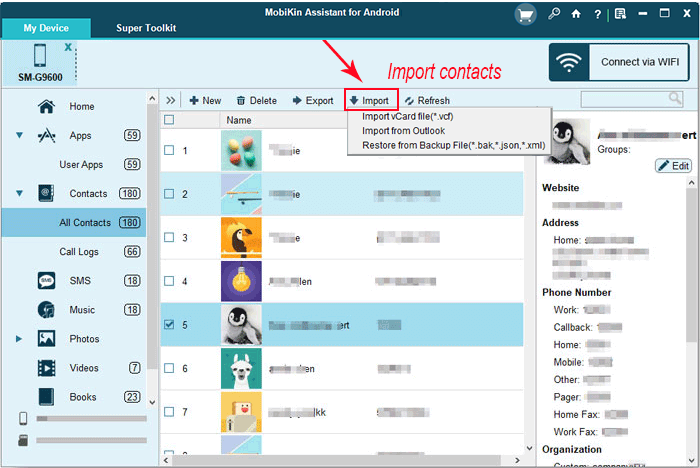
- Select Contacts from the left panel.
- Click Import and choose the contact file (VCF, CSV, or supported format) from your computer.
- Confirm the import process and wait until the contacts are added to your HONOR phone.
- Open the Contacts app on your HONOR device to check the transferred contacts.


Video Directions:
Way 2: Transfer Contacts from PC to HONOR via HONOR Connect
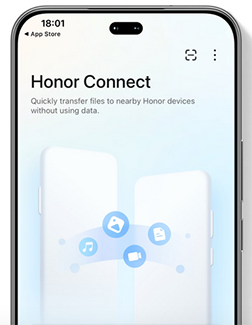
As a trusted HONOR sync tool, HONOR Connect offers a convenient way to link an HONOR phone with compatible devices and move files between them. Although it is mainly focused on device collaboration and file sharing, it can help users transfer contact files such as VCF documents from a computer to an HONOR phone.
After moving the file, users can import the contacts through the phone's Contacts app. This method is helpful for those who prefer a wireless approach without installing additional contact management software.
Simple User Guide:
- Export your contacts from the computer as a VCF file.
- Install and enable HONOR Connect on your HONOR phone and compatible computer.
- Connect the HONOR phone and computer through HONOR Connect.
- Transfer the VCF contact file from the computer to the HONOR phone.
- Open the Files app on your HONOR phone.
- Find and open the transferred VCF file.
- Choose Import Contacts when prompted.
- Check the Contacts app to confirm the imported contacts.
You Might Also Like: 4 Easy Fixes to HONOR FRP Bypass 2026 [For Both MagicOS & EMUI]
Way 3: Import Contacts from Computer to HONOR via Google Contacts
Google Contacts provides a simple cloud-based solution for moving contacts from a computer to an HONOR device. By uploading a contact file to a Google account, users can synchronize the saved contacts with their HONOR phone without needing a direct cable connection.
This method is especially useful for people who already rely on Google services to store and manage personal information. Once synchronization is enabled, contacts can appear automatically on the phone and remain available across connected devices.
Simple User Guide:
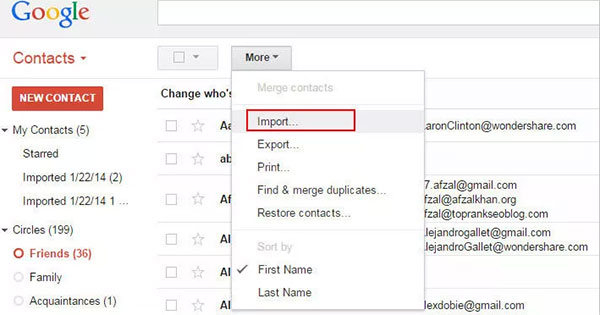
- Open Google Contacts on your computer.
- Sign in with the Google account used on your HONOR phone.
- Click Import in the left menu.
- Select a VCF or CSV contact file from your computer.
- Wait for the contacts to be uploaded to your Google account.
- On your HONOR phone, open Settings.
- Go to Accounts/Users & accounts > Google.
- Enable Contacts sync.
- Tap Sync now if needed.
- Open the Contacts app and check the imported contacts.
Way 4: Add Contacts from PC to HONOR with Contact Transfer
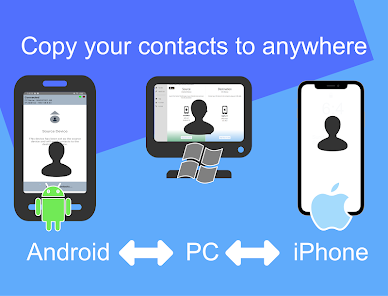
Contact Transfer offers a direct way to move contacts between a computer and an HONOR phone through a desktop program and an Android app. It is suitable for users who want to transfer contact lists without uploading data to a cloud account.
The tool can simplify the process of moving contacts saved on a PC and importing them into the phone's address book. This method may be preferred by users who want a dedicated contact transfer solution with fewer manual steps.
Simple User Guide:
- Install the Contact Transfer app from Google Play on your HONOR phone.
- Install the Contact Transfer desktop software on your computer.
- Launch the desktop program and connect your HONOR phone.
- Follow the on-screen instructions to pair the phone and PC.
- Select the contacts stored on your computer.
- Choose the option to transfer contacts to your HONOR device.
- Start the transfer process.
- Open the Contacts app on HONOR to verify the transferred contacts.
Further Reading: 7 Best Contact Transfer Alternatives & Competitors [Comparison]
FAQs for Transferring Contacts from Computer to HONOR
Q1. What contact file formats can HONOR phones import?
HONOR phones commonly support VCF (vCard) files for contact imports. Some services, such as Google Contacts, also accept CSV files when uploading contacts.
Q2. Can HONOR Connect transfer contacts directly from a PC to HONOR?
No. HONOR Connect does not directly sync contacts between a computer and HONOR phone. It can transfer a contact file, but the VCF file must be imported manually on the phone.
Q3. How do I transfer contacts from an old computer to a new HONOR phone?
Export contacts from the computer as a VCF file, then import them to your HONOR phone using Google Contacts, a contact management tool, or the Contacts app's import function.
Q4. Can I transfer contacts from Windows Outlook to HONOR?
Yes. You can export Outlook contacts as a CSV or VCF file, upload them to Google Contacts, and sync the Google account with your HONOR phone.
Q5. Why are my contacts not showing after importing them to HONOR?
The contacts may have been saved under a different account or location. Check your Contacts app display settings and make sure the correct Google account, phone storage, or SIM contacts are selected.
Q6. Can I transfer contacts from a Mac computer to an HONOR phone?
Yes. You can export contacts from Mac apps such as Contacts as a VCF file and transfer them to HONOR through Google Contacts, cloud storage, or a compatible transfer tool.
Q7. Will transferring contacts from a computer delete existing HONOR contacts?
Usually, no. Most methods add imported contacts to the existing list. However, duplicate contacts may appear if the same numbers already exist on the HONOR phone.
Q8. What is the most trouble-free way to transfer many contacts from a PC to HONOR?
The most trouble-free way to transfer many contacts from a PC to HONOR is using MobiKin Assistant for Android, which allows users to import large contact lists directly from a computer to the phone. It supports batch contact transfer and helps preserve details such as names, phone numbers, and email addresses without manual entry.
Compared with adding contacts one by one, this method saves time and provides a more convenient way to manage HONOR contacts from a PC.
Related Articles:
5 Easy & Quick Ways to Transfer Photos from HONOR to Mac [2026]
5 Simple Tactics to Access Deleted Contacts from HONOR Phones
HONOR Backup & Restore: 5 Clever Ways to Back Up & Restore HONOR
