
Screen Mirroring OPPO to PC/TV: Full Guide with 5 Ingenious Ways
TL;DR:
The five methods range from OPPO's native wireless tool to third-party applications provide either cable-based stability or Wi-Fi convenience for different user preferences.
- The Screen Mirror method offers the fullest set of practical functions for a standard OPPO-to-PC connection.
- USB and Wi-Fi are both supported, and its keyboard control, recording, and game-mapping features cover most common usage scenarios effectively.
NOTE: To protect your information, it is recommended that you mirror your screen only to a trusted device and avoid any actions that may compromise the privacy or rights of others.
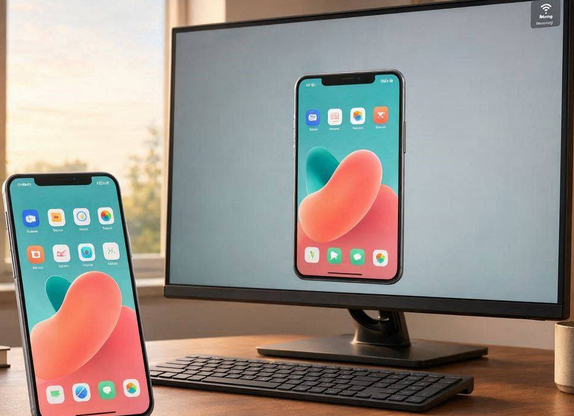
Many OPPO users look for a convenient way to connect their phones with computers for better viewing and control. Whether they want to display OPPO phone content on a PC monitor to watch videos, view photos, play mobile games, or read documents on a bigger screen, screen mirroring provides a practical solution for different situations.
This guide covers screen mirroring OPPO to PC with 5 ingenious ways, including wireless and USB-based methods. Let's get down to business now.
- Way 1: Screen Mirroring OPPO to PC via Screen Mirror [Proficient]
- Way 2: Mirror OPPO to PC Using OPPO Connect
- Way 3: Screen Projecting OPPO to PC via ApowerMirror
- Way 4: Screen Casting OPPO to PC via LetsView
- Way 5: Screen Mirroring OPPO to PC/TV via AirDroid Cast
- FAQs about Screen Mirroring OPPO to PC/TV
Way 1: Screen Mirroring OPPO to PC via Screen Mirror [Proficient]
A practical way to display an OPPO phone on a computer is offered by Screen Mirror, supporting both USB and Wi-Fi connections. It delivers smooth screen mirroring with responsive keyboard and mouse control for compatible Android devices.
Users can also record the mirrored screen, take screenshots, and stream mobile gameplay or apps to a larger display. Here 's the overview of Screen Mirror:
|
Key Features
|
Main Details
|
|
OPPO Phone Support |
Fully compatible with 8,000+ OPPO/Android devices, including OPPO Reno 16/15/F29/K12/X8/X7 - mirror your OPPO screen to PC easily. |
|
High-Resolution Mirroring |
Supports up to 2K resolution for sharp, detailed visuals. |
|
Low Latency |
Provides near-zero lag for smooth, real-time screen projection. |
|
Multiple Connection Modes |
Connect via USB cable, Wi-Fi, or simply scan a QR code - no complex setup. |
|
PC Control of Phone |
Use your computer's keyboard and mouse to type, tap, swipe, and control your OPPO directly from the PC. |
|
Keyboard Mapping for Gaming |
Customize keyboard shortcuts to play mobile games with better control on a big screen. |
|
Screen Recording (1080p) |
Record your mirrored screen in HD with system audio and/or microphone sound. |
|
File Transfer |
Quickly transfer photos, videos, and other files between your OPPO and PC. |
|
Live Streaming |
Stream your OPPO screen directly to platforms like YouTube, Zoom, or Twitch. |
|
Cross-Platform Mirroring |
Mirror not only to Windows PC, but also to Mac, and web browsers. |
How-to Guide:
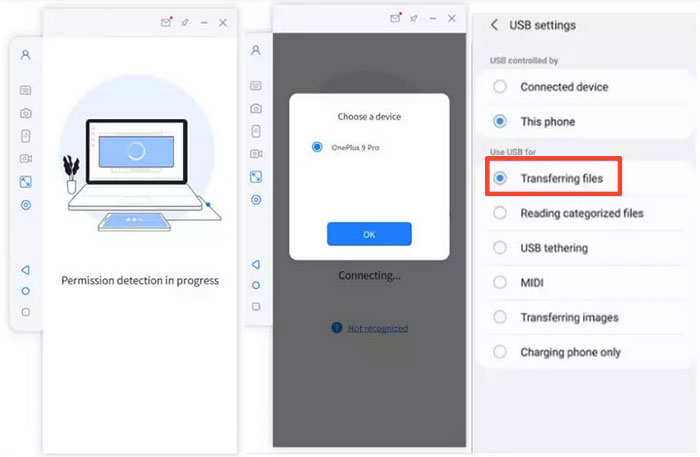
- First, download and install Screen Mirror on your computer, then launch the program.
- Connect your OPPO phone to the computer using a USB cable, and when prompted, select "Transfer files" (or "File Transfer") as the USB connection mode.
- Next, enable USB debugging on your phone. Go to Settings > About Phone > Software Information, then tap "Build number" seven times to unlock Developer options.
- Go back to the main Settings menu, enter Developer options, and toggle USB debugging on.
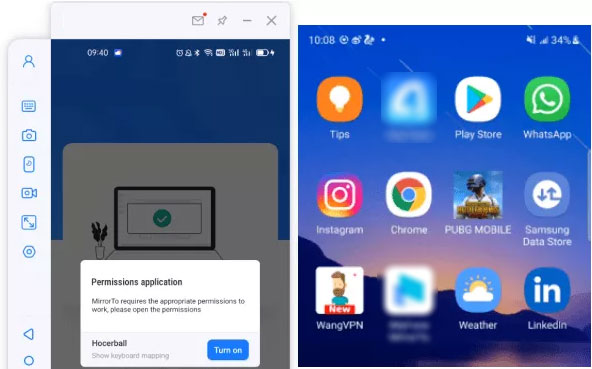
- On the computer, grant the necessary permissions in Screen Mirror so it can detect your device.
- Once detected, click the "Turn on" (or "Start") button on the PC interface to install the Screen Mirror APK onto your OPPO.
- After the connection is established, your OPPO screen will be successfully mirrored to your computer.


Further Exploration: What if your OPPO phone doesn't connect to your PC? Here are 9 practical methods.
Way 2: Mirror OPPO to PC Using OPPO Connect
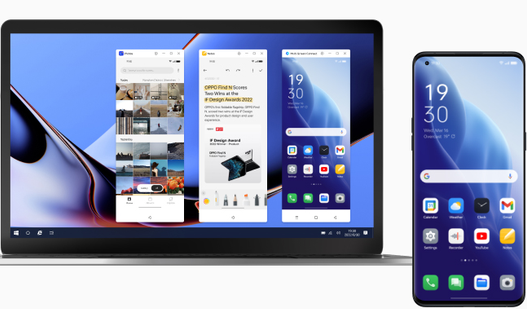
Wireless collaboration becomes much easier with OPPO Connect, which links compatible OPPO phones to Windows PCs through the same network. After pairing the devices, the phone's screen appears on the computer for viewing and operation. It also supports drag-and-drop file transfers, clipboard sharing, and access to multiple mobile apps from the desktop on supported models.
How-to Guide:
- Download and install OPPO Connect on your Windows PC from the official website, then launch the program.
- Enable Multi-Screen Connect on your OPPO phone by going to Settings > Connection & sharing > Multi-Screen Connect, and turn the feature on.
- Connect both devices to the same Wi-Fi network and keep them close to each other for a stable connection.
- Pair your phone with the PC by selecting the detected computer on your phone or scanning the QR code displayed in the OPPO Connect desktop app.
- Grant the requested permissions on your OPPO phone to allow screen mirroring and remote access.
- Start mirroring once the connection is established. Your phone's screen will appear on the PC, allowing you to control it with your mouse and keyboard, transfer files, and copy and paste content between devices.
- Disconnect the session by closing the mirrored window on the PC or turning off Multi-Screen Connect on your OPPO phone when you're finished.
People Also Like: How to Retrieve Deleted Text Messages on OPPO? 4 Ingenious Ways
Way 3: Screen Projecting OPPO to PC via ApowerMirror
ApowerMirror lets you display your OPPO phone's screen on a Windows PC over either Wi-Fi or USB. If you want to control the phone from the computer with a mouse and keyboard, you'll need to connect it via USB the first time to grant the required permission.
How-to Guide:
Option 1: Project OPPO to PC via Wi-Fi
- Install ApowerMirror on both your Windows PC and your OPPO phone.
- Connect the PC and the OPPO device to the same Wi-Fi network.
- Open ApowerMirror on both devices.
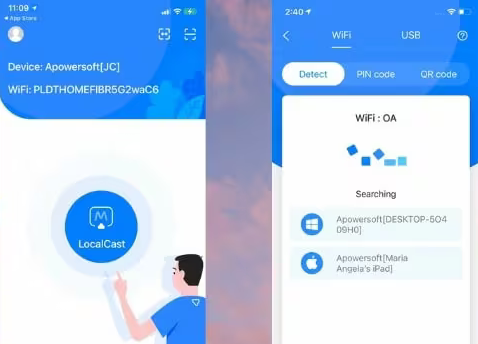
- On your OPPO phone, tap the Mirror or LocalCast button to search for available devices.
- Select your computer from the detected devices. Its name usually begins with "Apowersoft".
- Tap Start Now when the screen capture permission prompt appears. Your OPPO screen will then be displayed on the PC.
* Wireless screen control may not work on some OPPO models because of system restrictions. In such cases, use a USB connection instead.
Option 2: Screen Project OPPO to PC via USB
- Install and launch ApowerMirror on both your PC and OPPO phone.
- Enable Developer Options and turn on USB debugging:
Open Settings > About phone.
Tap Version (or Build number) repeatedly until Developer Options are enabled.
Go to Settings > Developer options and enable USB debugging. - Connect the OPPO phone to the PC using a USB cable.
- If prompted, select File Transfer (MTP) as the USB connection mode and tap Always allow from this computer > OK to authorize USB debugging.
- Open ApowerMirror on your phone and tap START NOW when the capture permission appears.
- The OPPO screen will appear on your computer. After the initial USB authorization, many supported OPPO models can also be controlled wirelessly in later sessions.
TIPS:
- Keep both devices on the same Wi-Fi network for stable wireless projection.
- If the PC doesn't detect your phone, try another USB cable or USB port and confirm that USB debugging and MTP/File Transfer mode are enabled.
- Restarting the OPPO phone may revoke remote control permission, requiring you to reconnect via USB to enable control again.
Way 4: Screen Casting OPPO to PC via LetsView
For those who prefer a lightweight solution, LetsView provides an easy way to mirror an OPPO phone to a PC without requiring a USB cable. Once both devices are connected to the same Wi-Fi network, the phone's display can be cast to the computer in just a few steps. The software also includes screen recording, annotation tools, and screenshot capture during the mirroring session.
Before you start:
- Download the app - Install LetsView on both your OPPO phone and your computer (Windows or Mac) from the official website or app store.
- Same network - Make sure both devices are connected to the same Wi-Fi network.
How-to Guide:
Option 1: Auto-Detect
- Launch the app - Open LetsView on both your phone and computer
- Select your PC - On your OPPO phone, you should see your computer's name appear in the device list. Tap it.
- Choose mirroring mode - Select "Phone Screen Mirroring".
- Start - Tap "Start Now" to begin mirroring.
Option 2: PIN Code/QR Code
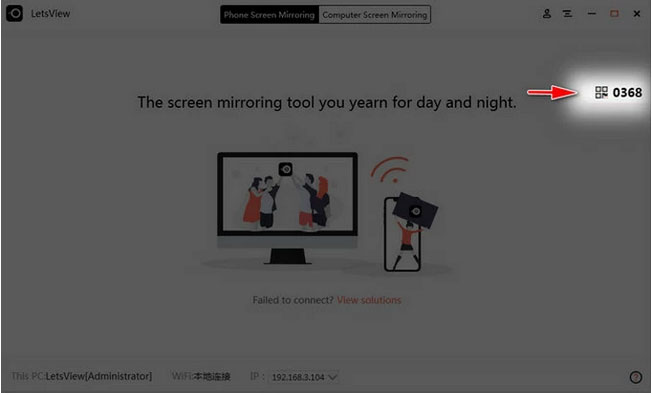
- On your computer, click the connection icon in the upper-right corner to get a PIN code or QR code.
- On your OPPO phone, tap the corresponding icon in the upper-right corner, then enter the PIN code or scan the QR code.
- Tap "Start Now" to begin.
Way 5: Screen Mirroring OPPO to PC/TV via AirDroid Cast
A flexible casting experience is available through AirDroid Cast, allowing OPPO users to mirror their phones to a PC over Wi-Fi, USB, or a remote network. It supports high-quality screen sharing and offers two-way audio in many scenarios. With remote control available for compatible Android devices, it is suitable for presentations, demonstrations, online meetings, and remote assistance.
How-to Guide:
- Launch the app - Open AirDroid Cast on your phone and on your computer.
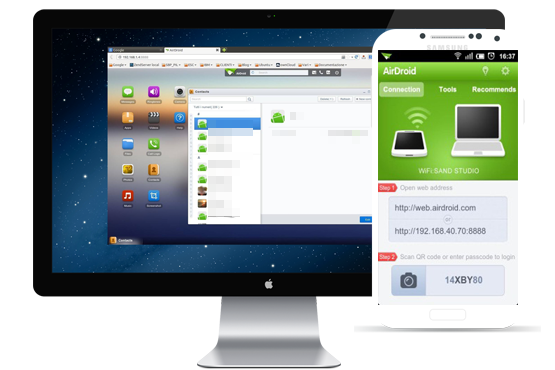
- Get the code/QR - On the computer app, you'll see a Cast Code (a numeric code) and/or a QR Code.
- Enter or scan - On your OPPO phone: Type in the Cast Code shown on your computer, or scan the QR code using the phone app.
- Allow the connection - Tap "Allow" or "Start" on both devices when prompted.
- You can now present, stream, or even control your phone from the PC.
For TV Mirroring
- AirDroid Cast also offers a TV version (for Android TV/Fire TV). Install it on your TV, then follow the same steps - use the Cast Code/QR to pair your phone with the TV.
- Alternatively, you can use built-in casting protocols (e.g., Chromecast, Miracast) if your TV supports them, but the AirDroid Cast method works seamlessly across platforms.
FAQs about Screen Mirroring OPPO to PC/TV
Q1. Why can't my OPPO phone find my TV?
Make sure both devices are on the same Wi-Fi network, your TV supports wireless display protocols, and screen mirroring is enabled on the TV. Restarting both devices may also help.
Q2. Can I control my OPPO phone from a PC while mirroring?
Yes. Some applications, including iMyFone MirrorTo, OPPO Connect, and AirDroid Cast, allow keyboard and mouse control after the necessary permissions are granted.
Q3. Does screen mirroring require an internet connection?
Not necessarily. Wireless mirroring usually requires both devices to be on the same local Wi-Fi network, but an internet connection isn't always needed. USB mirroring works without Wi-Fi.
Q4. Can I mirror my OPPO phone to a smart TV without installing an app?
Yes. If both your OPPO phone and smart TV support wireless display or Miracast, you can mirror the screen using the phone's built-in casting feature.
Q5. Why is my mirrored screen lagging?
Lag may occur because of a weak Wi-Fi signal, network congestion, high display resolution, or running too many apps in the background. Using a USB connection can improve stability.
Q6. Is screen mirroring safe?
Yes, as long as you use trusted software or your phone's built-in casting feature. Download applications from official websites or reputable app stores to reduce security risks.
Q7. Can I mirror a broken OPPO phone to a PC?
If the phone still powers on and USB debugging or screen casting was previously enabled, it may be possible to mirror the device with compatible software. However, severe hardware damage or an unresponsive touchscreen can limit your options.
Related Articles:
How to Transfer Apps to SD Card on OPPO Effortlessly? 4 Tactics
Expert Tips: How to Transfer Contacts from Samsung to OPPO?
7 Latest Methods to Unlock OPPO Phone without Password [2026]
How to Back Up & Restore OPPO Reno/Find/R/K/A/F in 6 Trusted Ways?
