
Huawei HiSuite Review: Should I Use It or Consider an Alternative?
TL;DR:
HiSuite remains a dependable option for basic tasks like backups, updates, and recovery, yet, its restricted compatibility and occasional connection problems can frustrate users who expect smoother performance. Those who want more flexibility and reliability often turn to alternatives such as MobiKin Assistant for Android, which offers broader support and easier data handling across platforms.
"I just am not comfortable with having Huawei software on my home PC. How can I get around transferring files without using HiSuite?" -- from Reddit
A Huawei HiSuite review often begins with an exploration of what the tool offers to Huawei users. It provides insights into its strengths, such as safe backups, system updates, and recovery options, while also pointing out weaknesses like limited compatibility and frequent connection issues.
Now, go through this review to look for balanced evaluations before deciding whether HiSuite is sufficient for your needs or if you should consider an alternative.
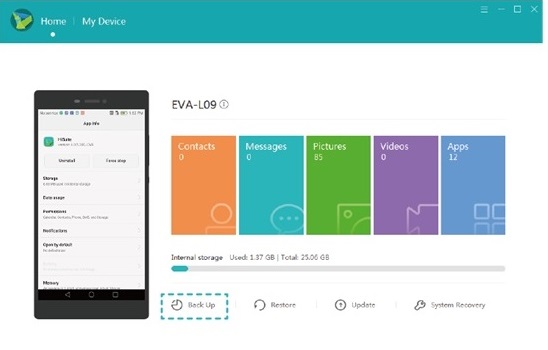
Section 1: What Is Huawei HiSuite
Huawei HiSuite, an official desktop software, is developed by Huawei that allows users to manage their Huawei smartphones from a computer. It enables functions such as data backup, file transfer, contact and message management, and system updates through a USB or wireless connection.
It works like a PC companion tool, similar to Samsung Smart Switch or iTunes, giving users deeper control over phone data including photos, apps, and system settings.
You Might Also Enjoy: Huawei HiSuite doesn't connect? Here are the 6 proven fixes.
Section 2: Huawei HiSuite - Main Features
Huawei HiSuite brings together essential tools that make managing Huawei devices from a computer straightforward and reliable. The table below highlights its main features:
|
Feature
|
Description
|
|
Data Management |
Manage contacts, messages, photos, videos, and apps directly from your PC. Import, export, delete, and organize data easily. |
|
Backup & Restore |
Create full backups (contacts, messages, call logs, photos, videos, audio, app data, system settings) and restore them in one click. Supports encrypted backups. |
|
System Update |
Check and install the latest EMUI/HarmonyOS updates via a stable wired connection. Useful when OTA updates fail. |
|
System Recovery |
Reinstall firmware if the device crashes, boot-loops, or fails to start. Downloads correct firmware automatically. |
|
App Management |
Install, uninstall, and update apps quickly from your computer. |
|
Contacts Management |
Add, edit, and export contacts to PC. Sync with Outlook for seamless integration. |
|
Messages |
Read, send, and export SMS directly from your computer. Supports bulk messaging. |
|
Photos & Videos |
View, transfer, and manage media files on a larger screen. |
|
Screenshot |
Capture your phone's screen directly from HiSuite on PC. |
|
Outlook Sync |
Synchronize contacts and calendar events with Microsoft Outlook. |
Section 3: How to Use Huawei HiSuite
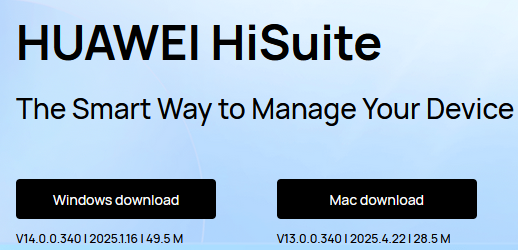
1. Download HiSuite
- Go to the Huawei Consumer Support website or App Store (for macOS).
- Download and install the correct version for your operating system.
- System requirements: Windows 7-11 or macOS 10.8+, at least 1GB RAM, and 500MB free disk space.
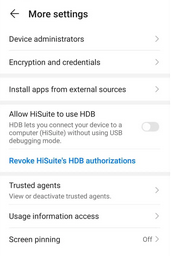
2. Enable HDB Mode
- On your Huawei phone, go to Settings > Security > More Settings.
- Toggle "Allow HiSuite to use HDB".
- This permission allows HiSuite to communicate with your device.
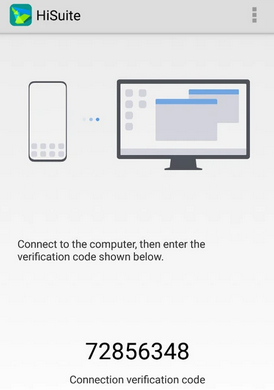
3. Connect via USB
- Use a reliable USB cable to connect your phone to the computer.
- Select File Transfer or Photo Transfer mode when prompted.
- Launch HiSuite on your PC/Mac and pair the devices as prompted.
- Your device should appear in the dashboard.
4. Access Features (Once connected, you can:)
- Backup & Restore: Save contacts, messages, photos, videos, and system settings, then restore them later.
- System Update/Recovery: Install EMUI/HarmonyOS updates or repair a bricked phone.
- Data Management: Manage apps, contacts, messages, photos, and videos directly from PC.
- Outlook Sync: Sync contacts with Microsoft Outlook.
- Screenshots & File Management: Capture your phone's screen or browse files/microSD content.
Section 4: Huawei HiSuite - Pros & Cons
Huawei HiSuite excels at basic data management and system maintenance, but it has notable limitations in compatibility and advanced features. For more details:
Huawei HiSuite - Pros
- Official Huawei software - Free to download and use, developed directly by Huawei.
- Safe and stable - Reliable for backups, restores, and system updates without third-party risks.
- System update & recovery - Allows firmware reinstall and OS upgrades via PC, useful when OTA fails.
- Simple interface - Easy to navigate for basic tasks like file transfer, contact management, and SMS handling.
- Cross-platform support - Works on both Windows and macOS.
Huawei HiSuite - Cons
- Huawei-only compatibility - Cannot be used with non-Huawei Android devices.
- Limited preview/control - Not all file types can be previewed or managed directly.
- Connection issues - Users often face USB/HDB detection failures.
- Few advanced features - Lacks deeper Android management tools like app data editing or cross-device sync.
- Lagging updates - May not keep pace with the latest Android versions, reducing compatibility.
Section 5: What If Huawei HiSuite Doesn't Work? Fixes & Alternative
Fixes to Huawei HiSuite not working:
- Check USB connection - Use the original Huawei cable, try different USB ports, and enable HDB in phone settings.
- Verify HiSuite version - Make sure you're running the latest HiSuite from Huawei's official support site.
- Update phone drivers - On Windows, reinstall Huawei USB drivers if the device isn't detected.
- Restart both devices - Reboot your phone and PC to clear temporary glitches.
- Disable other software - Antivirus or third-party phone managers may block HiSuite. Temporarily disable them.
- Check EMUI/HarmonyOS compatibility - Some older HiSuite versions don't support the latest OS updates.
- Reinstall HiSuite - Uninstall HiSuite completely, then reinstall the newest version.
- Try another PC - If issues persist, test HiSuite on a different computer to rule out system conflicts.
- Use recovery mode - If HiSuite won't connect, boot your phone into recovery mode and try again.
Switch to a more stable alternative:
After our careful research, we found that MobiKin Assistant for Android (Windows/Mac) is the tool you are looking for. It allows you to transfer files seamlessly between your Android phone and PC/Mac, whether moving data to or from your device. Acting as a smoother and more reliable Huawei HiSuite alternative, it simplifies the process with minimal input required from you.


Beyond file transfers, MobiKin Assistant lets you manage contacts, messages, music, photos, videos, apps, and more with ease. You can delete, edit, import, export, and even send SMS directly from your computer. Trusted by many users, it ensures 100% secure data handling, supports most Android brands including Huawei, and works flawlessly on both Windows and Mac systems.
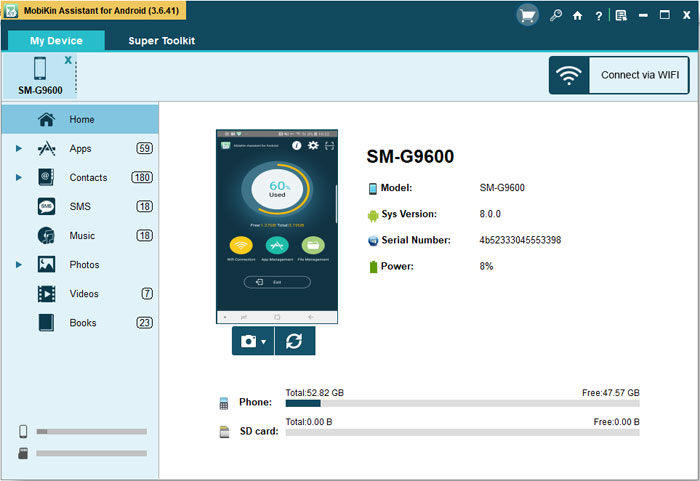
How to Use MobiKin Assistant for Android in a visual manner? Check out the video below:
FAQs about Huawei HiSuite
Q1: Does HiSuite support Wi-Fi connection?
Older versions supported Wi-Fi, but AppGallery 8.0.3.303 and later no longer allow Wi-Fi connections. USB is now the recommended method.
Q2: What data can I back up?
Contacts, messages, photos, videos, apps, music, call history, emails, and schedules can be backed up to your computer and restored later.
Q3: Can I update my phone system?
Yes, HiSuite lets you upgrade EMUI/HarmonyOS to the latest version or roll back to a previous version if supported.
Q4: What recovery options exist?
HiSuite can restore factory settings or recover a phone if the system crashes and won't boot.
Q5: What features differ on Mac?
The Mac version only supports Picture Management, Video Management, File Management, and Backup/Restore. Advanced features like system updates are Windows-only.
Q6: Is HiSuite free?
Yes, HiSuite is completely free to download and use from Huawei's official support site.
Q7: Is HiSuite compatible with all Huawei devices?
HiSuite works with most Huawei and Honor smartphones running EMUI/HarmonyOS, but very old models may have limited support.
Q8: Does HiSuite support encrypted backups?
Yes, you can set a password for backups to protect sensitive data. Without the password, the backup cannot be restored.
Q9: How do I uninstall HiSuite?
On Windows, go to Control Panel > Programs > Uninstall a program > Select HiSuite. On Mac, drag the HiSuite app to the Trash.
Related Articles:
HONOR Device Clone Review: Is This App Worth Entrusting? [Informative]
How to Fix Huawei Cloud Backup Failed? 9 Fixes & 1 Replacement
Top 9 Options to Unlock Huawei Phone without Resetting/Password
Top 6 Huawei Data Recovery Software [Most People Don't Know]
