
OnePlus Backup Restore: 4 Tested Ways to Back Up & Restore OnePlus
TL;DR:
A suitable OnePlus backup method can help keep contacts, messages, media files, and other important information protected during phone upgrades, resets, or unexpected situations. Besides cloud and built-in options, MobiKin Backup Manager for Android allows users to preserve OnePlus data locally on a computer, making backup files easier to manage and restore whenever necessary.
A OnePlus phone stores many valuable files, including contacts, messages, photos, videos, apps, and personal settings, so having a reliable backup plan is important before a system update, factory reset, or device switch.
This article introduces 4 safe and efficient ways for OnePlus backup restore, covering methods such as local backup, Google Drive, SD card, and computer-based solutions. Read on to check them out now.
Way 1: Perform OnePlus Backup Restore via MobiKin Software [Flawless]
For managing Android data, MobiKin Backup Manager for Android (Windows/Mac) offers a practical way to back up and restore OnePlus phones, including contacts, messages, call logs, photos, videos, and apps. It allows users to save OnePlus data to a computer and restore selected files whenever needed, helping protect information before a reset or device change.
With a simple connection process, the software, termed MobiKin Anddroid Backup & Restore makes OnePlus backup and recovery easier without relying on complicated steps.
Main Features of MobiKin Android Backup & Restore:
> One-click backup: Save OnePlus data to a computer safely.
> Safe restore: Restore backups to OnePlus/Android devices easily.
> Selective transfer: Choose specific file types to back up or restore. (Can I view OnePlus SMS on a PC?)
> Wide compatibility: Supports OnePlus and other 8,000+ Android brands.
> Pre-reset protection: Secure data before resets or upgrades.
> Local storage: Keep backups on your computer.
> Easy operation: Complete backup and restore in simple steps.


Steps to back up OnePlus to PC Using MobiKin Backup & Restore:
Step 1. Launch the software after downloading and installing it on your computer. Next, connect your OnePlus phone to the computer using a USB cable.
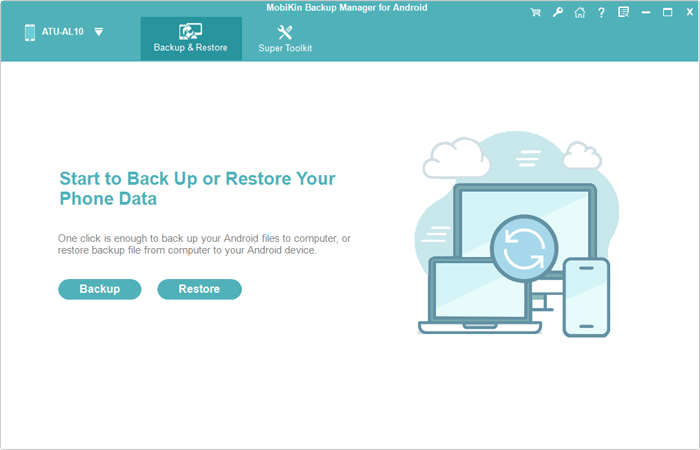
Step 2. You may need to activate USB debugging mode on your Android device to ensure your OnePlus is recognized. Once this is done, the screen will show options for "Backup" and "Restore". Please select the "Backup" option.
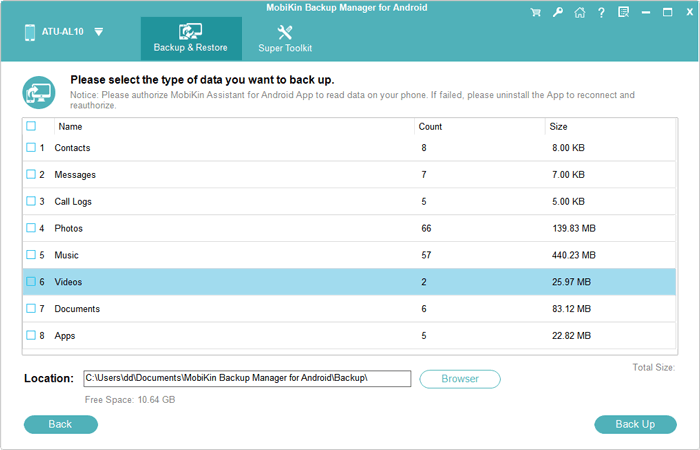
Step 3. Choose the types of data you wish to back up. Then, designate a location on your computer for storing this data. Finally, click on "Back Up" to transfer your OnePlus data to the computer.
How to Restore?
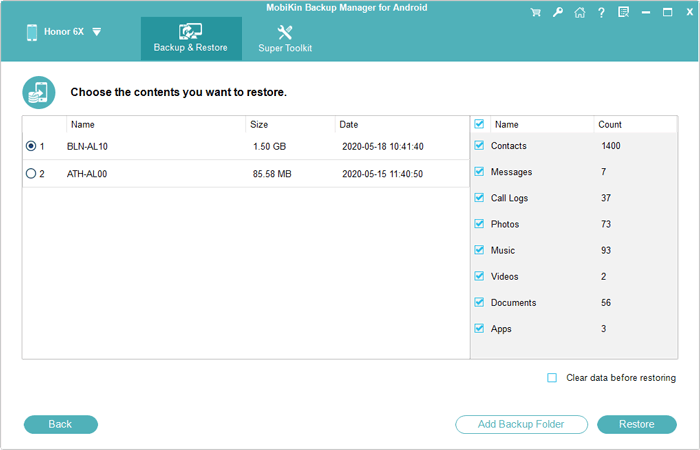
Step 1. Once the software detects your OnePlus phone, select "Restore" from the main interface and review the backup content you previously created.
Step 2. Choose the specific file type(s) you want to restore and click on "Restore" again to transfer the selected items to the connected OnePlus or another Android device.
Video Tutorial:
You Might Also Enjoy: What if your OnePlus one doesn't connect to your PC? Here are the 11 solutions.
Way 2: Back Up & Restore OnePlus via Local Backup and Restore
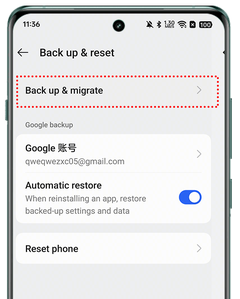
OnePlus phones include a built-in Local Backup feature (also called Back up & migrate on newer versions), allowing you to save important data to your phone's internal storage without using cloud services. The backup can later be copied to a computer for safekeeping or restored after a factory reset.
Steps to Create a Local Backup:
- Open Settings on your OnePlus phone.
- Go to Additional settings or System Settings (depending on your OxygenOS version).
- Tap Back up & reset or Back up & migrate.
- Select Local backup.
- Tap New Backup.
- Choose the data you want to save (such as contacts, SMS, call logs, notes, apps, and system settings).
- Tap Start or Back Up and wait until the process finishes.
Steps to Restore:
- If the backup is stored on your PC, connect your phone via USB and copy the backup folder back to its original location in the internal storage.
- Open Settings.
- Navigate to Additional settings/System Settings > Back up & reset > Back up & migrate > Local backup.
- Select the available backup file.
- Tap Restore or Start.
- Wait for the restoration to complete, then restart the phone if prompted.
The exact menu names may vary depending on your OnePlus model and OxygenOS version. Plus, the backup is stored on your phone. Before performing a factory reset, connect the phone to a computer and copy the backup folder to avoid losing it.
Way 3: Back Up & Restore OnePlus Phone Using SD Card
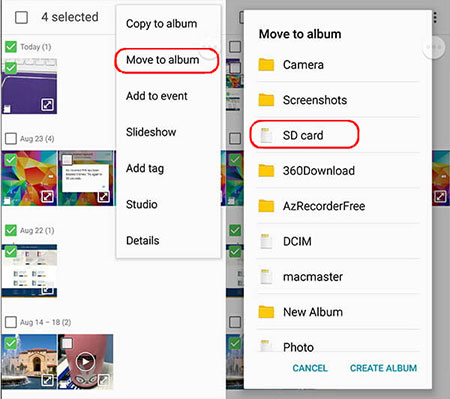
If your OnePlus 15/14/13/12/11/10/9/8/Nord 6/5/4/3 supports a microSD card (such as some Nord models), you can save your backup directly to the SD card. This helps free up internal storage and keeps a copy of your data in case you reset your device. Some newer flagship models do not include a microSD card slot.
Steps to Back Up OnePlus to an SD Card:
- Insert a microSD card with sufficient free space into your OnePlus phone.
- Open the Clone Phone (formerly OnePlus Switch) app.
- Tap Tools > New Backup.
- Select the data you want to back up.
- Tap Backup To or a similar option in the upper-right corner.
- Choose SD Card as the destination.
- Tap Back Up and wait for the process to finish.
How to Restore?
- Insert the SD card containing the backup into your OnePlus phone.
- Open the Clone Phone app.
- Tap Tools > Restore.
- Wait for the app to detect the backup on the SD card.
- Select the backup file.
- Choose the data you want to restore.
- Tap Restore and wait until the process completes.
- Restart your phone if prompted.
Note: The types of data that can be backed up and restored vary by OnePlus model and OxygenOS version. App data for some third-party apps may not be included due to Android's security restrictions.
Further Exploration: How can I wipe out my OnePlus phone after backup? Here are 4 proven ways.
Way 4: Back Up OnePlus & Restore It with Google Drive
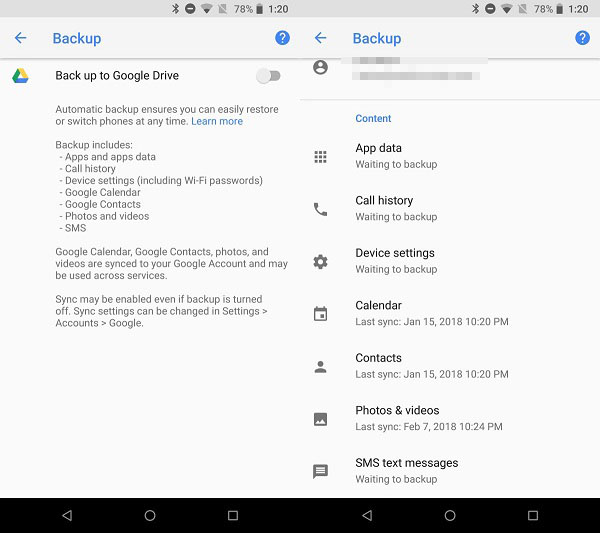
Google Drive (Google One Backup) lets you save your OnePlus data to your Google account, making it easy to restore your information when switching phones or after a factory reset. Depending on your settings, the backup can include contacts, SMS messages, call history, device settings, apps, and app data. Photos and videos are backed up through Google Photos if enabled.
Steps to Back Up OnePlus to Google Drive:
- Connect your OnePlus phone to a stable Wi-Fi network.
- Open Settings.
- Tap Google > Backup (or System > Backup on some OxygenOS versions).
- Turn on Backup by Google One or Back up to Google Drive.
- Select the Google account you want to use for the backup.
- Tap Back up now.
- Wait until the backup is complete. You can check the date and time of the latest backup on the same screen.
Steps to Restore:
- Turn on your OnePlus phone and begin the setup process.
- Connect to a Wi-Fi network.
- Sign in with the same Google account used to create the backup.
- When prompted, choose Restore from a cloud backup.
- Select the desired backup from the list.
- Choose the data you want to restore.
- Tap Restore and continue the setup.
- Keep the phone connected to Wi-Fi and power while apps and data finish downloading in the background.
Note: Google Drive backups cannot usually be restored after the initial device setup. If you skip the restore screen, you'll typically need to factory reset the phone to restore the backup later. Also, restoring a backup created on a newer Android version to a device running an older Android version may not be supported.
FAQs about OnePlus Backup & Restore
Q1. What data can I back up on a OnePlus phone?
A: You can usually back up contacts, SMS messages, call logs, apps, app data, system settings, photos, videos, and other personal files. The available backup options may vary depending on your OnePlus model and OxygenOS version.
Q2. Can I restore a OnePlus backup to a new OnePlus phone?
A: Yes. You can restore data to a new OnePlus phone using Google Drive backup, Clone Phone, or a local backup file. Make sure both devices use compatible OxygenOS versions for a smoother restoration process.
Q3. Does a factory reset delete local OnePlus backups?
A: Yes. A factory reset removes data stored in the phone's internal storage, including local backup files. Before resetting your device, copy the backup folder to a computer, SD card, or another safe location.
Q4. Why can't I restore my OnePlus Google Drive backup?
A: The issue may happen because you signed in with a different Google account, skipped the restore option during setup, have an incompatible Android version, or the backup was incomplete. Check your account and backup status before trying again.
Q5. Does OnePlus Backup & Restore include photos and videos?
A: Local backup may support photos and videos depending on your device settings. For cloud backups, photos and videos are usually stored through Google Photos rather than the standard Google One device backup.
Q6. How long does it take to back up and restore a OnePlus phone?
A: The time depends on the amount of data, storage speed, backup method, and network connection. A small backup may finish quickly, while a large backup with many photos, videos, and apps can take much longer.
Q7. What should I do if OnePlus Backup & Restore is not working?
A: Try restarting your phone, checking available storage space, updating OxygenOS and Clone Phone, verifying your Google account, and ensuring a stable internet connection. If the problem continues, create a new backup or try another backup method.
Related Articles:
OnePlus Screen Mirroring: 4 Easy Ways to Mirror OnePlus to PC/TV
How to Transfer Contacts from Samsung to OnePlus in 4 Clever Ways?
Fix Photos Disappeared from OnePlus Phone with 5 Easy Options
How to Transfer Contacts from OnePlus to Computer? 4 Dependable Methods
