
How to Transfer Files from OPPO to USB Flash Drive in 4 Easy Ways
TL;DR:
OPPO phones often run low on storage, so moving data to a USB flash drive is a smart way to keep space available and secure backups. MobiKin Assistant for Android offers a straightforward computer-based method to transfer OPPO files, with options to preview, select, and back up different types of data. This tool supports various data types, making it especially effective for large transfers or when organizing files neatly on a USB flash drive.
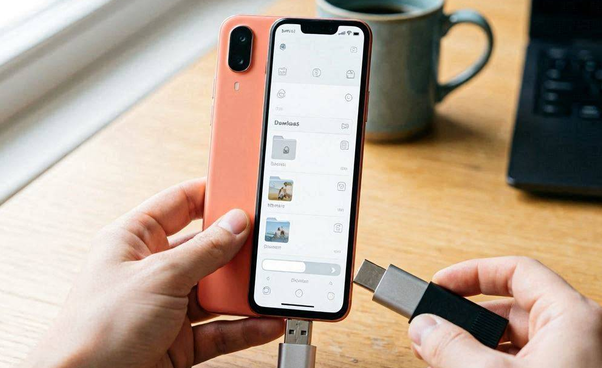
OPPO phones can quickly run out of storage due to large photos, videos, apps, and downloaded files. This article focuses on how to transfer files from OPPO to USB flash drive in 4 easy and fast ways, covering practical solutions such as USB-C flash drives, USB OTG adapters, file manager apps, and computer-based tool. Let's get started now.
- Way 1: Transfer Files from OPPO to USB Flash Drive via MobiKin Software
- Way 2: Transfer Files from OPPO to USB-C Flash Drive Directly
- Way 3: Transfer from OPPO to USB Flash Drive via USB OTG Adapter
- Way 4: Copy Files from OPPO to USB Flash Drive Using Files by Google
- FAQs about Transferring Files from OPPO to USB Flash Drive
Way 1: Transfer Files from OPPO to USB Flash Drive via MobiKin Software
A computer-based solution can make it easier to back up important files from your OPPO phone before freeing up storage, and MobiKin Assistant for Android (Windows/Mac) is a practical choice for this task. It lets you preview and select photos, videos, music, documents, contacts, and other data instead of copying everything at once.
After connecting your phone to a computer, you can export the selected files directly to a connected USB flash drive. This approach is especially useful when handling a large amount of data or organizing backups.
Overview of MobiKin Assistant for Android
|
Feature
|
Key Description
|
|
OPPO to USB Flash Drive Transfer |
Exports OPPO files directly to a connected USB flash drive through a computer. |
|
Multiple File Types |
Transfers photos, videos, music, contacts, messages, and documents. |
|
Selective Transfer |
Lets you choose specific files before exporting. |
|
Data Backup |
Backs up OPPO data to external storage or a computer. |
|
File Management |
Views, adds, deletes, and organizes Android files on a PC. |
|
OPPO Compatibility |
Supports many OPPO models and Android devices. |
|
Fast Transfer Speed |
Moves large files quickly via USB connection. |
|
Offline Transfer |
Transfers files without cloud services or internet access. |
|
File Preview |
Checks data before starting the transfer. |
Free & Safe Download:


User Manual:
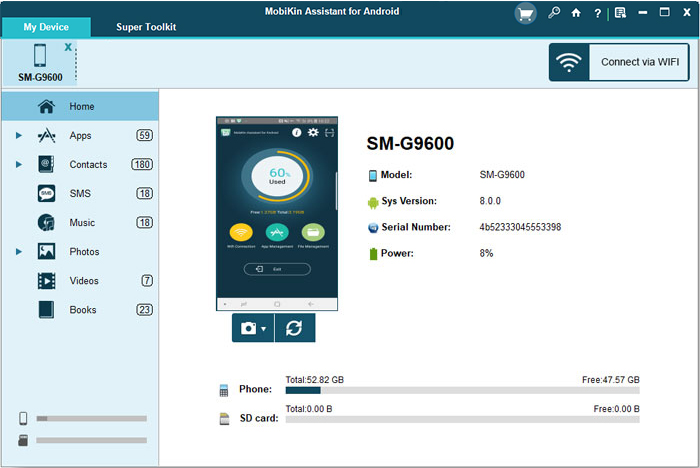
- Install and launch MobiKin Assistant for Android on your computer.
- Connect your OPPO phone to the computer with a USB cable and enable USB debugging if prompted. (What if your OPPO device doesn't link to your PC?)
- Insert the USB flash drive into the computer.
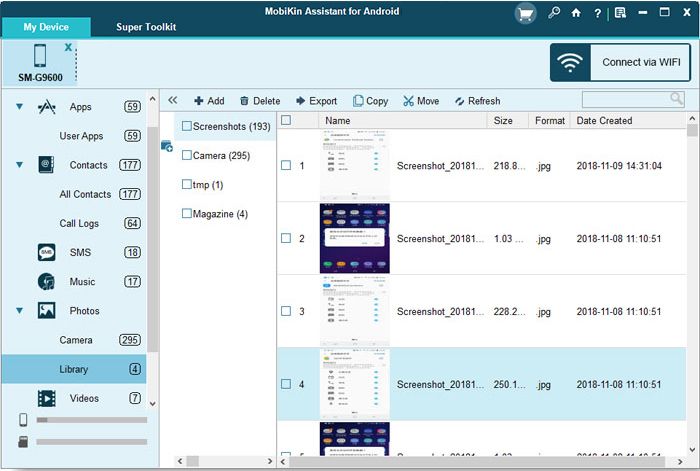
- Once your phone is recognized, select the file category you want to transfer, such as Photos, Videos, Music, Contacts, or Documents.
- Preview and select the files you wish to export.
- Click Export and directly choose the USB flash drive as the destination.
- Wait for the transfer to complete, then safely eject the USB flash drive.
Limitations:
- Requires a computer connection, so it cannot transfer files directly between an OPPO phone and a USB flash drive without a PC.
- Needs software installation before use.
- Transfer speed depends on the USB cable, computer performance, and connection quality.
You May Also Like: 5 Easy Solutions to Recover Deleted Text Messages from OPPO
Way 2: Transfer Files from OPPO to USB-C Flash Drive Directly
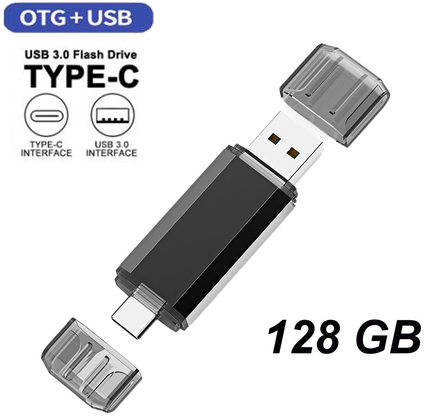
Direct access to external storage is possible when using a USB-C Flash Drive that matches your OPPO phone's USB-C port. Since no OTG adapter or computer is required, you can move files wherever you are. After plugging in the drive, simply copy or move the desired items through the phone's File Manager. It is a convenient option for quickly saving photos, videos, and documents.
User Manual:
- Connect the USB-C flash drive directly to your OPPO phone.
- If prompted, allow the phone to access the external storage.
- Open the File Manager app.
- Browse to the files or folders you want to transfer.
- Long-press the items and tap Copy or Move.
- Open USB Storage or the connected USB-C flash drive.
- Tap Paste to copy the selected files.
- Safely eject the USB flash drive before disconnecting it.
Limitations:
- Requires a compatible OPPO phone with USB-C support and OTG functionality.
- The transfer speed may vary depending on the phone and flash drive specifications.
- A USB-C flash drive may cost more than a standard USB drive.
Further Exploration: Expert Tips - How to Transfer Contacts from Samsung to OPPO?
Way 3: Transfer from OPPO to USB Flash Drive via USB OTG Adapter
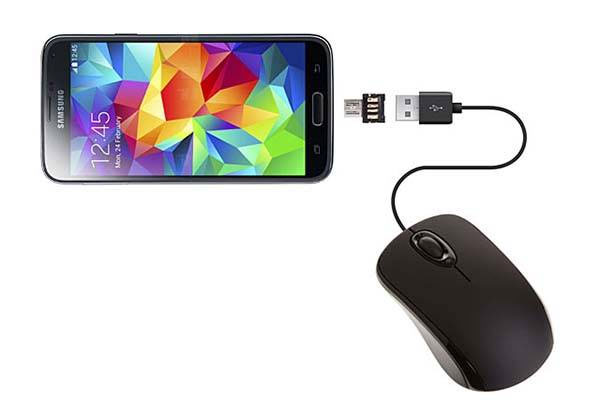
An ordinary USB flash drive can still work with an OPPO phone when paired with a USB OTG Adapter. Once the adapter and drive are connected, the phone recognizes the external storage, allowing you to browse its contents. You can then copy or move files using the built-in File Manager without relying on a PC. This method is compatible with many flash drives and is a good choice if you already own a standard USB drive.
User Manual:
- Connect a USB OTG adapter to your OPPO phone.
- Plug the USB flash drive into the OTG adapter.
- Enable OTG Connection in Settings if required by your ColorOS version.
- Open File Manager on your OPPO phone.
- Locate and select the files you want to transfer.
- Tap Copy or Move.
- Navigate to USB Storage and open the destination folder.
- Tap Paste to start the transfer.
- Eject the USB drive safely before removing it.
Limitations:
- Requires an extra OTG adapter, which may be inconvenient to carry.
- Compatibility problems may occur with some OPPO models, adapters, or USB flash drives.
- Long transfers may drain the phone battery faster.
Way 4: Copy Files from OPPO to USB Flash Drive Using Files by Google
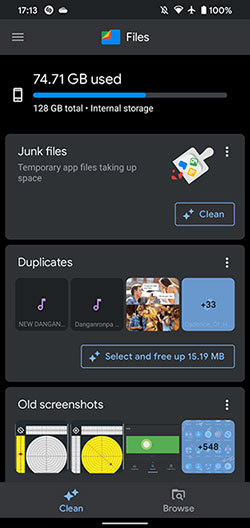
Built for Android devices, Files by Google provides another way to transfer files from an OPPO phone to a USB flash drive. Its straightforward interface makes it easy to locate files, select multiple items, and choose the USB drive as the destination. Besides transferring data, the app also helps manage storage by identifying large or unnecessary files. It works well for users who prefer an alternative to the default file manager.
User Manual:
- Install and open Files by Google if it isn't already on your phone.
- Connect the USB flash drive using a USB OTG adapter or a USB-C flash drive.
- Grant storage permissions if requested.
- Tap Browse and locate the files you want to transfer.
- Select one or more files or folders.
- Tap the More menu (three dots) and choose Move to or Copy to.
- Select the connected USB drive as the destination.
- Confirm the transfer and wait until it finishes.
- Safely eject the USB flash drive before disconnecting it.
Limitations:
- Requires installing the app if it is not already available on the OPPO phone.
- Offers fewer advanced file management options than professional transfer tools.
- Some protected system files or app data cannot be accessed or moved.
FAQs about Transferring Files from OPPO to USB Flash Drive
Q1. Is it safe to remove the USB flash drive immediately after copying files?
No. Wait until the transfer is complete, then safely eject or unmount the USB drive before disconnecting it to avoid file corruption.
Q2. Does every OPPO phone support USB OTG?
Most recent OPPO smartphones support USB OTG, but availability varies by model. Check your device specifications or look for an OTG Connection option in Settings.
Q3. Why isn't my USB flash drive detected by my OPPO phone?
This may happen if OTG is disabled, the flash drive is incompatible, the OTG adapter is faulty, or the drive uses an unsupported file system. Try reconnecting the drive, enabling OTG, or using another flash drive.
Q4. What file types can I transfer from an OPPO phone to a USB flash drive?
You can transfer almost any file stored on your phone, including photos, videos, music, documents, PDFs, ZIP files, and downloaded files.
Q5. Can I transfer an entire folder instead of individual files?
Yes. Most file manager apps allow you to select and copy or move complete folders, making it easier to back up multiple files at once.
Q6. Should I choose Copy or Move when transferring files?
Choose Copy if you want to keep the original files on your OPPO phone. Choose Move if you want to free up storage by removing the files from your phone after the transfer.
Q7. Why is the file transfer speed so slow?
Transfer speed depends on the USB standard, the flash drive's performance, file sizes, and your phone's hardware. Using a USB 3.0 or USB 3.2 flash drive with a USB-C connection usually provides faster transfers.
In a Nutshell
By learning how to transfer files from OPPO to a USB flash drive from above, you gain control over your digital space and create a reliable backup system. Think of it as giving your phone a fresh breath of air while keeping your memories and documents secure in a pocket-sized device.
Always use a high-quality OTG (On-The-Go) adapter when connecting your OPPO phone to a USB flash drive. A reliable adapter ensures smooth transfers and reduces the risk of corrupted files - a small investment that saves big headaches later.
Related Articles:
How to Hard/Factory Reset OPPO Phone? 4 Options You'd Better Know
7 Latest Methods to Unlock OPPO Phone without Password [2026]
How to Transfer Apps to SD Card on OPPO Effortlessly? 4 Tactics
5 Feasible Solutions to Recover Deleted WhatsApp Messages on OPPO
