
4 Easy Ways: How to Export realme Contacts to Excel Spreadsheet
TL;DR:
The practical reality is that while realme phones offer simple contact storage, getting that data into a usable Excel format requires an explicit export method, and the best solution depends on your comfort with manual steps versus automated tools.
Personally, MobiKin Assistant for Android is the most desirable for exporting realme contacts directly to CSV/Excel via USB or Wi-Fi, which handles large lists efficiently and includes options for selective export and on-screen contact editing.
realme phones make it easy to store and manage contacts, but many users discover they lack a direct, simple way to get contacts into a widely usable format like Excel. This limitation becomes clear when trying to organize, back up, or share contact lists across platforms. For anyone asking how to export realme contacts to Excel, the process requires a few extra steps to bridge the gap between mobile storage and spreadsheet flexibility.
- Part 1: How Do I Export Contacts from realme to Excel Manually
- Part 2: How to Export realme Contacts to Excel Spreadsheet Readily
- Part 3: How to Export Contacts from realme Phone to Excel via Google Contacts
- Part 4: How to Export realme Contacts to Excel via Export Contacts by Covve
- FAQs for Exporting Contacts from realme to Excel
Part 1: How Do I Export Contacts from realme to Excel Manually
You can manually export contacts from your realme phone to Excel by first saving them as a VCF file on your device, then converting that VCF into a CSV file using Windows Contacts or a converter tool, and finally opening the CSV in Excel for editing. This method avoids third-party apps and gives you full control over the process. Below is how:
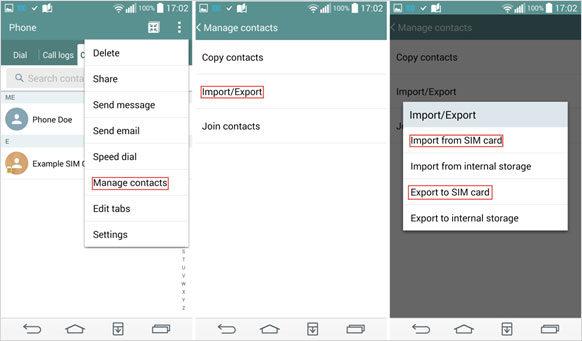
1. Export Contacts to VCF on realme
- Open the Contacts app on your realme phone.
- Tap the Menu > Settings > Import/Export.
- Choose Export to SD card/internal storage.
- A file named Contacts.vcf will be created in your storage.
2. Transfer VCF File to Computer
- Connect your realme phone to your PC via a USB cable.
- Copy the Contacts.vcf file to your computer.
3. Convert VCF to CSV
- On Windows, open File Explorer and type shell:contacts in the address bar.
- Select Import > vCard (VCF file) and import your contacts.
- Then choose Export > CSV (Comma Separated Values).
- Save the file to your desired location.
4. Open in Excel
- Open the CSV file in Microsoft Excel.
- Clean duplicates using Data > Remove Duplicates.
- Save the file as .xlsx for easier management.
You Might Need: Can I recover my lost contacts from my realme phone without difficulty? Here are the top 4 methods.
Part 2: How to Export realme Contacts to Excel Spreadsheet Readily
Exporting contacts from a realme phone becomes straightforward with the help of MobiKin Assistant for Android (Windows/Mac), which connects your device to a computer for smooth data management. The program makes it convenient to export realme contacts to Excel, allowing you to save them in CSV format that opens directly in Excel for editing and backup.
Beyond exporting, it also provides options to manage contacts directly from its interface, including adding, deleting, or modifying entries without needing to switch back to your phone.
|
Feature Category
|
Specific Feature & Notes
|
|
Export realme Contacts to Excel Handily |
Export selected or all contacts from your realme phone to CSV format, which can be directly opened as an Excel spreadsheet on your computer for viewing, editing, and printing. Also supports export to VCF, HTML, XML, BAK formats, etc. |
|
Device Compatibility |
Supports almost all popular Android brands, including realme GT 8/7, 16 Pro+/15 Pro+, C100, Neo 8 Turbo, 70 Pro 5G, etc. |
|
Connection Methods |
Connects to your computer via a USB cable or Wi-Fi for data transfer and management. |
|
Photo/Video/Music Management |
Transfer, add, or delete media files (JPG, PNG, MP3, MP4, etc.) between phone and PC via USB or Wi-Fi. Organize photos, videos, and music into albums and playlists directly from your computer. |
|
Contact/SMS/Call Management |
Add, edit, delete, import, and export contacts directly from your computer. |
|
Backup & Restore |
One-click backup and restore of your entire Android device or selected data to a computer. |
|
App Management |
The software allows you to install, uninstall, and export apps (though app data is not backed up). This provides a convenient way to manage your applications on a larger screen . |
|
Security & Data Privacy |
100% clean - no spyware, adware, or viruses. No data collection without user consent. |
Best realme data management tool free download:


Here's a clear walkthrough for exporting your realme contacts into an Excel spreadsheet using MobiKin Assistant for Android. This method is reliable because it connects your phone directly to your computer, allowing you to manage and back up contacts without relying on cloud sync:
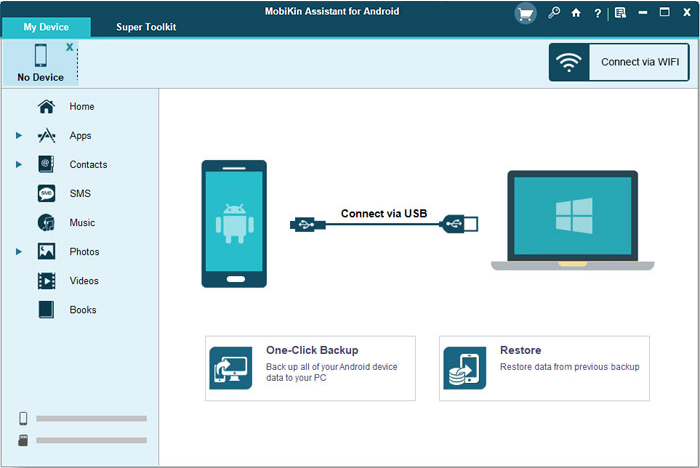
1. Connect realme to PC
- Use a USB cable to link your realme phone to your computer.
- Ensure your phone is unlocked.
- Select File Transfer (MTP) mode if prompted.
2. Enable USB Debugging
- Go to Settings > About Phone > Tap Build Number 7 times > Developer Options > USB Debugging. Navigate to Developer Options. Toggle USB Debugging ON (General Guide).
- Confirm the prompt on your phone.
3. Launch MobiKin Assistant
- Open the MobiKin Assistant for Android software on your computer.
- Wait for the program to detect your realme.
- Device info will appear once connected.
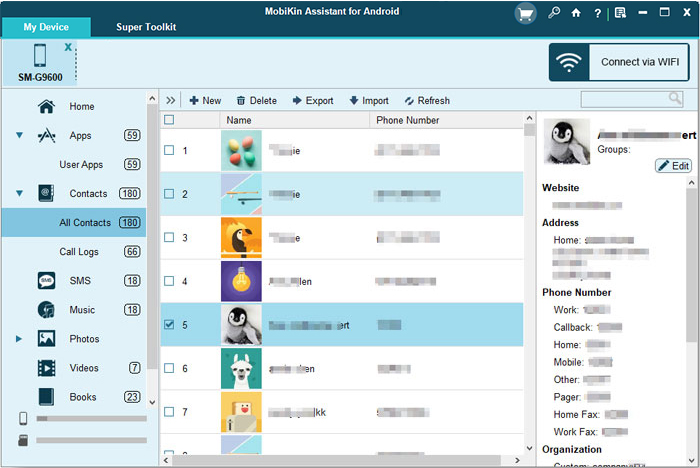
4. Access Contacts
- Click Contacts > All Contacts.
- Your full contact list will display on the right side.
5. Export Contacts to CSV (Excel format)
- Select the contacts you want to back up.
- Click Export > Export to CSV.
- Choose a folder on your PC or Mac to save the file.
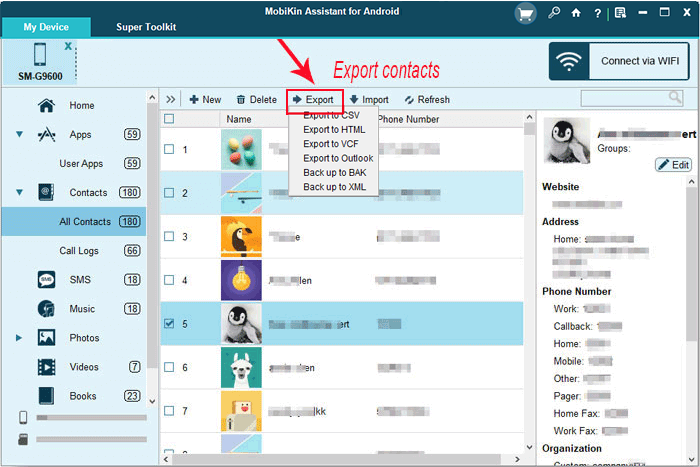
Optional: Manage your contacts directly with this program - You can edit or organize contacts from within the software. (Add, delete, or modify contacts. Sync changes back to your realme phone). With the import and export feature, you can easily copy contacts to your new realme phone with ease.
Video Guide:
Part 3: How to Export Contacts from realme Phone to Excel via Google Contacts
You can export contacts from your realme phone to Excel using Google Contacts by first syncing your phone contacts with your Google account, then exporting them as a CSV file on your computer, which can be opened in Excel. This method is free, straightforward, and works reliably for most Android devices. The following steps outline how:
1. Sync Contacts with Google Account
- On your realme phone, go to Settings > Accounts > Google.
- Select your Google account and ensure Contacts sync is enabled.
- This ensures all your phone contacts are backed up to Google Contacts.
2. Access Google Contacts on Computer
- Open a browser (Chrome, Firefox, etc.) on your PC.
- Sign in to Google Contacts with the same account linked to your realme phone.
3. Export Contacts to CSV
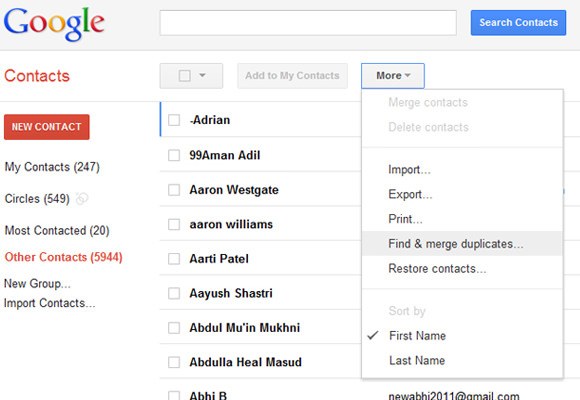
- In Google Contacts, click on the Export option (found in the left-hand menu).
- Choose All contacts or select specific ones.
- Select Google CSV (best for Excel compatibility).
- Click Export - the file will download to your computer.
4. Open in Excel
- Locate the downloaded CSV file in your computer's Downloads folder.
- Open it with Microsoft Excel.
- Save it as .xls or .xlsx if you prefer Excel's native format.
Explore More: Google Contacts Restore: 4 Methods to Restore Contacts (Android/iOS)
Part 4: How to Export realme Contacts to Excel via Export Contacts by Covve
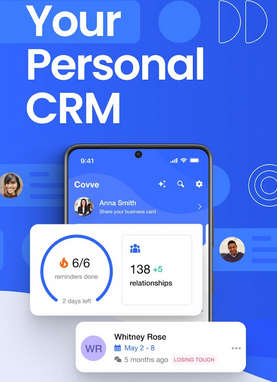
Do I need a computer for this process? Not always. Apps like Export Contacts by Covve allow direct export to Excel/CSV on your phone. This app grants its access to your contacts, and tapping "Export Contacts" - it instantly generates an Excel-compatible file (CSV/XLS) with all your contact details and images. To do this, follow the steps below:
1. Download Export Contacts by Covve
- Open the Google Play Store on your realme phone.
- Search for Export Contacts by Covve and install it.
2. Grant Permissions
- Launch the app and allow access to your Contacts when prompted.
- This ensures the app can read and export your contact list.
3. Export Contacts
- Tap the Export Contacts button on the main screen.
- The app will generate an Excel-compatible file (CSV/XLS) containing all your contacts, including names, numbers, emails, and even images.
4. Save or Share File
- Save the file locally on your phone or share it via email, cloud storage, or messaging apps.
- You can open the file directly in Microsoft Excel or Google Sheets for editing.
FAQs for Exporting Contacts from realme to Excel
Q1. Which contact formats are supported for export?
You can export to VCF, CSV, or XLS/XLSX. CSV is the most universal and Excel-compatible.
Q2. Will exporting delete my contacts?
No. Exporting only creates a copy in Excel/CSV format. Your original contacts remain intact.
Q3. How do I convert VCF to Excel?
Export contacts as a VCF file, transfer it to your computer, then import it into Windows Contacts, Google Contacts, or use a converter tool to save as CSV/Excel.
Q4. Which tool is easiest for beginners?
Google Contacts is the simplest: sync your realme contacts, then export them as CSV directly from your browser.
Q5. How do I handle duplicate contacts in Excel?
Open the CSV/Excel file, go to Data > Remove Duplicates in Excel to clean your list.
Q6. Can I export contacts stored on my SIM card?
Yes. First, import SIM contacts into your phone's Contacts app, then export them along with phone contacts.
Q7. Is it possible to include contact photos in Excel?
Most manual exports (VCF/CSV) don't include images. Apps like Covve Export Contacts can preserve photos.
Q8. What if my Excel file shows garbled text?
This usually happens due to encoding issues. Re-import the CSV using UTF-8 encoding in Excel.
Q9. Which method is best for large contact lists?
For thousands of contacts, MobiKin Assistant for Android is more efficient than manual conversion and other methods.
Q10. What's the most powerful option?
MobiKin Assistant for Android offers advanced features like selective export, editing, and full backup/restore.
Round Off
Turning contacts into an Excel sheet isn't just about convenience - it's about control. Once exported, your list becomes a portable, editable resource that can be sorted, filtered, and shared without restrictions.
When exporting through Google Contacts, always choose CSV format first. It ensures maximum compatibility, and you can later open or convert it to Excel (XLSX) without losing fields like phone numbers or email addresses. This extra step prevents formatting errors and keeps your contact data clean.
Related Articles:
4 Easy Options: How to Screen Mirror realme to PC [Latest]
How to Transfer Data from realme to Redmi? 5 Dependable Strategies
4 Methods: Transfer Photos from realme Phone to USB Flash Drive
10 Easy Fixes to WhatsApp Contacts Not Showing Up [Complete Guide]
