
How to Connect Redmi to PC/Laptop? 4 Methods & 10 FAQs [2026]
TL;DR:
Redmi users have several connection options to a PC, each suited to different needs, from simple file transfers to screen mirroring and comprehensive data management.
For a more versatile and complete solution, consider using MobiKin Assistant for Android:
- This tool supports both USB and Wi-Fi connections, allowing you to manage, transfer, and back up all your Redmi data, including contacts, messages, photos, and apps, directly on your computer. It works reliably with almost all Redmi models and provides a straightforward way to handle your phone's content without the limitations of basic file transfer methods.
A Redmi phone contains many important files, including photos, videos, contacts, messages, and apps, which users may want to manage on a computer. Whether you need to transfer data, create a backup of contacts, messages, call logs, apps, and media before a system update, factory reset, or switching to a new phone, a reliable connection between Redmi and PC can make the process easier.
This article explains how to connect Redmi to PC in 4 smart ways, covering different methods for file transfer, data management, and device backup.
- Section 1: How to Connect Redmi to PC/Laptop via USB Cable Only
- Section 2: How to Connect Redmi to PC/Computer via Portable Hotspot
- Section 3: How to Connect Redmi to PC via Windows' built-in Wireless Display Feature
- Section 4: How to Connect Redmi to PC with or without USB Cable (Versatile)
- FAQs about Connecting Redmi to PC
Section 1: How to Connect Redmi to PC/Laptop via USB Cable Only
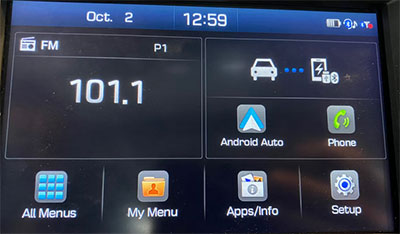
Using a USB data cable is the most direct way to connect a Redmi phone to a PC for transferring files. Redmi devices support USB File Transfer (MTP) and Photo Transfer (PTP) modes after connecting to a computer. Below is how to do it:
- Use a USB-A to USB-C cable (or USB-C to USB-C cable) that supports data transfer, not a charging-only cable.
- Plug one end of the USB cable into your Redmi phone.
- Connect the other end to your PC/laptop.
- Unlock your Redmi phone.
- Swipe down the notification panel.
- Tap the USB connection notification.
- Select File Transfer/Android Auto (MTP).
- Open This PC (Windows File Explorer).
- Find your Redmi device.
- Open the internal storage and copy files such as photos, videos, music, and documents.
Section 2: How to Connect Redmi to PC/Computer via Portable Hotspot
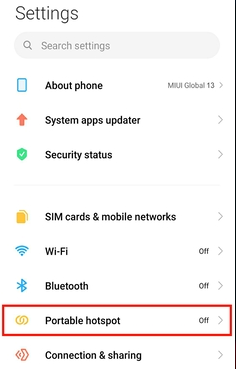
A wireless connection between Redmi and a computer can be created with Portable Hotspot by sharing the phone's network through Wi-Fi. After enabling the hotspot on Redmi, users can connect their PC to the phone's Wi-Fi network and access the internet without a USB cable. This method is mainly used for network sharing rather than moving files between devices. Below is how to do this:
- Open Settings on your Redmi phone.
- Go to Connection & sharing (or Portable hotspot).
- Tap Portable hotspot.
- Select Set up portable hotspot.
- Set the hotspot name (SSID) and password, then save the settings.
- Turn on Portable hotspot.
- On your PC: Open Wi-Fi settings > Find your Redmi hotspot name > Select it and enter the password.
- Once connected, the PC can use the Redmi mobile network connection.
Section 3: How to Connect Redmi to PC via Windows' built-in Wireless Display Feature
Screen mirroring from Redmi to a computer is also possible with Windows' built-in Wireless Display Feature. By enabling Wireless Display on Windows and turning on the cast or screen projection option on Redmi, users can display the phone screen on a compatible PC. This connection is useful for viewing photos, presentations, apps, and other content on a larger screen. Below is how you can do it:
- On your PC, go to Settings → Apps → Optional features → Add a feature.
- Search for Wireless Display and install it.
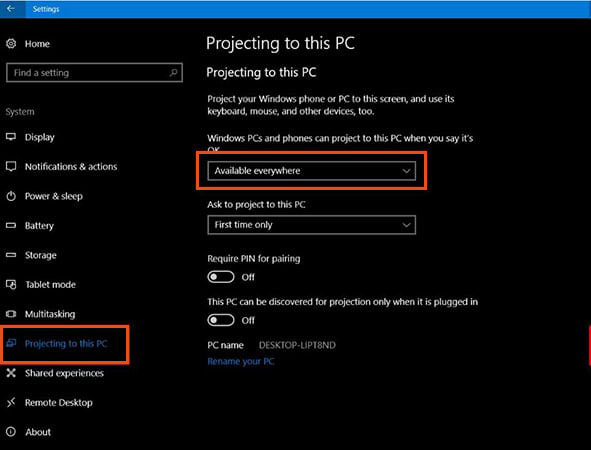
- Open Settings → System → Projecting to this PC.
- Configure options (e.g., "Available everywhere", PIN requirement, etc.).
- After installation, launch the Connect app on your PC.
- This makes your PC discoverable for casting.
- On your Redmi phone, go to Settings → Connection & sharing → Cast/Wireless display.
- Turn on Wireless display.
- Your PC should appear in the list of available devices.
- Tap it to start mirroring your phone's screen.
Section 4: How to Connect Redmi to PC with or without USB Cable (Versatile)
Connecting a Redmi phone to a PC becomes easier with MobiKin Assistant for Android (Windows/Mac), which supports both USB cable and Wi-Fi connections for device management. The program works with many Redmi devices and offers a convenient option for managing phone files beyond basic USB transfers.
This tool lets you seamlessly connect, transfer, and back up data (contacts, photos, videos, apps, and more) between your phone and PC. It works flawlessly with nearly all Android devices, including every Redmi series (Redmi Note 15, Redmi 15/14, etc), while letting you manage everything on your computer's large screen. Plus, it protects your privacy, offers a free trial, and delivers reliable results without interruptions.
How to Use MobiKin Assistant for Android for Redmi to PC connection?
Option 1: Connect Redmi to PC via USB
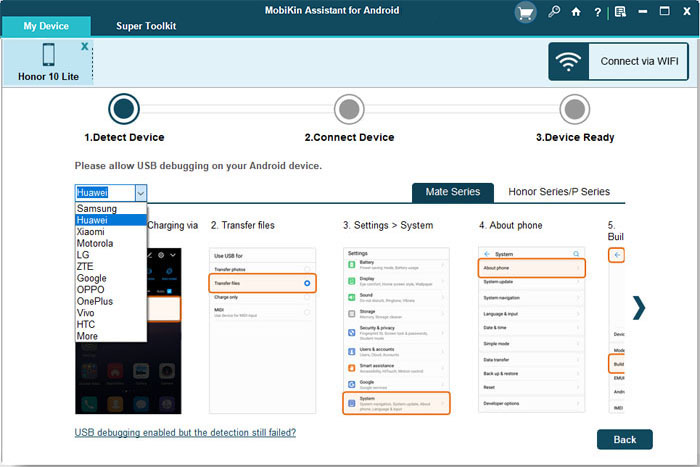
- Launch the software and use a USB cable to connect your Redmi device to the computer.
- Follow the instructions to enable USB debugging on your Redmi device.
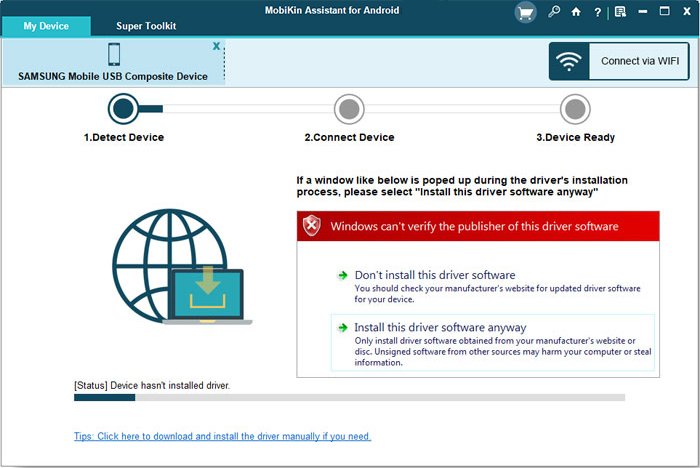
- The tool will check for any installed drivers on your computer.
- If none are found, it will begin downloading the necessary drivers.
- After the download is complete, follow the prompts to install the driver. (Come across the driver installation issues? Refer to the guidelines - What to do if the driver installation fails?)
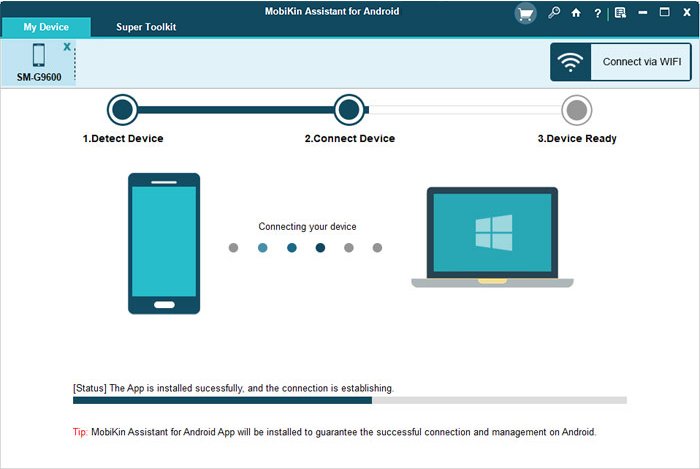
- The program will automatically install the Assistant for Android (Android Version) on your device.
- If prompted for authorization on your Redmi, complete the authorization process. If not prompted, click "OK" on your computer.
- Wait for the automatic installation to complete, allowing you to transfer, back up, restore, or manage your phone data effortlessly.


Option 2: Connect Redmi to PC via WiFi
- Enable the "WiFi" feature on your Redmi phone and connect to a stable WiFi network.
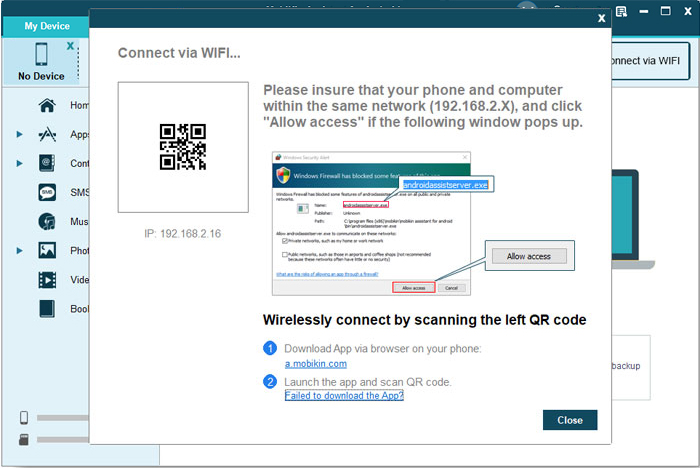
- Open the program on your computer and select "Connect via WIFI" from the top right corner.
- Download MobiKin Assistant for Android (Android Version) on your Redmi device.
- Open the Apk file, tap "Scan QR Code," and use your Redmi to scan the QR code displayed on your computer.
- Your Redmi device is now successfully connected to the PC.
- Ensure that both your Redmi phone and computer are connected to the same network.
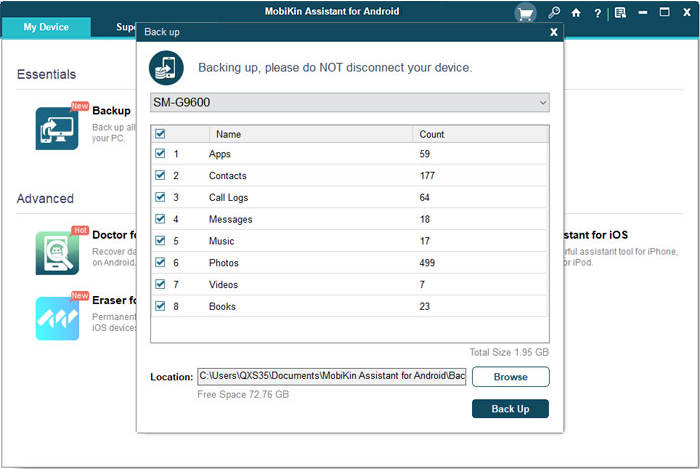
- You can now easily back up and restore data from your Redmi to your PC with just one click.
- Transfer media files, contacts, SMS, call logs, and more between your Redmi and PC without any data loss.
- Furthermore, manage your Redmi phone on your computer seamlessly using this tool.
Video Instructions:
FAQs about Connecting Redmi to PC
Q1. Why is my Redmi phone not connecting to my PC via USB?
Your Redmi may fail to connect because of a faulty cable, a charging-only USB cable, outdated drivers, incorrect USB settings, or a locked phone. Try using another data cable, reconnecting the device, and selecting File Transfer mode from the USB notification.
Q2. How do I enable USB debugging on Redmi for PC connection?
Open Settings > About phone, tap the MIUI/HyperOS version several times to activate Developer Options. Then go to Settings > Additional settings > Developer options and enable USB debugging.
Q3. Why does my Redmi only charge when connected to my computer?
This usually happens because the phone is set to charging mode or the USB cable does not support data transfer. Change the USB option to File Transfer (MTP) or replace the cable with a proper data cable.
Q4. How do I transfer photos from Redmi to a computer?
Connect Redmi to the computer using a USB cable, select Photo Transfer (PTP) or File Transfer (MTP), then open the DCIM folder on your PC to copy photos and videos.
Q5. How do I connect Redmi to a PC using Bluetooth?
Enable Bluetooth on both your Redmi phone and PC, pair the two devices, and allow file sharing permissions. After pairing, you can send files wirelessly between the phone and computer.
Q6. Can I connect Redmi to a Mac computer?
Yes. You can connect Redmi to a Mac using a USB cable, wireless transfer tools, cloud storage, or Android file management applications that support macOS.
Q7. How do I connect Redmi to a PC when the screen is broken?
If USB debugging was enabled before the screen damage, you may still access the phone with certain PC tools. Otherwise, you may need to repair the screen first or use previously created backups.
Q8. Do I need Xiaomi drivers to connect Redmi to a PC?
In most cases, Windows automatically installs the required drivers when you connect Redmi through USB. If the phone is not detected, updating USB drivers or installing suitable Xiaomi/Android drivers may help.
Q9. What should I do if my PC cannot recognize my Redmi phone?
Try another USB port, replace the USB cable, restart both devices, unlock the phone, change the USB mode to File Transfer (MTP), and check whether the required drivers are installed. If the issue continues, use another connection method or an Android data management tool.
Q10. What is the best way to manage Redmi data on a PC?
For simple file transfers, a USB connection is enough. If you need to manage contacts, SMS, photos, videos, apps, and backups together with or without USB, you can use an Android management program such as MobiKin Assistant for Android.
Related Articles:
How to Fix Black Screen on Redmi Phone? 8 Basic Ways & 1 Expert Fix
4 Most Admirable Redmi Sync Software That Merit Attention
How to Recover Deleted Contacts on Redmi? 4 Trustworthy Options
5 Best Redmi Data Eraser Software [Option 1 Is the Most Desirable]
