
StarzMirror Review 2026: Overall Performance & Best Alternative
TL;DR:
A screen mirroring tool should provide stable performance and work well with your devices.
- Screen Mirror offers stable USB and wireless mirroring, broad device compatibility, and keyboard/mouse control for supported devices.
- If StarzMirror's trial limits or connection issues are a concern, Screen Mirror is a practical alternative for smoother screen mirroring.
A StarzMirror review often begins with curiosity about whether this tool can truly evaluate its usefulness as a phone-to-PC screen mirroring tool. Readers want to know if it can check its performance on iOS/Android, whether it handles gaming smoothly, and how reliable it is for presentations or app testing.
This review provides clarity on its strengths, such as multi-device mirroring, its weaknesses, like wireless latency and the short free trial period, and many more.
Part 1: What Is StarzMirror
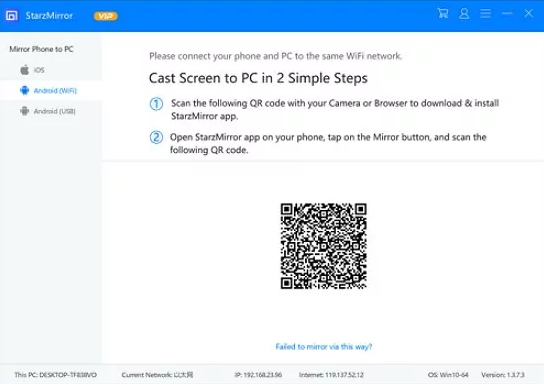
StarzMirror is a screen-mirroring and sharing software developed by StarzSoft that allows users to mirror iPhone and Android devices to a PC, supporting both WiFi and USB connections. It is widely used for remote meetings, training, and gaming, offering features like multi-device mirroring, screen recording, annotations, and even keyboard/mouse control for Android devices.
The tool is designed for cross-platform compatibility (Windows, macOS, iOS, Android) and integrates with conferencing platforms like Zoom, Teams, and Google Meet.
You May Also Like: How to Fix Screen Mirroring Not Working? 16 Smart Strategies Here
Part 2: Main Features of StarzMirror
StarzMirror is a versatile screen-mirroring tool that supports both WiFi and USB connections, enabling users to mirror iOS and Android devices to a PC with features like multi-device mirroring, screen recording, and annotations. It is widely used for remote meetings, gaming, and online lessons, offering cross-platform compatibility and integration with conferencing platforms such as Zoom, Teams, and Google Meet. Here are the details:
|
Feature
|
Details
|
|
Cross-platform support |
Works on Windows, macOS, iOS, and Android |
|
Multi-device mirroring |
Connect up to 6 devices simultaneously |
|
Connection modes |
WiFi mirroring for iOS/Android; USB mirroring for Android |
|
Screen sharing |
Real-time sharing of presentations, documents, apps |
|
Annotations & whiteboard |
Draw, highlight, and collaborate during sessions |
|
Screen recording & screenshots |
Capture mirrored sessions; unlimited recording in VIP plan |
|
Presenter control |
Manage and lock shared screens for meetings |
|
Gaming optimization |
Play mobile games on PC/TV with keyboard/mouse input |
|
Entertainment use |
Mirror movies, FaceTime calls, and video apps to larger screens |
|
Education use |
Ideal for online lessons, mimics projector-like experience |
|
Secure connections |
Encrypted sessions to protect data |
More to Explore: How to Screen Mirror without WiFi? 5 Most Admirable Methods 2026
Part 3: Pricing & Tips to Pay For StarzMirror VIP Subscription
StarzMirror VIP Pricing Plans
|
Plan
|
Cost
|
Billing Cycle
|
|
Monthly
|
$5.95 |
Every month |
|
Quarterly
|
$14.95 ($4.98/month) |
Every 3 months |
|
Annual
|
$29.95 ($2.50/month) |
Every year |
|
Lifetime
|
$129.95 |
One-time payment |
Tips to Pay for StarzMirror VIP
- Start with free trial: Test mirroring and recording features before committing.
- Choose annual billing: At $2.50/month effective cost, it's the most economical option.
- Lifetime plan: Ideal if you plan long-term use, avoiding recurring payments
- Secure payment methods: Pay only via the official StarzSoft store to avoid scams.
- Cancel anytime: Auto-renewal is enabled, but you can cancel easily if needed.
Key Considerations
- Trial limitations: 15 minutes mirroring, 3 minutes recording, watermarks.
- VIP unlocks: Unlimited mirroring, unlimited recording, customizable Android keyboard, no watermarks.
Part 4: Set Up & Use StarzMirror
01 Install StarzMirror
- Search for StarzMirror in your device's app store.
- Tap Install and wait for the app to download.
- Open the app once installation is complete.
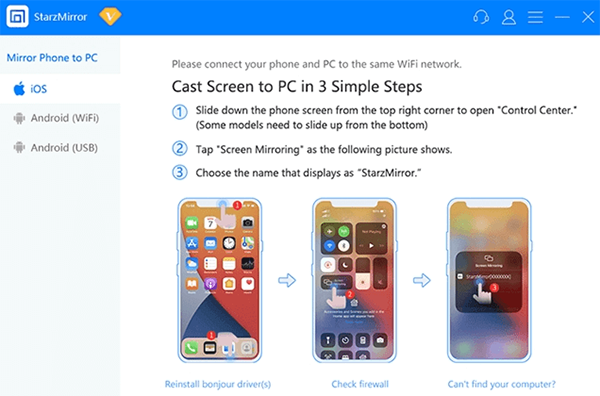
02 Set Up on iOS
- Swipe down > Control Center > Screen Mirroring.
- Open Control Center on your iPhone/iPad.
- Tap Screen Mirroring.
- Select StarzMirror from the list of available devices.
03 Set Up on Android
- Open the StarzMirror app.
- Allow necessary permissions (USB debugging if using a cable).
- Choose WiFi or USB connection mode.
04 Connect via USB (Optional)
- Plug your phone into your PC using a USB cable.
- Select USB connection in the StarzMirror app.
- Confirm permissions on your phone.
05 Start Mirroring
- Choose the target device (PC/TV).
- Begin mirroring instantly.
- Use features like screenshots, recording, and annotations.
Part 5: Pros & Cons of StarzMirror
Pros of StarzMirror
- Ease of setup: Simple installation and quick connection via WiFi or USB.
- Multi-device mirroring: Supports up to 6 devices simultaneously.
- Cross-platform compatibility: Works with Windows, macOS, iOS, and Android.
- Interactive tools: Whiteboard, annotations, and presenter controls for meetings or lessons.
- Gaming optimization: USB mode allows keyboard/mouse input for smoother gameplay.
- Screen recording: Capture mirrored sessions with screenshots or video.
- Secure connections: Encrypted sessions with valid SSL certificates.
Cons of StarzMirror
- Trust issues with download sites: Some third-party sites (like Apponic) show hidden ownership and low trust scores.
- Trial limitations: Free trial restricts mirroring to 15 minutes and recording to 3 minutes, with watermarks.
- USB setup complexity: Requires enabling developer mode and USB debugging on Android.
- Performance depends on WiFi: Lag may occur on weak networks
- Hidden WHOIS data: Ownership details are concealed, raising transparency concerns.
- Low traffic ranking: The site hosting StarzMirror has a low Tranco rank, which may indicate limited popularity or trust.
Part 6: A More Fluent StarzMirror Alternative
Why Screen Mirror is a Good StarzMirror Alternative?
- Broader compatibility: Supports newer iOS and Android versions compared to StarzMirror.
- Better gaming features: Offers customizable keyboard mapping and smoother gameplay controls.
- Professional use cases: Stronger integration with live streaming and conferencing platforms.
- Flexible connections: Multiple connection methods (USB, WiFi, QR Code, AirPlay) for convenience.
- High performance: Lag-free mirroring with 1080P/60FPS ensures smoother experiences than StarzMirror's WiFi-dependent performance.
Key Features of Screen Mirror:
> Cross-platform: Works with Windows, Mac, iOS, and Android.
> HD mirroring: 1080P resolution at 60 FPS.
> Keyboard & mouse: Full device control from PC.
> Game mapping: Customizable shortcuts for mobile games.
> Lag-free: Stable USB/WiFi connections.
> Recording: Capture gameplay or lessons.
> Streaming: Broadcast to YouTube, Twitch, Zoom, etc.
> File transfer: Move files between Android and PC.
> Full-screen: Immersive viewing mode.
> Easy setup: Connect via USB, WiFi, QR Code, or AirPlay.


How to use the best StartMirror alternative for screen mirroring? (Consider iPhone-to-computer mirroring as a practical example of this.)
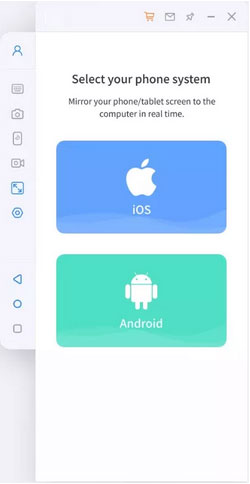
01 Launch Screen Mirror - Open the Screen Mirror app on your computer after installation.
- Ensure both your iPhone and PC are connected to the same Wi-Fi network.
- From the program interface, select iOS as the device type.
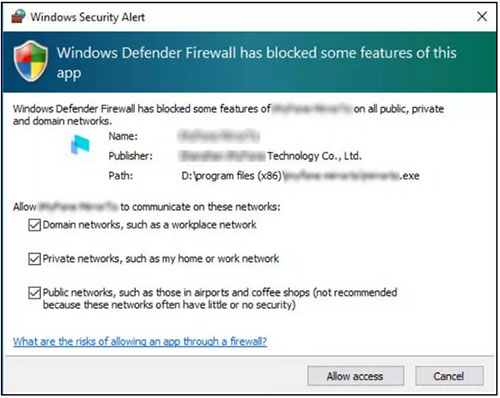
02 Grant Network Access - Allow the app to communicate over your networks.
- Approve access for domain, public, and private networks when prompted.
- This ensures smooth connectivity between devices.
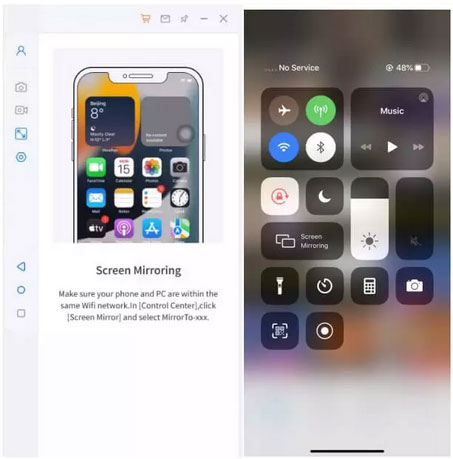
03 Enable Screen Casting - Activate mirroring from your iPhone.
- On iPhone: Control Center > Screen Mirroring.
- Choose the Screen Mirror tool from the list.
- Your iPhone display will begin streaming to the PC.
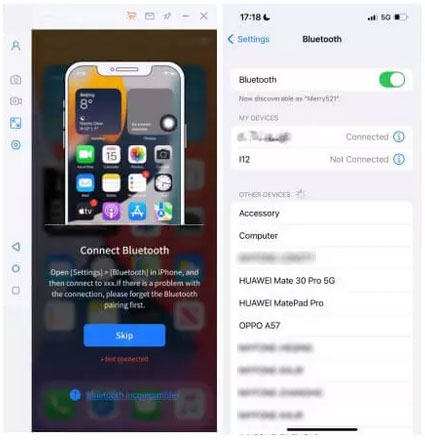
04 Pair for Control - Connect your iPhone and PC for full control.
- On iPhone: Settings > Bluetooth.
- Pair your iPhone with the casting computer via Bluetooth.
- Once paired, control your iPhone using the PC's keyboard and mouse.
FAQs about StarzMirror
Q1: What's the difference between free trial and VIP?
The VIP subscription removes all restrictions, offering unlimited mirroring and recording, watermark-free sessions, and customizable Android keyboard controls. It essentially unlocks the full potential of the app.
Q2: Do I need a credit card for the trial?
No, you don't need to provide credit card details to access the free trial. This makes it easy to test the software without financial commitment.
Q3: What devices are supported?
StarzMirror supports PCs, TVs, tablets, smartwatches, and smartphones running iOS or Android. This wide compatibility ensures it can be used across multiple platforms.
Q4: What payment methods are accepted?
Payments can be made via PayPal, Visa, MasterCard, American Express, Discover, JCB, Diners' Club, and wire transfer. This variety ensures global accessibility.
Q5: Is StarzMirror secure?
Yes, StarzMirror uses encrypted connections to protect your data during mirroring. This ensures that your sessions remain private and secure.
Q6: Who typically uses StarzMirror?
The app is popular among self-employed professionals, small and midsize businesses, educators, and gamers. Its flexibility makes it suitable for both work and leisure.
Q7: Why is StarzMirror not working?
Common reasons include unstable WiFi, outdated drivers, or not enabling USB debugging on Android. Checking your network connection, updating the app, and ensuring correct setup usually resolves the issue.
Q8: What if StarzMirror doesn't work?
If the app fails to connect, try switching from WiFi to USB mode, restarting both devices, or reinstalling the software. For persistent issues, contacting StarzSoft support is recommended.
The End
The journey through a StarzMirror review highlights both convenience and limitations. While it offers practical features, the restricted free usage and occasional lag leave many searching for a stronger option. That is where Screen Mirror earns recognition as the best StarzMirror alternative.
It delivers stable connections, broader compatibility, and smoother performance, making it a more dependable choice for professionals and casual users alike.
Related Articles:
4 Tested Ways for Screen Mirroring Motorola to PC/TV [Latest]
Kingshiper Screen Mirroring Review? Is It a Worthwhile Expenditure?
3 Tested Methods to Back Up Android Game Data to Computer/PC
