
How to Export POCO Contacts to Excel Spreadsheet? 4 Tried-and-true Ways
TL;DR:
This guide outlines several methods to export POCO contacts to Excel, each with its own strengths and limitations. Among them, MobiKin Assistant for Android provides a desktop solution that supports CSV export and handles large contact lists efficiently. It works well when you need a reliable tool for managing contacts directly from your computer.
"My phone is pretty old and it tends to overheat, especially during the summer. As you probably know, that's not good for its battery, so whenever it gets to around 39°C - how can I cool it off." -- from Reddit
POCO phones store numerous contacts, including phone numbers, email addresses, and other personal details, so keeping a separate copy can be useful for backup and management. Saving POCO contacts as an Excel-compatible file provides an additional copy in case contacts are accidentally deleted, lost, or corrupted.
If you need to organize, edit, print, or manage your contacts on a computer, follow this article to export POCO contacts to Excel with less hassle.
- Section 1: Export POCO Contacts to Excel Spreadsheet via Direct Export
- Section 2: Export POCO Contacts to Excel with MobiKin Assistant for Android [Lossless]
- Section 3: Download POCO Contacts to Excel via Export Phone Contacts to Excel
- Section 4: Export Contacts from POCO to Excel via Outlook Sync
- Q&A about Exporting POCO Contacts to Excel
Section 1: Export POCO Contacts to Excel Spreadsheet via Direct Export
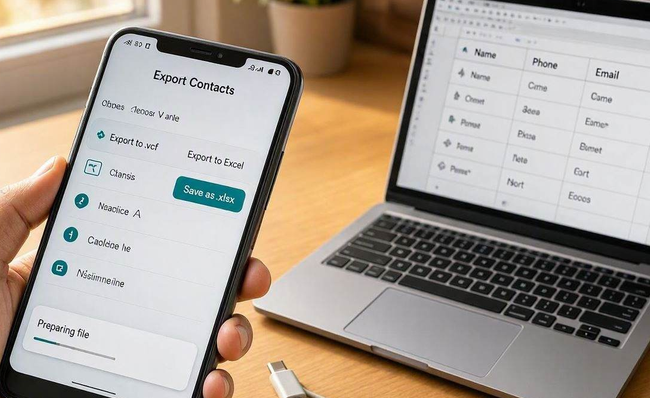
For exporting POCO C81/C75/C71/M8/M7/X8/X7/F8/F7 contacts to Excel, direct phone export provides a straightforward way to move saved contact details into a spreadsheet-friendly format. It can export names, phone numbers, email addresses, and other available contact fields from a POCO phone. The resulting file can then be opened and edited in Excel for easier contact management.
Quick Guide:
- Open the default Contacts app on your POCO phone.
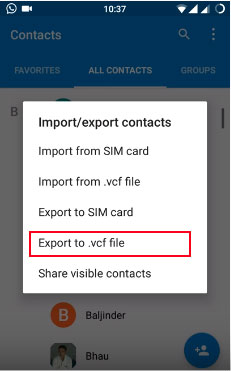
- Tap the three-dot menu (or More) and select Import/Export.
- Choose Export to storage (or Export to .vcf file) - this saves a VCF (vCard) file to your phone's internal storage.
- Transfer that VCF file to your computer (via USB cable, email, or cloud drive).
- On your computer, Open Microsoft Excel, go to File > Open and select the VCF file (Excel can sometimes open it directly).
- If Excel shows garbled text or fails, use a free online VCF-to-Excel converter (e.g., Convertio, Zamzar) to create a clean .xlsx file.
- Save the resulting file as an Excel workbook (.xlsx) - your contacts are now in a spreadsheet.
How can I use Gmail to export POCO contacts to Excel? Quick Look: On your POCO, go to Settings > Accounts > Google, enable Contacts sync, and wait for upload. Then on a computer, visit contacts.google.com, select all contacts, click Export > CSV, and open that file in Excel. Use this when direct phone export fails (e.g., VCF shows garbled text or missing export option), as Google Contacts gives a clean, Excel-ready CSV every time.
You Might Also Enjoy: Can I recover my lost contacts from my POCO phone when I cannot find them? Yes - here are 4 efficient methods.
Section 2: Export POCO Contacts to Excel with MobiKin Assistant for Android [Lossless]
If you need a desktop-based method, MobiKin Assistant for Android (Windows/Mac) can help transfer contacts from a POCO device to a computer. After connecting the phone and allowing the required permissions, you can select the contacts you want to export. The contacts can be saved in supported formats and organized on your computer for further use.
What Are the Key Features of MobiKin Assistant for Android?
|
Feature Category
|
Description
|
|
Contact Management |
Export contacts as CSV, VCF, HTML, XML, and more. CSV can be opened directly in Excel - this fulfills your need to export POCO contacts to Excel. Also allows adding, editing, deleting, and grouping contacts directly on your computer. |
|
One-click Backup & Restore |
Use the "Toolkit" to back up or restore your entire phone with one click - including contacts, SMS, call logs, photos, videos, music, apps, and documents. |
|
Comprehensive Data Management |
Manage SMS, call logs, photos, videos, music, and apps (install, uninstall, export .apk) right from your PC. |
|
Device & System Compatibility |
Fully supports POCO (Xiaomi) and almost all other Android brands. Available for both Windows and Mac. |
|
Connection Options |
Connect your phone to the computer via USB cable or Wi-Fi. |


Quick Guide:
Step 1: Connect your POCO phone to the computer. Use a USB cable to connect the device, launch the software, and enable USB debugging on your POCO phone so it can be detected.
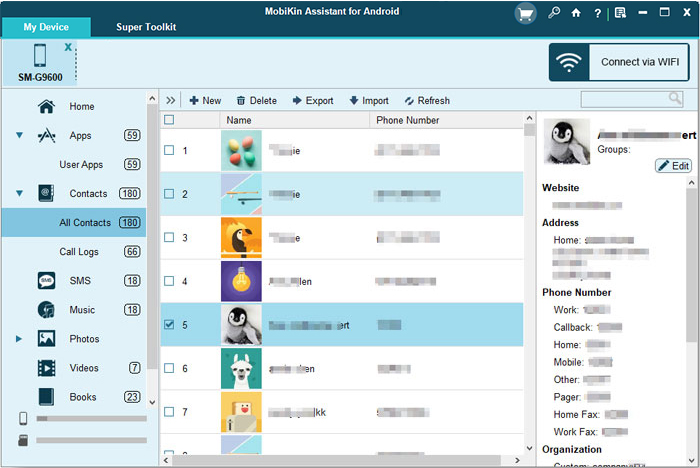
Step 2: Access your POCO contacts. Once the phone is recognized, select Contacts > All Contacts from the left panel to view your contact list. Choose the contacts you want to back up.
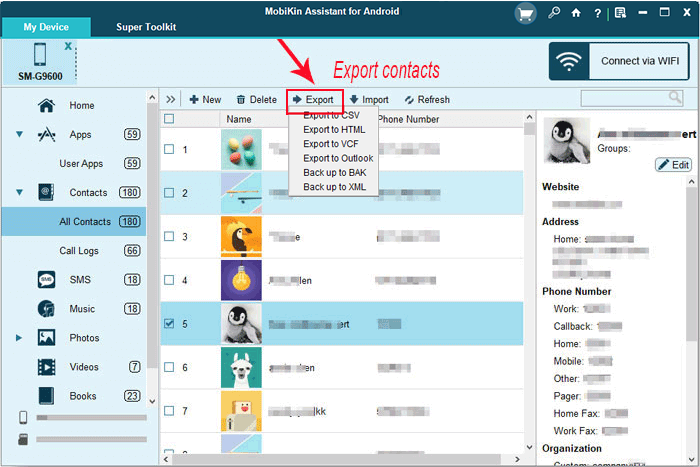
Step 3: Export the selected contacts. Click Export > Export to CSV to save the contacts to your PC or Mac. The software also lets you manage, edit, or delete POCO contacts directly from its interface.
Video Guide:
Click to See: How to Connect POCO to MacBook in 4 Simple & Secure Ways
Section 3: Download POCO Contacts to Excel via Export Phone Contacts to Excel
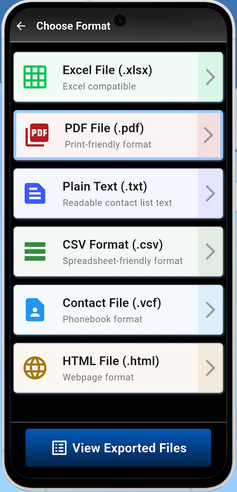
Another option, Export Phone Contacts to Excel, focuses specifically on converting phone contacts into an Excel-compatible file. Contact information can be selected from the device before being exported as a spreadsheet. This approach is useful when you want to keep POCO contacts in rows and columns for sorting, filtering, or editing.
Quick Guide:
- Install the Export Phone Contacts to Excel app from the Google Play Store on your POCO phone.
- Open the app and grant it the necessary permissions to access your contacts.
- Select the contacts you want to export (or choose "Select All").
- Tap the Export button and choose Excel File (.xlsx) as the output format.
- The app will generate an Excel file - save it to your phone's storage or share it directly via email, cloud drive, or USB to your computer.
Section 4: Export Contacts from POCO to Excel via Outlook Sync
For users who already manage contacts through Microsoft services, Microsoft Outlook Sync offers another route for moving POCO contacts into an Outlook account. Once the contacts are synchronized, they can be managed through Outlook and exported into a format that Excel can open. This method is particularly handy when your contacts are already stored or managed within the Outlook ecosystem.
Quick Guide:
- On your POCO phone, open the Contacts app and tap the menu (three lines or dots).
- Select Import/Export, and choose Export to storage - select VCF (.vcf) format as it is compatible with Outlook, then save the file to your phone.
- Transfer the exported .vcf file to your computer (via USB, email, or cloud drive).
- Open Microsoft Outlook on your computer, go to File > Import and Export, and choose Import from another program or file.
- Select vCard file (.vcf) as the file type, browse to locate the transferred .vcf file, and import all contacts into Outlook.
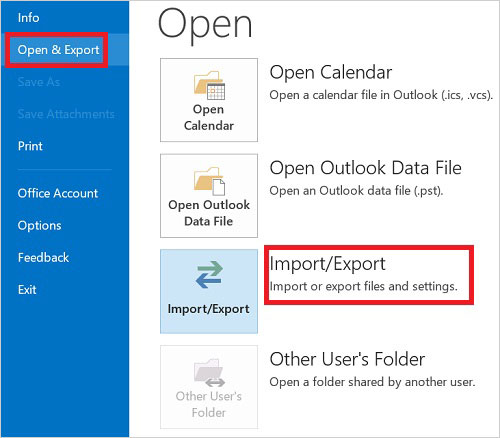
- Once contacts are in Outlook, go to File > Open & Export > Import/Export, choose Export to a file, select Comma Separated Values (CSV) or Excel (.xlsx) if available, and save the exported file.
- Open the exported CSV or Excel file in Microsoft Excel - your POCO contacts are now ready in a spreadsheet.
Q&A about Exporting POCO Contacts to Excel
Q1: What format does the phone's built-in export use? Can I open it directly in Excel?
A: Built-in export creates a .vcf file. Opening directly in Excel often gives garbled text. Convert via VCF-to-CSV tool or Excel's "Text to Columns".
Q2: Why does my exported file show garbled text when opened in Excel?
A: Usually an encoding issue (not UTF-8). Fix by saving with UTF-8 BOM or using Excel's Data → From Text/CSV import with the correct encoding.
Q3: I exported my contacts, but the phone numbers are incorrect (e.g., missing the +86 prefix). How can I fix this?
A: Check export settings for country code inclusion. If already exported, use Excel formulas (e.g., CONCATENATE) or Text to Columns to bulk-add the prefix.
Q4: How can I delete duplicate contacts after exporting to Excel?
A: Use Excel's built-in "Remove Duplicates" under the Data tab, choosing by name, phone number, or both.
Q5: Can I export contacts with their profile pictures/avatars?
A: Standard .vcf and CSV often don't include photos; you need third-party Android contact software that supports avatar export.
Q6: What is the best method for exporting a large number of contacts (over 1,000)?
A: All methods work, but POCO Cloud direct Excel export or a dedicated PC tool is smoothest. Excel supports over 1M rows, so size isn't an issue.
Q7: What is the difference between exporting as CSV and VCF?
A: CSV is highly Excel-compatible for editing; VCF is a standard format for sharing contacts across devices/platforms (iOS, Android).
Q8: What should I do if my exported contact notes or other details are missing?
A: Ensure all fields are selected during export. If data is in one column, use Text to Columns to split into name, phone, email, notes, etc.
In Closing
A well-organized contact list can save you from plenty of trouble when changing phones, restoring data, or dealing with unexpected contact loss. Whether you use dedicated software or another available method, exporting your POCO contacts to an Excel-compatible format gives you a convenient copy for future use.
After exporting your POCO contacts, open the CSV or Excel file and check several entries to make sure names, phone numbers, and email addresses are displayed correctly.
Related Articles:
How to Transfer WhatsApp from POCO to POCO? 4 Trustworthy Ways
5 Practical Techniques to Transfer Contacts from POCO to POCO
4 Effective Strategies to Unlock POCO Phone without Effort
5 Most Reliable Methods to Hard/Factory Reset POCO Phone [2026]
How to Transfer Photos from Computer/PC to POCO Phone? 5 Ways
