
4 Handy Ways to Retrieve Deleted Messages from Sony Xperia Phone
TL;DR:
In summary, this guide has introduced four practical ways to recover deleted messages from Sony Xperia, whether you have a backup or not. To improve the chances of successful recovery, act quickly after deletion and choose a reliable recovery solution like MobiKin Doctor for Android when no backup is available.
SMS messages help you stay connected with family, friends, and colleagues, but they can be lost due to accidental deletion, factory resets, virus attacks, or device damage. If you've lost important texts, you may be wondering how to retrieve deleted messages from Sony Xperia.
Sony Xperia doesn't have a Recycle Bin for SMS. However, deleted messages aren't erased immediately - they remain recoverable until overwritten, so stop using your phone as soon as possible to maximize the recovery success rate.
Next, let's see how to recover deleted messages from Xperia with/without a backup in detail.
- Way 1: How to Recover Deleted Messages from Sony Xperia Phone via Local Backup
- Way 2: How to Retrieve Deleted Messages from Sony Xperia via Xperia Companion Backup
- Way 3: How to Restore Deleted Messages from Sony Xperia with SMS Backup & Restore
- Way 4: How to Retrieve Deleted Messages from Sony Xperia without Backup
- FAQs for Recovering Deleted Messages from Sony Xperia
The video below demonstrates the entire process visually.
Way 1: How to Recover Deleted Messages from Sony Xperia Phone via Local Backup
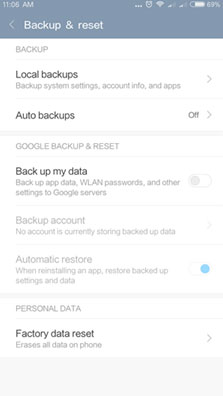
If you have backed up your Sony phone locally, you're advised to restore the deleted SMS from the device in this way. Here's how to use the local backup of your Sony Xperia to restore messages.
- On your Sony Xperia, go to Settings > Backup & reset.
- Find and tap the "Local backups" option.
- Choose a backup and hit "Restore" > "Restore Now".
- If the phone asks, please enter the password and press "OK".
You May Also Like:
Way 2: How to Retrieve Deleted Messages from Sony Xperia via Xperia Companion Backup
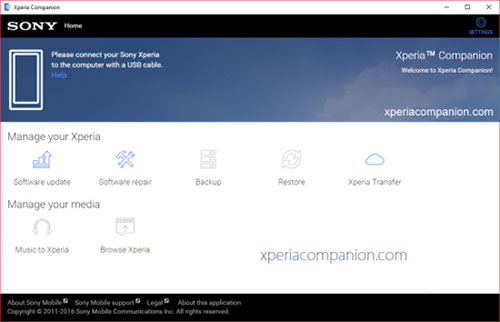
Designed for Sony Xperia backup and restore, Xperia Companion is only compatible with Sony cell phones. It enables you to recover Sony contacts, messages, videos, notes, photos, settings, etc., only when you previously kept a backup of your device.
How to retrieve deleted/lost messages from Sony Xperia via Xperia Companion backup?
- Connect Xperia to a computer with a USB cable.
- Launch Xperia Companion after the download and installation.
- Tap the "Restore" option under "Manage Your Xperia".
- When a list of backups appears, choose the one that includes the messages you need.
- Click on "Next".
- Select the text messages from the backup to restore.
- Click "Next" again to let the message restore complete.
Way 3: How to Restore Deleted Messages from Sony Xperia with SMS Backup & Restore
SMS Backup & Restore, a backup application that works like a cloud, can restore messages and call logs from existing backups available. Namely, you need to back up frequently in case the latest backup doesn't contain what you want.
How to back up and restore deleted messages from Sony Xperia via SMS Backup & Restore?
- Download SMS Backup & Restore on your Xperia phone.
- Install and launch the app, which will display the configuration menu.
- Select the items you wish to save (SMS, MMS, calls).
- Activate the sync with the service of your choice: Dropbox or Google Drive.
- Choose the backup frequency of the messages before making the copy. (You can also start the backup when you want by clicking "Back up now" directly.)
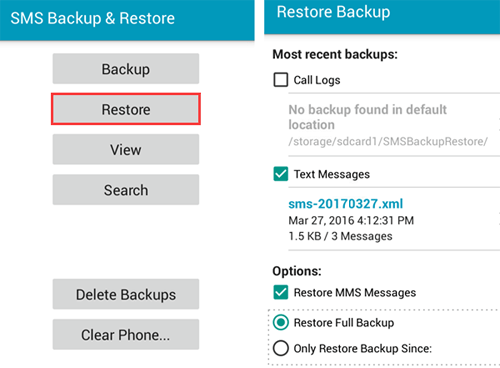
- To restore your texts, click on "Restore".
- Check your desired items from "Options" as required.
- Tap on "Restore" > "OK".
- Next, follow the directions to set the app as your default messaging app temporarily. (SMS Backup & Restore doesn't work?)
- Hit "Yes" to start retrieving your Xperia text messages.
Note: At times, this app only responds from the person being texted when taking a backup, according to some users from the Android Forum.
Extended Reading:
Way 4: How to Retrieve Deleted Messages from Sony Xperia without Backup
Well, what if you didn't back up your Sony text messages before you lost them? Namely, is it possible to recover deleted SMS on Sony Xperia without any backup? If you're looking desperately for the answer to this question, you've come to the right place. MobiKin Doctor for Android (Win and Mac) is powerful enough to carry the burden of restoring text messages and other Sony content you want in the absence of backup.
Key highlights of MobiKin Doctor for Android:
- Easily and quickly recover all deleted/lost text messages from Sony Xperia.
- Aside from text messages, it can also restore files like contacts, documents, photos, videos, music, call logs, and more.
- The recovered SMS can be saved on the computer in a readable and editable file format.
- Let you preview and select what you want before recovery.
- Work for various Android devices, including Sony Xperia 1 VII, 10 VII, 1 VI, 10 VI, XZ4/XZ3, Z5/Z4/Z3, Xperia Neo, Xperia Play, Xperia Ray, Xperia X10, Xperia X8, Xperia Mini, etc., Samsung, Huawei, Motorola, Xiaomi, OPPO, vivo, etc.
- It won't disclose your privacy.
Sound great? Just give it a download and try to use it to restore your lost messages on Sony Xperia now.


How to retrieve deleted messages from Sony Xperia internal memory via MobiKin Doctor for Android?
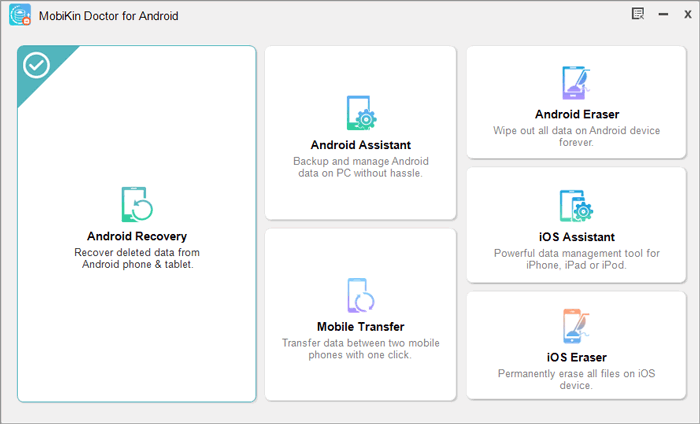
Step 1: Run the Sony data recovery program
Run the SMS recovery software on a computer after the installation. Select "Android Recovery" from the toolbox.
Step 2. Connect Sony Xperia to a computer
Connect your Sony Xperia phone to the computer via a USB cord. Now, follow the screen prompts to get your phone recognized by the product.
Step 3. Let the software scan Xperia
After the recognition, mark "Messages" and click "Next" from the screen. Next, refer to the wizard to let the software scan your device, and you'll soon access all the text messages on Xperia.
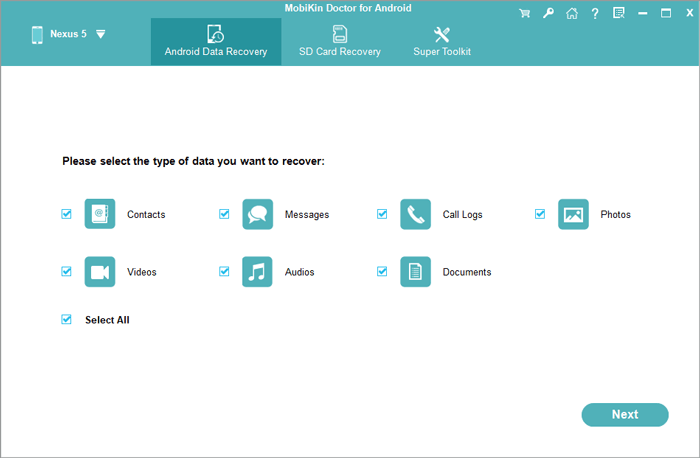
To recover messages from the Android internal memory, you need to follow the screen prompts to root your Sony phone for a safe and complete scan.
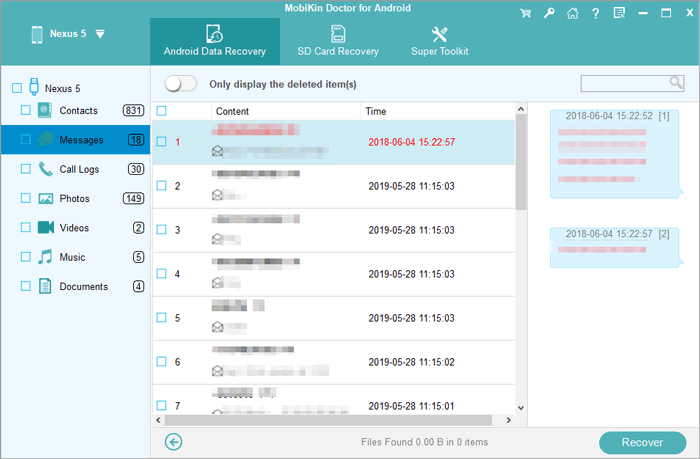
Step 4. Recover deleted text messages from Sony Xperia
Preview all the texts on the program interface and pick your desired ones to restore. Finally, tap "Recover" from the lower right to kick-start the Sony SMS recovery. Once done, you can check the messages on this computer.
FAQs for Recovering Deleted Messages from Sony Xperia
Q1. Does Sony Xperia have a built-in Recycle Bin for deleted text messages?
No. Unlike photos in some gallery apps, Sony Xperia phones generally do not provide a built-in Trash or Recycle Bin for deleted SMS messages. Once deleted, messages are removed from the messaging app.
Q2. Where are deleted SMS messages stored on Sony Xperia?
Deleted SMS messages are not moved to another visible folder. Instead, the phone marks their storage area as available space, where new data may eventually replace them.
Q3. Can Google Drive restore deleted messages on Sony Xperia?
Google Drive may help restore SMS messages if you previously backed up your Xperia phone and the backup contains the deleted texts. However, restoring a backup usually requires resetting the device.
Q4. Will recovering deleted messages erase existing data on my Sony Xperia?
A reliable recovery tool usually does not delete current files during the scanning or recovery process. However, creating a backup before recovery is still recommended.
Q5. How long can deleted messages remain recoverable on Sony Xperia?
There is no fixed time limit. Deleted messages may remain available until new data overwrites the same storage area. Using the phone less after deletion improves the recovery possibility.
Q6. Can I recover deleted WhatsApp messages on Sony Xperia?
Yes, but WhatsApp messages require different recovery methods. You can restore them from a Google Drive backup or use specialized WhatsApp recovery software if no backup exists.
Q7. How can I prevent losing important messages on Sony Xperia in the future?
Regularly back up your SMS messages using Google Backup or third-party backup apps. Keeping copies of important conversations can help you restore them quickly if accidental deletion occurs.
In a Nutshell
OK, let's finish up. We just discussed how to retrieve deleted messages from Sony Xperia in 4 easy ways. Hopefully, you can retrieve your lost texts from Sony Xperia via your backup files without any hassle. Yet if you didn't run a backup at all, don't hesitate to pick MobiKin Doctor for Android. It is a great tool to help you out whether you have a previous backup or not.
Related Articles:
How to Recover Deleted Files from Sony SD Card? 4 Methods You Need to Know
5 Innovative Ways to Transfer Data from iPhone to Sony Xperia
How to Transfer Data to SD Card on Sony Xperia in 4 Easy Ways?
Sony Xperia Broken/Dead Screen Data Recovery: 4 Solutions & Extra Tips
