Is Factory Reset Enough Before Selling an iPhone? What You Need to Know
TL;DR:
Before selling your old iPhone, is a factory reset really enough to protect your personal data? This guide covers:
- What a factory reset actually removes and whether it is safe for resale.
- What you should do before resetting your iPhone.
- How to permanently erase iPhone data with MobiKin Eraser for iOS.
- The differences between factory reset and professional data erasing tools.
Selling an old iPhone is not just about finding a buyer and packing the device into a box. Your phone may still hold years of personal memories, private conversations, and account information. While a factory reset seems like the obvious solution, many users wonder whether it can completely protect their privacy. In this guide, we'll explain what happens after resetting an iPhone, things you have to do before selling your iPhone, and how to securely erase data for extra peace of mind.
- Part 1: Is Factory Reset Enough Before Selling an iPhone?
- Part 2: What to Do Before Factory Resetting Your iPhone for Sale
- Part 3: Erase iPhone Data Permanently with MobiKin Eraser for iOS [Recommend]
- Part 4: Factory Reset vs MobiKin Eraser for iOS: Which Is Better?
- FAQs About Factory Resetting iPhone Before Selling
Part 1: Is Factory Reset Enough Before Selling an iPhone?
Before selling your old iPhone, you may wonder: "Is a factory reset enough to remove everything and keep my personal data safe?" The short answer is: for most users, yes, a factory reset is usually enough. However, if your iPhone contains sensitive information, such as private photos, work files, personal messages, or account details, you may want extra protection.
A factory reset, also known as "Erase All Content and Settings" on iPhone, removes your personal data, including photos, videos, contacts, messages, apps, and settings. After the process is complete, your iPhone returns to the setup screen, just like a new device.
What Does Factory Reset Do on an iPhone?
When you reset your iPhone before selling it, the device will:
- Delete photos, videos, messages, contacts, and other personal files.
- Remove installed apps and customized settings.
- Sign out of some Apple services.
- Restore the iPhone to its original setup state.
For everyday users who simply want to sell or give away their iPhone, using Erase All Content and Settings is the standard method recommended by Apple.
Is Factory Reset Enough to Sell an iPhone Safely?
In most cases, a factory reset is enough because modern iPhones use built-in encryption to protect stored data. Once the device is erased, your old files are no longer accessible through normal methods.
However, a factory reset is mainly designed for quickly preparing an iPhone for a new owner. If you have stored highly private information on your device or plan to sell it through online marketplaces, you may prefer a more thorough data erasing solution.
A professional iPhone data eraser like MobiKin Eraser for iOS can provide additional peace of mind by overwriting existing data and making recovery much more difficult. You can navigate to part 4 to see the differences between Factory Reset and Permanent Data Erasure.
Part 2: What to Do Before Factory Resetting Your iPhone for Sale
Before you reset your iPhone and hand it over to a new owner, there are a few important things you should do first. A factory reset will remove your personal data from the device, but taking a few extra steps can help prevent data loss and make sure the iPhone is ready for its next user.
Follow these steps before erasing your iPhone:
Step 1. Back Up Your Important iPhone Data
A factory reset will permanently remove everything stored on your iPhone, so make sure you have a backup before starting.
You can back up your data using:
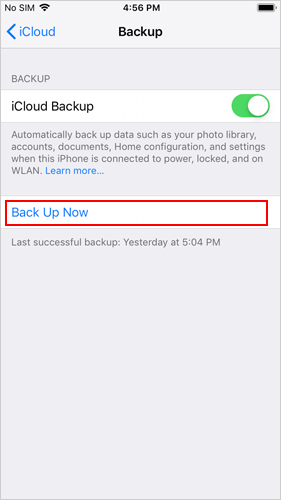
- iCloud: Go to Settings > [your name] > iCloud > iCloud Backup and tap "Back Up Now".
- Computer backup: Use Finder on Mac or iTunes on Windows to create a local backup. Also, you can use a professional third-party tool like MobiKin Assistant for iOS to back up your iPhone data selectively or completely with one click.
If you are switching to a new iPhone, you can also transfer your data directly to the new device before wiping the old one.
Step 2. Sign Out of Your Apple Account
Before selling your iPhone, you should sign out of your Apple Account (Apple ID) to remove your account from the device.
To do this:
- Open Settings.
- Tap your name at the top.
- Scroll down and tap "Sign Out".
- Enter your Apple Account password if required.
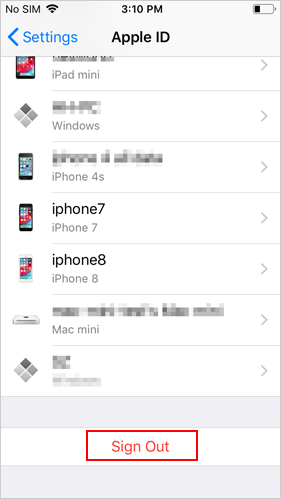
This step also disables Find My iPhone and helps prevent Activation Lock issues for the next owner. (What Happens If I Sign Out of My Apple ID?)
Step 3. Remove Personal Information and Connected Devices
Besides your files and apps, your iPhone may still contain other personal settings and connections. Before resetting, remember to:
- Remove Apple Pay cards
- Unpair your Apple Watch
- Remove SIM cards or transfer eSIM
- Sign out of apps that contain personal accounts
- Disconnect Bluetooth accessories
These small steps can help ensure that no personal information is left behind.
Step 4. Factory Reset Your iPhone
After backing up your data and signing out of your account, you can erase your iPhone:
- Open Settings.
- Tap "General".
- Select "Transfer or Reset iPhone".
- Tap "Erase All Content and Settings".
- Follow the on-screen instructions to complete the process.
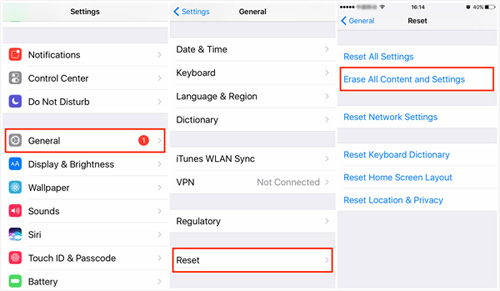
Once finished, your iPhone will restart and display the setup screen. At this point, it is ready for a new owner to set up.
Part 3: Erase iPhone Data Permanently with MobiKin Eraser for iOS
If you plan to sell, donate, or give away your old iPhone, simply deleting files or performing a factory reset may not give you complete peace of mind. To better protect your privacy, a professional data erasing tool can help permanently remove personal information from your device.
MobiKin Eraser for iOS is designed to securely wipe data from iPhone and iPad, making it easier to prepare your device before handing it over to someone else. With a few simple clicks, you can erase personal files, settings, and other private information without manually removing data one by one.
What can MobiKin Eraser for iOS do for you?
- Permanently erase everything from your iPhone with no recovery possibilities.
- Provides three erasing levels to meet different privacy needs
- Delete all your private iPhone data, including contacts, photos, videos, music, text messages, call logs, documents, browsing history, and others.
- Provides extra protection when you sell your iPhone to strangers, trade it in, or recycle it.
- Apply to a whole range of iDevices, covering iPhone 17/16/15/14/13/12/11/X/8/7/6, iPad 11/10/9/8/Pro/Air/mini, etc.
- It won't track your privacy.


How to Permanently Erase an iPhone with MobiKin Eraser for iOS:
Step 1. Connect Your iPhone to a Computer
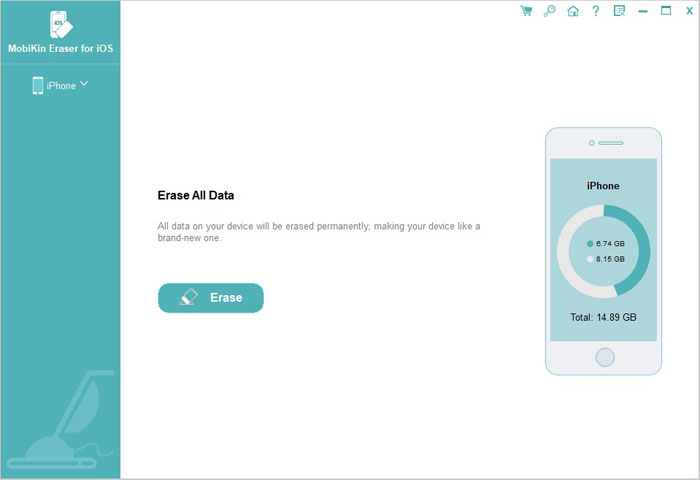
Download and install MobiKin Eraser for iOS on your computer, then launch the program. Connect your iPhone to the computer using a USB cable and follow the on-screen instructions to let the software detect your device.
Step 2. Choose an Erasing Security Level
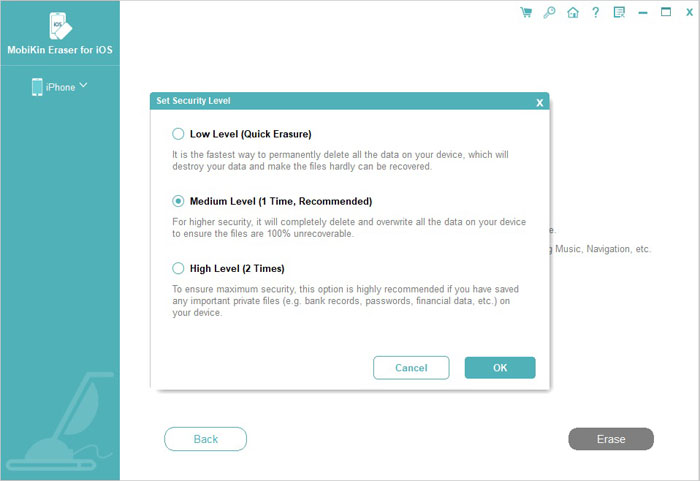
After your iPhone is recognized, click the "Erase" option from the main interface. Then follow the instructions to access the "Select Security Level" page. Here, you can choose from three available options: Low Level, Medium Level or High Level. Select the level that matches your privacy requirements.
Step 3. Start Erasing Your iPhone Data
After selecting a security level, type "Delete" in the required field to confirm the operation. Then click "Erase" again to start wiping all data from your iPhone.
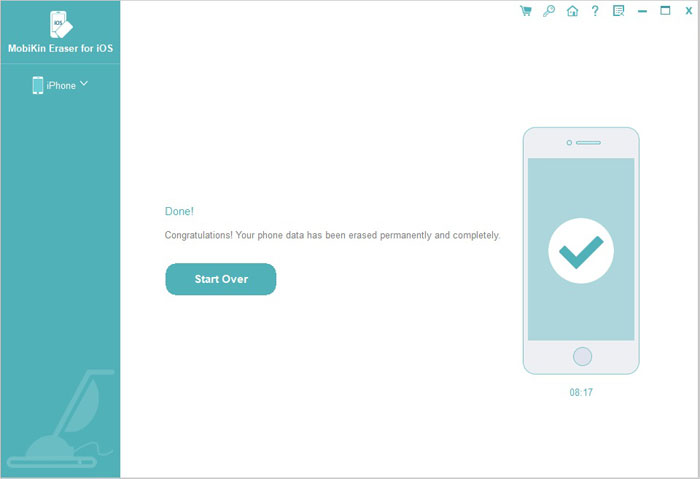
Wait for the process to finish. Once completed, your iPhone will be cleaned and ready for a new owner without your personal information left behind.
Part 4: Factory Reset vs MobiKin Eraser for iOS: Which Is Better?
When preparing an iPhone for sale, both factory reset and MobiKin Eraser for iOS can help remove your personal information. However, they are designed for different situations. A factory reset is a quick built-in option provided by Apple, while a professional erasing tool offers more control and stronger privacy protection.
So, which one should you choose? It depends on how much protection you need.
|
|
Factory Reset
|
MobiKin Eraser for iOS
|
|
Ease of use
|
Very easy, built into iPhone settings
|
Easy with a computer
|
|
Remove Personal data
|
Yes
|
Yes
|
|
Requires extra software
|
No
|
Yes
|
|
Erasing control
|
Limited
|
Offers different erasing levels
|
|
Best for
|
Basic device reset
|
Selling, donating, or giving away an old iPhone
|
|
Privacy protection
|
Standard
|
Stronger data protection
|
Which One Should You Choose Before Selling an iPhone?
There is no one-size-fits-all answer. A factory reset is convenient and works well for basic situations. But if protecting your privacy is your top concern, a dedicated data erasing tool can give you an extra layer of security.
In short:
- Selling an iPhone to someone you trust? A factory reset may be enough.
- Selling, donating, or recycling an old iPhone? MobiKin Eraser for iOS is a safer choice for permanently removing personal data (Prepare iPhone for Trade in: 10 Things You Must Do).
By choosing the right method, you can prepare your iPhone for its next owner while keeping your personal information protected.
FAQs About Factory Resetting iPhone Before Selling
Q1. Will a factory reset remove my photos from iCloud?
No. A factory reset only removes data stored on your iPhone. It does not delete photos, videos, or other files that are already synced to iCloud.
If you want to remove iCloud data as well, you need to manage it separately through your Apple Account settings or iCloud.
Q2. Can someone recover data after I factory reset my iPhone?
In normal situations, other people cannot access your old data after a factory reset. Modern iPhones use encryption to protect stored information.
However, if you want extra confidence before selling or donating your device, using a secure erasing tool such as MobiKin Eraser for iOS can help permanently wipe your data.
Q3. What happens to my apps after I erase my iPhone?
All downloaded apps and their stored data will be removed from the device after erasing. The new owner will need to download their own apps and sign in with their own accounts.
Your purchased apps are linked to your Apple Account, not the device itself, so they will not be transferred to the next user.
Q4. Can I sell my iPhone if I forgot my Apple Account password?
It can be difficult to prepare the iPhone for a new owner without your Apple Account password. The device may remain linked to your account through Activation Lock.
You should recover your Apple Account access first and remove the device from your account before selling it.
Q5. How long does it take to erase an iPhone before selling?
The time depends on your iPhone model, storage size, and the erasing method you choose. A standard factory reset usually finishes within a few minutes.
A deeper data wiping process may take longer because it performs additional steps to clean the device more thoroughly.
Final Thoughts
An iPhone may look empty after a factory reset, but preparing it for a new owner requires more than just pressing a button. Backing up data, removing accounts, and choosing the right erasing method can help protect your privacy. For users who want stronger security before selling or giving away an iPhone, MobiKin Eraser for iOS offers a simple way to wipe personal data thoroughly.
Related Articles:
3 Ways to Sell Your Broken iPhone at the Highest Value
[Top 6 Ways] How to Erase iPhone without Passcode
How to Sign Out of Apple ID without Password [5 Smart Ways]
Top 10 iPhone Data Eraser Software to Erase iPhone Data Permanently