
4 Convenient Options: Transfer Photos from iPhone to PC without iCloud
TL;DR:
- Transferring photos from iPhone to PC without iCloud is easier than you might think, thanks to these four practical methods.
- If you want to transfer a large number of photos without relying on cloud storage, using a USB cable with MobiKin Assistant for iOS, File Explorer, or the Windows Photos app is usually the most straightforward option.
- Most importantly, verify your transferred photos and keep a backup before deleting any originals from your iPhone.
An iPhone photo library can grow surprisingly fast, and the free 5 GB iCloud plan may not be enough to store large photo libraries. So, is there a way to transfer photos from iPhone to PC without iCloud while keeping the process simple and avoiding extra cloud storage costs?
The answer is yes! This article introduces 4 ingenious ways to transfer your iPhone photos to a Windows PC, including USB-based methods, wireless transfers, and dedicated third-party software.
- Option 1: Transfer Photos from iPhone to PC without iCloud via MobiKin Software
- Option 2: Transfer Photos from iPhone to Computer without iCloud via File Explorer
- Option 3: Transfer Photos from iPhone to Windows PC via Windows Photos App
- Option 4: Transfer Photos from iPhone Directly to PC via Google Photos
- FAQs about Transfer Photos from iPhone to PC without iCloud
Before you begin: According to Apple for HEIF & HEVC photos, HEIF and HEVC provide better compression than JPEG and H.264 while maintaining comparable image quality. However, Windows computers may require additional codecs to open these files.
|
Feature
|
HEIC
|
JPEG
|
|
File size
|
Generally smaller |
Generally larger |
|
Image quality
|
High |
High |
|
Windows compatibility
|
May require codecs |
Widely supported |
|
iPhone setting
|
High Efficiency |
Most Compatible |
|
Best for
|
Saving storage |
Easier PC access |
Interesting expert recommendation: Apple officially recommends selecting Settings > Camera > Formats > Most Compatible if you want future photos and videos to use JPEG and H.264 formats.
Option 1: Transfer Photos from iPhone to PC without iCloud via MobiKin Software
Requirements & Considerations:
- Compatible Windows PC: Windows 11, 10, 8, or 7.
- Supported iPhone: An iPhone running iOS 5 to iOS 27.
- USB connection: A working data-transfer cable.
- Device authorization: Unlock your iPhone and tap Trust This Computer.
- No iCloud required: Transfer photos directly via USB.
- Original quality: Preserve original photo quality and formats.
- Selective transfer: Preview and export specific photos.
- Storage space: Ensure sufficient PC storage.
- Free trial limitations: Exporting is restricted; a paid license unlocks full functionality.
- Stable connection: Keep your iPhone connected during transfers.
- Software installation: Download and install MobiKin Assistant for iOS (Windows/Mac) on your PC before starting the transfer.
Safe Download (No ads, no bundles, & no background uploads):


How-tos:
- Install and launch MobiKin Assistant for iOS on your computer.
- Plug your iPhone into the computer using a USB cable.
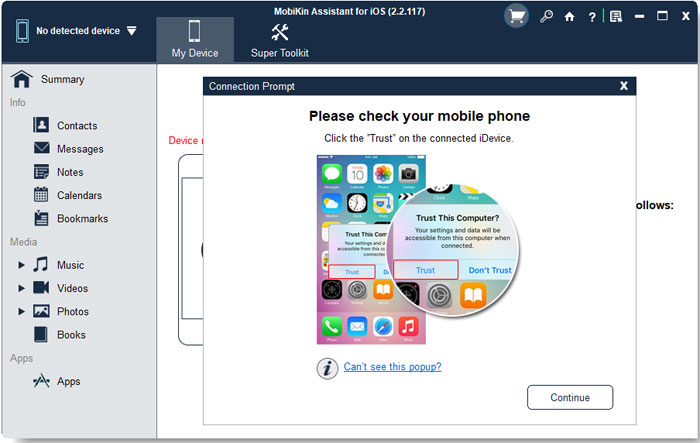
- Then tap "Trust" on your iPhone and click "Continue" when prompted so the device can be recognized.
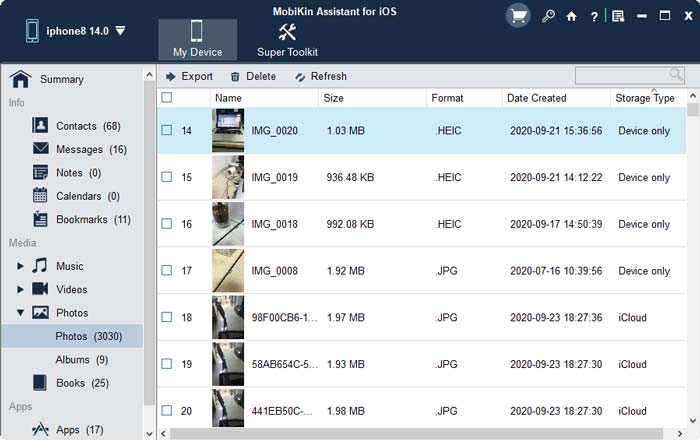
- Once the device is recognized, select "Photos" to preview your pictures and check the one(s) you want to transfer.
- Finally, click "Export" to save the photos to your PC without iCloud. (You can freely click "Super Toolkit" at the top of the screen to back up and restore your iPhone without iCloud/iTunes.)
Video Guide:
Option 2: Transfer Photos from iPhone to Computer without iCloud via File Explorer
Requirements & Considerations:
- Use a data cable: Ensure your cable supports file transfers.
- Keep iPhone unlocked: Prevent connection interruptions.
- Check iCloud settings: Download original photos if Optimize iPhone Storage is enabled.
- Check HEIC compatibility: Install codecs or convert unsupported photos.
- Transfer in batches: Copy smaller groups to avoid interruptions.
How-tos:
- Connect your iPhone to the computer - Use a USB cable to connect your iPhone to your Windows PC. Unlock your iPhone and tap Trust This Computer if prompted. Enter your passcode to authorize the connection.
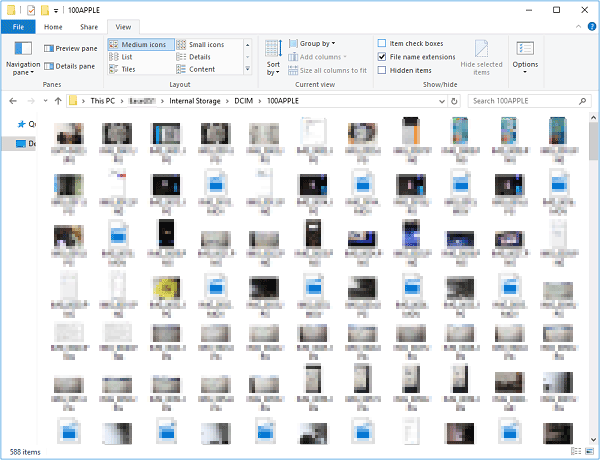
- Open File Explorer - Press Win + E on your keyboard to launch File Explorer. Under This PC, locate and double-click your iPhone, which should appear as an Apple iPhone device.
- Locate your photos - Open Internal Storage and then the DCIM folder. You should see one or more folders containing your iPhone photos and videos.
- Select and copy photos - Browse the folders, select the photos you want to transfer, right-click them, and choose Copy. You can also press Ctrl + A to select all accessible files.
- Save photos to your computer - Navigate to your preferred destination folder on the PC, right-click an empty area, and select Paste. Wait for the transfer to finish before disconnecting your iPhone.
Note: File Explorer is a free and convenient option, but it may not preserve your iPhone album organization. It also primarily provides access to photos and videos in the DCIM folder.
Option 3: Transfer Photos from iPhone to Windows PC via Windows Photos App
Requirements & Considerations:
- Use a USB data cable: Ensure the cable supports file transfers.
- Unlock your iPhone: Keep it unlocked during the import process.
- Tap Trust or Allow: Grant your PC permission to access iPhone photos.
- Check iCloud Photos: Download full-resolution originals before importing if Optimize iPhone Storage is enabled.
- Choose the right format: Use JPEG and H.264 for better Windows compatibility.
How-tos:
- Connect your iPhone to your PC - Use a USB cable to connect both devices. Unlock your iPhone, tap Trust This Computer, and enter your passcode if prompted.
- Open the Windows Photos app - Click the Start menu, search for Photos, and launch the application.
- Select your iPhone - Click Import in the Photos app and choose your connected iPhone from the available devices.
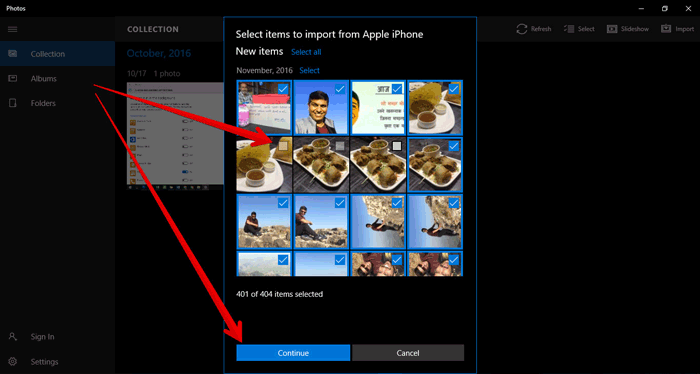
- Choose photos to import - Wait for the app to scan your iPhone. Select the photos and videos you want to transfer.
- Import your photos - Choose a destination folder if prompted, then click Import to copy the selected files to your PC. Keep your iPhone connected until the process finishes.
Note: Microsoft Support for photos transfer notes that this free and convenient method cannot directly import photos stored exclusively in iCloud via USB.
Option 4: Transfer Photos from iPhone Directly to PC via Google Photos
Requirements & Considerations:
- Check Google storage: Ensure your Google Account has enough free storage for photo backups.
- Use a stable Wi-Fi connection: Large photo libraries may take time to upload.
- Keep Google Photos running: Keeping the app open can help complete backups.
- Verify backup completion: Check for the Backup complete status before downloading.
- Download in batches: Select smaller groups of photos to make downloading easier.
How-tos:
- Install Google Photos on your iPhone - Download and install the Google Photos app from the App Store, then sign in with your Google account.
- Enable photo backup - Open Google Photos, tap your profile picture, select Google Photos settings > Backup, and turn on the Backup option.
- Wait for photos to upload - Keep your iPhone connected to Wi-Fi and allow Google Photos to back up your pictures and videos.
- Open Google Photos on your PC - Visit Google Photos using a web browser and sign in with the same Google account.
- Select photos to download - Browse your uploaded pictures, select the photos you want, click the three-dot menu, and choose Download. For multiple selected photos, Google may download them as a ZIP file.
- Save photos to your PC - Open the downloaded files and extract the ZIP folder if necessary. Your iPhone photos are now saved on your computer.
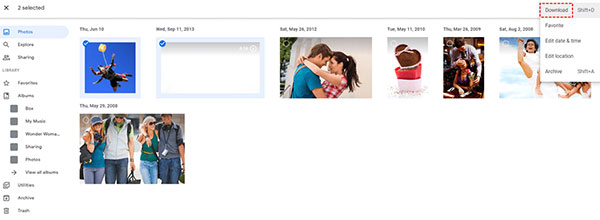
Note: This method avoids cables and iCloud but requires uploading photos to Google's cloud first. It also depends on your Google Account storage capacity and internet speed.
FAQs about Transfer Photos from iPhone to PC without iCloud
Q1. Why can't my PC recognize my iPhone?
This may be caused by a faulty USB cable, outdated drivers, or an untrusted connection. Try another cable or USB port and tap Trust This Computer on your iPhone.
Q2. How do I transfer photos from iPhone to PC without losing quality?
Use a USB cable to copy the original photos directly. Make sure full-resolution originals are downloaded to your iPhone before transferring them.
Q3. Can I transfer photos from iPhone to PC using Bluetooth?
No. Windows PCs generally cannot receive photos directly from iPhones through standard Bluetooth file transfer. Use a USB cable or wireless transfer service instead.
Q4. Where are imported iPhone photos stored on Windows?
Photos are saved to the destination folder you select during import. You can also choose any preferred folder when copying files through File Explorer.
Q5. Can I transfer thousands of photos from iPhone to PC at once?
Yes. You can select multiple photos or import all accessible files. However, transferring them in smaller batches can help prevent interruptions.
Q6. Why can't I open iPhone photos on my Windows PC?
Some iPhone photos use the HEIC format, which may not be supported by Windows by default. Install the necessary codec or use JPEG for better compatibility.
Q7. Is Google Photos free for transferring iPhone photos to PC?
Yes. Google Photos provides 15 GB of free storage shared across Google Photos, Google Drive, and Gmail. You may need additional storage if your photo library exceeds this limit.
Related Articles:
How to Send High Resolution Photos from iPhone to iPhone/Android/PC? 8 Ways
How to Transfer iCloud Photos to Google Photos? 3 Ways & Some Hot Tips
How to Recover Permanently Deleted Photos on iPhone without Backup?
[Guide] How to Recover Photos from iPhone That Won't Turn on
9 Best Photo Managers for iPhone to Organize Photos on iPhone