
How to Find Blocked Numbers on iPhone? 5 Ways to Check
TL;DR:
Trying to find a number you blocked months ago? Herecs where your iPhone keeps blocked contacts and how to manage them.
- Check blocked numbers from Settings, Messages, FaceTime, and Mail.
- Learn how to remove a number from your blocked list.
- Manage and back up iPhone contacts on a computer with MobiKin Assistant for iOS.
A blocked number can be easy to forget about - until you suddenly need to contact that person again. Whether you blocked a spam caller, an old contact, or someone by mistake, finding the blocked list on your iPhone doesn't have to be a guessing game. In this guide, we'll walk you through where blocked contacts are stored in Settings, Messages, FaceTime, and Mail, plus how to unblock them. You'll also learn a convenient way to manage your iPhone contacts from a computer.
- Part 1: How to See Blocked Numbers on iPhone via Settings
- Part 2: How to Find Blocked Contacts on iPhone in Messages
- Part 3: How to Check iPhone Blocked Numbers through FaceTime
- Part 4: How to View Blocked Contacts on iPhone via the Mail App
- Part 5: How to Unblock a Number on Your iPhone or iPad
- Bonus: Manage iPhone Contacts with MobiKin Assistant for iOS
- FAQs About Blocked Numbers on iPhone
Part 1: How to See Blocked Numbers on iPhone via Settings
Want to check whether a phone number is blocked on your iPhone? You can find the blocked contacts list in just a few taps through Settings. Here's what to do:
- Launch "Settings" on your iPhone.
- Scroll through the menu and select "Phone".
- Tap "Blocked Contacts" to open the blocked list.
- You'll then see the contacts and phone numbers that have been blocked on your device.
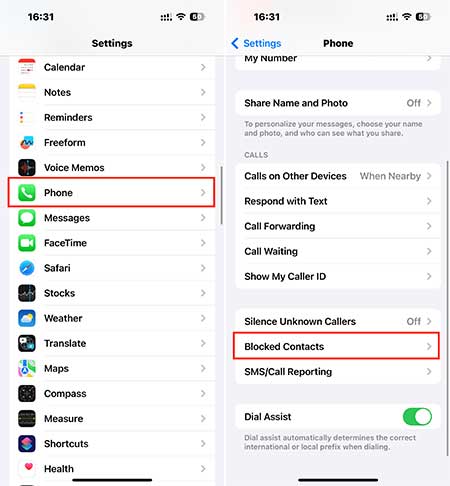
If you decide to allow someone to contact you again, you can remove them from this list. Tap "Edit" or swipe left on the contact, then select "Unblock". The number will no longer appear among your blocked contacts.
Part 2: How to Find Blocked Contacts on iPhone in Messages
If unwanted texts keep showing up in your inbox, blocking the sender can help you avoid further messages. Once you've blocked someone, you can check the blocked list in Messages settings to see which contacts or email addresses are restricted. (How to See Blocked Messages on iPhone?)
- Open "Settings" on your iPhone.
- Scroll down and tap "Messages".
- Select "Blocked Contacts" to access the current list.
- Review the entries to see which phone numbers or email addresses are prevented from contacting you through Messages.
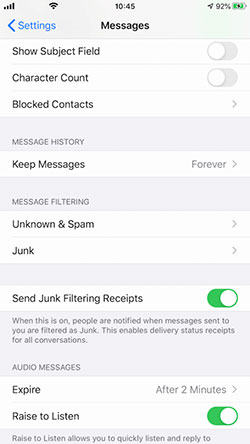
Want to allow a blocked contact to message you again? Tap "Edit", select the contact you want to remove, and tap the "-" icon next to it. The contact will then be removed from your blocked list.
You May Also Like:
Part 3: How to Check iPhone Blocked Numbers through FaceTime
Blocking someone on your iPhone can prevent them from reaching you through FaceTime as well as other supported communication methods. If you're unsure whether a particular phone number or FaceTime email address has been blocked, you can review the list associated with FaceTime in a few steps:
- Open "Settings" on your iPhone.
- Scroll down and select "FaceTime".
- Tap "Blocked Contacts" to open the list of people you've restricted.
- Check the entries to find the phone numbers or email addresses that are currently blocked from contacting you through FaceTime.
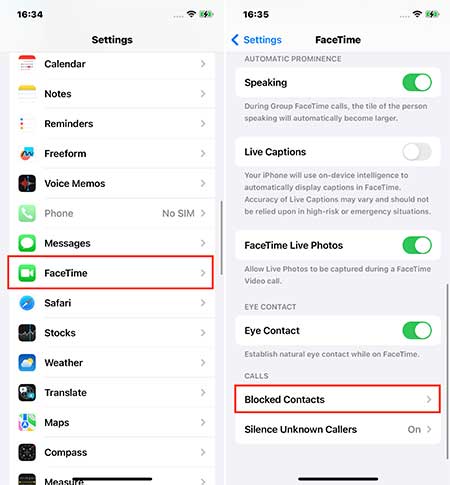
If you want to receive FaceTime calls from someone on the list again, tap "Edit", then select the red "-" icon next to that contact to remove the block.
Part 4: How to View Blocked Contacts on iPhone via the Mail App
If you've blocked certain email addresses or senders in the Mail app, you can review your blocked list from your iPhone settings. This lets you check who is currently restricted and remove a sender if you no longer want to block them.
- Open "Settings" on your iPhone.
- Scroll down and tap "Mail".
- Find and select "Blocked" to open the list of blocked senders.
- Browse the list to check the email addresses or contacts you've blocked.
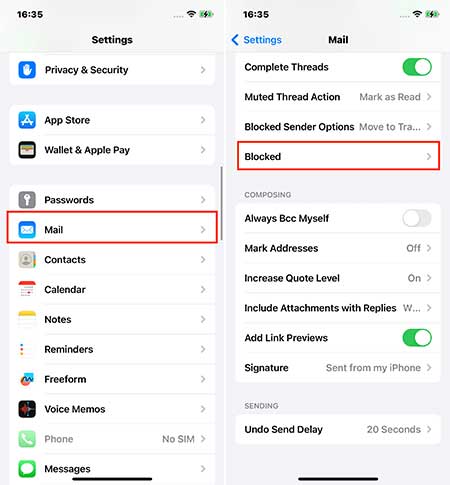
To allow a blocked sender to contact you again, tap "Edit" and select the red "-" icon next to the corresponding contact. The sender will then be removed from the blocked list.
You May Also Like:
Part 5: How to Unblock a Number on Your iPhone or iPad
After reviewing your blocked contacts, you may find someone you'd like to hear from again. Whether you want to restore their calls, texts, emails, or FaceTime access, removing the block only takes a few taps.
- Open the Blocked Contacts list using any of the methods mentioned above.
- Tap "Edit" in the upper-right corner.
- Find the phone number or contact you want to allow again.
- Tap the red "-" icon next to it, then select "Unblock".
- Repeat the process for any other contacts you want to restore, and tap "Done" when you're finished.
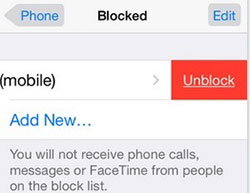
Once removed from the blocked list, the contact can contact you through the applicable communication services again.
Bonus: Manage iPhone Contacts with MobiKin Assistant for iOS
If you need more than simply checking your blocked contacts, MobiKin Assistant for iOS (Windows and Mac) provides a convenient way to manage your iPhone contacts from a computer. It lets you view, add, edit, delete, and back up contacts without having to handle a large contact list on your iPhone's small screen. You can also export contacts to your computer and manage other types of iOS data in the same place.
Key Features of MobiKin Assistant for iOS:
- View your contact list from a larger screen and browse contact details more conveniently.
- Create new contacts or update existing names, phone numbers, email addresses, and other details.
- Remove unnecessary contacts directly from your computer.
- Transfer iPhone contacts to your computer for backup or later use.
- Besides contacts, you can manage and transfer text messages, photos, music, videos, calendars, notes, bookmarks, books, and more.
- Back up and restore your iPhone/iPad data with one click.


How to Manage iPhone Contacts with MobiKin Assistant for iOS:
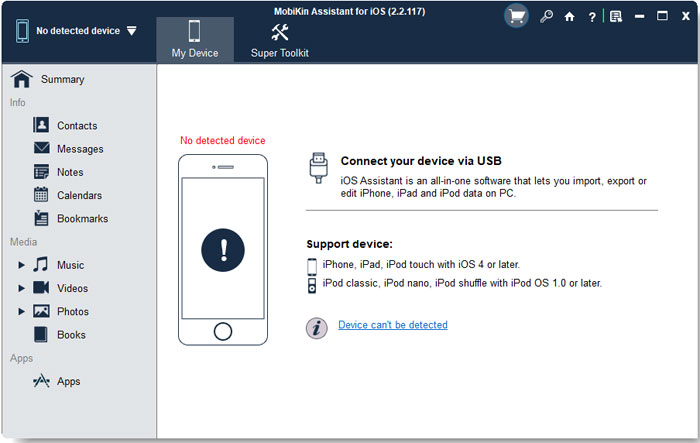
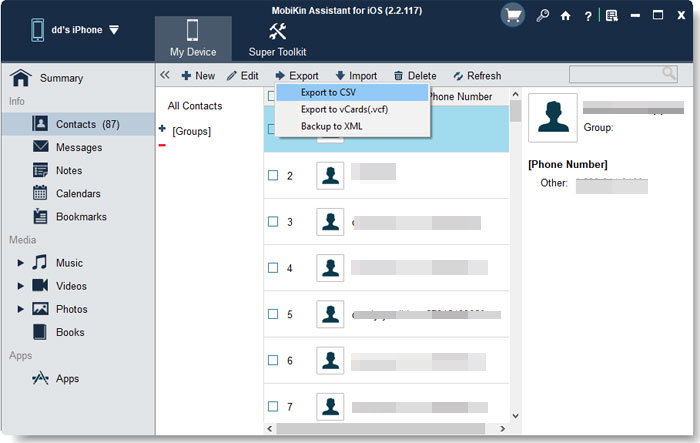
Step 1. Install and launch MobiKin Assistant for iOS, then connect your iPhone or iPad to the computer with a USB cable. Follow the on-screen prompts to let the software recognize your device.
Step 2. Once connected, click "Contacts" in the left panel. The software will load your contact list, allowing you to browse contact names, phone numbers, email addresses, and other available details.
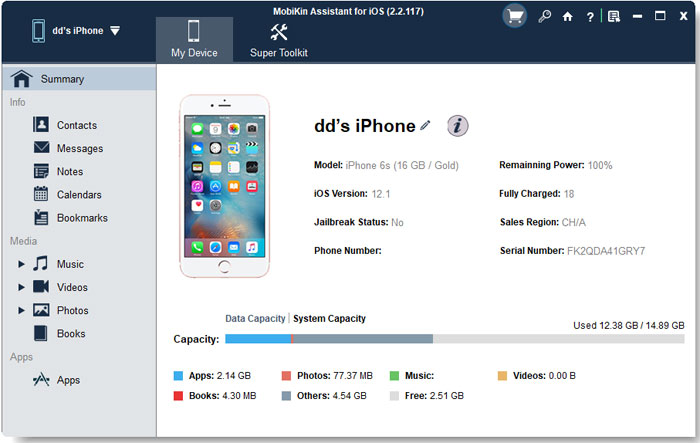
Step 3. From the Contacts section, you can use the available tools to:
- New: Create a new contact and enter its details.
- Edit: Modify information for an existing contact.
- Import: Add contact files from your computer to your iPhone.
- Export: Save selected contacts to your computer for backup or other uses.
- Delete: Remove unwanted contacts from your iPhone.
Video tutorial:
FAQs About Blocked Numbers on iPhone
Q1. How do I add a number to my blocked list on iPhone?
Open Settings and go to Privacy & Security > "Blocked Contacts". Tap "Add Blocked Contact", then choose the contact you want to block. You can also block a number from the Phone, Messages, or FaceTime app.
Q2. Why can't I find the Blocked Contacts option on my iPhone?
The location of this setting varies by iOS version. On newer versions, you can find it under Settings > Privacy & Security > "Blocked Contacts". If you're using an older iOS version, check Settings > Phone > "Blocked Contacts", or look under Messages or FaceTime.
Q3. Will someone know if I block their number on iPhone?
No. iPhone doesn't notify someone when you block their number. However, they may realize something is different if their calls go directly to voicemail or their messages don't receive the usual delivery response.
Q4. Can a blocked number still leave a voicemail on iPhone?
Yes. A blocked caller can still leave a voicemail, but you won't get a notification for it. Depending on your iPhone and carrier, you may find the voicemail in the blocked or filtered voicemail section.
Q5. Does blocking a number also block FaceTime and Messages?
Yes. Blocking a contact on iPhone generally prevents that person from contacting you through phone calls, Messages, and FaceTime. The block applies to the phone number or email address associated with the contact.
Q6. Does blocking a contact delete it from my iPhone?
No. Blocking a contact doesn't delete their information from your Contacts app. Their name, phone number, and other saved details remain on your iPhone until you choose to delete the contact separately.
In Conclusion
Your iPhone doesn't hide blocked contacts; it simply puts them in different places depending on the iOS version and service involved. Once you know where to look, checking or removing a blocked number takes only a few taps. And if your contact list needs more than occasional cleanup, MobiKin Assistant for iOS can help you manage, import, export, and back up contacts from your computer.
Related Articles:
[Solved] iPhone Can't Make or Receive Calls after Update
[4 Ways] How to Reset Restrictions Passcode on iPhone/iPad
