
Transfer Notes from iPhone to PC without iCloud: 4 Easy Ways
TL;DR:
You can transfer iPhone notes to a PC without iCloud by using a compatible data management tool, email, copy-and-paste, or a local iTunes backup.
- MobiKin Assistant for iOS: Connect your iPhone via USB, check for the "Notes" category, select supported notes, and export them to a PC folder.
- Email: Open a note, tap "Share" > "Mail", send it to yourself, and access it from your PC.
- Copy and Paste: Copy the note text and paste it into Word or Notepad, then save the document.
- iTunes: Select "This Computer" under "Backups" and click "Back Up Now". Remember, this creates a device backup rather than individually readable note files.
Your iPhone Notes app may hold more than quick reminders. It could contain work ideas, shopping lists, important addresses, or information you need to keep for years. Leaving everything on your phone isn't always convenient, especially when you want to read or organize those notes on a computer. The good news is that you don't have to rely on iCloud to move them to your PC. This guide covers four practical methods, from using MobiKin Assistant for iOS to emailing notes or creating a local iTunes backup, so you can choose what works best for you.
- Method 1: Transfer iPhone Notes to PC without iCloud via MobiKin Assistant for iOS
- Method 2: Export Notes from iPhone to PC without iCloud via Email
- Method 3: Copy and Paste iPhone Notes to a Document on PC
- Method 4: Transfer Notes from iPhone to PC without iCloud Using iTunes
- FAQs about Transferring iPhone Notes to PC without iCloud
Method 1: Transfer iPhone Notes to PC without iCloud via MobiKin Assistant for iOS
If you want to transfer multiple notes from your iPhone to a PC without using iCloud, MobiKin Assistant for iOS is a practical option. It lets you connect your iPhone to a computer, preview and select supported data, and export it for local storage. Besides notes, this tool can also manage contacts, messages, photos, videos, calendars, and other iPhone data, making it useful for everyday iOS data management.
Key Features of MobiKin Assistant for iOS:
- Transfer supported iPhone notes to a PC without relying on iCloud.
- Transfer as many as 14 types of files from iPhone to PC, covering notes, photos, songs, eBooks, contacts, text messages, etc.
- Preview available notes and select the items you want to export.
- Manage your iOS data at will, such as deleting, removing or adding any iOS files on PC without using iTunes.
- Backup iPhone data directly without overwriting previous data and restore them with 1 click.
- Works with almost all iOS devices, including iPhone 18/17/16/15/14/13/12/11/X/8/7/6, etc.


Steps to Transfer iPhone Notes to PC without iCloud Using Assistant for iOS:
Step 1: Connect Your iPhone to the PC
Download and install MobiKin Assistant for iOS on your computer. Connect your iPhone using a USB cable, unlock the device, and tap "Trust" if prompted. Follow the on-screen instructions to let the program recognize your iPhone.
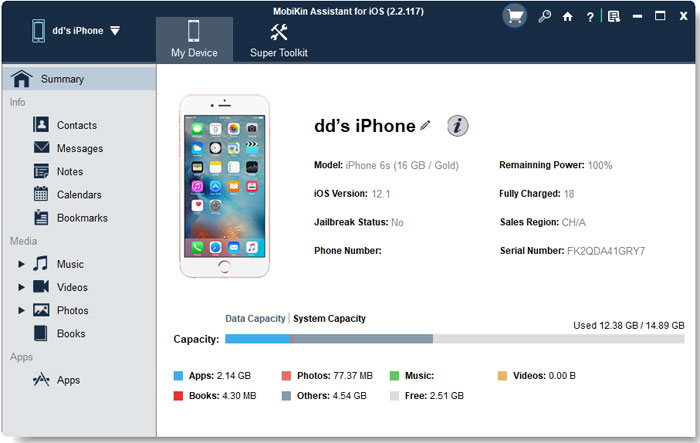
If your iPhone can't be recognized, you can click here to learn what to do if the device fails to connect.
Step 2: Preview and Select Your Notes
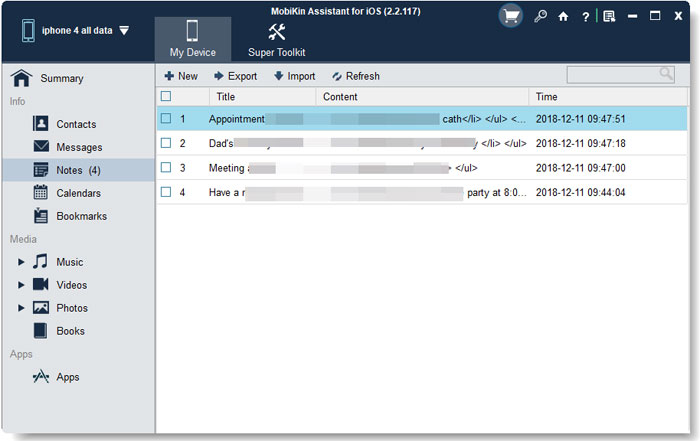
Once your iPhone is recognized, look for the "Notes" category in the program's interface. Open it to preview the available notes, then select the items you want to transfer.
Step 3: Export Notes to Your PC
Choose the available export option and select a folder on your computer to save the selected notes. Click "Export" to start the transfer and wait for the process to finish. Afterward, open the destination folder to check the exported files.
Video Tutorial:
Can't Miss:
Method 2: Export Notes from iPhone to PC without iCloud via Email
If you only need to transfer a few notes, email is a simple option that doesn't require any extra software. You can send the notes to your own email address and download them to your PC. Here's how:
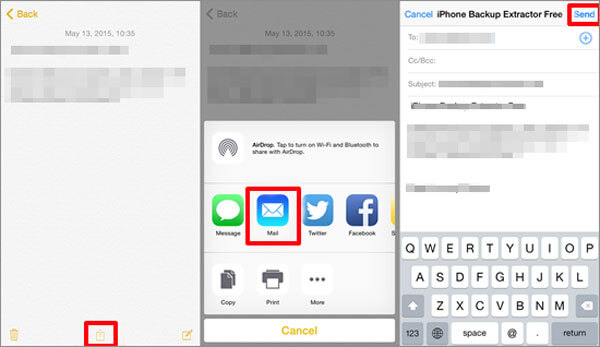
- Open the Notes app on your iPhone and select the note you want to transfer.
- Tap the "Share" button and choose "Mail" from the available options.
- Enter your own email address as the recipient and send the email.
- Open your email account on your PC, find the message, and download or copy the note content to your computer.
This method works well for individual notes, but sending them one by one can take time if you have many notes to transfer.
Method 3: Copy and Paste iPhone Notes to a Document on PC
If you don't want to install extra software or use email, you can manually copy your notes and save them in a document on your PC. This method works best for short text notes, though it may take a while if you have a lot of content to move.
- Open the Notes app on your iPhone and select the note you want to transfer. (iPhone Notes Disappeared?)
- Touch and hold the text, tap "Select All", and then choose "Copy".
- Send the copied text to your PC using a USB-connected app or another available transfer method.
- Open Microsoft Word or Notepad on your PC, paste the text, and save the file.
Keep in mind that this method involves extra steps to get the copied text onto your PC. Some formatting, images, or attachments may not transfer along with the text.
Method 4: Transfer Notes from iPhone to PC without iCloud Using iTunes
If you already use iTunes to back up your iPhone, you can create a local backup on your PC without relying on iCloud. However, iTunes doesn't provide a direct way to export individual notes as readable files. This method is more suitable for keeping a backup than for accessing notes separately.
-
Install and open the latest compatible version of iTunes on your PC.
-
Connect your iPhone to the computer with a USB cable, unlock it, and tap "Trust" if prompted.
-
Click the device icon in iTunes, select "Summary", and choose "This Computer" under "Backups".
-
Click "Back Up Now" and wait for iTunes to finish backing up your iPhone.
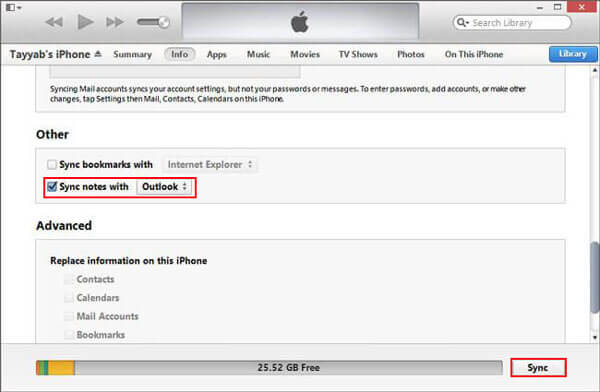
Your notes may be included in the backup if they are stored locally on your iPhone and meet Apple's backup conditions. However, you cannot simply open the backup folder and read individual notes. If you want to export and access specific notes on your PC, method 1 may be more suitable for you.
FAQs about Transferring iPhone Notes to PC without iCloud
Q1: How do I transfer all my iPhone notes to a PC at once?
The easiest option depends on how your notes are stored and which transfer tools support your device. A compatible data management tool may let you select and export multiple notes in one session. Email and copy-and-paste methods usually require more manual work, especially when you have dozens or hundreds of notes.
Q2: How do I transfer iPhone notes to a Windows PC via USB?
Connect your iPhone to your PC with a USB cable and use a compatible data management tool that supports Notes export. Once your device is recognized, select the notes you want to transfer and export them to your computer. A USB connection alone does not provide direct access to the Notes app's contents in Windows File Explorer.
Q3: Can I transfer iPhone notes to a PC without iTunes?
Yes. You can email individual notes to yourself or copy their contents into documents on your PC. Alternatively, you can use a compatible third-party tool to export supported notes directly to your computer without opening iTunes.
Q4: Where are iPhone notes stored on a PC after transfer?
It depends on the transfer method. Notes sent by email are available in your email account, while copied notes can be saved as text or Word documents. If you use a third-party tool, check the destination folder and exported file formats after the transfer.
The Bottom Line
Moving your iPhone notes to a PC doesn't have to involve iCloud. Email and copy-and-paste work well for a few notes, while iTunes lets you keep a local device backup, though it doesn't directly export individual notes as readable files. If you need a more convenient way to manage and export multiple notes, consider MobiKin Assistant for iOS after confirming Notes export is supported by your device and software version. Choose a method that fits the amount of data you need to save.
Related Articles:
[3 Ways] How to Restore Notes on iPhone from iCloud
8 Ways to Fix iCloud Notes Not Syncing on iPhone/iPad/Mac