
iCloud vs. Local iPhone Backup: Which Is Better? [Comprehensive Comparison]
TL;DR:
Overall, iCloud is a convenient choice for automatic backups, while local iPhone backup offers greater control over storage, data access, and offline protection. If you prefer managing iPhone data on your computer, consider using MobiKin Assistant for iOS, which offers the following benefits:
- This professional product offers flexible data management and broad device compatibility.
- It boasts no ads, bundled software, or background uploads, with no collection of users' personal information claimed by the developer.
- For extra protection, keep an iCloud backup alongside a regular local backup so you have another recovery option if one copy becomes unavailable.
"I've been an iCloud user for years, mostly for photos, videos, and general backups. But lately I've been thinking more about control and long-term access." -- from Reddit
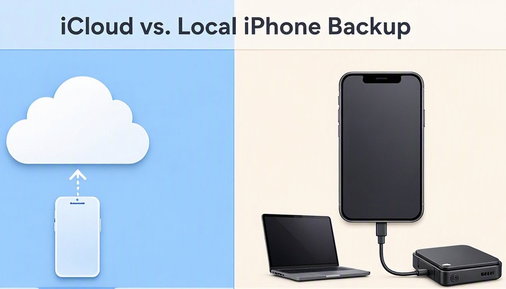
Backing up your iPhone is essential for protecting photos, messages, contacts, and other important data. Apple offers two main backup options: iCloud and local computer backup. While iCloud provides convenient wireless backups, local backup gives you more control over where your data is stored.
So, which method should you choose? This guide compares iCloud vs. local iPhone backup in terms of features, storage, security, speed, and supported data. It also explains how to back up your iPhone using both methods.
- Section 1: What Are iCloud Backup and Local iPhone Backup
- Section 2: iCloud vs. Local iPhone Backup: Key Differences at a Glance
- Section 3: iCloud Backup vs. Local Backup: Pros and Cons
- Section 4: What Data Does Each iPhone Backup Method Include
- Section 5: iCloud vs. Local iPhone Backup: Which Is More Secure & Faster
- Section 6: How to Back Up an iPhone to iCloud or Locally
- Conclusion - iCloud vs. Local iPhone Backup: Which One Should You Choose
Section 1: What Are iCloud Backup and Local iPhone Backup
1.1 What Is an iCloud Backup?
iCloud Backup is Apple's cloud-based service that automatically saves your iPhone data and settings to Apple's servers. Once enabled, your iPhone can back up daily when connected to Wi-Fi and power and when the screen is locked. An iCloud backup can include device settings, app data, messages, and locally stored photos and videos that aren't already synced to iCloud.
1.2 What Is a Local iPhone Backup?
A local iPhone backup saves your device data directly to a Windows PC or Mac using Finder, Apple Devices, or compatible versions of iTunes. Simply connect your iPhone to a computer, select your device, and start the backup. You can also enable Encrypt Local Backup to protect sensitive information, including Health data and saved passwords.
Section 2: iCloud vs. Local iPhone Backup: Key Differences at a Glance
Here's a quick comparison of the two backup methods:
|
Factor
|
iCloud Backup
|
Local iPhone Backup
|
|
Storage location
|
Apple's cloud |
PC or Mac |
|
Backup method
|
Automatic or manual |
Mostly manual |
|
Internet
|
Required |
Not required for backup |
|
Storage capacity
|
Based on iCloud plan (Can I cancel iCloud plan?) |
Based on computer storage |
|
Cost
|
5GB free; paid plans available |
No cloud subscription |
|
Encryption
|
Enabled by default |
Optional |
|
Restoration
|
Over Wi-Fi |
Through a computer |
|
Data control
|
Managed through iCloud |
More direct storage control |
|
Best for
|
Convenience |
Offline storage and flexibility |
My Point of View: In short, iCloud prioritizes convenience, while local backup offers more control over storage and backup management.
Section 3: iCloud Backup vs. Local Backup: Pros and Cons
3.1 Advantages and Disadvantages of iCloud Backup
Pros:
- Automatic daily backups without manual effort.
- No computer or USB cable required.
- Easy restoration when switching iPhones.
- Built-in encryption protects stored backups.
- Accessible through your Apple Account.
Cons:
- Only 5GB of free storage.
- Larger backups may require a paid subscription.
- Backup and restoration depend on internet speed.
- Requires access to your Apple Account.
iCloud is ideal for users who value convenience and automatic data protection but may be less suitable for those with limited cloud storage.
3.2 Advantages and Disadvantages of Local Backup
Pros:
- Uses your computer's available storage.
- No additional iCloud subscription required.
- Supports offline backup and restoration.
- Allows encrypted backups.
- Provides greater control over backup storage.
Cons:
- Requires a Windows PC or Mac.
- Backups generally need to be created manually.
- Large backups consume computer storage.
- Computer damage or loss may destroy backups.
- Forgetting the encryption password can prevent restoration.
My Point of View: Local backup is suitable for users who prefer computer-based storage and want to avoid recurring cloud storage costs.
Section 4: What Data Does Each iPhone Backup Method Include
Both methods can preserve important iPhone information, but some data is handled differently depending on your synchronization settings.
|
Data type
|
iCloud Backup
|
Local iPhone Backup
|
|
Device settings
|
Yes |
Yes |
|
App data
|
Yes, if not synced |
Yes, if not synced |
|
Photos and videos
|
If iCloud Photos is off |
If not already synced |
|
Messages
|
If Messages in iCloud is off |
If not already synced |
|
Contacts and calendars
|
Synced separately when enabled |
Not duplicated if synced |
|
Health data
|
Supported through iCloud |
Requires encryption |
|
Saved passwords
|
Through iCloud Keychain |
Requires encryption |
|
Apple Pay information
|
No |
No |
|
Face ID and Touch ID settings
|
No |
No |
Important: iCloud synchronization and device backup are different. For example, photos stored in iCloud Photos aren't duplicated in your iCloud device backup. Similarly, encrypted local backups can preserve more sensitive information than unencrypted ones. Therefore, check your synchronization settings before resetting or erasing your iPhone.
Section 5: iCloud vs. Local iPhone Backup: Which Is More Secure & Faster
Security and speed are important when choosing a backup method. Here's how the two options compare.
|
Factor
|
iCloud Backup
|
Local iPhone Backup
|
|
Default encryption
|
Yes |
No |
|
Additional encryption
|
Advanced Data Protection |
Encrypt Local Backup |
|
Storage security
|
Apple's cloud infrastructure |
Your computer's security |
|
Backup speed
|
Depends on internet speed |
Depends on USB and computer speed |
|
Restoration speed
|
Depends on internet speed |
Depends on USB and computer speed |
|
Offline backup
|
No |
Yes |
|
Main risk
|
Account compromise |
Computer failure or loss |
5.1 Which Is More Secure?
iCloud backups are encrypted by default. Enabling Advanced Data Protection adds end-to-end encryption for iCloud Backup.
Local backups aren't encrypted by default, but you can enable Encrypt Local Backup to protect sensitive information. Their security also depends on how well you protect your computer and backup password.
Verdict: Both can be secure when properly configured. iCloud offers convenient default encryption, while encrypted local backups provide greater physical storage control.
5.2 Which Is Faster?
iCloud backup and restoration speeds depend on your internet connection and backup size. Large backups may take considerable time over slow Wi-Fi.
Local backups transfer data directly between your iPhone and computer, so they can be faster when using a suitable USB connection and a capable computer.
Verdict: Local backup is often preferable for large data transfers or slow internet connections, while iCloud is more convenient for automatic daily backups.
Section 6: How to Back Up an iPhone to iCloud or Locally
6.1 How to Back Up an iPhone to iCloud
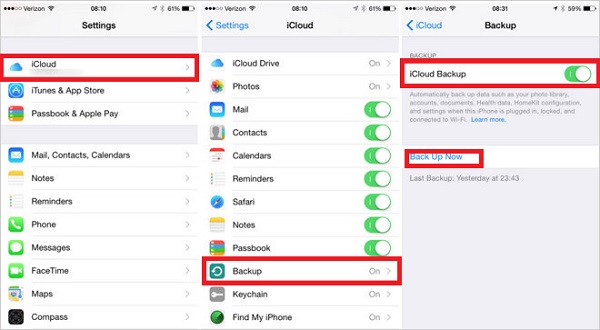
Follow these steps to create an iCloud backup (Make sure your iPhone has enough iCloud storage and a stable Wi-Fi connection before starting):
- Open Settings on your iPhone.
- Tap your Apple Account name and select iCloud.
- Tap iCloud Backup.
- Enable Back Up This iPhone.
- Tap Back Up Now to start a manual backup.
- Wait until the process finishes and check the latest backup time.
6.2 How to Back Up an iPhone to PC/Mac Using MobiKin Assistant for iOS
If you prefer computer-based storage, MobiKin Assistant for iOS (Windows/Mac) provides tools to export selected iPhone data and manage computer backups. The tool supports nearly all Apple devices, including the latest iPhone 18 series and ensure not to collect users' personal information.
Safe Download: No ads, bundled software, or background uploads.


Follow these steps to export your iPhone data via MobiKin:
- Download and install MobiKin Assistant for iOS on your PC or Mac.
- Connect your iPhone using a USB cable, unlock it, and tap Trust if prompted to get your device virtually connected.
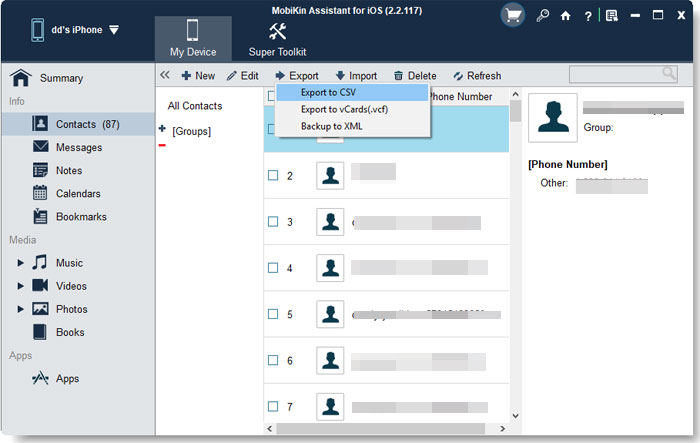
- Select a data category, such as Contacts, Messages, Photos, or Videos, from the left panel.
- Preview and select the files you want to save.
- Click Export, choose a destination folder, and wait for the transfer to finish.
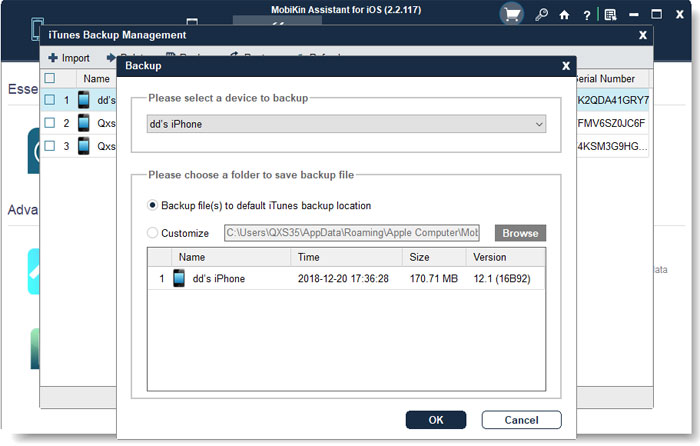
For a broader computer backup: You can also use the program's Super Toolkit > iTunes Backup & Restore feature to create a computer backup through Apple's backup mechanism. Select your iPhone, choose a backup location if available, and start the process.
Video Tutorial:
Note: Selective file export is different from a complete, restorable iPhone backup. Check the supported features of your software version and verify your backup before erasing your device.
Conclusion - iCloud vs. Local iPhone Backup: Which One Should You Choose
iCloud and local iPhone backups both help protect your important data, but they serve different needs. iCloud is ideal for automatic, wireless backups, while local backup is better for users who prefer computer storage and greater control.
For the best protection, consider combining both methods: use iCloud for everyday backups and create encrypted local backups regularly. You can also use MobiKin Assistant for iOS to export and manage specific iPhone files on your computer.
Ultimately, maintaining multiple backup copies is a smarter way to protect your data and prepare for unexpected device problems.
Related Articles:
iCloud Backup vs iTunes Backup: Which One Should We Choose?
6 Ways to Unlock iCloud Account without Password or Phone Number
[Latest] How to Access iCloud from PC, Mac, iPhone, iPad and Android?
6 Methods to Recover Deleted Files from iPhone with/without Backup