
Where Are Voice Memos Stored on iPhone/Mac/iCloud/iTunes? Answered
"I am on an iPhone 17 on the latest iOS 26 and I can't find the voice recorder at all. There is a recording in there from about six years ago that I need to pull out and share." -- from Reddit
Many iPhone users ask 'where are voice memos stored on iPhone' because the storage location isn't obvious in iOS, as recordings are kept inside the Voice Memos app and synced through Apple's system rather than shown in a clear file directory.
When recordings go missing, some may don't know how to recover or back them up properly, especially when switching devices. This article explains where Voice Memos are stored and helps users understand where their recordings actually reside on iPhone.
- Part 1: Where Are Voice Memos Stored on iPhone
- Part 2: Where Are Voice Memos Stored on Mac
- Part 3: Where Are Voice Memos Stored on iCloud
- Part 4: Where Are Voice Memos Stored on iTunes
- Part 5: Where to Find Lost Voice Memo on iPhone from iTunes Backup [without Reset]
- Q&A about Voice Memos on iPhone/Mac/iTunes/iCloud
Part 1: Where Are Voice Memos Stored on iPhone
On an iPhone, voice memos are primarily stored inside the built-in Voice Memos app. Every recording you make is saved automatically to your device's internal storage, and if iCloud syncing is enabled, the memos are also uploaded to iCloud so they can appear on your other Apple devices.
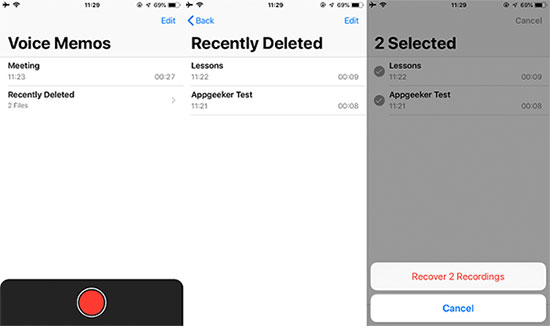
How to find voice memos on iPhone?
- Open the Voice Memos app.
- Your recordings appear under "All Recordings."
- Deleted recordings move to the "Recently Deleted" folder for about 30 days before permanent removal.
If you are asking about the actual file location, Apple normally hides the system folder from regular users. Internally, voice memo files are stored in a directory similar to: /private/var/mobile/Media/Recordings/. The recordings are usually saved as .m4a audio files.
You can also access or export voice memos through:
- Files app (after manually saving them there).
- Finder or iTunes on a computer.
- iCloud syncing.
- AirDrop or Share options inside the app.
Voice messages sent in Messages are different from Voice Memos. iMessage audio messages stay inside the conversation thread and may auto-delete after 2 minutes unless you tap "Keep."
You Might Also Like: How to Recover Deleted Audio/Call Recording from Android Phone? 5 Techniques
Part 2: Where Are Voice Memos Stored on Mac
On a Mac, Voice Memos are usually stored in a hidden Library folder as .m4a audio files. The exact location depends on your macOS version.
For newer macOS versions like Catalina, Ventura, Sonoma, and later, the common storage path is: ~/Library/Application Support/com.apple.voicememos/Recordings
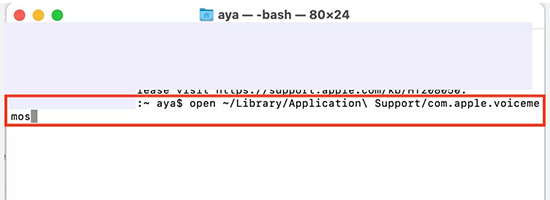
How to access voice memos on Mac?
- Open Finder.
- Click Go > Go to Folder.
- Enter the path above.
Some newer macOS releases may instead store recordings here: ~/Library/Group Containers/group.com.apple.VoiceMemos.shared/Recordings. This folder also contains your .m4a voice memo files.
For older macOS versions that relied on iTunes syncing, Voice Memos could be found in: /Users/~/Music/iTunes/iTunes Media/Voice Memos/
You cannot directly access synced Voice Memos on iCloud.com from Windows because Apple stores them inside a hidden iCloud app container rather than a visible iCloud Drive folder. If you manually saved recordings to iCloud Drive using Share > Save to Files, you can access them through iCloud for Windows in File Explorer, usually as .m4a files inside folders like iCloud Drive\Voice Memos\
More to Explore: 5 Verified Ways to Transfer Voice Memos from iPhone to iPhone 17/16/15/14/13/12
Part 3: Where Are Voice Memos Stored on iCloud
Voice Memos stored on iCloud are not saved in a normal, visible iCloud Drive folder by default. Instead, Apple mainly uses iCloud as a synchronization service for the Voice Memos app across your iPhone, iPad, and Mac signed in with the same Apple ID. This means your recordings appear directly inside the Voice Memos app rather than in a browsable folder on iCloud.com.
Technically, synced Voice Memos are stored in Apple's private iCloud app container associated with: com.apple.VoiceMemos
Because this is a hidden system container, Apple does not provide an exact public iCloud Drive path for automatically synced recordings.
To enable Voice Memo syncing on iPhone or iPad:
- Open Settings.
- Tap your Apple ID.
- Go to iCloud > Show All.
- Turn on Voice Memos.
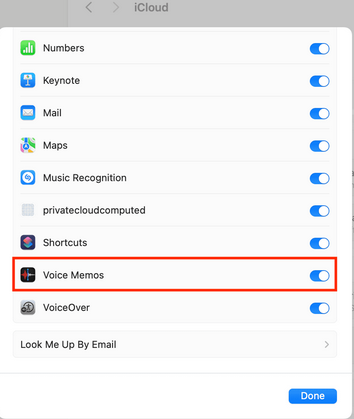
Once enabled, recordings automatically sync across Apple devices using the same Apple account. A common misunderstanding is expecting a folder like this to appear automatically: iCloud Drive > Voice Memos.
Note: If you want your recordings stored in a visible iCloud Drive location, you must manually export them:
- Open the Voice Memos app.
- Tap the three-dot menu beside a recording.
- Choose Share > Save to Files.
- Select iCloud Drive and choose a folder.
After manual saving, the exact location depends on the folder you selected, such as: iCloud Drive/Voice Memos/ or iCloud Drive/Downloads/
Part 4: Where Are Voice Memos Stored on iTunes
Voice Memos synced through iTunes are usually stored inside the iTunes Media folder on your computer after syncing your iPhone. On Windows, the default location is:
C:\Users\USERNAME\Music\iTunes\iTunes Media\Voice Memos\
And on macOS: /Users/USERNAME/Music/iTunes/iTunes Media/Voice Memos/
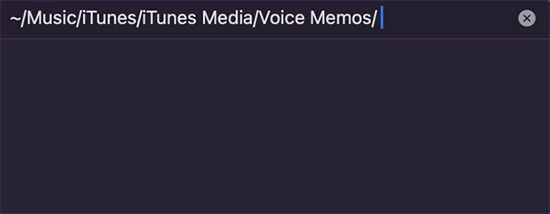
The recordings are typically saved as .m4a or .mp4 audio files. In iTunes, you can also view them by opening iTunes, clicking the Music icon, selecting Playlists, and choosing Voice Memos from the sidebar.
How to access voice memos on iTunes?
- Firstly, connect your iPhone to the computer and sync the device with iTunes.
- After syncing, open iTunes, click the Music section, choose Playlists, and select Voice Memos from the sidebar to play or manage the recordings.
You can also find the actual audio files in the iTunes Media folder, such as: C:\Users\USERNAME\Music\iTunes\iTunes Media\Voice Memos\ or: /Users/USERNAME/Music/iTunes/iTunes Media/Voice Memos/
Part 5: Where to Find Lost Voice Memo on iPhone from iTunes Backup [without Reset]
MobiKin Doctor for iOS (Windows/Mac) allows users to recover lost or deleted voice memos from an iTunes backup without needing to restore the entire device. When an iTunes backup has been created, this tool can selectively extract specific voice memos instead of overwriting existing data on the iPhone. It provides a safer and more flexible way to retrieve important recordings while keeping current iPhone data intact.
Aside from offering a safe and flexible way to recover deleted voice memos, it also help retrieve other important iPhone data from iTunes or iCloud backups without erasing existing content. With wide iOS compatibility, efficient recovery, and strong privacy protection, it makes restoring and managing data across iPhone and iPad simple and reliable.


How to find and recover voice memos on iPhone without losing data via MobiKin Doctor for iOS?
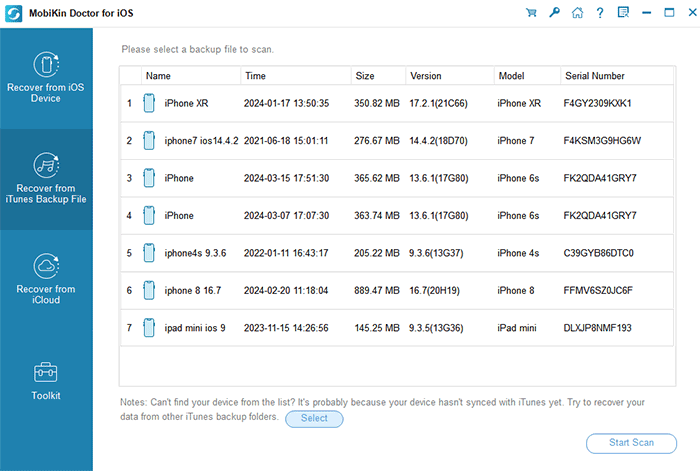
- After installing the tool, run it on your computer and choose the "Recover from iTunes Backup File" mode.
- Subsequently, select the necessary iTunes backup file and click on "Start Scan".
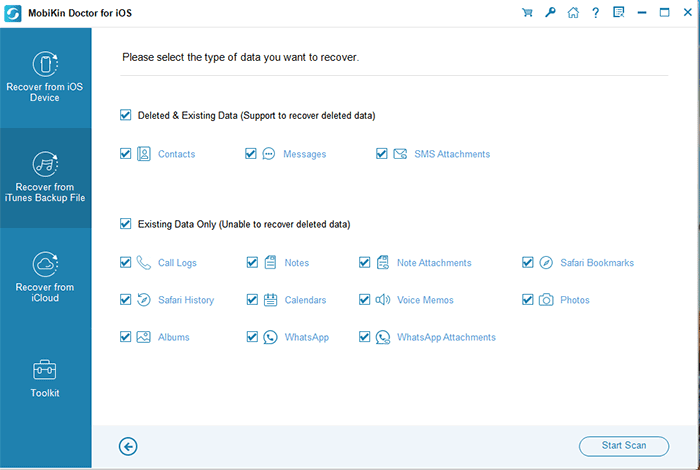
- You will then be presented with the main screen of the program.
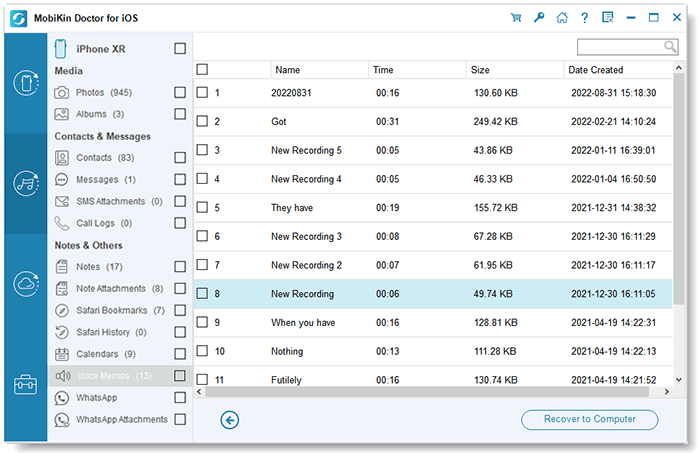
- Select "Voice Memos" and click "Start Scan" to load and preview the specific memos displayed on the right pane.
- Select all the voice memos you require from the program interface.
- Ultimately, click on "Recover to Computer" to retrieve deleted voice memos lost from your iPhone.
Video Tutorial:
Q&A about Voice Memos on iPhone/Mac/iTunes/iCloud
Q1: Why can't I find Voice Memos on iPhone?
The Voice Memos app is missing from the Home Screen (it may be in the App Library or hidden).
Q2: Why can't I find Voice Memos on Mac?
The Voice Memos app may be missing from Launchpad or Applications because it was removed, hidden, or not installed with your macOS version, so you may need to reinstall it from the App Store or search for it using Spotlight (Command + Space).
Q3: Why can't I find Voice Memos on iTunes?
Voice Memos may not appear in iTunes because newer iTunes versions (and macOS syncing systems) no longer display them directly in the interface, and they are instead stored in the iTunes Media folder or managed through the Music app/Voice Memos app after syncing your iPhone.
Q4: Why can't I find Voice Memos on iCloud?
Voice Memos don't appear in iCloud Drive or on iCloud.com because Apple stores synced recordings in a private iCloud app container (not a visible folder), so they only show up inside the Voice Memos app unless you manually export them to Files or iCloud Drive.
Q5: Can I access Voice Memos on iCloud.com?
No, iCloud.com does not display Voice Memos, even if syncing is enabled.
Q6: Can I transfer Voice Memos to Windows?
Yes, you can transfer them using iTunes sync, iCloud Drive (manual export), or by copying files from a Mac.
Closing Remarks
Understanding where Voice Memos are stored on iPhone makes it easier to manage recordings, prevent accidental loss, and handle backups with confidence across devices. Once the storage behavior is clear, locating or restoring audio files becomes much more straightforward even when issues occur.
For better protection, always enable iCloud sync for Voice Memos and periodically export important recordings to Files or a computer, so even if the app data changes or gets removed, your audio files remain safely accessible.
Related Articles:
iPhone Voice Memo Not Working or Recording? Try These 7 Fixes
Voice Memos Disappeared on iPhone? 4 Ways to Get Them Back
Ultimate Guide to Make a Voice Memo a Ringtone on iPhone in Minutes
[Updated] Where Is The iTunes Backup Location and How to Change It?
