
4Easysoft iPhone Data Recovery Review: Objective Assessment
TL;DR:
This review of 4Easysoft iPhone Data Recovery helps users understand its recovery features, limitations, pricing, and whether it is the right choice for restoring lost iPhone data. If you find it not working well, try a more reliable alternative - MobiKin Doctor for iOS. This tool provides a practical option for flexibly and successfully recovering deleted contacts, messages, photos, videos, notes, and other iPhone files from various sources.
An iPhone data recovery tool should be evaluated carefully before purchase, especially when deciding whether to trust and pay for the software, since the free version has significant limitations. This 4Easysoft iPhone Data Recovery review examines its features, pricing, pros and cons, recovery capabilities, and an alternative option to help users decide if it meets their needs.
- Part 1: What Is 4Easysoft iPhone Data Recovery
- Part 2: Main Features of 4Easysoft iPhone Data Recovery
- Part 3: How to Use 4Easysoft iPhone Data Recovery
- Part 4: Pros & Cons of 4Easysoft iPhone Data Recovery
- Part 5: FAQs about 4Easysoft iPhone Data Recovery
- Part 6: A More Dependable 4Easysoft iPhone Data Recovery Alternative
Part 1: What Is 4Easysoft iPhone Data Recovery
Built for iOS devices, 4Easysoft iPhone Data Recovery helps users retrieve deleted or lost data from iPhones, iTunes backups, and iCloud backups. It supports the recovery of photos, contacts, messages, WhatsApp chats, videos, notes, and many other file types. Users can preview recoverable items before restoring them, making it easier to recover only the data they need.
You Might Also Like: 4Easysoft iOS Data Backup and Restore Review: Is It Worth Using?
Part 2: Main Features of 4Easysoft iPhone Data Recovery
The table below outlines the main features of 4Easysoft iPhone Data Recovery and what each one offers. It gives a quick overview of its recovery options, supported functions, and additional tools:
|
Feature
|
Description
|
|
Three Recovery Modes |
Recover deleted data directly from iPhone, iTunes backups, or iCloud backups based on your situation. |
|
20+ Supported Data Types |
Restore photos, videos, contacts, messages, call history, notes, WhatsApp data, voice memos, Safari bookmarks, and more. |
|
Selective Recovery |
Preview recoverable files before restoring, allowing you to recover only the items you need. |
|
Deep Scan Technology |
Performs an in-depth scan to locate deleted and existing data from iOS devices and backups. |
|
iOS System Repair |
Fixes common iOS issues such as devices stuck in Recovery Mode, DFU Mode, headphone mode, or other abnormal states, with options to upgrade or downgrade iOS. |
|
iPhone Data Backup & Restore |
Creates backups of important iPhone data and restores them when needed without complicated steps. |
|
Recover in Various Data Loss Scenarios |
Helps recover files lost due to accidental deletion, factory reset, system crash, water damage, forgotten password, broken screen, or stolen device (from backups). |
|
Wide Device Compatibility |
Supports nearly all iPhone, iPad, and iPod touch models and a broad range of iOS versions. |
|
File Preview and Organization |
Displays recoverable files with details such as file type, date, and size for easier selection. |
|
Simple User Interface |
Offers a straightforward workflow that guides users through scanning, previewing, and recovering data in a few steps. |
Part 3: How to Use 4Easysoft iPhone Data Recovery
4Easysoft iPhone Data Recovery allows users to retrieve lost iPhone data through three recovery modes: from an iOS device, iTunes backup, or iCloud backup. Follow these steps to recover your files (You can review files before recovery and choose specific photos, messages, contacts, or other data instead of restoring unnecessary files):
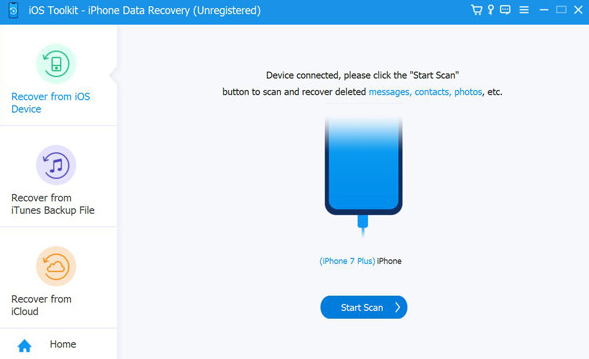
Option 1: Recover Data from iPhone Directly
- Install and launch 4Easysoft iPhone Data Recovery on your computer.
- Connect your iPhone to the computer using a USB cable and tap Trust on your iPhone if prompted.
- Select Recover from iOS Device and click Start Scan to search for lost data.
- After that, preview the scanned files, select the items you want, and click Recover to save them.
Option 2: Recover Data from iTunes Backup
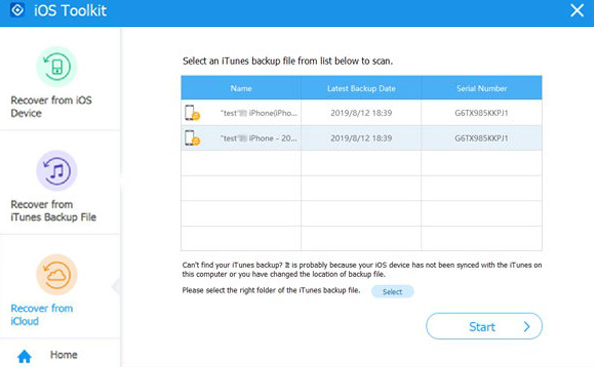
- Open the program and choose Recover from iTunes Backup File.
- Select the required iTunes backup from the list before tapping "Start".
- Enter the backup password if the file is encrypted.
- Preview the available data and click Recover to restore selected files.
Option 3: Recover Data from iCloud Backup
- Launch the software and select Recover from iCloud.
- Sign in with your Apple ID and password.
- Choose an iCloud backup or specific data types to scan.
- Preview the results and click Recover to retrieve the selected files.
Part 4: Pros & Cons of 4Easysoft iPhone Data Recovery
Understanding the strengths and limitations of 4Easysoft iPhone Data Recovery can help users decide whether it fits their data recovery needs. The table below summarizes its key pros and cons, covering usability, recovery features, compatibility, and potential restrictions:
|
The Good
|
The Bad
|
|
Easy-to-use interface for beginners |
Full recovery features require a paid license |
|
Supports iPhone, iPad, and iPod data recovery |
Recovery success depends on data loss conditions |
|
Recovers data from iOS devices, iTunes, and iCloud backups |
Scanning may take longer for large data volumes |
|
Supports various file types, including photos, messages, contacts, and notes |
Only works with iOS devices, not Android |
|
Allows previewing files before recovery |
May not recover overwritten or permanently deleted data |
|
Offers backup and restore functions |
Free trial has limited recovery functions |
Part 5: FAQs about 4Easysoft iPhone Data Recovery
Q1. Does 4Easysoft iPhone Data Recovery support iTunes and iCloud backups?
Yes. It provides recovery options from iTunes backups and iCloud backups in addition to scanning iOS devices directly.
Q2. Is 4Easysoft iPhone Data Recovery free to use?
4Easysoft iPhone Data Recovery is not completely free; its trial version allows users to scan iPhone data, preview files, and try limited functions. The paid plans include a 1-month license for $22.97 and a lifetime license for $59.94 (one-time purchase) for the full version.
Q3. Which iOS devices are supported by 4Easysoft iPhone Data Recovery?
It supports a wide range of iPhone, iPad, and iPod touch models, including many newer iOS versions.
Q4. Can it recover data from a broken or disabled iPhone?
Recovery may be possible if the device can still be detected by the software or if a previous iTunes/iCloud backup is available.
Q5. Can 4Easysoft iPhone Data Recovery recover deleted files after factory reset?
It can help restore data from available iTunes or iCloud backups after a reset, but recovery depends on whether the data has been overwritten.
Q6. Is 4Easysoft iPhone Data Recovery safe to use?
The program scans device data to find recoverable files and does not claim to modify existing device settings during the scanning process.
Q7. Why can't 4Easysoft iPhone Data Recovery detect my iPhone?
Users can try reconnecting the device, checking the USB connection, trusting the computer on the iPhone, and updating related software if detection problems occur.
Part 6: A More Dependable 4Easysoft iPhone Data Recovery Alternative
This versatile utility excels at retrieving lost photos, messages, and contacts directly from your device, even when no prior backup exists. Should you have an iTunes or iCloud backup on hand, MobiKin Doctor for iOS (Windows/Mac) offers an alternative path to restore your important data with equal ease.
Whether your files vanished due to accidental deletion, system failure, or water damage, the software adapts to your situation and brings them back to your computer in just a few clicks. Here are its main features:
- Various Data Recovery - Recover contacts, messages, photos, videos, notes, and more.
- iPhone & iTunes Backup Recovery - Restore data from devices or iTunes/iCloud backups.
- File Preview - Preview files before selecting recovery items.
- Wide iOS Support - Supports almost all iPhone, iPad, and iPod touch models.
- No Data Overwriting - Recover files without replacing existing data.
- Easy Recovery Steps - Complete recovery with a simple process.
- Multiple Loss Scenarios - Recover data after deletion, crashes, or updates.
- Selective Export - Export needed files for easy access.
- Safe Operation - Recover data without modifying original files.
- 4Easysoft Alternative - Offers similar recovery features with flexible data retrieval/management.
Free & Secure Download:


Learn how to recover deleted files from iPhone with MobiKin Doctor for iOS (Now let's take the "Direct Recovery" mode as an example to illustrate how it directly recovers data from an iPhone):
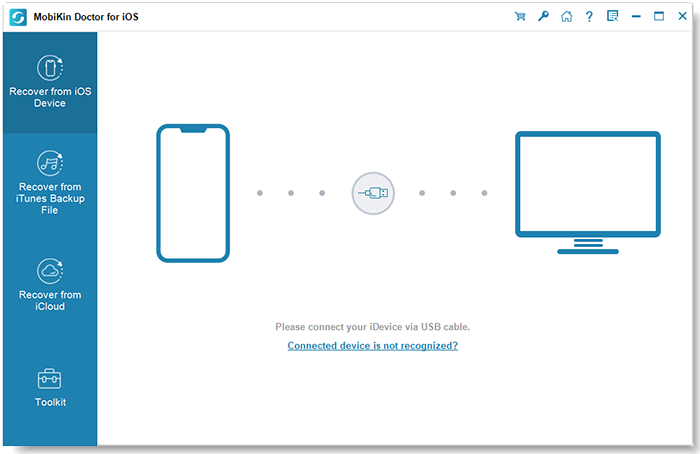
Step 1. After downloading the software for free, install and launch it on your computer. From the main interface, select "Recover from iOS Device." Then, connect your iPhone to the computer using a USB cable and allow the tool to detect your device automatically.
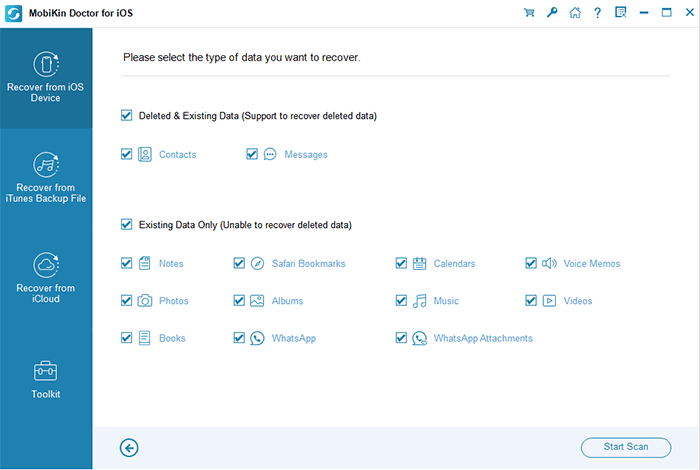
Step 2. Once your iPhone is recognized, the program's main screen will appear. Choose the types of data you wish to recover, then click "Start Scan." In a few moments, the missing content from your iPhone will be displayed on your computer for you to preview.
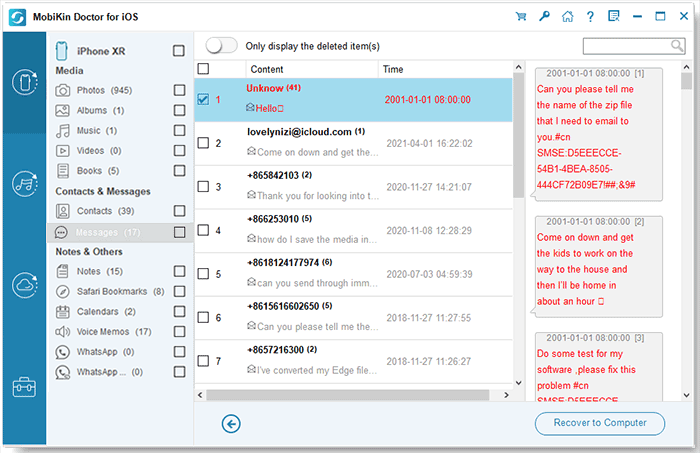
Step 3. Select all the files you want to recover from your iPhone, then click "Recover to Computer" to save the chosen items directly to your PC.
Video Directions:
In a Nutshell
A reliable iPhone data recovery solution depends on factors such as supported data types, recovery success, ease of use, and cost. This 4Easysoft iPhone Data Recovery review shows that the software provides useful recovery modes and preview options, while its paid requirements may affect some users' choices. The best recovery tool is the one that fits your situation and helps restore important files without unnecessary steps.
Related Articles:
[Best Way] Recover iPhone Photos after Factory Reset without Backup
[Top 3 Ways] How to Recover Deleted iCloud Backup Easily?
