
Messages Not Restored from iCloud Backup? Causes & 14 Easy Solutions
TL;DR:
If your messages are still missing after trying basic fixes like checking your Apple ID, Wi-Fi, and sync settings, consider using a dedicated recovery tool - iPhone Data Recovery - to extract them directly from the backup without resetting your device.
Ultimately, preventing future issues comes down to understanding how iCloud Backup differs from Messages in iCloud and ensuring your backup strategy matches how you want your conversations preserved.
"I have a backup unit 14/05 from my old iPhone 17, then I chose it with the same Apple ID and password. I can't get all my messages by 14/05/2026. It only showed on the 08th of Apr this year." -- from discussions.apple.com
Text messages often contain important conversations, verification codes, business records, and personal memories. Problems can arise when messages are missing after setting up a new iPhone or when message syncing is stuck or taking too long to finish. (What to to do before getting a brand-new iPhone?) If you are facing messages not restored from iCloud backup. Read through this article with 13 basic fixes and an expert solution.
Part 1: Why Did My Messages Not Restore from iCloud Backup
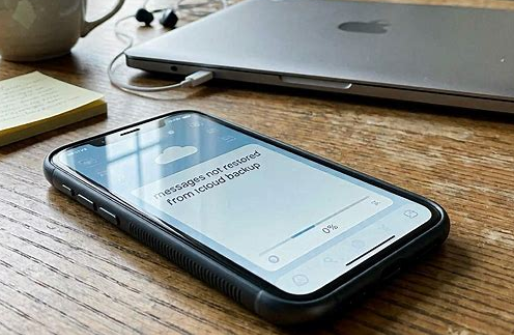
Messages may fail to restore from an iCloud backup because of sync behavior in iCloud Messages, incorrect Apple ID usage, or an incomplete backup. In other cases, weak internet, system glitches, or ongoing background syncing can delay or block message recovery. Here's the full analysis:
- Messages were stored in iCloud Messages instead of the iCloud backup, so they sync separately after login.
- Weak or unstable Wi-Fi prevented full message download during restoration.
- A different Apple ID was used, so the backup data does not match the current device.
- The iCloud backup was incomplete or interrupted before reset or transfer.
- iCloud storage was full, causing backup or sync issues.
- iOS glitches or outdated system software blocked proper message syncing.
- The wrong restore option was selected during iPhone setup.
- Large message history is still syncing in the background and has not finished downloading.
- Temporary Apple server delays are slowing down iCloud message recovery.
Message restoration from an iCloud backup usually takes anywhere from a few minutes to several hours, depending on the size of the data and internet speed. In some cases, large message histories stored in iCloud Messages may continue syncing in the background for up to 24-48 hours. If the network is unstable or the backup is very large, the process can take even longer before all messages fully appear.
You Might Need: [Guide 2026] How to Save Text Messages from iPhone to Computer?
Part 2: 13 Basic Solutions to Messages Not Restored from iCloud Backup
Fix 1: Ensure iCloud Sync Is Enabled
Turning on Messages in iCloud and keeping the device connected to stable Wi-Fi usually allows the missing messages to download automatically. In many cases, the messages will reappear once syncing completes without any extra steps.
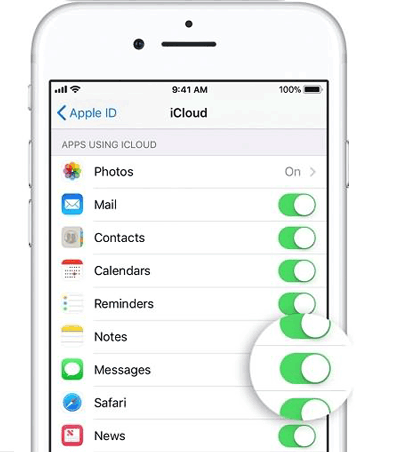
Fix 2: Ensure You Are Using the Same Apple ID
If a different Apple ID is used, the restore process will not pull the correct message history. Switching back to the original account and allowing time for iCloud Messages to sync can usually resolve the issue.
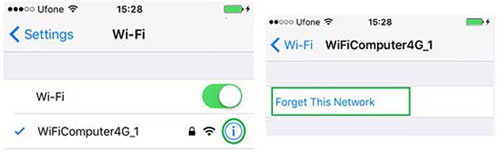
Fix 3: Connect to Stable Wi-Fi
Connecting to a stable Wi-Fi network is essential because message restoration from iCloud depends heavily on continuous data syncing. If the connection is weak or frequently drops, iCloud Messages may pause or fail to complete the download process. A strong and uninterrupted Wi-Fi connection helps ensure messages are fully restored without delays or missing content.
Explore More: How to Recover Lost Voice Memo Files from iCloud Backup? [4 Tactics]
Fix 4: Check iCloud Backup Content
If the backup does not contain message data or is incomplete, iCloud Messages cannot recover them during setup. Verifying the backup details in iCloud settings ensures you are restoring from the correct and most recent version.
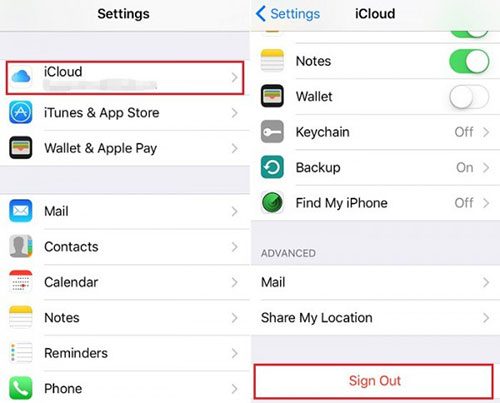
Fix 5: Re-sign into iCloud
When you log out and log back in with the same Apple ID, iCloud Messages often restarts its syncing process and begins downloading missing conversations again. This step helps resolve temporary account glitches that may block messages from restoring properly.
Fix 6: Check iCloud Storage Space
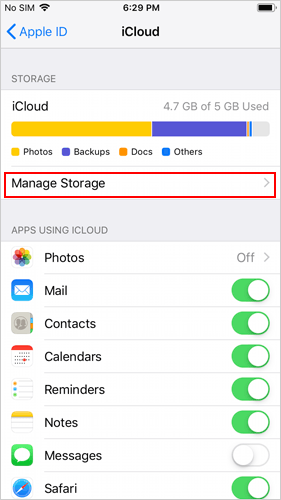
- Open Settings on your iPhone.
- Tap your Apple ID (name at the top).
- Select iCloud.
- Tap Manage Storage or iCloud Storage.
- Check how much space is available.
- Delete unused backups, photos, or files if storage is full.
- Make sure there is enough space for iCloud Messages to sync properly.
- Restart the device and allow time for messages to restore again.
Fix 7: Use the Same SIM Card
Using the same SIM card can help ensure SMS-related messages are properly recognized and synced with the device after an iCloud restore. This allows iCloud Messages and carrier-linked data to align more accurately during recovery.
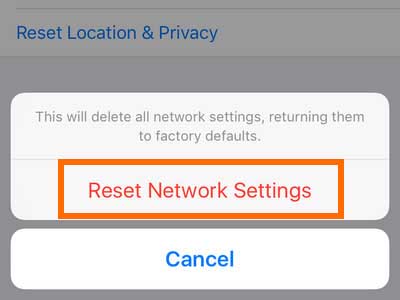
Fix 8: Reset Network Settings
This step clears Wi-Fi, cellular, and VPN settings, helping iCloud Messages reconnect properly and resume syncing. After the reset, reconnect to Wi-Fi and allow time for messages to download again.
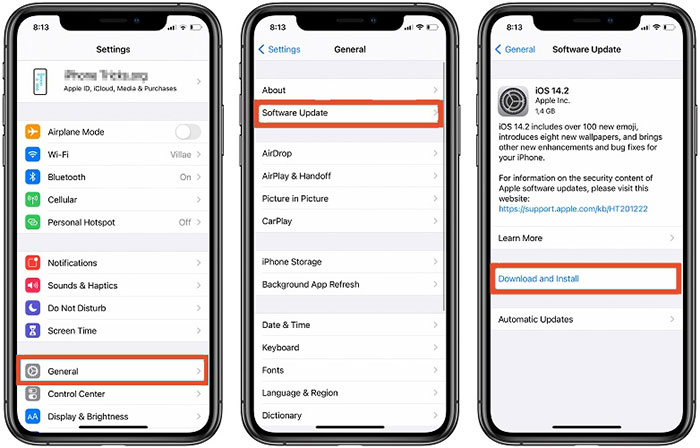
Fix 9: Update iOS
A newer system version improves stability and helps iCloud Messages sync messages more reliably across devices. After updating, reconnect to Wi-Fi and allow time for messages to fully download again. (iOS update failed?)
Fix 10: Restore SMS via AirDrop
AirDrop can be used to manually move selected message content between two iPhones when iCloud restoration is incomplete.
- First, enable Wi-Fi, Bluetooth, and AirDrop on both devices through Control Center and ensure they are discoverable.
- Then open the Messages app on the old iPhone and choose the desired messages.
- Tap the Share icon, select AirDrop, and send them to the new iPhone, where the transfer must be accepted.
Fix 11: Restore Text Messages via Quick Start
This method works best when the deleted messages were included in an old iPhone. To start with:
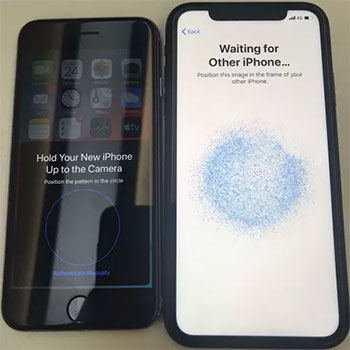
- Turn on your new iPhone and place it near your old iPhone.
- On the old iPhone, a Quick Start screen will appear; tap Continue.
- Scan the animation on the new iPhone using the old device's camera.
- Enter your old iPhone passcode on the new device when prompted.
- Choose Transfer from iPhone to move data directly, or select Download from iCloud if using a backup.
- Keep both devices close, connected to Wi-Fi, and plugged into power until the transfer finishes. (Quick Start failed to work?)
- After setup, allow time for iCloud Messages to fully sync all SMS and iMessage content.
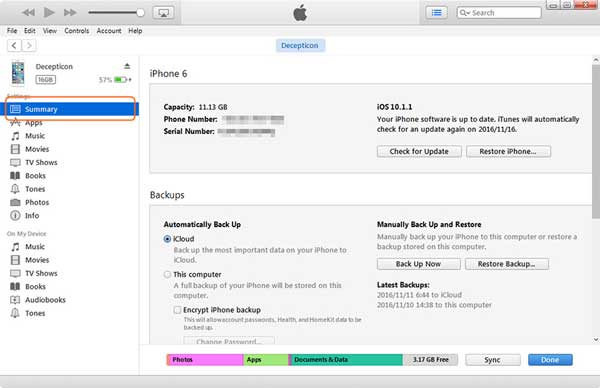
Fix 12: Restore SMS via iTunes Backup
Restoring SMS via an iTunes (or Finder) backup can help recover missing messages if they were included in that backup. You simply connect the iPhone to a computer, select Restore Backup, and choose the most relevant backup file. After restoration, allow time for iCloud Messages to finish syncing, since messages may still download in the background.
Fix 13: Contact Apple Support Team
For faster help, you can also use the Apple Support app on another Apple device to describe the problem and connect with a specialist in real time. Apple support agents can check your iCloud account status, backup integrity, and syncing settings to identify why messages are not appearing. In some cases, they may guide you through re-restoring your backup or fixing account-level iCloud syncing issues.
Part 3: An Ultimate Way to Restore Messages from iCloud Backup without Reset
Unlike iCloud's built-in restore process, which does not support selectively recovering only text messages, iPhone Data Recovery allows users to access and recover messages from an iCloud backup without overwriting existing content on the iPhone. It scans the backup, displays recoverable items for preview, and lets users restore only the conversations they need, making the recovery process more flexible and efficient.
Beyond SMS, the software can recover a wide range of data types, including contacts, call logs, WhatsApp messages, notes, calendars, voice memos, photos, videos, and more. It supports most iPhone, iPad, and iPod touch models, works with recent iOS versions, and prioritizes user privacy throughout the recovery process.


How to restore deleted/existing messages from iCloud backup via iPhone Data Recovery?
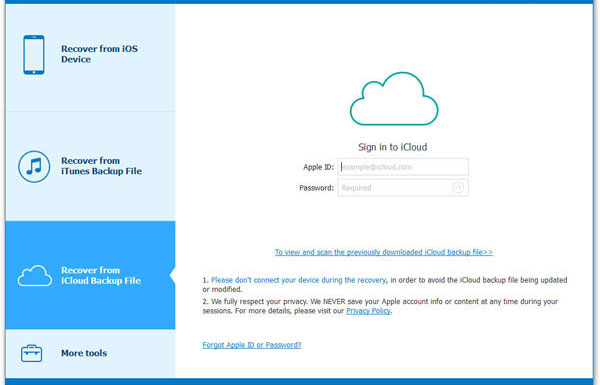
- Install the recovery software on your computer and initiate it.
- From the main interface, select "Recover from iCloud Backup File" and log in to your iCloud account using your Apple ID and password.
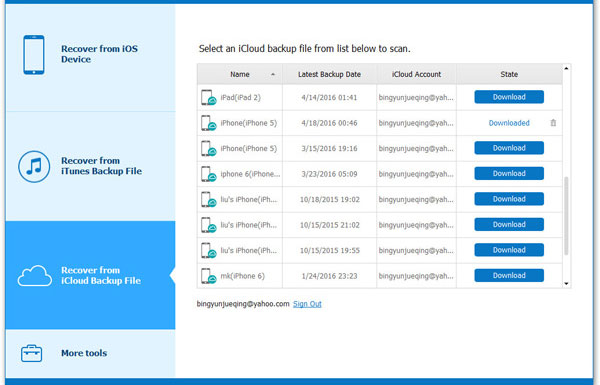
- The application will show all available iCloud backup files.
- Please select the one you wish to restore and click "Download" to start downloading the backup data.
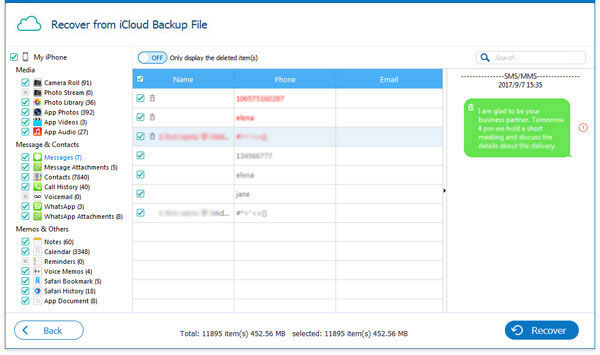
- Once the download is finished, you can preview the individual items by choosing "Messages" or "Message Attachments".
- Finally, click "Recover" to save them to your computer.
FAQs on Restoring Messages from iCloud Backup
Q1: What's the difference between "iCloud Backup" and "Messages in iCloud"?
- Messages in iCloud ON: Messages are synced across devices, not in backup.
- OFF: Messages are included in iCloud Backup and restored only via full restore.
Q2: Can I restore just messages directly without erasing my iPhone?
No. Restoring an iCloud backup in a direct manner erases your device and replaces all data.
Q3: How do I restore messages from iCloud?
Settings > General > Transfer or Reset > Erase All Content. On the Apps & Data screen, select Restore from iCloud Backup and choose the backup.
Q4: Messages still missing after restore. Why?
Connect to Wi-Fi and power. Leave overnight to finish download. Toggle Messages in iCloud off/on. Check Apple's System Status page.
Q5: Can I recover a single deleted message without a full restore?
iOS 16+: Open Messages > Filters > Recently Deleted (up to 30 days). Select conversation > Recover.
Q6: Are message attachments (photos, videos) restored too?
Yes. All messages, photos, and attachments in the backup are restored together.
Q7: Can't find my backup on the list. What to do?
Try a different Wi-Fi network. Confirm you're signed into the correct Apple ID. Wait a few minutes for backups to appear.
Q8: Picked the wrong backup. Can I undo it?
Yes. Erase your iPhone again (Settings > General > Transfer or Reset > Erase All Content) and repeat setup to choose the correct backup.
In Conclusion
From verifying account information to troubleshooting sync-related problems, each method in this guide addresses a common obstacle that may prevent messages from appearing. When standard fixes are unsuccessful, a professional recovery solution can provide an additional path to access message data stored in backups without affecting existing content.
Before erasing or restoring your iPhone again, verify whether iCloud Messages is enabled. In many cases, messages are still stored in iCloud and simply need time and a stable Wi-Fi connection to sync back to the device.
Related Articles:
6 Best iCloud for Android Alternatives (Creative Programs 2026)
[4 Ways] How to Recover Deleted Text Messages on iPhone without Computer?
iPhone Messages Disappeared But Still Taking Up Space? 8 Ways to Fix It
Transfer Text Messages from iPhone to iPhone without iCloud - 3 Methods
