
How to Recover Photos from iPhone in Recovery Mode? 4 Practical Ways
"Hello, I'm just wondering how possible it would be to save the photos off of my iPhone 17, the phone died and Apple has told me it won't power up." -- from zh.ifixit.com
When an iPhone enters Recovery Mode, users cannot open the Photos app or connect to the device normally, so their pictures risk being temporarily or permanently inaccessible. This often happens after system errors or failed updates, making photo recovery urgent. This passage explains how to recover photos from iPhone in Recovery Mode in 4 productive and selective ways using different recovery methods.
- Part 1: Fix iPhone Stuck in Recovery Mode Professionally
- Part 2: Recover Photos from iPhone in Recovery Mode via iTunes
- Part 3: Retrieve Photos from iPhone in Recovery Mode via iCloud
- Part 4: Restore Photos from iPhone in Recovery Mode via Dropbox
- Part 5: Recover Photos from iPhone in Recovery Mode Flexibly
- FAQs about Recovering Photos from iPhone in Recovery Mode
Part 1: Fix iPhone Stuck in Recovery Mode Professionally
When an iPhone is stuck in recovery mode, connecting it to a computer and using iTunes allows you to choose "Update" or "Restore" to exit the mode. The update option may fix the system without erasing data, while restore reinstalls iOS completely. Once finished, the iPhone will restart and return to normal operation. If the solution doesn't work, try to use an expert tool - iOS System Recovery.
Overall, this solution provides a simple way to get an iPhone out of recovery mode without data loss while also fixing over 100 iOS system issues and supporting both iOS upgrades and downgrades across a wide range of iPhone, iPad, and iPod models. It also runs smoothly on all compatible devices and ensures user privacy is fully protected throughout the process. So, how does it work?
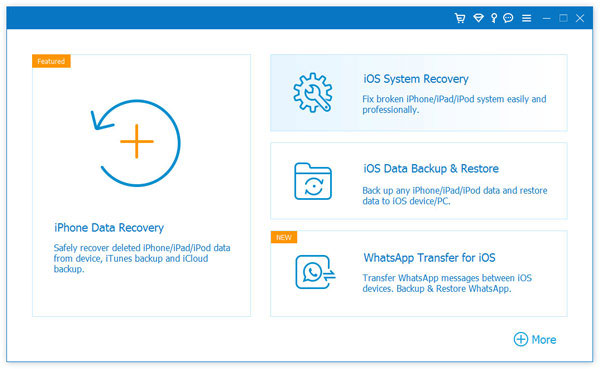
- Launch the software and connect your iPhone that is in Recovery Mode to your computer using a USB data cable.
- On the left side of the application, click on "More Tools" and choose "iOS System Recovery".
- Subsequently, press the "Start" button to initiate the repair process for your iPhone.
- The application will automatically identify if your device is trapped in recovery mode and commence the repair procedure.
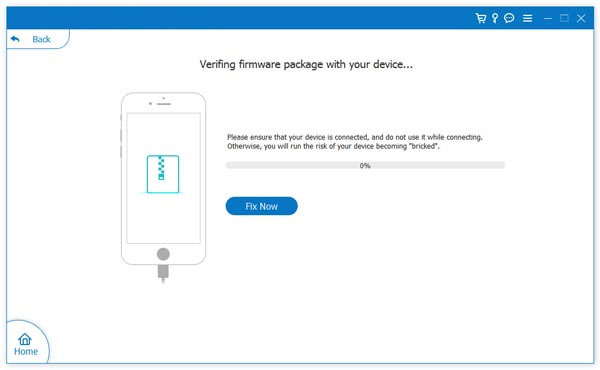
- Select your iPhone model and click on "Download" to obtain the necessary firmware to resolve the issue.
- After the download, tap "Fix Now" to start the repair.


How to get your iPhone out of recovery mode via iTunes? After the device is back to normal, it can be recognized by Windows again. At that point, media files can be accessed through AutoPlay when the iPhone is detected. After getting out of the mode, you can recover media files from AutoPlay.
Part 2: Recover Photos from iPhone in Recovery Mode via iTunes
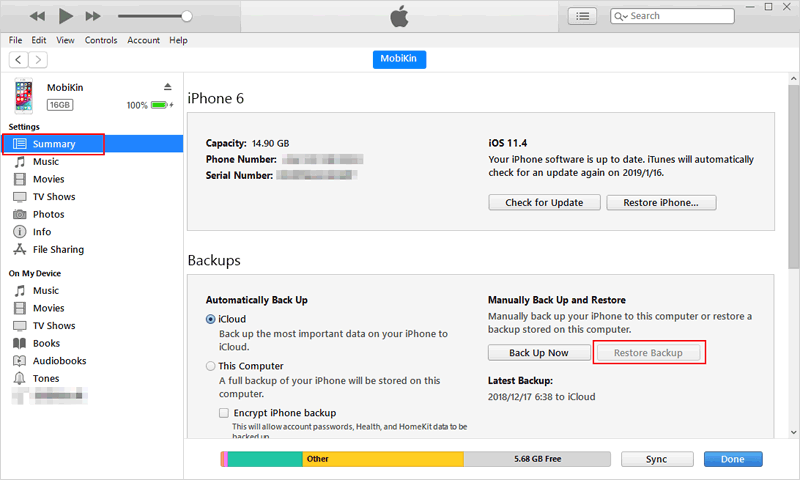
Restoring photos during iPhone recovery usually depends on backup-based tools rather than Recovery Mode itself. One common method is through iTunes, which does not pull photos directly from Recovery Mode but restores them from a saved local backup on a computer. When a backup exists, it can rebuild the device and bring back photos during restoration. However, anything not included in that backup will be lost.
How-to Guide:
- Connect your iPhone to a computer and launch iTunes, making sure the connection is stable.
- Wait for iTunes to detect that your device is in Recovery Mode and display a prompt indicating the iPhone needs to be restored.
- Click "Restore" (not Update), which will erase the device and prepare it for a full system reinstall.
- Allow iTunes to download the latest iOS firmware and complete the restoration process without disconnecting the device.
- When prompted, select a previously saved backup from iTunes to restore your data, including photos.
- Complete the setup process on your iPhone - your photos will reappear only if they were included in the chosen backup.
Part 3: Retrieve Photos from iPhone in Recovery Mode via iCloud
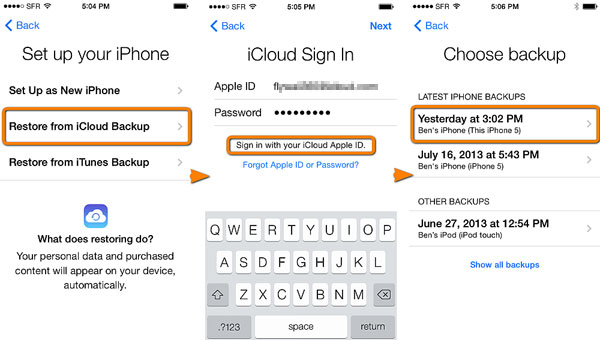
Photo recovery can also be done through Apple's cloud system. With iCloud, images may reappear if iCloud Photos or a full backup was enabled before the issue. After exiting Recovery Mode, users simply sign in and choose a backup during setup. This works well for automatic syncing, but missing uploads cannot be recovered later.
How-to Guide:
- Exit Recovery Mode by connecting your iPhone to a computer and restoring or updating it via iTunes so the device can boot normally.
- After the device restarts, erase it if necessary by going to Settings > General > Transfer or Reset iPhone >
- Erase All Content and Settings to prepare for a clean restore.
- Turn on the iPhone and follow the setup steps until you reach the Apps & Data screen.
- Select "Restore from iCloud Backup" and sign in to iCloud with your Apple ID.
- Choose the most relevant backup (ideally the latest one containing your photos) to begin the restoration.
- Keep the device connected to Wi-Fi and power until the process finishes - your photos will return only if they were included in the iCloud backup or synced previously.
Part 4: Restore Photos from iPhone in Recovery Mode via Dropbox
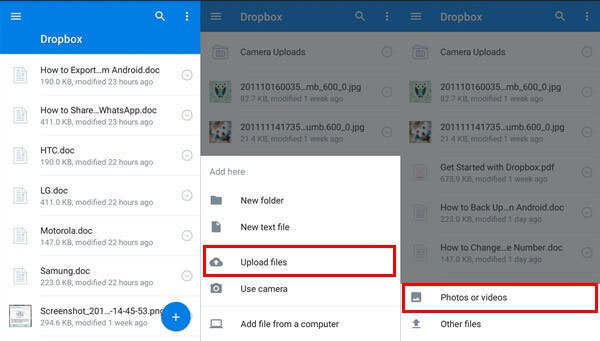
Another option relies on external cloud storage services. Files stored in Dropbox can be downloaded again after the iPhone is restored and set up normally. It does not interact with Recovery Mode and depends entirely on prior uploads. This method is helpful for selective recovery but only covers what was manually saved.
How-to Guide:
- Make sure your iPhone photos were previously backed up or synced to Dropbox using Camera Uploads or manual upload before the device entered Recovery Mode.
- Exit Recovery Mode by restoring or updating the iPhone through iTunes (As mentioned in Part 1).
- Set up your iPhone again and sign in with the same Dropbox account you used before.
- Open the Dropbox app (or log in via browser) on your iPhone or another device.
- Navigate to Photos/Camera Uploads/Uploads folder where synced images are stored.
- Select the photos you need and download or re-save them back to your iPhone.
Part 5: Recover Photos from iPhone in Recovery Mode Flexibly
More advanced recovery can be handled by third-party tools designed for backup scanning. MobiKin Doctor for iOS (Windows/Mac) allows users to retrieve photos from existing iTunes or iCloud backups in a more selective way.
This tool provides broad coverage by supporting over 20 types of data and allowing users to preview and selectively restore only the needed files from a device or backup. It also ensures smooth performance across a wide range of iOS devices, including iPhone 17 through iPhone 6 and other commonly used models.
However, this only works if a backup already exists when your iPhone is in recovery mode, since it cannot generate lost data.
How to selectively retrieve pictures from iPhone in Recovery Mode via iTunes Backup?
- To begin, download and install Doctor for iOS, then proceed to launch the application.
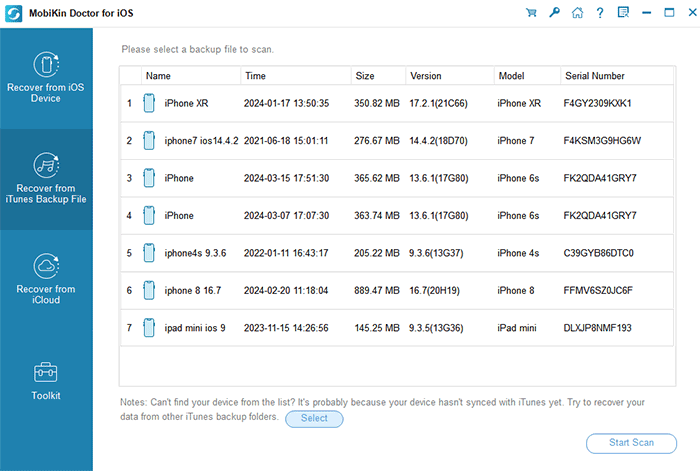
- On the left side of the main interface, choose the recovery mode labeled "Recover from iTunes Backup File."
- The tool will promptly identify all iTunes backup files that are stored on your computer.
- Next, select a backup record that may contain the data you require and click on "Start Scan" located in the lower right corner.
- Subsequently, choose your desired file category and click "Start Scan" once more.
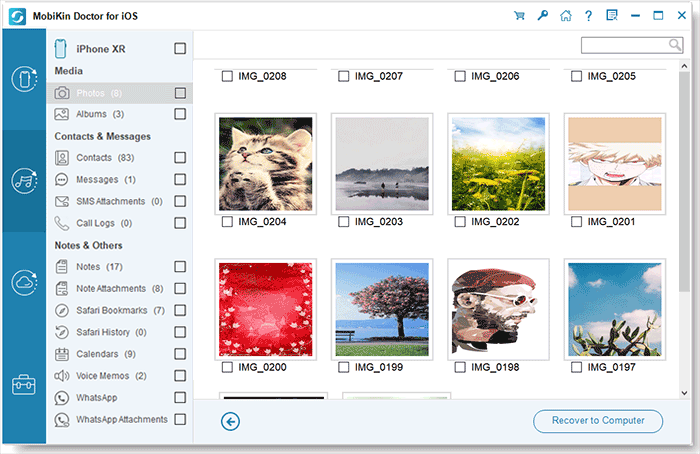
- Once the scanning process has been completed, you can preview the scanned data and select the items you wish to recover.
- Finally, click on "Recover to Computer" to restore the selected data from the iTunes backup to your PC.
How to selectively retrieve images from iPhone in Recovery Mode via iCloud Backup?
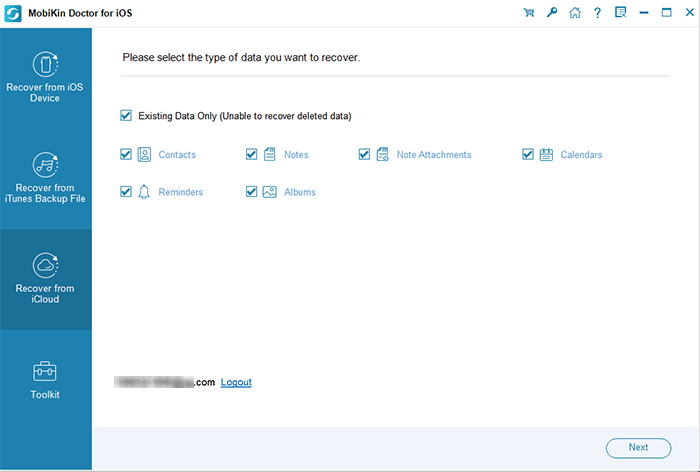
- To begin, launch MobiKin Doctor for iOS, choose the option "Recover from iCloud", and log in using your iCloud credentials. Subsequently, Doctor for iOS will perform a scan and present your iCloud backup files. Select the types of data you wish to recover, and then click on "Next". After the iCloud backup data is displayed, select the items you require and click on "Recover to Computer" to restore them.
Video Guide:
FAQs about Recovering Photos from iPhone in Recovery Mode
Q1. Does Recovery Mode delete my photos?
Not by itself. But if you restore the iPhone during this mode, data may be erased unless restored from a backup.
Q2. Can I recover photos without a backup?
Yes, but only using third-party recovery tools that scan device storage - the success is not guaranteed.
Q3. Why can't my computer access photos in Recovery Mode?
Because iOS disables normal data access in Recovery Mode, so the DCIM folder is not available.
Q4. Will restoring iPhone fix Recovery Mode and bring photos back?
Yes, but only if a backup exists. Otherwise, restoring will erase existing data permanently.
Q5. Is third-party recovery software flexible, effective and secure?
Third-party recovery software can be flexible and effective because it often allows users to preview and selectively recover data instead of performing a full device restore. However, its security depends on choosing a reputable tool. For example, MobiKin Doctor for iOS can make the restore process more flexible and efficient only if users have a previous iTunes or iCloud backup.
Related Articles:
[Solved] Data Recovery Cannot be Completed Please Restore Your iPhone from Backup
6 Fixes for iPhone Recovery Mode Does Not Work [100% Works]
4 Simple Ways to Undo a Restore on iPhone 17/16/15/14/13/12
How to Reset iPhone without Losing Data? [iOS 26/18/17 Supported]
