
Solved: How to Recover Lost iPhone Contacts After Deleting Email Account
"I recently deleted a work Gmail account from my iPhone after seeing it had been deactivated by my former employer. As soon as I did that, all of my contacts from the past 3-4 years disappeared from my phone. How to recover contacts on iPhone after deleting an email account?"
- From Gmail Help
When we leave a job, our former work emails are usually deleted, along with all contacts associated with those emails on our iPhones. This is because these contacts are stored in the email account, not the phone itself.
Fortunately, even without access to the original email account, there are ways to recover these lost contacts. One effective solution is to use iPhone data recovery software, which can safely and quickly help you recover contacts without relying on the deleted email account.
- Part 1: Is It Possible to Recover Contacts from iCloud after Deleting Email Account?
- Part 2: Restore Contacts from Email to iPhone by Re-adding Email Account
- Part 3: Recover iPhone Contacts from iTunes Backup after Deleting Email Account
- Part 4: Selectively Recover Lost Contacts on iPhone after Deleting Email Account
- Bonus: Useful Measures to Prevent iPhone Contacts from Being Lost
Part 1: Is It Possible to Recover Contacts from iCloud after Deleting Email Account?
Losing important contacts is stressful, and your first thought might be: "Maybe iCloud can help?" Sadly, in this situation, it usually can't. Here's why.
Most likely, the contacts you lost were saved in your old work email, not in iCloud. That means even if you log in to iCloud.com, you won't see them - only contacts actually saved in the iCloud group are there.
Also, iCloud backups don't include contacts stored in Gmail, Outlook, or Exchange accounts. So once your old email is gone, iCloud has no record of those contacts.
Simply turning Contacts off and on or trying to restore from iCloud won't work. But don't panic - there are other ways to recover your contacts, which we'll cover next.
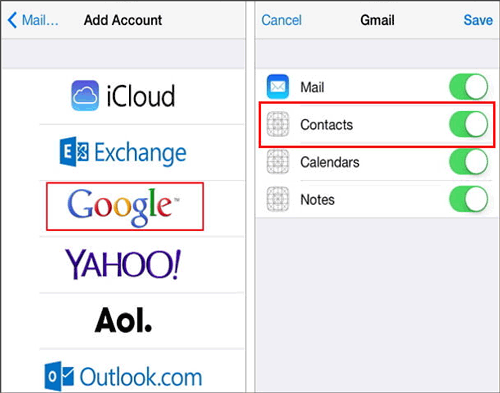
Part 2: Restore Contacts from Email to iPhone by Re-adding Email Account
One of the simplest ways to get back lost contacts on your iPhone is to re-add the email account you deleted - if you still have access to it. This means you need the password, or your former company must still allow login. If that's not possible, don't worry - there are other solutions.
Here's how to restore contacts by re-adding your email account:
- Open the "Settings" app on your iPhone and scroll down to "Contacts", then tap it.
- Select "Accounts" and tap "Add Account".
- You'll see options like iCloud, Microsoft Exchange, Gmail, Outlook, or Other. Pick the type that matches your old work email.
- Enter your email and password to sign in. After a successful login, your lost contacts should appear again in the "Contacts" app.
Part 3: Recover iPhone Contacts from iTunes Backup after Deleting Email Account
If you can't access your old work email, don't worry - you can still recover lost contacts using an iTunes backup, as long as you made one before the email was deleted. Here's how to do it:
For Windows or Mac (macOS Mojave 10.14 or earlier):
- Connect your iPhone to the computer using a USB cable and open iTunes.
- Click the iPhone icon in the top-left corner.
- Go to "Summary", then click "Restore Backup" on the right.
- Pick the backup made before you deleted your email account, then click "Restore". (iTunes Could Not Restore the iPhone Because Password Was Incorrect?)
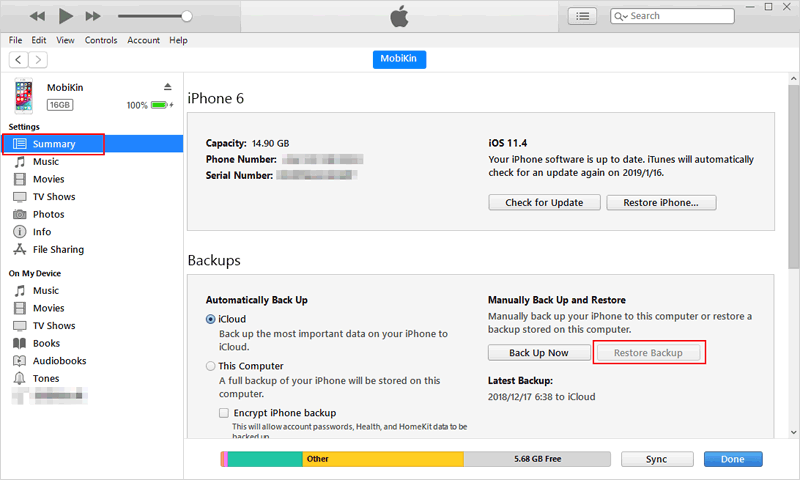
Note: Make sure "Find My iPhone" is turned off in your iPhone settings before restoring.
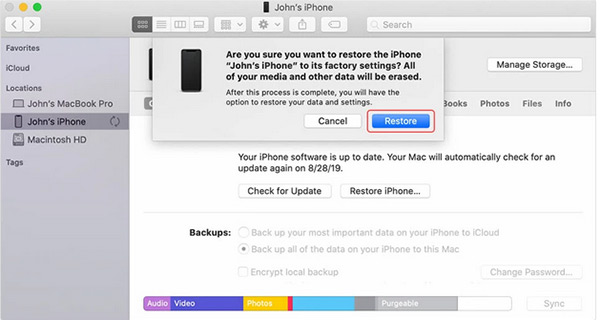
For Mac with macOS Catalina (10.15) or later:
- Connect your iPhone and open Finder.
- Find your iPhone in the sidebar and select it.
- Go to the "General" tab and click "Restore Backup", just like in iTunes.
Part 4: Selectively Recover Lost Contacts on iPhone after Deleting Email Account
Not every lost contact from your old work email is worth recovering. Maybe you just need a few important ones. Unfortunately, iTunes can't help here - it only restores everything or nothing.
This is where a dedicated iPhone recovery tool, like MobiKin Doctor for iOS, comes in handy. It lets you preview and selectively recover only the contacts you need from iTunes or iCloud backups - or even directly from your iPhone without any backup. Plus, it can recover messages, notes, photos, videos, and more.
Key highlights of MobiKin Doctor for iOS:
- Can selectively recover data from iTunes and iCloud backups.
- Can recover data directly from the iPhone's internal storage without backup.
- Supports recovery of various data categories, including contacts, text messages, notes, photos, videos, music, and more.
- The preview function allows users to view lost data files.
- It values your privacy.


How to restore deleted contacts from your iPhone with MobiKin Doctor for iOS?
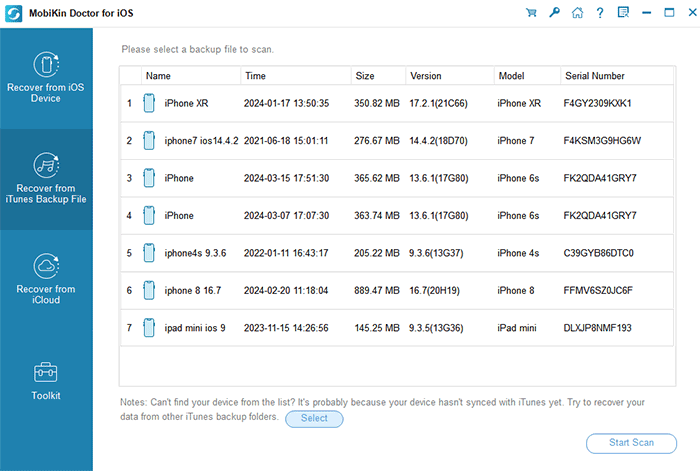
Step 1. Choose iTunes Backup
Install MobiKin Doctor for iOS on your computer and launch it. Select "Restore from iTunes Backup File", pick your latest backup, and click "Start Scan". You don't even need to connect your iPhone.
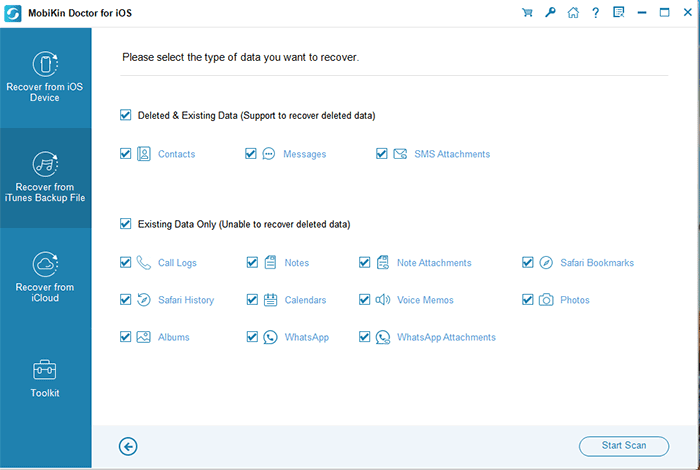
Step 2. Preview and select contacts
After the scan is complete, you will see that all data in the iTunes backups has been scanned. Check the "Contacts" checkbox and click "Start Scan".
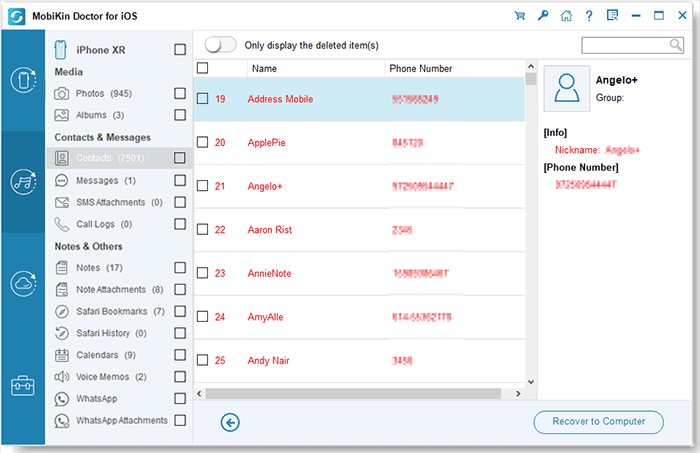
Step 3. Recover Lost Contacts on Your iPhone
Now, you can preview the backed-up contacts, select only specific contacts or select all recoverable contacts to recover. Click "Recover to Computer" to restore the lost contacts to your computer.
Video Guide:
Know More:
Bonus: Useful Measures to Prevent iPhone Contacts from Being Lost
Besides restoring lost contacts, it's important to take steps to prevent losing contacts in the future. Here are some practical tips:
1. Set iCloud as the Default Account for Contacts
Your iPhone saves new contacts to a default account. To avoid losing them when an email account is deleted, set the default to iCloud.
- Open "Settings" and scroll to "Contacts".
- Tap "Default Account" and select "iCloud".
Note: This option is available on iPhone 6s, 7, and 8.
2. Save New Contacts to iCloud or iPhone
Avoid saving personal contacts to your work email. Instead, store new contacts in iCloud or directly on your iPhone.
- Open the Contacts app and tap "Groups" (top-left).
- Check "All iCloud" or "All iPhone", then tap "Done".
- Tap the "+" icon to add a new contact.
3. Regularly Back Up Your Contacts
Before deleting any email account, back up your iPhone contacts. You can use iTunes, your computer, or other cloud services besides iCloud. Multiple backups ensure you can recover contacts if they're accidentally lost in the future.
Ending Words
In short, losing iPhone contacts after deleting a work email can be frustrating, but there are several ways to recover them. You can try re-adding the email, restoring from iTunes or iCloud backups, or using a reliable tool like MobiKin Doctor for iOS to selectively recover contacts. To avoid future loss, set iCloud as your default, save new contacts to iCloud or iPhone, and back up regularly. With these steps, your important contacts stay safe and easily recoverable.
Related Articles:
How to Troubleshoot Contacts Not Showing Up on iPhone? [Must-read]
4 Simplest Ways to Sync Outlook Contacts with iPhone
How to Transfer Photos from iPhone to PC in 7 Ways? [Comprehensive Guide]
Top 6 iPhone Contacts Backup Apps to Back Up Contacts on iPhone
