
12 Quick Fixes to New iPhone Stuck on Install Now [Rational Analysis]
"Trying to set up my new iPhone 17. Takes a bit to prepare for the update but then takes forever to install after pressing 'install now'". -- from Reddit
An iOS update has started but suddenly freezes, leaving the device unable to continue or finish installing, which often causes confusion and interruption during normal iPhone use. This situation commonly appears as the "iPhone stuck on install now" issue. The following section introduces 12 productive solutions to restore your device as soon as possible and get the update working again.
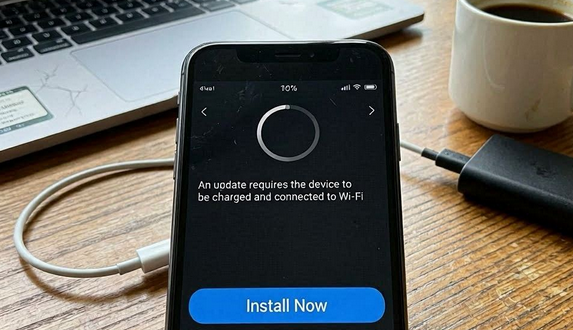
Part 1: Why Is iPhone Stuck on Install Now
When an iPhone gets stuck on "Install Now," it usually means the system has encountered an obstacle during the update process after the file has already been downloaded. Several factors - from network and storage issues to software glitches and system conflicts - can contribute to this problem. For more details:
- Unstable or weak Wi-Fi connection.
- Not enough available storage space.
- Low battery or not plugged into power.
- Corrupted or incomplete iOS update file.
- iOS system glitches or temporary software bugs.
- Apple server congestion during major updates.
- VPN or proxy interference blocking update traffic.
- Date and time settings incorrect (breaks verification).
- Background processes freezing the update workflow.
- Network settings misconfiguration (Wi-Fi/DNS issues).
- Outdated iTunes/Finder when updating via computer.
- Beta iOS profile conflicts with stable update.
- Restrictions or Screen Time settings blocking updates.
- Storage "system data" being too bloated to proceed.
- Jailbroken or modified system interfering with update process.
- Hardware degradation (storage chip or battery health issues).
Part 2: How to Fix iPhone Stuck on Install Now in 11 Quick Ways
Fix 1: Check Internet Connectivity
- Check Wi-Fi status in Settings > Wi-Fi and ensure you are connected to a strong, stable network.
- Test the internet by opening websites or videos to confirm it is working properly.
- Turn Wi-Fi off and on again to refresh the connection.
- Restart your router to fix temporary network issues.
- Try switching to another Wi-Fi network if available.
- Disable VPN or proxy settings that may interfere with Apple servers.
- Reset network settings if the connection still seems unstable.
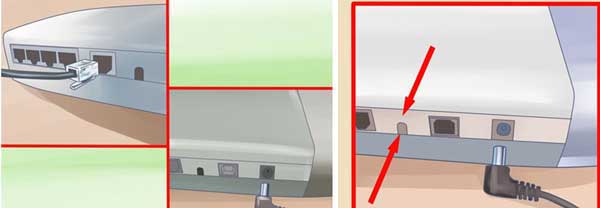
Fix 2: Reset Network Settings
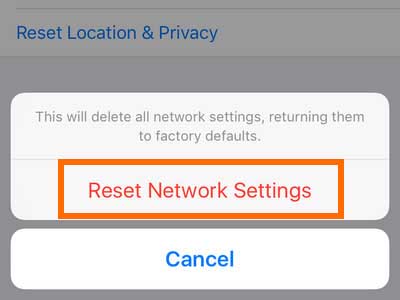
Resetting network settings can fix an iPhone stuck on "Install Now" by removing incorrect or corrupted network configurations that block the update process. It restores Wi-Fi, VPN, and cellular settings to default, helping the device reconnect properly to Apple servers. This often resolves connection-related update failures.
To do this, go to Settings > General > Transfer or Reset iPhone > Reset > Reset Network Settings, then confirm. The iPhone will restart and you'll need to reconnect to Wi-Fi before trying the update again.
Fix 3: Reset All Settings
To do this, go to Settings > General > Transfer or Reset iPhone > Reset > Reset All Settings, then enter your passcode and confirm. Your iPhone will restart, and you can try the update again after reconnecting to Wi-Fi.
You May Like: Reset All Settings vs. Erase All Content and Settings [Comprehensive Comparison]
Fix 4: Charge Your iPhone
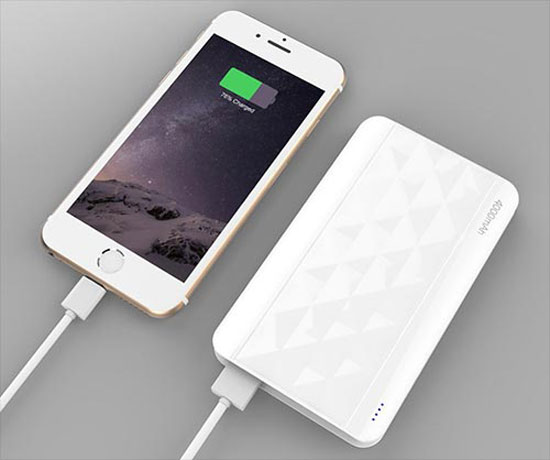
Charging your iPhone can fix the "Install Now" issue because iOS needs enough battery power to complete the update safely. If the battery is low, the installation may pause or fail to start.
Plug your iPhone into a reliable charger and keep it charging until it reaches at least 50% or more. Then try installing the update again while keeping it connected to power.
Fix 5: Free Up Space
Freeing up storage space can help fix an iPhone stuck on "Install Now" because iOS updates need enough available memory to unpack and install system files. To fix this, go to Settings > General > iPhone Storage and check what is using the most space. Delete unused apps, large videos, old messages, or clear downloaded files to create more free space (ideally several GB). After that, restart your iPhone and try the update again.
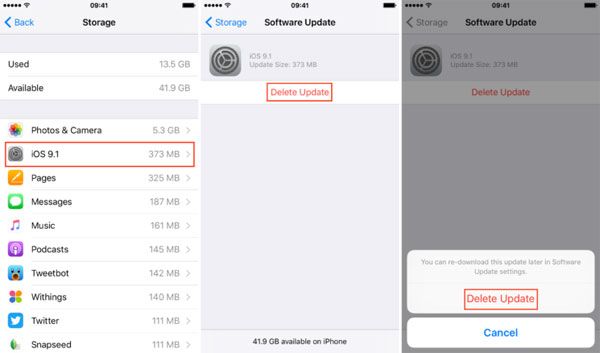
Fix 6: Delete & Re-download the Update
- Go to Settings > General > iPhone Storage, find the iOS update file in the list, tap it, and choose Delete Update.
- Then return to Settings > General > Software Update and download the update again before trying to install it.
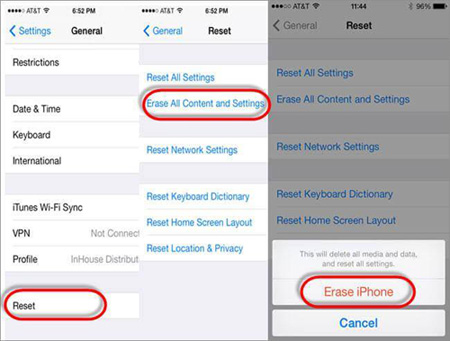
Fix 7: Set-up iPhone Manually
Restart your iPhone and go through the initial setup screens again, making sure to connect to a stable Wi-Fi network. Then choose to update the device when prompted, or complete setup first and install the update later via Settings > General > Software Update.
Fix 8: Force Restart iPhone
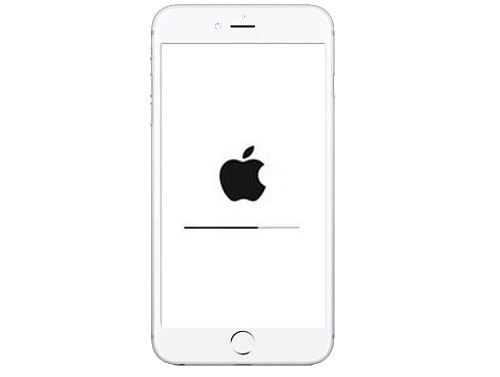
To force restart, quickly press and release Volume Up, then quickly press and release Volume Down, and then press and hold the Side button until the Apple logo appears. Once the iPhone restarts, try the update again or let it resume automatically. (iPhone gets stuck on Apple logo?)
Fix 9: Disable VPN or Proxy Settings
Disabling VPN and proxy settings helps fix "iPhone stuck on Install Now" by restoring a direct connection to Apple's servers. Go to Settings > General > VPN & Device Management and turn off any active VPN, then in Settings > Wi-Fi, tap the (i) next to your network, set Configure Proxy to Off. Finally, restart your iPhone and try the update again.
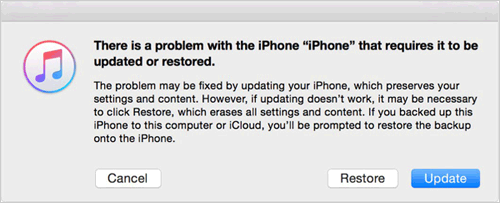
Fix 10: Restore iPhone with iTunes
If the "iPhone stuck on Install Now" issue persists after basic troubleshooting, restoring your iPhone via iTunes can resolve the problem by reinstalling iOS. This erases all data, so back up first.
After that, connect your iPhone to a computer, force restart it (press Volume Up, Volume Down, then hold Side button), open iTunes, and click "Restore iPhone" > "Restore". After the restore finishes, set up your iPhone as new or from a backup, then try updating again.
Fix 11: Wait Out Server Overload
When the "iPhone stuck on Install Now" issue is caused by server overload, simply waiting for Apple's servers to clear up is often the best solution. You can check Apple's system status page to ensure the servers are working, then retry the update after 24-48 hours or during off-peak times like late night or early morning. If waiting doesn't help, connect your iPhone to a computer and use iTunes or Finder to complete the update instead.
Part 3: An Ultimate Way to Fix iPhone Stuck on Install Now [No Data Loss]
A reliable repair utility known as iOS System Recovery is built to address stubborn iOS issues such as iPhone stuck on "Install Now," with a notably high success rate. It handles system failures like recovery mode loops, black screens, and unresponsive screens through multiple repair modes tailored to different levels of damage.
Compatibility spans a wide range of iPhone and iPad models, while also maintaining user data privacy during the repair.
|
iOS System Recovery - Features
|
Description
|
|
Quick iOS Repair |
Easily fixes iPhone stuck on "Install Now" and other issues within minutes. |
|
Wide Issue Coverage |
Resolves 50+ iOS system problems such as recovery mode loop, white screen, Touch ID failure, and unresponsive screen. |
|
Two Repair Modes |
Offers Standard Mode and Advanced Mode to handle different levels of system issues. |
|
iOS Upgrade/Downgrade |
Supports upgrading or downgrading iOS to compatible versions safely. |
|
Device Compatibility |
Works smoothly with a wide range of iOS devices, including iPhone 6 to iPhone 17 series, iPads, and more. |
|
Data Privacy Protection |
Ensures user data privacy is not disclosed during the repair process. |
How to fix iPhone stuck on install now with iOS System Recovery?
- Download and install the iOS System Recovery software on your computer.
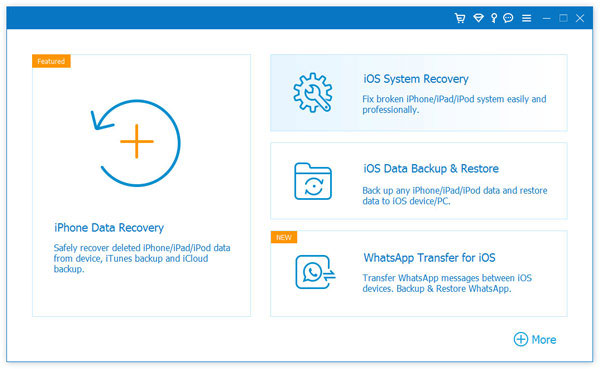
- Launch the application and select More Tools > iOS System Recovery.
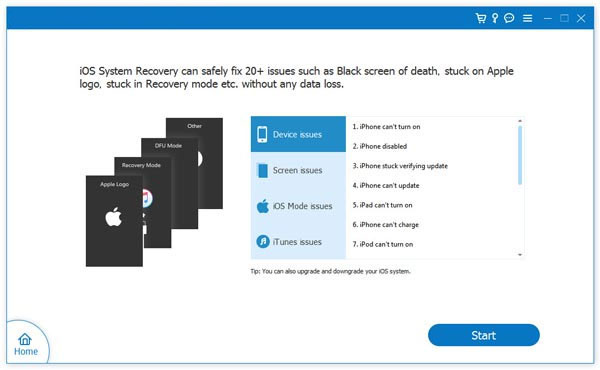
- Connect your iPhone to the computer using a USB cable and click on "Start" to initiate the iPhone repair process.
- The software will identify the information related to your iPhone.
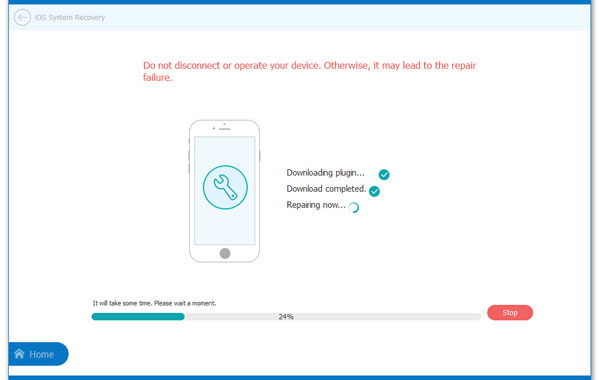
- You can review the device details and press "Repair".
- If the detected information is incorrect, simply choose the appropriate option and click "Repair" once more.
- Please wait for the repair process to finish.


Can I update my iPhone using iOS System Repair? Yes, follow this article to learn how to do it skillfully.
FAQs for iPhone Stuck on Install Now
Q1: Why is iOS 26.5 taking so long to install?
iOS updates can take a long time due to large file size, slow or unstable Wi-Fi, Apple server congestion, low storage space, or background system checks during installation. The process also includes verification, unpacking files, and optimization, which can extend the total time.
Q2: How long does it take for the new iPhone update to install?
Most iOS updates take around 20 minutes to 1 hour, depending on device model, storage condition, and internet speed. Major updates or devices with limited storage can take longer, especially during "Preparing Update" or "Verifying Update" stages.
Q3: Is it beneficial to upgrade to iOS 26.5?
Upgrading to iOS 26.5 is generally beneficial because it can bring security improvements, bug fixes, and performance optimizations. It may also include small feature updates that improve overall system stability and user experience. However, older devices might experience temporary battery drain or performance changes right after updating.
Q4: How to stop iOS 18/26 updates in progress?
You can temporarily stop an update by turning off Wi-Fi or enabling Airplane Mode during download. If the update file is already downloaded, go to Settings > General > iPhone Storage, select the iOS update, and tap Delete Update.
Q5: How to skip the new iPhone software update?
Go to Settings > General > Software Update > Automatic Updates, then turn off Download iOS Updates and Install iOS Updates. This prevents the device from automatically downloading or installing future updates.
Q6: Will restoring my iPhone via iTunes erase my data?
Yes, restoring via iTunes or Finder typically erases all data and reinstalls iOS, unless you restore from a backup afterward. It is mainly used to fix serious system issues.
Q7: Will I lose my data if I force restart?
No, a force restart does not delete any data. It simply refreshes the system to fix temporary glitches or freezes.
Q8: Do I need to back up my data before attempting a software update or restore?
Yes, it is strongly recommended to back up your data before updating or restoring. While updates usually keep data safe, unexpected errors or failed installations can sometimes lead to data loss.
Related Articles:
How to Recover Data from iPhone after Factory Reset? 3 Solutions Are Here!
[8 Tips] What to Do before Getting a New iPhone 17/17 Pro/Air
7 Useful Ways to Fix iPhone Stuck on Restore Screen in 2026
How to Fix Ghost Touch on iPhone? 11 Easy Solutions to Try Out
