
How to Recover iPhone Contacts After Factory Reset with or without Backup?
TL;DR:
Accidentally lost your iPhone contacts after a factory reset? Try these 4 effective ways to recover them:
- iCloud Backup Recovery – Restore your contacts from an iCloud backup created before the reset.
- iCloud Web Restore – Retrieve previous versions of contacts directly from iCloud.com without resetting your iPhone.
- iTunes Restore – Recover contacts by restoring a full backup via iTunes.
- Doctor for iOS Recovery Tool – Use professional software to scan your iPhone or backups and selectively recover lost contacts.
Losing contacts after a factory reset on your iPhone can be stressful, especially if you rely on them for work or personal communication. Fortunately, recovering these lost contacts is often possible, depending on your backup habits and iCloud settings. In this guide, we'll walk you through all the reliable methods to recover contacts after factory reset iPhone, whether from iCloud, iTunes backups, or professional recovery tools. By following these steps carefully, you can get your contacts back quickly and safely.
Part 1: Is It Possible to Recover Contacts After Factory Reset on iPhone?
Yes, you can recover contacts after a factory reset on your iPhone if you have a backup. Although a factory reset erases all data, your contacts may still be available in an iCloud backup, an iTunes/Finder backup, or through iCloud Contacts syncing.
If you backed up your iPhone before the reset, restoring the backup can bring your contacts back. Even without a recent backup, some iPhone data recovery tools may help recover lost contacts.
Next, we'll show you several proven methods to recover contacts after a factory reset on iPhone.
Part 2: Recover Contacts After Factory Reset iPhone from iCloud
If you had iCloud enabled on your iPhone, recovering contacts after a factory reset is straightforward. iCloud automatically backs up your contacts when it's turned on. Here's how to restore them:
Method 1: Restore Contacts via iCloud Backup
- Go to "Settings" > [Your Name] > "iCloud" > "Manage Storage" > "Backups" to see if a recent backup exists.
- If your iPhone isn't reset yet, go to "Settings" > "General" > "Transfer or Reset iPhone" > "Erase All Content and Settings".
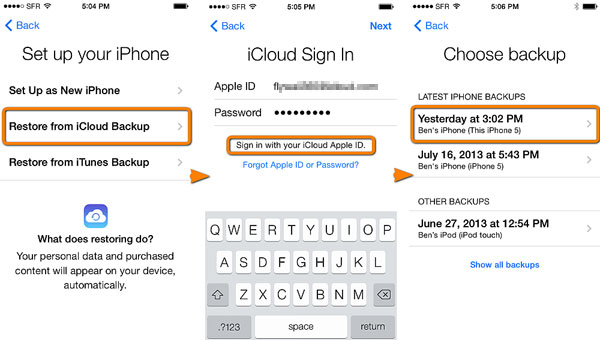
- During setup after reset, choose "Restore from iCloud Backup", then select the backup that contains your contacts.
Method 2: Sync Contacts Directly from iCloud
If you want to restore contacts directly from iCloud without resetting your iPhone, you can use iCloud's web interface to recover a previous version of your contacts. Here's how:
- Open a browser, go to iCloud.com, and sign in with your Apple ID..
- Click the Settings icon, then scroll down to the "Advanced" section and select "Restore Contacts".
- Browse the list of available contact archives, choose the version you want, and click "Restore".
Restoring contacts from iCloud will replace the current contacts on your iPhone with the selected version, so make sure to check which archive you need.
Part 3: Recover iPhone Contacts After Factory Reset via iTunes Backup
If you previously backed up your iPhone using iTunes, you can restore your contacts by restoring the entire backup to your device. Keep in mind that iTunes restore replaces all current data with the backup content. (What Does iTunes Backup Include?)
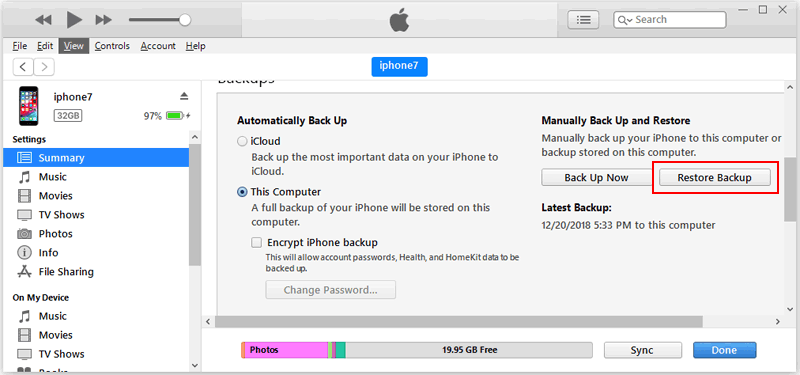
- Connect your iPhone to your PC and open iTunes.
- Click the device icon at the top-left corner of iTunes.
- In the Backups section, click "Restore Backup".
- Choose the backup you want, then click "Restore". If the backup is encrypted, enter your password to continue.
Part 4: Recover Contacts from a Factory Reset iPhone with Doctor for iOS
If you've performed a factory reset on your iPhone and don't have a backup, you can still recover your contacts using powerful iPhone data recovery software like MobiKin Doctor for iOS. It can scan your device directly or access any existing backups to safely retrieve lost contacts. In addition to contacts, it can also recover photos, videos, messages, call history, notes, WhatsApp chats, voice memos, and more.
What Can Doctor for iOS Do?
- Recover your lost data without affecting your existing files.
- Offer three recovery modes: recover from iOS device, iTunes backup, and iCloud backup.
- Restore data from iOS devices even if they are broken, water-damaged, lost, or factory reset.
- Recover from iTunes backup without data overwritten and restore from iCloud without reset.
- Support recovery of 19 different types of data, including contacts, messages, photos, and more.
- Compatible with almost all iOS devices, such as iPhone 17/16/15/14/13/12/11/X/8/7/6, etc.
- Allow you to preview recoverable files before restoring them.


Simple steps to recover contacts from factory reset iPhone with Doctor for iOS:
Recover Contacts Directly from iPhone
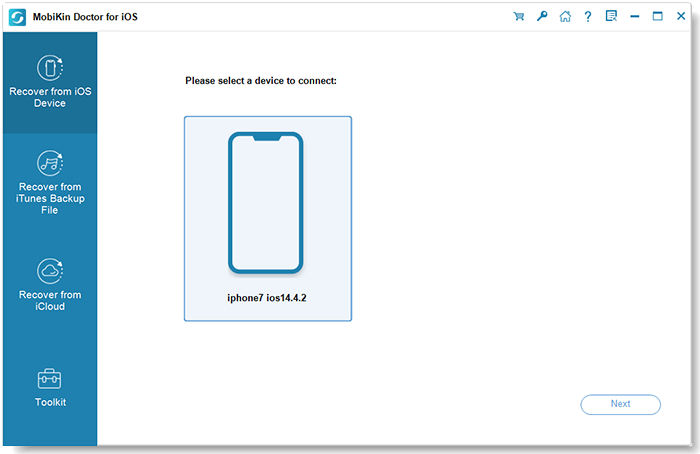
Step 1: Launch Doctor for iOS on your computer and select "Recover from iOS Device" from the left panel. Connect your iPhone, then click "Next" once the device is detected.
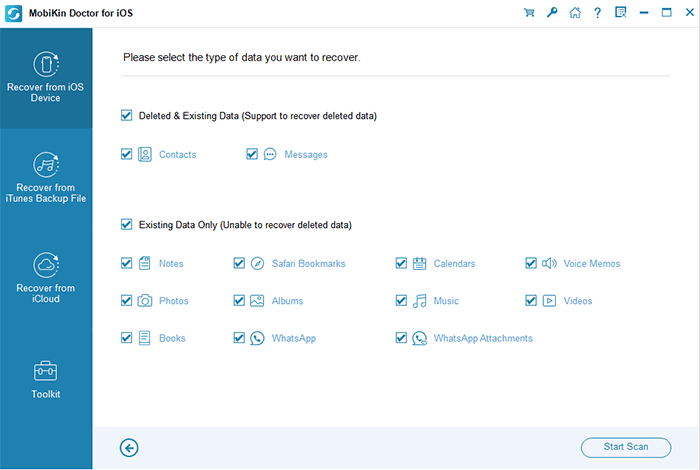
Step 2: Choose the data types you want to recover and select "Contacts", then click "Start Scan".
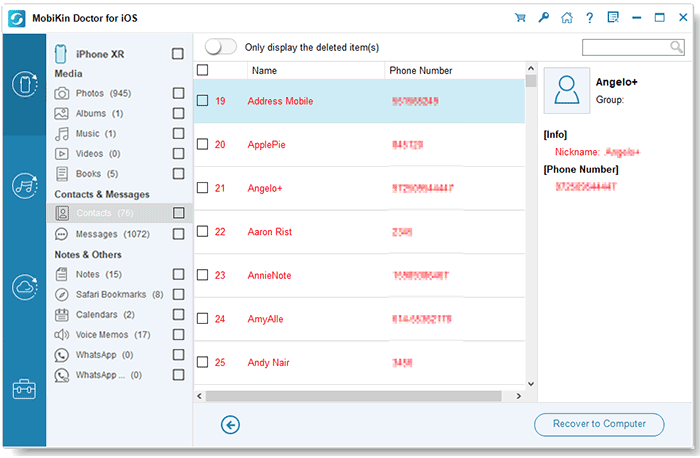
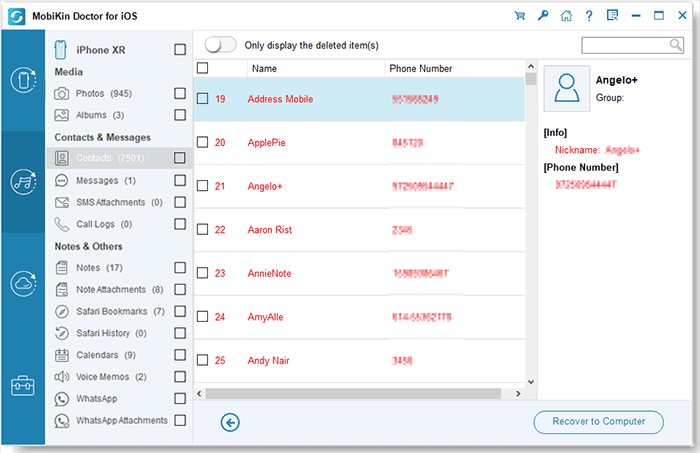
Step 3: After scanning, preview the results, select the contacts you need, and click "Recover to Computer" to save them.
Recover Contacts from iTunes Backup
Step 1. Select "Recover from iTunes Backup File" from the left menu. The software will automatically detect available iTunes backups on your computer.
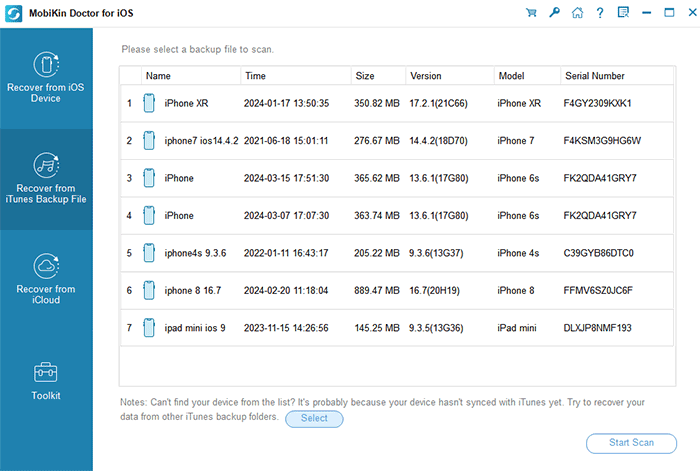
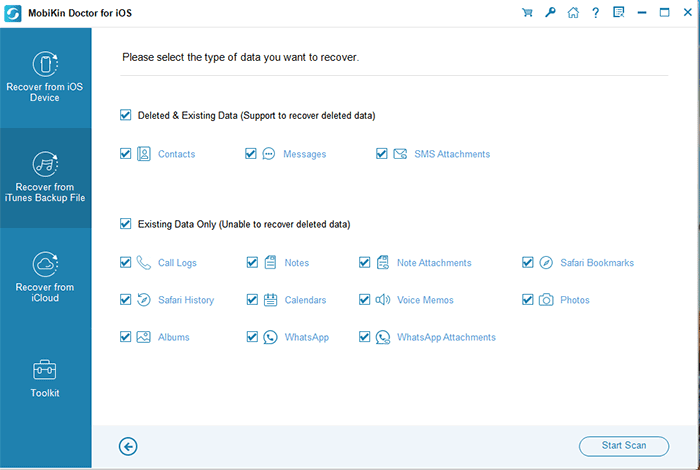
Step 2. Choose a backup file and click "Start Scan", then select "Contacts" and scan again.
Step 3. Once scanning is complete, preview the contacts, select the ones you want, and click "Recover to Computer".
Restore Contacts from iCloud Backup
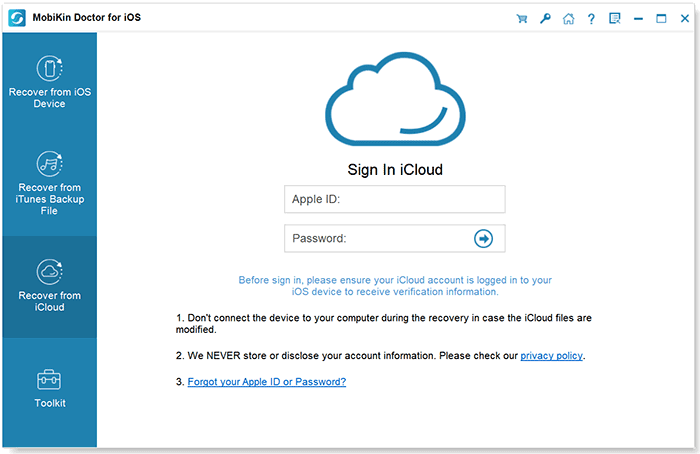
Step 1. Choose "Recover from iCloud Backup File" and sign in with your Apple ID. Select the backup that contains your contacts.
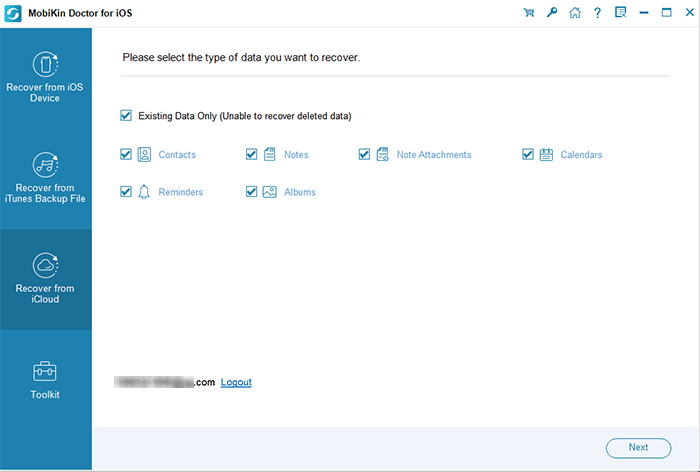
Step 2.Select "Contacts" and click "Next" to download data from the iCloud backup.
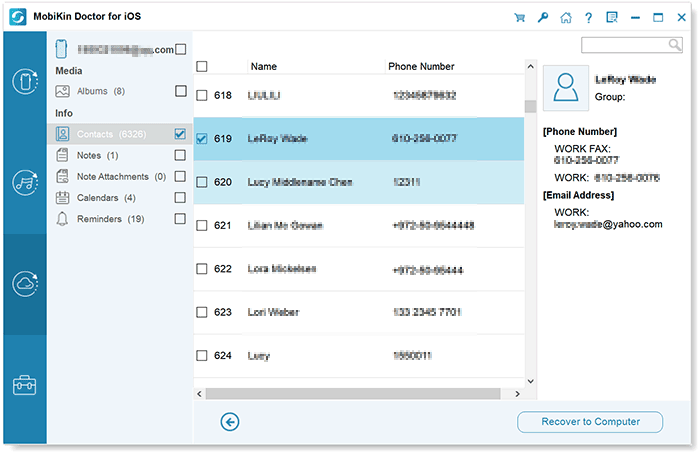
Step 3. Preview the contacts, choose what you need, and click "Recover to Computer" to export them.
Video Guide:
In the Bottom
Recovering contacts after an iPhone factory reset is possible through multiple methods. Whether you use iCloud backup, iTunes restore, or professional tools like MobiKin Doctor for iOS, you can quickly get your contacts back. The best method depends on your backup availability. Always keep regular backups to avoid permanent data loss and ensure your important contacts stay safe and accessible.
Related Articles:
8 Proven Ways to Add Contacts to iPhone Easily in 2026
9 Proven Ways to Fix Contacts Not Showing Up on iPhone
